

You want to dominate the server, but your gear might be holding you back. A simple tweak to your wireless dongle can slash latency instantly.
Don’t let signal interference cost you the match. Learn the science of dongle placement and optimize your setup for peak gaming performance now.
Key Takeaways
- Place your dongle within 20cm of your mouse using a USB extender for a direct line of sight.
- Avoid plugging dongles into rear USB 3.0 ports to prevent electromagnetic interference.
- Keep your receiver away from Wi-Fi routers and other wireless devices to ensure a clean signal.
- Verify your improvements immediately using the Joltfly Mouse Latency Test.
Benchmark Results: Dongle Placement vs. Input Latency
You’re chasing the edge, and every millisecond counts.
Wireless mice offer freedom, but performance hinges on dongle placement.
Even top gear suffers from poor signals.
We’re diving into real-world benchmarks. See how a simple adjustment can shave off precious latency and boost your in-game response.
The Science Behind Signal Integrity
Wireless mice use the busy 2.4 GHz band. Devices like Wi-Fi routers and microwaves can interfere with this frequency. This causes packet loss and lag.
Optimal placement minimizes this interference. It creates a clear line of sight between mouse and receiver. This ensures fast, consistent data transfer.
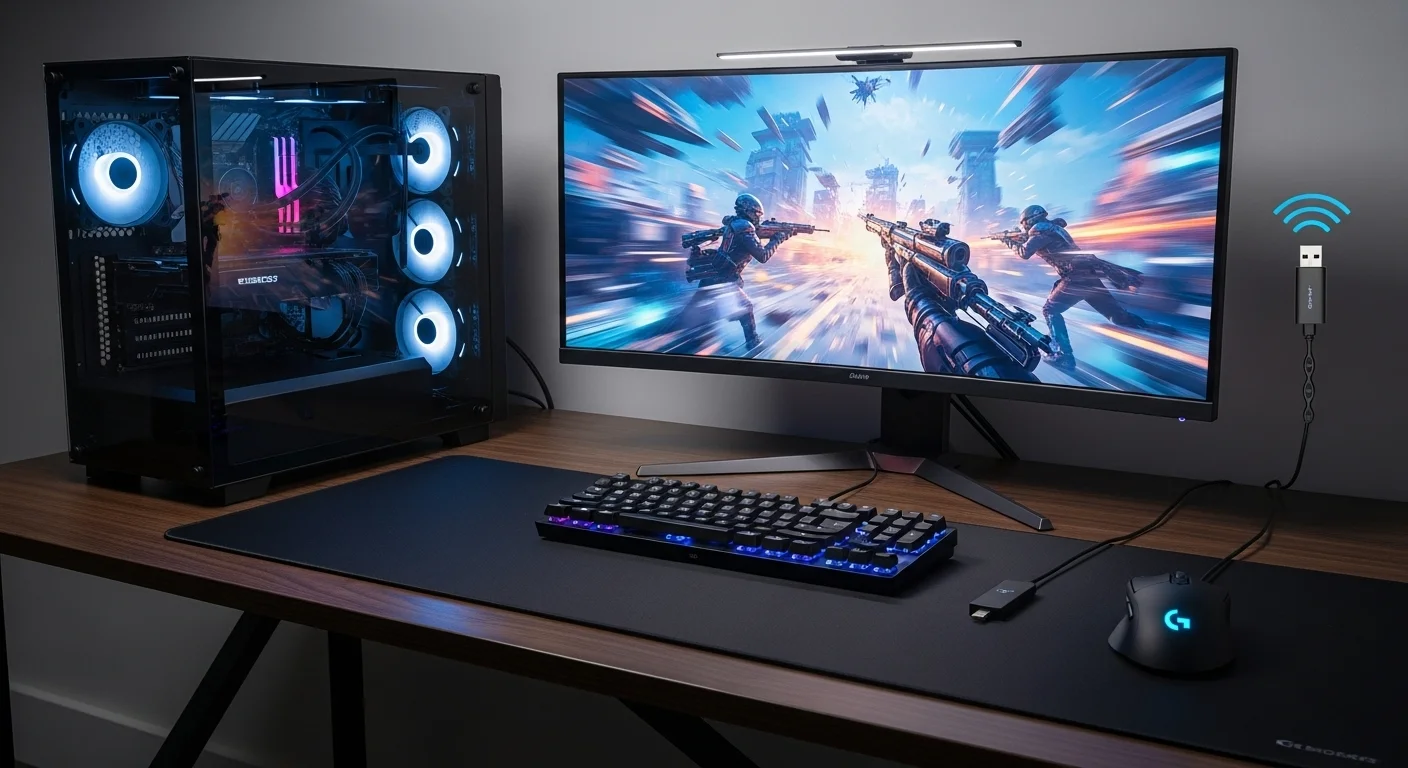
Real-World Latency Benchmarks
To understand the impact, look at the data. Testing reveals measurable differences in input latency based on dongle positioning.
Small improvements are critical for pro-level play. They determine who lands the headshot first or reacts fastest to a push.
A bar chart showing average wireless mouse latency. With the dongle directly to PC (further away), latency is 1.6ms. With the dongle using an extender (closer), latency is 1.4ms. Source: Optimum Tech (YouTube).
Optimum Tech’s benchmarks highlight this. Moving the dongle closer to the mouse reduced average latency by 0.2ms. It’s a measurable improvement.
This marginal gain is a game-changer in competitive scenarios. In a milliseconds-based environment, consistency is king.
Actionable Steps for Optimal Dongle Placement
Don’t leave your performance to chance. Optimize your setup with these proven strategies:
Use a USB Extender: Most high-end wireless gaming mice include one. Use it to place the dongle as close to your mouse as possible. A short USB-A to USB-C cable can also achieve this.
Direct Line of Sight: Ensure no obstructions, like monitors, speakers, or your PC tower, block the signal path. Keep it clear.
Avoid Interference: Keep the dongle away from other wireless transmitters like Wi-Fi routers, Bluetooth devices, and even USB 3.0 ports, which can emit interference. These can significantly impact signal quality.
Front USB Ports: If using a desktop, try a front-panel USB port. They are often closer and offer a clearer path to your mouse than rear ports.
Test Your Setup: Use Joltfly’s Mouse Latency Test to measure your current setup. Experiment with different dongle positions and retest to see immediate improvements.
These tweaks boost speed and mouse polling rate consistency. You get smoother tracking and reliable inputs.
Master your hardware and dominate opponents. Run the Mouse Latency Test at Joltfly now. Find your optimal placement and feel the difference.
The USB 3.0 Noise Floor: Why Back Ports Fail
Is your high-end mouse feeling sluggish? Even with top gear, the wrong USB port choice can hurt performance.
Gamers often plug dongles into back USB 3.0 ports. While convenient, this placement can severely impact in-game performance.
Understanding the USB 3.0 Noise Floor
USB 3.0 ports generate electromagnetic interference (EMI). This noise spills directly into the 2.4 GHz spectrum.
Most wireless gaming mice communicate on this band. The interference creates a “noise floor” that disrupts your dongle’s signal.
Think of it like trying to talk in a noisy arcade. Your mouse and dongle struggle to transmit data packets reliably.
Intel released white papers detailing this issue. It directly reduces wireless throughput and range.
Why Back Ports are a Fail for Gamers
Back ports are often soldered near the motherboard. This places your dongle too close to high-frequency components.
The CPU, GPU, and RAM generate EMI. This creates a hostile environment for your mouse’s wireless signal.
Front ports are better as they are further away. However, unshielded ports can still suffer from signal noise.
This noise leads to packet loss and signal degradation. It causes inconsistent tracking, phantom movements, or disconnects.
Micro-stutters and missed inputs are deadly in fast games. Your aim and reaction time suffer immediately.
A bar chart illustrating the qualitative impact of USB port placement on wireless signal interference. USB 3.0 rear ports show significantly higher interference compared to USB 2.0 ports, especially when used with an extension cable to distance the dongle.
Dominate the Interference: Your Action Plan
Don’t let signal noise hold you back. Implement these strategies to optimize your wireless mouse performance:
- Prioritize USB 2.0 Ports: Always use a USB 2.0 port for your mouse dongle if available. They generate significantly less interference.
- Use a USB Extension Cable: This is your secret weapon. Plug a short, quality USB 2.0 extension cable into a front USB 2.0 port.
- Distance the Dongle: Place your dongle as close to your mouse as possible, ideally on your desk, away from your PC case. This minimizes the distance the signal travels and reduces interference from your PC.
- Check Your Polling Rate: After optimizing dongle placement, use our Mouse Polling Rate Test on Joltfly. Ensure it’s stable and hitting your desired rate without drops.
This simple adjustment can dramatically improve your wireless mouse’s stability and responsiveness.
It helps you achieve consistent clicks and precise aim. You gain a clear edge in every match.
Explore optimization tips on Joltfly’s Device Tests section and unleash your full potential!
In Short
- Optimal dongle placement is crucial for competitive gaming, significantly reducing wireless mouse input latency and ensuring consistent performance.
- Wireless mouse dongles operate on a 2.4 GHz frequency susceptible to interference from devices like Wi-Fi routers, microwaves, and especially USB 3.0 ports.
- To optimize performance, use a USB extender for a direct line of sight, avoid interference sources, and place the dongle away from USB 3.0 ports.
Signal Degradation: Quantifying Distance and Obstruction Effects
Don’t let signal degradation steal milliseconds. Your dongle needs a clear path to the mouse for peak performance.
Distance and physical obstructions increase latency. Every millimeter counts in competitive gaming.
The Impact of Distance on Wireless Latency
Wireless signals weaken as distance increases. This leads to connection loss and added latency.
Small distance increases can cause micro-stutters. Think of a whispered command getting fainter as it travels.
For optimal performance, keep 2.4GHz mice within 1-2 meters of their receiver.
Beyond this range, signal strength drops. This directly impacts your mouse performance.
Obstructions: Invisible Walls to Your Signal
Physical barriers are signal killers. Common obstructions include PC towers, monitor stands, and desk edges.
Metal, thick wood, and even water bottles reflect 2.4GHz waves. These materials disrupt your connection stability.
Wi-Fi routers and Bluetooth gadgets also cause interference. This creates “noise” your dongle must filter out.
Filtering adds milliseconds to reaction time. You need a clean signal for instant feedback.
Quantifying the Lag: A Look at Potential Latency Spikes
While figures vary, poor dongle placement adds measurable latency to your inputs.
A clear line of sight versus an obstructed path matters. It can add 1-5ms or more to your total input lag.
Consider the cumulative effect. If your mouse adds a bit, and placement adds more, the lag stacks up fast.
A bar chart illustrating potential average latency increase (in milliseconds) based on wireless mouse dongle placement: Optimal (Direct Line of Sight) adds ~0.5ms, Behind Monitor/PC adds ~2ms, Under Desk (Obstructed) adds ~3.5ms, and 3+ Meters Away adds ~5ms.
This chart provides an example based on typical industry observations for 2.4GHz wireless gaming mice.
Real-world results will vary. Your specific setup and environment play a huge role.
Optimal Dongle Placement for Zero-Lag Gaming
To minimize signal degradation, position your dongle for a clear line of sight to your mouse.
Use a USB extender to place the dongle near your mousepad. Most gaming mice include one for this specific purpose.
Keep it away from metal and electronics. This is vital for an optimized gaming desk setup.
Think of your dongle as a spotlight. You want the brightest, most direct beam possible on your mouse.
Verify your setup’s integrity at Joltfly’s Device Tests. Optimize your placement and feel the difference!
In Short
- Distance and physical obstructions significantly degrade wireless mouse signals, leading to increased latency and instability.
- Optimal performance requires the wireless mouse dongle to be within 1-2 meters and have a clear line of sight to the mouse.
- Using a USB extender to position the dongle close to the mousepad and away from interference minimizes signal degradation for zero-lag gaming.
The Golden Zone: Correct Receiver Positioning Guide
Ready to win? Peak wireless performance relies on dongle placement. It’s not just about convenience; it’s about minimizing input lag.
Every millisecond counts. Correct dongle placement can separate a clutch play from a frustrating defeat.
Why Dongle Placement is Your Secret Weapon
Wireless mice use 2.4 GHz signals that degrade over distance. You must provide a clear, direct path for the signal.
Poor placement causes signal delay and mouse latency. Your actions feel sluggish. Remove this bottleneck now.
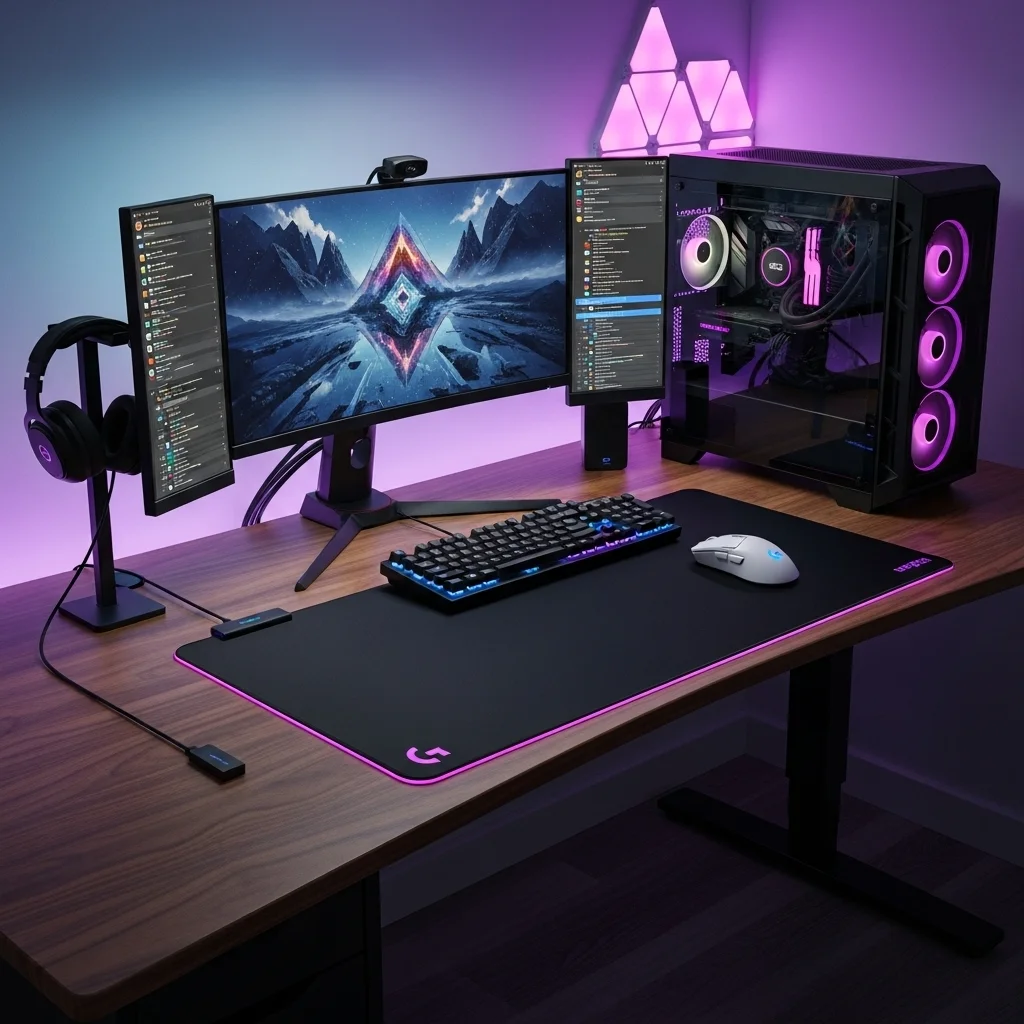
Finding the Golden Zone: Optimal Receiver Positioning
Place the dongle close to your mouse with a direct line of sight. Think of it like a sniper’s clear shot.
Obstructions like monitors or PC cases block the signal. Keep the path clear.
Use a USB Extender or Dock
This is the most impactful tip. Use the included USB extension cable or charging dock for your dongle.
Place the extender on your desk near the mousepad. This drastically reduces signal travel distance and interference.
Avoid Direct PC USB Ports (Especially USB 3.0)
Plugging directly into the PC creates a barrier. The case blocks signals, and USB 3.0 ports emit interference.
If you must use a motherboard port, choose a front-panel USB 2.0 port and use an extender.
Minimize Other Wireless Interference
Your dongle shares bandwidth with many devices. Wi-Fi and Bluetooth can cause interference. Keep your dongle isolated.
Keep your dongle away from these signal sources. This will help maintain a strong, stable connection.
For more tips, check our guide on boosting wireless keyboard signals. The principles apply to mice too!
Elevate Your Receiver
Metal desks cause signal reflections. If you lack an extender, elevate the dongle. Use a small stand or book stack.
A small plastic stand helps. Every little bit helps to get a clear line of sight.
Relative Latency Based on Dongle Placement
A bar chart illustrating the relative latency in milliseconds based on dongle placement: Optimal (1ms), Good (3ms), Sub-Optimal (7ms), and Poor (15ms). Optimal placement offers the lowest latency.
This chart shows how latency spikes with bad placement. Always aim for the “Golden Zone.”
Quick Checklist for Optimal Setup
Follow these quick steps to ensure your wireless mouse is performing at its best:
- Use a USB Extender: Bring the dongle as close as possible to your mousepad.
- Clear Line of Sight: Ensure no objects block the path between the dongle and mouse.
- Avoid USB 3.0: Use USB 2.0 ports or an extender for the dongle.
- Distance from Interference: Keep the dongle away from Wi-Fi routers and other wireless devices.
- Elevate the Dongle: Prevent signal reflection from metal surfaces.
Master your gaming desk setup by fixing your dongle position. This tweak improves precision and reaction time.
Test your skills now! Optimize your setup and challenge friends on the Joltfly Aim Trainer.
Should You Use a USB Hub for Your Mouse Dongle?
Unlock Peak Performance with Optimal Dongle Placement
You chase every millisecond. While wireless mice offer freedom, dongle placement can make or break performance.
Using a USB hub might seem odd, but it helps. It can be the secret to a stable, responsive connection.
The Benefits: Getting Your Dongle Closer
A hub allows for proximity. Wireless signals suffer from distance and obstacles like PC cases.
An extension cable lets you place the dongle on your desk. This keeps it close to the mousepad and reduces travel.
It also minimizes interference. Give your mouse a direct, unobstructed line to your PC.
This translates directly to faster response time and lower input lag.
Every millisecond counts in competitive play.
Navigating Potential Drawbacks
Avoid cheap, unpowered hubs. They can introduce latency or power issues. Quality matters here.
It might add latency or even cause power delivery issues for your dongle.
USB 3.0 interference is real. These ports emit electromagnetic noise that disrupts 2.4GHz signals.
This disrupts the 2.4GHz wireless signals that many mouse dongles utilize.
Intel confirmed this in 2012. USB 3.0 data rates interfere significantly with 2.4 GHz wireless devices.
USB 3.0’s higher data rates can cause significant interference with 2.4 GHz wireless devices.
Strategic Placement with a Hub
To dominate your gaming circle, choose your hub and placement wisely.
A powered USB 2.0 hub is ideal. It ensures stable power and avoids the noise issues of USB 3.0 connections.
This also avoids the 2.4GHz interference issues specifically linked to USB 3.0 connections.
If using USB 3.0, use a shielded extension cable. Keep the dongle far from the hub to mitigate interference.
This setup effectively mitigates potential interference. Aim for clear signal transmission.
Position the dongle in a direct line of sight with your mouse, free from other electronic devices or metal objects.
| Dongle Placement Scenario | Latency Risk | Signal Stability | Interference Risk |
|---|---|---|---|
| Direct PC Rear Port | Low to Medium | Medium | Low |
| Direct PC Front Port | Low | Medium to High | Medium |
| Unpowered USB 2.0 Hub (short cable) | Low to Medium | High | Low |
| Powered USB 2.0 Hub (short cable) | Very Low | Very High | Very Low |
| Powered USB 3.0 Hub (short cable, unshielded) | Medium to High | High | High |
| Powered USB 3.0 Hub (shielded extension) | Very Low | Very High | Low |
Optimize Your Setup for the Win
Every element of your setup matters. Don’t let poor dongle placement hold you back.
A properly utilized USB hub can transform your wireless connection from good to incredible.
Ready to see the difference? Test your mouse’s responsiveness on Joltfly.
Hit up the Aim Trainer to feel the improvement firsthand! Challenge your friends.
In Short
- Optimal wireless mouse performance relies on correct dongle placement within a “golden zone” close to the mouse to minimize input lag.
- Using a USB extender for the dongle ensures a direct line of sight and reduces signal travel distance, drastically improving responsiveness.
- Avoid placing the dongle near obstructions, USB 3.0 ports, other wireless devices, or directly on metal surfaces to prevent interference and signal degradation.
Dominate the Server
Don’t let distance kill your K/D ratio. You’ve got the knowledge to fix your setup now.
Move that dongle closer and clear the interference. Every millisecond counts in a firefight.
Get out there, optimize your gear, and show your enemies what true speed feels like. Game on!
Frequently Asked Questions
Does distance really matter for lag?
Absolutely. Signal strength drops fast over distance. Weak signals mean missed clicks and lost fights.
Keep the dongle within 20cm of your mouse for elite performance. Don’t handicap your aim!
Should I use the USB extender?
Yes! Always use the extender included in the box. It gets the receiver right on your mousepad.
Plugging directly into the PC case adds distance and blocks the signal. Avoid that rookie mistake.
Do USB 3.0 ports cause lag?
They sure do. USB 3.0 ports emit noise that messes with 2.4GHz wireless signals.
Use a USB 2.0 port or move the dongle away from the tower with an extender. Stay interference-free.
