

Tired of inconsistent aim holding you back in Valorant? One powerful setting might be the fix you need for crisp, reliable flicks.
It’s called Raw Input Buffer. This guide will show you exactly when to use it to gain a competitive edge and dominate your gaming circle.
Key Takeaways
- Enable Raw Input Buffer if you use a high-polling-rate mouse (4000Hz+) to ensure smooth and accurate tracking.
- Players with budget or older CPUs should test this setting carefully, as it can introduce FPS drops or micro-stutters.
- For standard 1000Hz mice, leaving Raw Input Buffer OFF is recommended as the benefits are minimal.
- If enabling the setting causes stutter, the most common fix is to lower your mouse’s polling rate to 1000Hz.
- The ultimate way to decide is to test both settings in the practice range to see which feels more responsive for your setup.
What is Raw Input Buffer in Valorant?
Decoding Raw Input
Think of raw input as a direct hotline from your mouse to Valorant.
It tells the game exactly where your mouse is moving, with zero interference.
This bypasses any Windows settings like “Enhance Pointer Precision.”
You get pure, unfiltered data for the most consistent aim possible.
It’s a core feature for eliminating variables that can disrupt your muscle memory.
How the “Buffer” Changes the Game
Valorant’s “Raw Input Buffer” is an advanced version of this concept.
It was created specifically for high-performance gaming mice.
Mice with a high polling rate send a massive amount of data every second.
Some PCs struggle to process this stream of information in real-time.

The buffer acts as a queue, organizing mouse data packets for the game engine.
This prevents data loss and can smooth out micro-stutters.
It’s crucial if you’re wondering if an 8000Hz polling rate is worth it for your setup.
Why This Setting Matters for Your Aim
So, what’s the bottom line? A smoother, more reliable aiming experience.
For most players, especially those with powerful gear, this setting is a must-have.
It helps ensure that the game correctly registers every micro-adjustment you make.
This directly impacts your ability to track targets and land flick shots.
The pros agree. The overwhelming majority of them use this setting to compete.
A pie chart shows that 99% of Valorant pro players have Raw Input Buffer turned On, while only 1% have it Off.
Here’s a quick breakdown of the potential advantages:
- Improved Tracking: Helps the game keep up with high-speed mouse movements.
- Reduced Stutter: Can fix performance issues with high polling rate mice.
- Maximum Consistency: Ensures your aim is not affected by OS-level processing.
- Lower Latency: Delivers mouse data to the game with minimal delay.
Understanding this is key to minimizing your overall response time vs input lag.
In Short
- Valorant’s Raw Input Buffer provides a direct, unfiltered data stream from your mouse to the game, bypassing Windows settings for maximum consistency.
- This feature acts as a queue for mouse data, which can prevent micro-stutters and improve tracking, especially with high-polling-rate mice.
- Used by 99% of professional players, this setting offers a smoother, more reliable aiming experience with reduced latency.
The Hidden Performance Cost on Budget CPUs
Understanding the CPU Overhead
Raw Input Buffer isn’t magic. It uses your CPU to process mouse inputs.
This ensures the smoothest data delivery, but the task demands processing power.
For high-end CPUs, this extra load is tiny. For older processors, it can be different.
This added strain can sometimes steal resources needed to maintain a high frame rate.
Is Your CPU at Risk?
If you’re using a lower-end or older CPU, this setting could cause problems.
The performance hit can outweigh the benefits of smoother mouse input.
Many competitive players use budget-friendly systems, making this a real concern.
A pie chart showing desktop CPU market share as of May 2024: Intel holds 60.3%, AMD holds 35.8%, and other vendors make up the remaining 3.9%.
Pay close attention if your processor is often near 100% usage while gaming.
Symptoms of a CPU Bottleneck
Think Raw Input Buffer is hurting your performance? Watch for these classic signs.
- Sudden, unexplained FPS drops during intense fights.
- Micro-stuttering, even when your frame rate seems high.
- Increased overall system input lag that feels “heavy.”
- Your game occasionally freezing for a split second.
If you notice these issues after turning the setting on, your CPU is likely the culprit.
Stuttering can be a complex issue caused by other factors, like power limits.
You can learn how to fix CPU power limit throttling if the problem persists.
The best way to know for sure is to test with the setting on and off. See which feels better.
In Short
- The Raw Input Buffer setting uses CPU resources to process mouse inputs, which can strain budget or older processors.
- On lower-end CPUs, this feature can negatively impact performance, causing issues like FPS drops, stuttering, and input lag.
- Players should test gameplay with the setting on and off to see if the performance hit outweighs the benefit of smoother mouse input.
Decision Matrix: Should YOU Enable Raw Input Buffer?
When to Enable Raw Input Buffer (ON)
Let’s get straight to it. This setting is for high-performance gear.
Are you running a mouse with a polling rate of 4000Hz or higher?
Then you should absolutely enable Raw Input Buffer.
It helps Valorant’s engine process the flood of data from your mouse.
This prevents dropped inputs and ensures buttery-smooth tracking.
For those wondering if an 8000Hz polling rate is worth it, this setting is essential.
It’s designed to give you the most direct, unfiltered aim possible.
When to Keep It Disabled (OFF)
Not everyone needs to flip this switch on. It can be situational.
Using a standard 1000Hz mouse? You can safely leave this setting OFF.
The benefits are negligible for lower polling rates.
On some systems, it could even add a tiny, unnoticeable input delay.
If your aim feels “off” or you’re troubleshooting lag, try disabling it.
This helps you rule out potential conflicts with your hardware.

Your Quick-Reference Table
Still unsure? Use this simple chart to guide your decision.
| Your Setup | Recommendation | Key Reason |
|---|---|---|
| 4000Hz+ Polling Rate Mouse | Enable (ON) | Prevents data loss and ensures your PC processes all inputs. |
| 1000Hz Polling Rate Mouse | Default (OFF) | The setting provides minimal benefit and isn’t necessary. |
| High-End, Modern CPU | Enable (ON) | Your processor can easily handle the demands for smoother aim. |
| Older or Budget CPU | Default (OFF) | Avoids potential performance stutters from extra processing. |
| Experiencing Mouse Stutter | Test Both | Enable it if you have a high-Hz mouse; disable to troubleshoot. |
The Ultimate Test: Your Own Feeling
Data and specs are great, but your in-game feel is what matters.
Hop into the practice range and test both settings back-to-back.
Focus on flicks, sprays, and micro-adjustments.
One setting will feel more responsive and consistent for you.
For hard data, you can even run a quick mouse latency test with each setting.
Trust your gut, lock in your setting, and get back to climbing.
In Short
- Enable Raw Input Buffer if you use a mouse with a polling rate of 4000Hz or higher to ensure smooth tracking and prevent dropped inputs.
- For standard 1000Hz mice or older CPUs, it’s best to keep the setting off as the benefits are negligible and it could cause performance issues.
- The best way to decide is to test both settings in the practice range to see which one feels more responsive for your specific hardware.
How to Enable the Setting in Valorant (Step-by-Step)
Finding the Raw Input Buffer Setting
Ready to test Raw Input Buffer? Let’s get you set up in under a minute.
Riot Games placed this option right in the general mouse settings menu.
You don’t need to dig through config files or obscure menus to find it.
Enabling Raw Input Buffer: The Steps
Follow this simple path to enable the setting and feel the difference.
- Launch Valorant and go to the main menu.
- Click the gear icon in the top-right corner to open Settings.
- Ensure you are on the General tab.
- Scroll down to the Mouse sub-section.
- Locate the Raw Input Buffer option.
- Click the setting to toggle it to On.
The change is applied instantly. You can now close the menu and jump into a match.
Confirming the Change and Testing Your Aim
The best way to verify the setting is to head straight into The Range.
Focus on how your crosshair responds to your physical mouse movements.
It should feel more responsive and directly tied to your hand.
This is especially noticeable for players using mice with high polling rates.
Many performance issues can be traced back to a poor understanding of latency.
Get a clearer picture by reading our guide on response time vs input lag.
Now, test your improved setup on Joltfly’s Aim Trainer and dominate the leaderboard!
In Short
- The Raw Input Buffer setting in Valorant is located in the General tab under the Mouse sub-section of the settings menu.
- Enabling this setting can make mouse movements feel more responsive and directly tied to your physical input.
- Players, especially those with high polling rate mice, can test the effects of this change in The Range to feel the difference in aim.
Troubleshooting: What to Do If You Get Stutter
Pinpoint the Cause of the Stutter
Enabled Raw Input Buffer, but now your game feels choppy? Don’t panic. Stutter can happen, but it’s almost always fixable.
This setting is fantastic, but it can expose weaknesses in your setup. The most common culprit is your mouse’s polling rate.
High polling rates like 4000Hz or 8000Hz demand more from your CPU. This can cause micro-stutters if your processor cannot keep up.
Another cause is a CPU bottleneck. Raw Input Buffer adds a tiny processing load that can be the final trigger for performance issues.
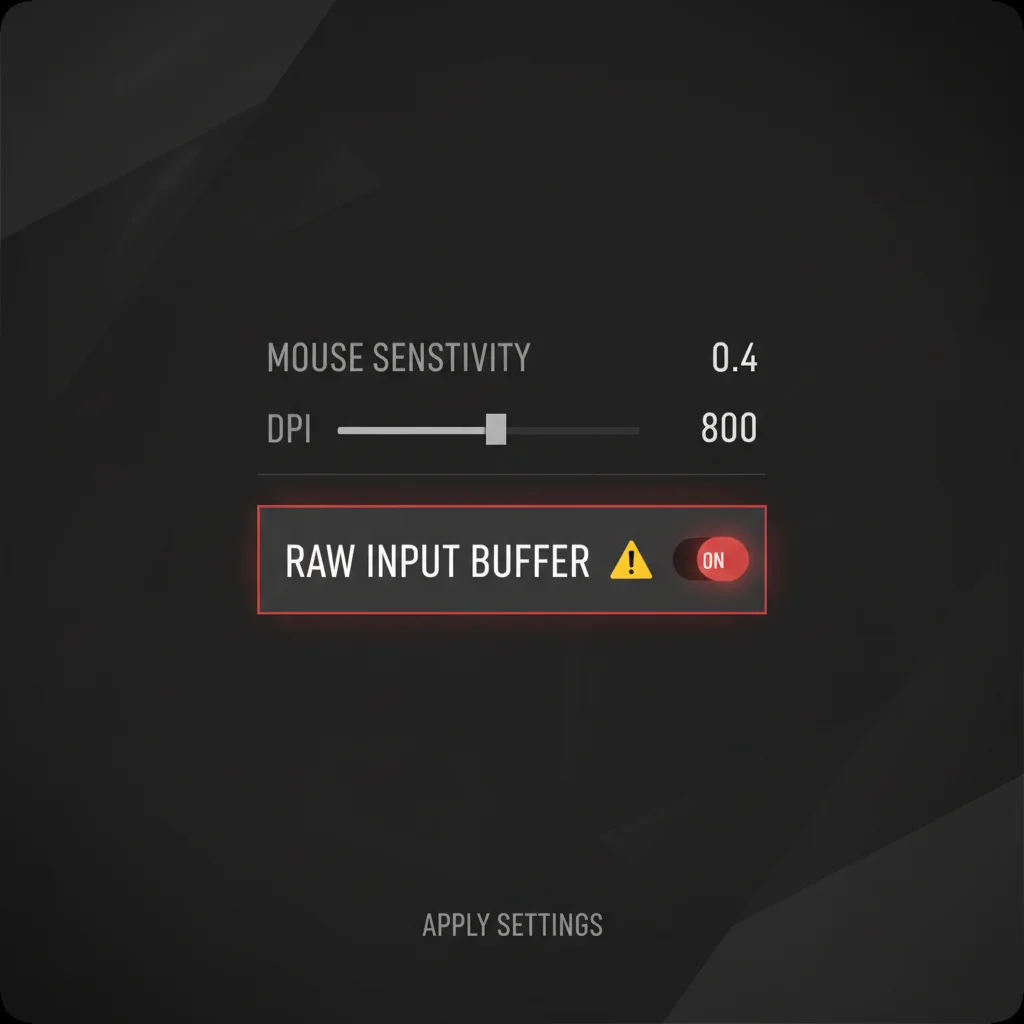
Finally, conflicting software like overlays or other anti-cheat programs can interfere with Valorant’s input processing.
Your Step-by-Step Stutter Fix Guide
Ready to get back in the fight? Work through these solutions to eliminate stutter and restore smooth gameplay.
- Lower Your Polling Rate: This is the number one fix. Open your mouse software and drop the polling rate to 1000Hz. This usually solves the problem.
- Optimize Your CPU: Close every unnecessary background app. This includes web browsers, overlays, and RGB software. This avoids issues like CPU power limit throttling.
- Update Everything: Do not skip this step. Update your GPU drivers, motherboard chipset drivers, and even your BIOS. Stale drivers cause unexpected hits.
- Isolate the Problem: As a final check, turn Raw Input Buffer OFF. If the stutter vanishes, you know the cause is related to one of the issues above.
Quick Troubleshooting Reference
Use this chart to quickly identify and solve your stuttering problem so you can get back to climbing the ranks.
| Potential Cause | Primary Solution |
|---|---|
| High Polling Rate (e.g., 8000Hz) | Set to 1000Hz in mouse software. |
| CPU Overload | Close background programs and overlays. |
| Outdated Drivers | Update GPU and motherboard chipset drivers. |
| Software Conflict | Disable other anti-cheats or overlays. |
Addressing these issues often resolves stutter. We offer a full guide to help you fix high polling rate mouse stuttering.
In Short
- The primary cause of game stutter is often a high mouse polling rate, which should be lowered to 1000Hz.
- CPU overload from background applications and outdated drivers are other common culprits for performance issues.
- To resolve stutter, close unnecessary programs, update all drivers, and lower your mouse’s polling rate.
Lock In Your Settings
Stop guessing and start winning. Raw Input Buffer is your secret weapon for the most responsive aim possible. Don’t let lag cost you another round!
Get in the range and test it for yourself. Feel the difference in every flick. The only way to know for sure is to put it to the test. Now go dominate!
Frequently Asked Questions
What does Raw Input Buffer actually do?
It lets Valorant get mouse data directly, bypassing Windows processing. This simple switch can reduce input lag for cleaner, more reliable shots.
Will this setting magically fix my aim?
It won’t make you a pro overnight! It provides a more stable aiming foundation. The rest is pure skill and practice. Get to grinding!
Are there any downsides to enabling it?
Rarely. Most modern gaming mice have zero issues. Older hardware might act up. Always test your own gear in the range to be 100% sure.
Should I pair this with other mouse settings?
Absolutely. For peak performance, combine it with a high polling rate and ensure mouse acceleration is off. Create the ultimate setup for victory.
