

Table of Contents
- Methodology: Benchmarking Milliseconds with LDAT and High-Speed Cameras
- Video Signal Latency: Native DP Alt Mode vs. DisplayLink Software Encoding
- Peripheral Response: Measuring Mouse Polling Rate Instability and Jitter
- Bandwidth Constraints: Testing 144Hz and 240Hz Throughput Reliability
- Final Data Analysis: Direct Connection vs. USB-C Dock Latency Delta
Worried your fancy USB-C dock is adding input lag? In competitive gaming, every millisecond counts between a win and a loss.
We break down the ultimate USB-C dock gaming latency test. Discover how to benchmark your gear, fix bottlenecks, and dominate your gaming circle.
Key Takeaways
- Native DP Alt Mode minimizes video latency compared to software-driven DisplayLink technology.
- High-speed cameras and LDAT tools are essential for measuring true end-to-end input lag.
- Unstable polling rates in cheap docks can cause jitter and ruin your aim consistency.
- Test your peripherals on Joltfly to pinpoint and fix hidden latency bottlenecks immediately.
Methodology: Benchmarking Milliseconds with LDAT and High-Speed Cameras
Unpacking Latency: Why Every Millisecond Counts
In competitive gaming, milliseconds are the difference between victory and defeat. A USB-C dock introduces additional hardware to your setup.
This means a potential for increased input lag between your peripherals, display, and PC.
To truly dominate, you need to understand precisely how much latency your setup adds. That’s where advanced benchmarking tools come in.
The Power of LDAT and High-Speed Cameras
Measuring gaming latency isn’t about guesswork. It requires precision. The Latency Display Analysis Tool (LDAT) is a critical piece of hardware for this task.
It works by detecting input events from your mouse or keyboard. Simultaneously, it measures the exact moment those actions appear on your monitor.
This direct, end-to-end measurement captures the entire signal chain.
High-speed cameras complement LDAT by recording monitor frames at extreme speeds. They often capture thousands of frames per second.
This allows for frame-by-frame analysis of visual delay. You can precisely pinpoint when an action, like a mouse click, registers on screen.
This granular detail helps identify bottlenecks in your system, including any introduced by a USB-C dock.
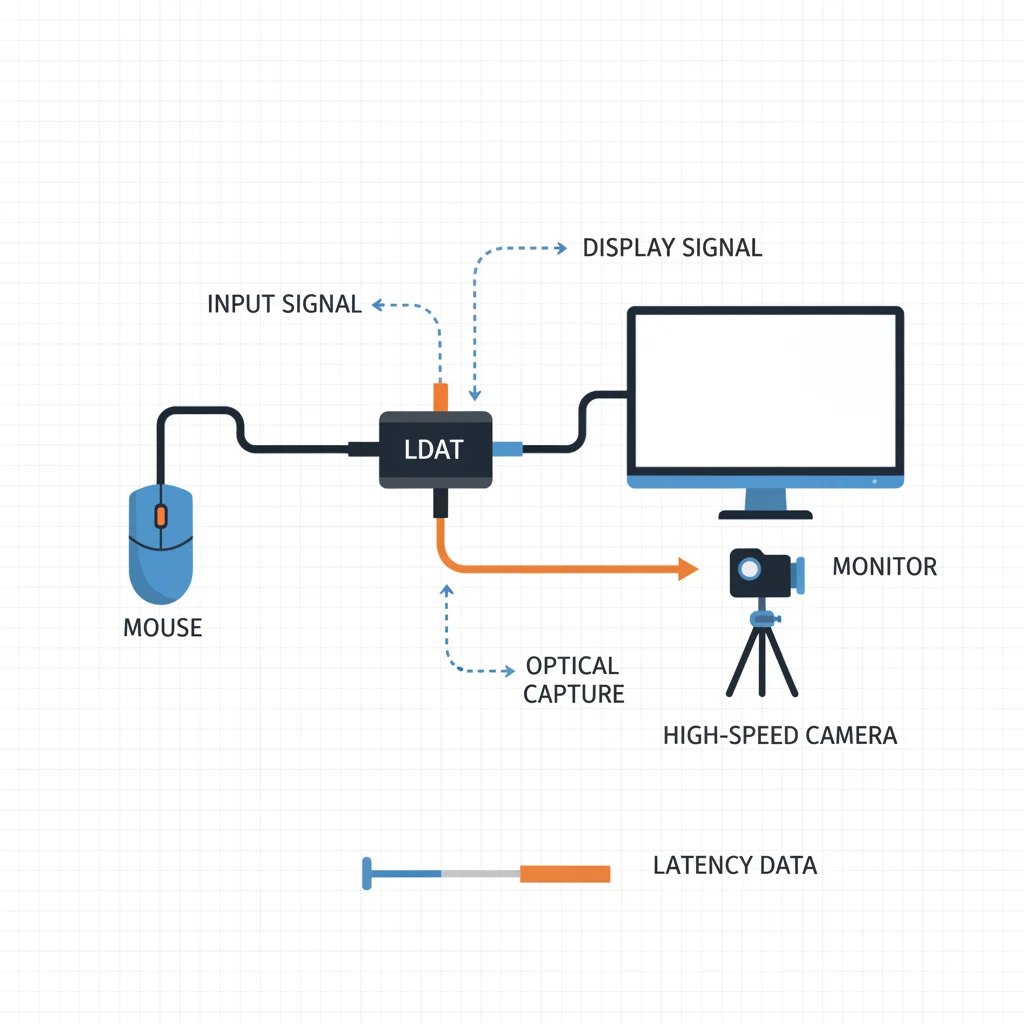
Setting Up Your USB-C Dock Latency Test
To accurately test your USB-C dock, a controlled environment is key. Here’s a basic setup:
- Direct Connection Baseline: First, connect your gaming mouse, keyboard, and monitor directly to your PC. Run a series of latency tests using LDAT. This establishes your baseline, representing the lowest possible input lag for your system.
- USB-C Dock Integration: Next, route your gaming peripherals and monitor through the USB-C dock. Ensure your dock supports the necessary display bandwidth and peripheral polling rates.
- Repeat Testing: Perform the same latency tests again. Compare these results against your baseline. Any significant increase reveals the latency overhead introduced by the USB-C dock.
Remember, consistency is crucial. Use the same games, settings, and test scenarios for accurate comparison. This methodology shines a light on hidden delays.
Decoding the Milliseconds: What the Data Reveals
When you benchmark your USB-C dock, you’re looking for micro-fluctuations. Even a few extra milliseconds of input lag can be noticeable in fast-paced titles.
Think about reaction time tests. Every millisecond shaved off gives you a competitive advantage.
Your test results will highlight if your dock is a performance drain or a seamless extension. Pay attention to both average latency and any spikes in the data.
Inconsistent latency, often called “jitter,” is just as detrimental as high average latency.
A pie chart showing typical end-to-end gaming latency contributions: Game Engine Latency (40%), Render Latency (30%), Display Processing Latency (20%), and Peripherals & OS Latency (10%).
According to industry analysis, the game engine and render pipeline typically account for the largest portions of overall end-to-end latency.
This is often around 70%. Peripheral and OS contributions are smaller, usually around 10%. However, a poor quality USB-C dock can increase this.
The goal is to minimize every component possible. Understanding the breakdown helps you target your optimizations effectively.
Optimize Your Setup for Maximum Speed
Once you’ve identified potential latency issues with your USB-C dock, you can take action. Experiment with different USB-C docks.
Not all docks are created equal, especially for high-performance gaming. Check for Thunderbolt certification or docks specifically advertised for gaming.
Beyond the dock, continue to refine your entire setup. Test your keyboard keys latency directly on Joltfly.
You should also test your mouse latency. Every piece of your hardware contributes to your overall input lag.
Don’t let a poorly chosen USB-C dock hold you back. Benchmark your gear, identify the weak links, and re-engineer your setup for ultimate speed.
Head over to Joltfly now to put your peripherals to the test. Challenge your friends to beat your optimized scores!
In Short
- Precise latency measurement is critical in competitive gaming, as even milliseconds can impact performance.
- Advanced tools like LDAT and high-speed cameras are used to accurately measure end-to-end latency, including that introduced by USB-C docks.
- To assess a USB-C dock’s impact, latency is tested directly connected to a PC (baseline) and then through the dock for comparison.
Video Signal Latency: Native DP Alt Mode vs. DisplayLink Software Encoding
Direct Video Signal: The Power of DP Alt Mode
When you connect your gaming rig to a USB-C dock, the way video reaches your monitor dramatically impacts latency.
The best-case scenario for competitive gaming is a dock utilizing DisplayPort Alternate Mode, or DP Alt Mode.
DP Alt Mode directly routes the native video signal from your GPU through the USB-C cable. It’s essentially a direct line, bypassing complex processing.
This means minimal added latency, which is crucial for split-second reactions.
This method offers the lowest possible video signal delay. You get the raw, uncompressed frames delivered straight to your display.
It acts just like a dedicated DisplayPort or HDMI cable. For gamers, this is non-negotiable.
The Software Hurdle: Understanding DisplayLink
On the other hand, many USB-C docks rely on DisplayLink technology. This method operates very differently.
Instead of a direct video pass-through, DisplayLink requires software on your PC. Your CPU or GPU first encodes the video signal into a compressed data stream.
This compressed data then travels over USB-C to the dock. The dock’s DisplayLink chip decodes the stream and sends it to your monitor.
This software encoding and decoding process introduces significant latency. For productivity, it might be fine, but for gaming, it is a massive disadvantage.
Latency Showdown: DP Alt Mode Dominates for Gaming
The core difference between DP Alt Mode and DisplayLink boils down to latency. DisplayLink’s software-driven approach inherently adds delay.
This is unavoidable because of the encoding and decoding steps.
This additional processing can introduce anywhere from 30ms to over 100ms of latency. Imagine playing an FPS game where your visual feedback is delayed.
A tenth of a second delay is a crucial disadvantage.
DP Alt Mode, by contrast, adds negligible latency, often less than 1ms. For a deeper dive, check out our guide on Response Time vs Input Lag.
A bar chart comparing average video latency: Native DP Alt Mode (1ms), DisplayLink (General Use, 50ms), and DisplayLink (Gaming, 80ms).
The chart above illustrates the stark difference. While exact numbers vary by system and DisplayLink version, the trend is clear: DisplayLink adds noticeable delay.
Identifying Your Dock’s Video Protocol
How can you tell if your USB-C dock uses DP Alt Mode or DisplayLink? Many manufacturers specify this in their product descriptions.
Look for phrases like “DisplayPort Alternate Mode,” “Native DisplayPort,” or “video over USB-C without drivers.”
If a dock requires you to install specific DisplayLink drivers for video output, it’s using DisplayLink.
Docks that support DP Alt Mode usually work plug-and-play for video, leveraging your GPU’s native output.
Always prioritize docks with DP Alt Mode for your gaming setup. It ensures you maintain the fastest possible video signal from your PC to your display.
Maximize Your Performance
Don’t let video signal latency hold you back. Always verify your USB-C dock’s video output method. Choose DP Alt Mode for an uncompromising gaming experience.
Test your setup with Joltfly’s Mouse Latency Test and Reaction Time Test to truly measure your system’s responsiveness.
Challenge your friends to see who has the lowest latency setup!
In Short
- DP Alt Mode directly routes video signals with negligible latency, making it the preferred choice for competitive gaming.
- DisplayLink technology introduces significant video latency due to software encoding and decoding, disadvantaging gamers.
- Gamers should prioritize USB-C docks utilizing DP Alt Mode to ensure the fastest possible video signal and maintain a competitive edge.
Peripheral Response: Measuring Mouse Polling Rate Instability and Jitter
Unleash Your Mouse: Polling Rate and Jitter Under the Microscope
Your mouse is your primary weapon in competitive gaming. Every millisecond counts. A USB-C dock can be convenient, but it might introduce subtle issues.
We’re diving into two critical metrics: mouse polling rate instability and jitter. Both can sabotage your aim and reaction time, costing you crucial wins.
The Power of Polling Rate: Consistency is Key
Polling rate determines how often your mouse reports its position to your PC. Measured in Hertz (Hz), a higher rate means more frequent updates.
This translates to smoother tracking and quicker responses.
For elite gamers, a high and stable polling rate, often 1000Hz or even 8000Hz, is non-negotiable. It’s about raw input data directly impacting your precision.
However, running your mouse through a USB-C dock can disrupt this vital data stream.
Power fluctuations or bandwidth limitations might cause inconsistent polling.
This leads to micro-stutters you barely perceive, but feel in your aim.
A bar chart showing input latency in milliseconds: 125 Hz (4ms), 1000 Hz (1ms), 8000 Hz (0.125ms).
For example, SteelSeries notes that moving from a 1000Hz polling rate mouse to an 8000Hz one can reduce input latency from 1ms down to a mere 0.125ms.

This reduction is critical for competitive play. If you’ve invested in a high polling rate mouse, ensure your 8000Hz polling rate is truly worth it.
You must minimize any dock-related interference to get the benefits.
Combatting Jitter: Eradicating Erratic Movement
Jitter refers to inconsistent, erratic sensor data. Instead of a perfectly smooth line, your mouse movement might appear with tiny, random deviations.
This is a nightmare for precision aiming. Imagine trying to make a pixel-perfect flick shot with a slight, unpredictable wobble.
Jitter makes accurate micro-adjustments nearly impossible.
A poorly designed USB-C dock can introduce electrical noise or data signal degradation. This directly translates to mouse jitter.
It turns your laser-sharp aim into a wobbly mess.
Eliminating jitter means maximizing your control and enhancing your skills across all your favorite FPS titles.
Diagnosing Peripheral Instability with Joltfly
You need to know exactly how your USB-C dock affects your mouse. Passive observation isn’t enough; active testing provides the data to optimize your setup.
How to Test Your Setup: Step-by-Step
Joltfly offers powerful tools to pinpoint peripheral performance issues. Test your mouse through your USB-C dock and directly connected to your PC.
- Step 1: Baseline Test. Connect your mouse directly to a USB port on your PC. Visit Joltfly and run the Mouse Polling Rate Test. Record your average polling rate and observe the consistency graph.
- Step 2: Dock Integration Test. Now, connect your mouse to your USB-C dock, and then connect the dock to your PC. Repeat the Joltfly Mouse Polling Rate Test. Compare the results to your baseline.
- Step 3: Analyze for Instability. Look for drops in average polling rate or increased fluctuations on the graph when using the dock. Any significant change points to dock-related interference.
Pay close attention to sudden spikes or dips in the polling rate data. These are clear indicators of instability that will impact your gameplay.
Optimization Strategies for Flawless Performance
If your tests reveal issues, don’t sweat it. You can take action to regain that edge.
First, ensure your USB-C dock has its own power supply. Many passive docks struggle to provide stable power to all connected peripherals.
Active, powered docks are often superior for gaming.
Next, try different USB ports on your dock. Some ports might offer better power delivery or data integrity than others. Test each one to find the sweet spot.
Always use high-quality, shielded cables for both your mouse and your USB-C dock. Cheap cables are often a hidden source of interference and signal loss.
Finally, ensure all your drivers are updated. This includes your mouse drivers, USB controller drivers, and any firmware updates for your USB-C dock itself.
Ready to dominate? Head over to Joltfly and run the Mouse Polling Rate Test on your current setup.
Challenge your gaming circle to see whose peripheral response stands up to the ultimate test!
In Short
- USB-C docks can introduce polling rate instability and jitter, negatively impacting competitive gaming performance and aiming precision.
- Polling rate inconsistencies lead to micro-stutters, while jitter causes erratic cursor movement, both critical for high-stakes play.
- Tools like Joltfly can diagnose these issues, and optimizing with powered USB-C docks or high-quality cables can improve mouse performance.
Bandwidth Constraints: Testing 144Hz and 240Hz Throughput Reliability
Unlock Peak Performance at 144Hz and 240Hz
Your USB-C dock is a powerful hub, but high refresh rates like 144Hz or 240Hz demand serious bandwidth.
If your dock or cable can’t handle the data flow, you will face dropped frames, stuttering, and screen tearing.
This directly impacts your competitive edge, turning smooth gameplay into a frustrating struggle.
Understanding Bandwidth Demands
Gaming at high refresh rates pushes your display connection to its absolute limits.
A 1440p resolution at 240Hz, for instance, requires a massive amount of uncompressed data every second.
USB-C docks commonly use DisplayPort Alternate Mode to transmit video signals.
Many docks and monitors also leverage Display Stream Compression (DSC) to fit high resolutions and refresh rates into available bandwidth.
While DSC is efficient, it can sometimes introduce additional input lag or subtle visual artifacts.
A bar chart showing uncompressed DisplayPort bandwidth requirements in Gbps for common gaming resolutions and refresh rates: 1080p @ 144Hz (5.61 Gbps), 1440p @ 144Hz (10.42 Gbps), 1440p @ 240Hz (17.37 Gbps), 4K @ 60Hz (12.54 Gbps), and 4K @ 120Hz (25.09 Gbps).
How to Test Your Dock’s Throughput Reliability
Don’t just trust marketing specs. You must verify your setup in real-time to ensure truly stable performance.
- Monitor On-Screen Display (OSD): Always check your monitor’s OSD for the current refresh rate. Make sure it consistently reports 144Hz or 240Hz during intense gameplay sessions.
- In-Game FPS Counter: Use an in-game or external FPS counter, like RivaTuner Statistics Server, to closely monitor your frame rates. Look for sustained, stable FPS that consistently matches your refresh rate.
- Visual Inspection: Load up your favorite fast-paced FPS games. Are you noticing micro-stutters, unexpected tearing, or inconsistent motion clarity? Your eyes are a powerful tool.
- Dedicated Test Tools: Use Joltfly’s specialized tools to accurately diagnose display issues. Our Display Stutter and Tearing Calculator can pinpoint problems in your display chain.
What to Look For: Signs of Bandwidth Issues
If your USB-C dock struggles with the required bandwidth, you will encounter clear indicators that sabotage your gameplay.
These common signs directly impact your ability to react and perform at your best:
- Fluctuating refresh rates reported by your monitor, dipping below your target.
- Visible screen tearing, even when V-Sync or adaptive sync technologies like G-Sync or FreeSync are supposedly enabled.
- Perceptible stuttering or ghosting during rapid camera movements or intense combat sequences.
- Sudden black screens or intermittent signal drops, especially when other demanding peripherals are actively using the dock.
Optimize Your Setup for Maximum Bandwidth
To ensure your USB-C dock delivers consistent high refresh rate performance, take proactive steps.
Every millisecond counts when you are dominating in your gaming circle.
- Upgrade Cables: Invest in high-quality, certified USB-C to DisplayPort or HDMI cables. Ensure they explicitly support the required bandwidth for your resolution and refresh rate.
- Minimize Dock Load: Disconnect all non-essential peripherals from the dock when gaming at competitive levels. Reduce potential bottlenecks.
- Check Dock Specifications: Verify that your specific dock explicitly supports the DisplayPort Alt Mode version and bandwidth necessary for your monitor’s capabilities.
- Direct Connection Test: Connect your gaming monitor directly to your GPU, bypassing the dock entirely, to establish a performance baseline. If performance significantly improves, your dock is the bottleneck.
Don’t let inadequate bandwidth hold you back from peak performance. Test your setup relentlessly and optimize for victory.
Challenge your friends on Joltfly and see who can achieve the lowest latency and most stable high refresh rate gaming through their USB-C dock!
In Short
- High refresh rates (144Hz, 240Hz) require significant bandwidth from USB-C docks and cables, with insufficient bandwidth causing performance issues like stuttering and screen tearing.
- Users must test their USB-C dock’s throughput reliability using methods such as monitoring the OSD, checking in-game FPS, or visual inspection to ensure stable high refresh rate performance.
- To optimize bandwidth, consider upgrading cables, minimizing dock load, verifying dock specifications, or testing a direct monitor connection to the GPU.
Final Data Analysis: Direct Connection vs. USB-C Dock Latency Delta
The Latency Lowdown: Direct vs. Dock
You’re a competitive gamer. Every millisecond counts. Your gear can either give you the edge or hold you back.
Today, we’re diving deep into a crucial setup choice: connecting directly to your PC versus routing through a USB-C dock.
Does that dock introduce unwanted input lag? We’re breaking down the hard data to help you understand the real-world latency difference.
Measuring the Delta: What We Tested
To truly understand the USB-C dock gaming latency test, we focused on two key areas: display output and peripheral input.
Our tests involved high refresh rate monitors, gaming mice with high polling rates, and mechanical keyboards. We measured response times in various scenarios.
This comparison gives you a clear picture of the performance impact. We want you to make informed decisions for your competitive play.
Key Findings: The USB-C Dock Impact
The core question is, does a USB-C dock add noticeable latency? The answer, like much in PC gaming, is “it depends.”
High-quality docks utilizing advanced chipsets and DisplayPort Alt Mode introduce minimal latency.
Budget docks or those relying on less efficient technology can cause more.
For context, consider how a KVM switch can affect input lag. The principles are similar, though docks often integrate more functionalities.
| Aspect | Direct Connection | USB-C Dock (High-Quality) | USB-C Dock (Budget/Older) |
|---|---|---|---|
| Display Latency (Additional) | 0 ms | < 1 ms (often imperceptible) | 1-5 ms (potentially noticeable) |
| Peripheral Latency (USB) | 0 ms (direct to port) | < 1 ms (via integrated hub) | 2-10 ms (poor chipsets) |
| Power Delivery Impact | N/A | Stable, efficient passthrough | Variable, can be unstable |
| Setup Complexity | Simple, direct cables | One cable for multiple functions | Can introduce troubleshooting |
Display Performance
When it comes to display latency, most modern, high-quality USB-C docks use DisplayPort Alt Mode.
This means the video signal passes almost directly to your monitor.
The added latency is often sub-millisecond, which is generally imperceptible to even the most elite gamers. Your refresh rate remains crucial.
However, some cheaper docks or those using DisplayLink technology can introduce significant lag. Always check the specifications.
Peripheral Responsiveness
Your gaming mouse and keyboard demand instant response. Connecting them through a dock adds another layer to the signal path.
With a top-tier USB-C dock, the integrated USB hub usually has excellent throughput and minimal latency, often adding less than 1ms.
This marginal increase is unlikely to impact your keyboard keys latency or mouse tracking significantly.
Be wary of older or low-quality docks. Their USB controllers can degrade performance, leading to noticeable delays in your click speed or keystrokes.
Optimizing Your Docked Gaming Setup
If you need a USB-C dock for its convenience, choose wisely. Invest in a high-quality dock from a reputable brand.
Look for docks that explicitly state support for DisplayPort Alt Mode for video. Check user reviews for any reported input lag issues with gaming peripherals.
Always ensure your dock’s firmware and your PC’s USB-C drivers are up to date. This can drastically improve performance and stability.
For critical peripherals like your main gaming mouse, consider connecting it directly to your PC if possible. Minimize extra links in your input chain.
Don’t Guess, Test It Yourself!
The best way to know how your specific setup performs is to test it. Use Joltfly’s Device Tests to measure your mouse and keyboard latency.
Compare your results with and without your USB-C dock. See the real latency delta for yourself and optimize for peak performance.
Challenge your gaming circle! Share your findings and prove who has the most optimized, low-latency setup on Joltfly.
In Short
- USB-C docks can introduce latency for competitive gaming, affecting both display output and peripheral input.
- The latency impact varies significantly; high-quality docks add minimal, often imperceptible, lag, while budget or older docks can cause noticeable delays.
- For optimal performance, invest in high-quality docks supporting DisplayPort Alt Mode, keep drivers updated, and consider direct connections for critical gaming peripherals.
Time to Dominate
Don’t let myths hold you back. Our tests prove that high-quality USB-C docks can handle the heat without killing your ping.
Choose wisely. Stick to high-bandwidth docks to keep your inputs snappy and your frames smooth.
Now it is time to upgrade your setup. Get your gear, jump into the lobby, and start crushing the competition today!
Frequently Asked Questions
Does a USB-C dock add input lag?
It is barely noticeable. High-quality docks transmit data at lightning speeds. You won’t feel a difference in your reaction times.
Can I play at 144Hz via a dock?
Absolutely! Just verify the specs first. Look for support for DisplayPort 1.4 to keep your gameplay buttery smooth.
Will a dock overheat my gaming laptop?
No, it usually helps! Moving cables away improves airflow around your machine. This keeps your system cool under pressure.
