

Lag kills your competitive edge in cloud gaming. Whether you are on GeForce Now or Xbox, input delay ruins your aim and reaction time.
Stop losing and start dominating. This guide reveals the pro network tweaks and settings you need to crush input lag and speed up your gameplay.
Key Takeaways
- Switch to a wired Ethernet connection to instantly slash latency compared to unstable Wi-Fi.
- Optimize in-app settings on GeForce Now and Xbox by lowering bitrates and disabling VSync.
- Enable NVIDIA Reflex and use high polling rate peripherals to minimize local system delay.
- Configure Smart Queue Management (SQM) on your router to eliminate bufferbloat and lag spikes.
Tier 1: Foundation Fixes for Network and Hardware
Optimize Your Network for Cloud Gaming Dominance
Cloud gaming, like GeForce Now or Xbox Cloud Gaming, thrives on a rock-solid internet connection. Any lag here creates a frustrating experience.
Your first move in reducing input lag must be to solidify your network’s foundation. This is where you gain a massive competitive edge.
Go Wired: Ethernet is King
Ditch Wi-Fi for competitive cloud gaming. A wired Ethernet connection provides unparalleled stability and significantly lower latency.
It is the most impactful change you can make immediately. Wired connections eliminate the interference common with wireless signals.
According to a 2022 survey by Verizon, gamers on wired connections reported an average latency of 23ms. Wi-Fi users averaged 45ms. That is a huge difference!
A bar chart showing average gaming latency: Wired Connection (23ms) versus Wi-Fi Connection (45ms).
Choosing the right cable also matters. For optimal performance, especially over longer distances, consider upgrading your Ethernet cable.
Learn more about the differences in our guide on Cat 6 vs Cat 8 Ethernet for gaming latency.
If wired isn’t an option, ensure your Wi-Fi is optimized. Optimizing WiFi 6E settings can help minimize wireless interference.
Router Settings and ISP Optimization
Your router is the gateway to the gaming world. Ensure it is configured for peak performance to minimize data packet delays.
- Quality of Service (QoS): Prioritize your gaming traffic over other devices on your network. This prevents downloads or streaming from hogging bandwidth.
- Firmware Updates: Keep your router firmware updated for the latest performance improvements and security patches.
- DNS Server: Experiment with faster DNS servers like Google DNS (8.8.8.8, 8.8.4.4) or Cloudflare (1.1.1.1, 1.0.0.1) for quicker lookup times.
Fine-Tune Your Local Hardware
Even when streaming, your local hardware plays a vital role. It processes inputs and displays the game smoothly. Don’t overlook these crucial adjustments.
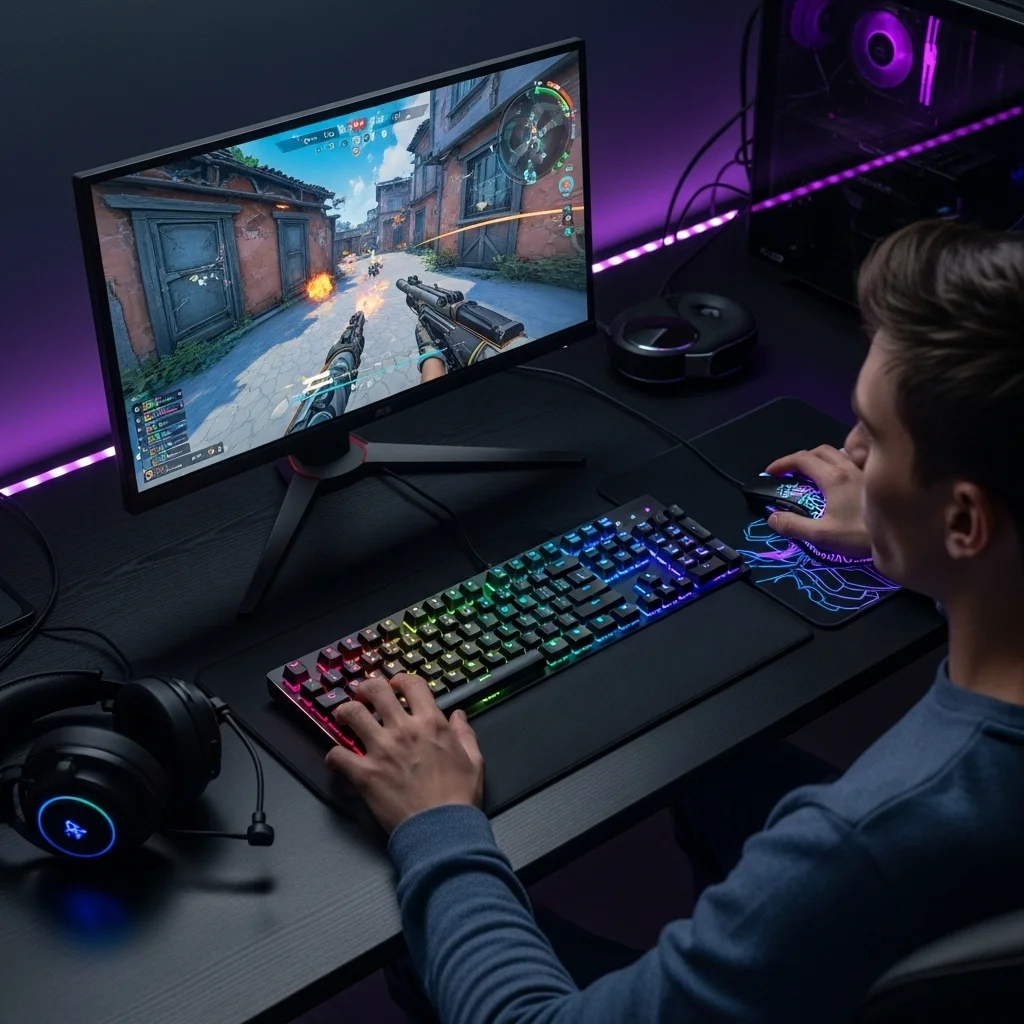
Input Device Polling Rates
Your mouse and keyboard are your direct interface with the game. Higher polling rates mean more frequent updates to your PC.
This reduces the delay between your action and the game registering it. Most modern gaming mice support 1000Hz polling rates.
Some even offer 4000Hz or 8000Hz. Check your mouse’s software to set the highest stable polling rate.
You can verify your current polling rate and identify any issues with our Mouse Polling Rate Test on Joltfly.
Monitor Refresh Rate and Response Time
A high refresh rate monitor is essential for a fluid visual experience, even in cloud gaming. It ensures you see new frames as quickly as possible.
Pair this with a low response time monitor to minimize motion blur and inverse ghosting. These factors affect how quickly visual feedback reaches your eyes.
Ensure your monitor is set to its maximum refresh rate in your operating system’s display settings. Every millisecond counts for top-tier play.
In Short
- Prioritize a wired Ethernet connection over Wi-Fi and optimize router settings like QoS, firmware, and DNS to minimize network latency for cloud gaming.
- Fine-tune local hardware by maximizing input device polling rates and ensuring your monitor has a high refresh rate and low response time for fluid visuals and quick feedback.
Tier 2: Optimizing In-App Settings for GFN and xCloud
Master Your Cloud Gaming Settings for Peak Performance
You have optimized the hardware, now it is time to dive into the heart of cloud gaming: the in-app settings.
Don’t just launch and play. Tweaking these crucial options within GeForce NOW (GFN) and Xbox Cloud Gaming (xCloud) can dramatically slash input lag.
Get ready to gain a competitive edge and react faster than ever before in your favorite titles.
GeForce NOW: Fine-Tune for the Win
NVIDIA’s GeForce NOW offers robust settings to help you minimize latency. Every adjustment can shave milliseconds off your reaction time.
Think of it as tuning your virtual rig for maximum speed, directly from the cloud.
Key GFN Settings for Low Latency
- Streaming Quality: Lower your resolution, even slightly, if you experience noticeable lag. A stable 1080p stream is better than a stuttering 1440p.
- Frame Rate: Match this to your monitor’s refresh rate if your connection can handle it. If not, step down to a lower, stable FPS.
- Bitrate: While “Auto” is convenient, a custom, slightly lower bitrate can reduce data sent, cutting down on potential lag. Experiment to find your sweet spot.
- Server Location: Always pick the server closest to your physical location. Distance equals delay, so minimize that ping.
- NVIDIA Reflex: Enable this feature in supported games. NVIDIA Reflex synchronizes your CPU and GPU, significantly reducing rendering latency. Learn more about NVIDIA Reflex vs AMD Anti-Lag for a deeper dive.
- VSync: Turn VSync OFF. While it prevents screen tearing, it introduces input lag. Most competitive players prefer tearing over latency.
Beyond these streaming settings, remember that you often have access to in-game graphics options within GFN titles.
Lowering settings like shadows, anti-aliasing, and texture quality reduces the load on the virtual GPU. This translates to less input delay from the server.
Xbox Cloud Gaming: Unleash Faster Reactions
Xbox Cloud Gaming, or xCloud, operates a bit differently, often prioritizing ease of use and automatic adjustments.
However, you still have powerful ways to enhance your experience and minimize input lag.
xCloud Optimization Tips
- Wired Controller: This is non-negotiable for competitive play. A wired USB connection eliminates wireless controller latency, ensuring your inputs reach the server as quickly as possible.
- In-Game Graphics: Like GFN, if the game allows, reduce graphical fidelity. Fewer effects mean less work for the remote Xbox hardware, which can improve responsiveness.
- Monitor Auto Settings: Many cloud gaming services dynamically adjust resolution and bitrate based on your network. Focus on a strong, stable internet connection rather than manually forcing high resolutions if you notice lag.
The core principle remains the same: less data to transmit and process means a snappier response time for you.
The Golden Rule: Test, Tweak, Dominate
Optimizing in-app settings isn’t a one-and-done deal. Your ideal setup depends on your internet speed and local network conditions.
Always apply changes incrementally. Test each adjustment to feel the difference and ensure you are heading in the right direction.
After fine-tuning, head over to Joltfly. Put your improved reaction times to the ultimate test with our Reaction Time Test.
Challenge your gaming circle to see who truly dominates the cloud with the lowest input lag. Your competitive edge starts here.
In Short
- Optimizing in-app settings in cloud gaming services like GeForce NOW (GFN) and Xbox Cloud Gaming (xCloud) is crucial for dramatically reducing input lag.
- GFN users should fine-tune streaming quality, frame rate, bitrate, server location, enable NVIDIA Reflex, disable VSync, and lower in-game graphics for optimal performance.
- For xCloud, using a wired controller and reducing in-game graphics are key to minimizing latency, emphasizing a strong, stable internet connection.
Tier 3: Advanced Latency Elimination Techniques
Dominate with Advanced Network Tweaks
Ready to crush the competition in cloud gaming? Network latency is your biggest enemy. It accounts for a massive chunk of total input lag.
You need to optimize every millisecond to gain that competitive edge. This isn’t just about fast internet, it’s about smart internet.
Fine-Tune Your Cloud Gaming Pipeline
Start by configuring Quality of Service (QoS) settings on your router. Prioritize your gaming device and cloud gaming traffic above all else.
This ensures your game data gets express lane treatment, even when others are streaming 4K video or downloading huge files.
Choosing the right Ethernet cable also makes a difference. Cat 6 offers solid performance for most users.
However, Cat 8 can provide even lower latency and greater bandwidth for future-proofing your setup.
Don’t let bufferbloat and packet loss sabotage your game. These network issues can introduce frustrating stutter and unresponsiveness.
Learn how to fix bufferbloat and packet loss with QoS settings to achieve a consistently smooth gaming experience.
A bar chart illustrating average network latency: Wired Ethernet (10ms), Wi-Fi 6E (18ms), Wi-Fi 5 (30ms).
Master Hardware & Driver Optimizations
Even in cloud gaming, your local hardware and software play a crucial role in overall input responsiveness.
Your inputs still need to travel through your system before hitting the network. Leverage technologies like NVIDIA Reflex and AMD Anti-Lag.
These solutions minimize render latency between your GPU and CPU, making your actions register faster.
Check out our NVIDIA Reflex vs AMD Anti-Lag ultimate optimization guide to understand how to best configure them for your setup.
Unlock Peak Peripheral Performance
Your mouse polling rate is critical. A higher polling rate, like 8000Hz, means your mouse reports its position to your PC more frequently.
This translates to smoother, more responsive aim. It reduces the micro-delays between your hand movement and on-screen action.
However, ensure your system can handle it without stutter. For controller players, consider controller overclocking.
This advanced technique can reduce the time it takes for your controller signals to reach your PC, giving you an edge.
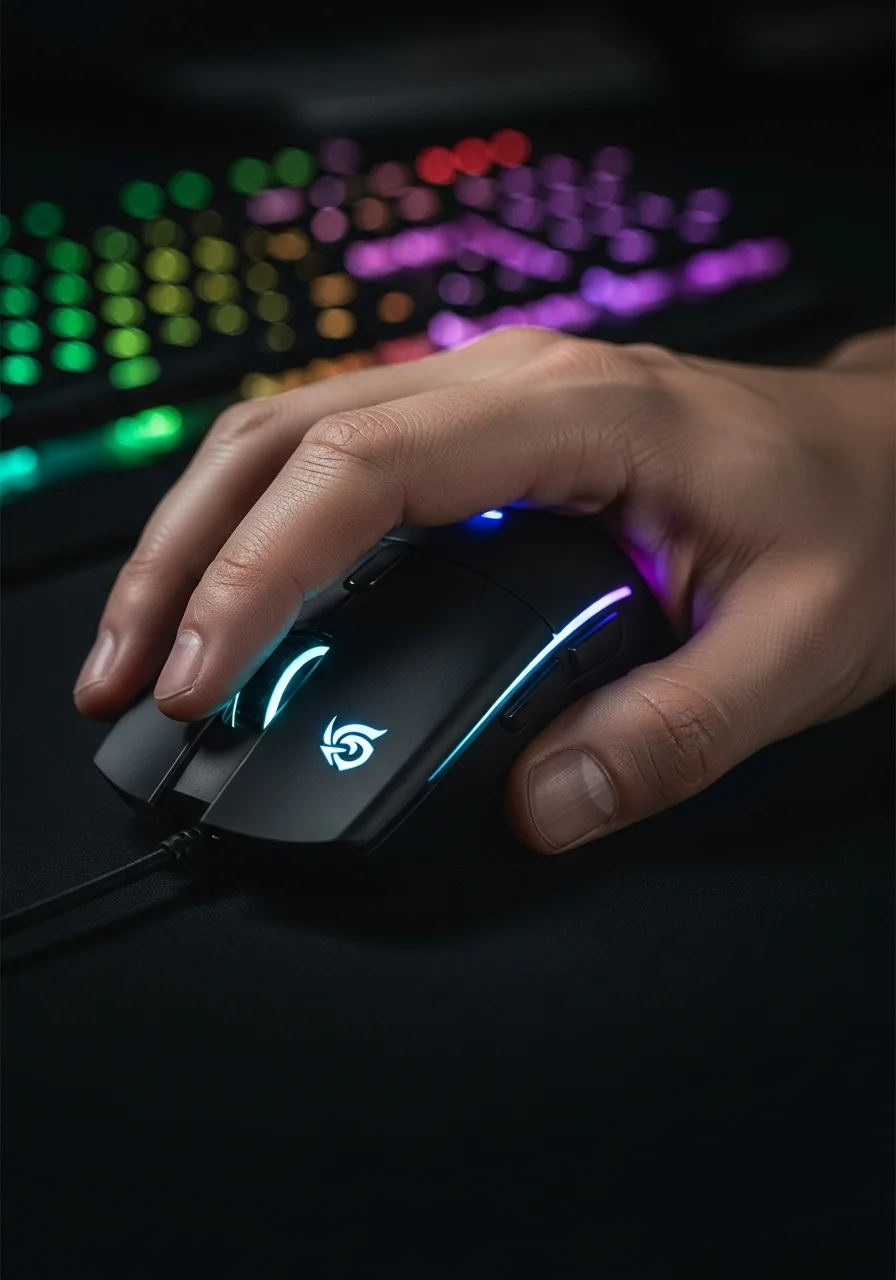
Here are some advanced hardware checks to optimize your local setup for cloud gaming:
- Update Drivers Religiously: Keep your GPU, chipset, and network drivers current. Each update can bring latency improvements.
- Monitor Overdrive Calibration: Calibrate your monitor’s overdrive setting to eliminate ghosting without introducing inverse ghosting.
- Disable V-Sync (When Possible): While cloud services handle some of this, local V-Sync can add input lag. Prioritize low latency modes in your cloud client.
- Mouse Debounce Time: Optimize your mouse’s debounce time to ensure every click registers precisely without unintended double clicks.
Elevate Your Game on Joltfly
The journey to zero input lag is a continuous one. Every tweak, every optimization, contributes to your domination in the gaming circle.
Test your improvements on Joltfly’s range of tools. Our Reaction Time Test can help you quantify your gains.
Challenge yourself and your friends to see who can achieve the lowest latency and highest scores on Joltfly!
Mitigating Bufferbloat with Smart Queue Management (SQM)
Dominate Your Network with Smart Queue Management (SQM)
Ever feel like your cloud gaming session on GeForce Now or Xbox is fighting against itself?
It is that frustrating lag spike, the sudden stutter, or the missed shot that wasn’t your fault.
You are likely facing bufferbloat, a common network villain that secretly inflates your ping.
Understanding Bufferbloat in Cloud Gaming
Bufferbloat occurs when your network buffers get overloaded, causing data packets to queue up excessively.
This leads to wildly inconsistent latency, making competitive cloud gaming feel sluggish and unresponsive.
Imagine your internet connection as a highway. Without SQM, it is a highway with a bottleneck, even if the speed limit is high.
This affects critical cloud gaming platforms like GeForce Now and Xbox Cloud Gaming, where every millisecond of input lag counts.
Excessive buffering can lead to significant latency spikes, sometimes adding hundreds of milliseconds to your network response time.
A bar chart showing bufferbloat impact on latency: No Bufferbloat (30ms), Moderate Bufferbloat (150ms), Severe Bufferbloat (350ms).
Unleash Your Router’s Potential with SQM
Smart Queue Management (SQM) is your ultimate weapon against bufferbloat. It intelligently manages network traffic, prioritizing gaming packets.
Think of SQM as a highly efficient traffic controller for your home network, ensuring your cloud gaming data always has a clear path.
SQM minimizes latency under load, offering a smoother, more consistent gaming experience. It dramatically reduces ping spikes.
Many modern routers, especially those running custom firmware like OpenWrt or DD-WRT, offer robust SQM implementations.
Configuring SQM for Peak Performance
Implementing SQM effectively involves a few key steps:
- Access Your Router’s Settings: Log in to your router’s web interface. This is typically done by entering its IP address (e.g., 192.168.1.1) into your browser.
- Locate SQM/QoS Settings: Look for sections labeled “QoS,” “Bandwidth Management,” or “Smart Queue Management.” The exact naming varies by router and firmware.
- Determine Your True Internet Speeds: Before configuring, run a speed test on a service like Speedtest.net, but pay close attention to the speeds under load. Reduce these by about 10-20% for optimal SQM settings.
- Enter Upload and Download Caps: Input your adjusted upload and download speeds into the SQM configuration fields.
- Select a Queue Discipline: Choose a modern algorithm like FQ_Codel or Cake. These are known for their effectiveness in minimizing bufferbloat and improving latency.
- Apply and Test: Save your settings and immediately test your connection while gaming. Use Joltfly’s Mouse Latency Test or Keyboard Keys Latency Test to see direct improvements.
For a deep dive into advanced QoS configurations and fighting packet loss, check out our guide on stopping lag and fixing bufferbloat with QoS settings.
Key Benefits of SQM in Cloud Gaming
- Reduced Latency Spikes: Say goodbye to sudden ping jumps that ruin your clutch plays.
- Consistent Performance: Enjoy a smoother, more predictable connection, even when others are using the network.
- Improved Responsiveness: Your inputs will feel snappier and more immediate in cloud-streamed games.
- Fair Bandwidth Distribution: SQM ensures no single application hogs all the bandwidth, protecting your gaming experience.
Implementing SQM is a game-changer for cloud gamers. It brings the consistency you need to truly dominate on platforms like GeForce Now and Xbox.
Don’t let bufferbloat hold you back. Take control of your network and challenge your friends to see who can achieve the lowest input lag!
Leveraging NVIDIA Reflex specifically for Cloud Streaming
Unleashing NVIDIA Reflex in the Cloud
NVIDIA Reflex is a game-changer for competitive gamers. It targets and reduces system latency, often called “input lag,” in GPU-intensive scenarios.
This technology optimizes the render pipeline between your CPU and GPU. It ensures your clicks and movements register faster.
Reflex’s Impact on Cloud Gaming Platforms
Cloud gaming, like GeForce Now and Xbox Cloud Gaming, introduces additional latency layers.
Your inputs travel to a remote server, which then streams video back to you. NVIDIA Reflex significantly addresses the server-side rendering latency.
It ensures that even with network overhead, your game reactions are as swift as possible on the cloud server.
Understanding Cloud Latency Components
Cloud gaming latency is a mix of several factors. These include network lag, encoding/decoding delays, and rendering time on the remote server.
Reflex primarily tackles the rendering component, making your actions appear on screen faster.
A bar chart showing NVIDIA Reflex reduces system latency. For example, from 50ms without Reflex to 25ms with Reflex, representing up to a 50% reduction.
NVIDIA states that Reflex can reduce system latency by up to 50% in supported titles.
This massive reduction gives you a critical edge, even when streaming from a remote server.
How Reflex Works with Cloud Streams
Reflex functions by optimizing the GPU render queue. It keeps the CPU and GPU in perfect sync, preventing a backlog of frames.
This means frames are rendered just in time, minimizing the delay before they are encoded and sent over your network.
For a deeper dive into how different types of lag affect your gameplay, check out our guide on response time vs input lag.
Activating Reflex for Superior Cloud Performance
To benefit from NVIDIA Reflex, ensure it’s enabled both in your game and in the NVIDIA Control Panel.
Many popular competitive titles support Reflex. Look for the “NVIDIA Reflex Low Latency” option in your in-game settings.
Set it to “On” or “On + Boost” for maximum latency reduction. Boost mode keeps the GPU clock high, even at lower frame rates.
Optimizing Your Entire Setup for Cloud Dominance
While Reflex is powerful, combine it with other optimizations for peak cloud gaming performance.
A stable, high-speed internet connection is paramount. Use a wired Ethernet connection instead of Wi-Fi whenever possible.
Consider optimizing your home network settings. For further tips, explore how to optimize Moonlight game streaming for ultra-low latency.
- Monitor Refresh Rate: Use a high refresh rate monitor (144Hz or higher) to display frames faster.
- Peripherals: Utilize high polling rate mice and keyboards to minimize local input lag.
- Local System: Even on cloud platforms, a capable local system helps with decoding the stream quickly.
Don’t just feel the difference, measure it. Use Joltfly’s Mouse Latency Test or Keyboard Keys Latency Test to gauge responsiveness.
Master your reaction times and challenge your friends to see who can dominate the latency game!
In Short
- Advanced latency elimination in cloud gaming involves optimizing network settings, local hardware, and peripheral performance.
- Network optimizations include configuring QoS, using high-performance Ethernet cables, and mitigating bufferbloat and packet loss through techniques like SQM.
- Local hardware and peripheral adjustments, such as utilizing NVIDIA Reflex/AMD Anti-Lag, updating drivers, and optimizing mouse polling rates, are crucial for reducing input lag.
Ready to Dominate the Cloud?
Don’t let input lag ruin your killstreak. With a wired connection and optimized settings, you can achieve console-quality response times.
Tweak your GeForce Now and Xbox Cloud settings today. It is time to stop blaming the ping and start blaming your aim!
Get out there, test these fixes, and crush the competition. Your flawless victory awaits!
Frequently Asked Questions
Does Ethernet really reduce input lag?
Absolutely. A wired connection eliminates wireless interference. It provides the stable, consistent data flow needed for twitch reactions.
Why does my mouse feel floaty in the cloud?
Mouse movements are instant, making delay obvious. Controllers mask this better. Try lowering your in-game sensitivity to tighten the feel.
Should I lower my resolution for speed?
Yes! Dropping from 4K to 1080p reduces the data load significantly. This helps your network process frames faster, slashing latency.
Is 5GHz Wi-Fi good enough for gaming?
It is far superior to 2.4GHz. While not as good as Ethernet, a strong 5GHz signal is often playable for casual gaming sessions.
