

Tired of lag spiking right when you’re about to clutch the round? It’s time to upgrade your network strategy and leave the competition in the dust.
Optimize your WiFi 6E settings now to unlock the 6GHz band’s power. Get ready for ultra-low ping, zero jitter, and instant hit registration on Joltfly.
Key Takeaways
- Switch to the dedicated 6GHz band to eliminate interference from legacy devices.
- Enable 160MHz channel width and Preferred Scanning Channels (PSC) for maximum throughput.
- Configure QoS settings to prioritize your gaming rig and prevent bufferbloat.
- Isolate your gaming connection on a unique SSID to stop bandwidth hogging.
- Update Windows 11 drivers and place your router centrally for the lowest possible latency.
The 6GHz Advantage: Eliminating Interference for Competitive Play
Unlock Unrivaled Performance with 6GHz
Ready to dominate your gaming circle? WiFi 6E introduces the exclusive 6GHz band, a game-changer for competitive players like you.
Unlike crowded 2.4GHz and 5GHz bands, 6GHz is a pristine, wide-open superhighway for your data.
This means less interference, faster speeds, and ultra-low latency directly to your gaming rig.
Eliminate Interference: Your Competitive Edge
Traditional WiFi bands are battlegrounds. Your 2.4GHz network fights with microwaves, Bluetooth devices, and even your neighbor’s WiFi.
The 5GHz band offers more channels but still faces congestion from older WiFi devices and other wireless tech.
Enter 6GHz. This new spectrum is reserved exclusively for WiFi 6E compatible devices.
Imagine a private lane on the internet superhighway, free from traffic jams and slowdowns. That’s the 6GHz advantage.
It means your critical gaming data gets priority, ensuring every click and movement registers instantly.
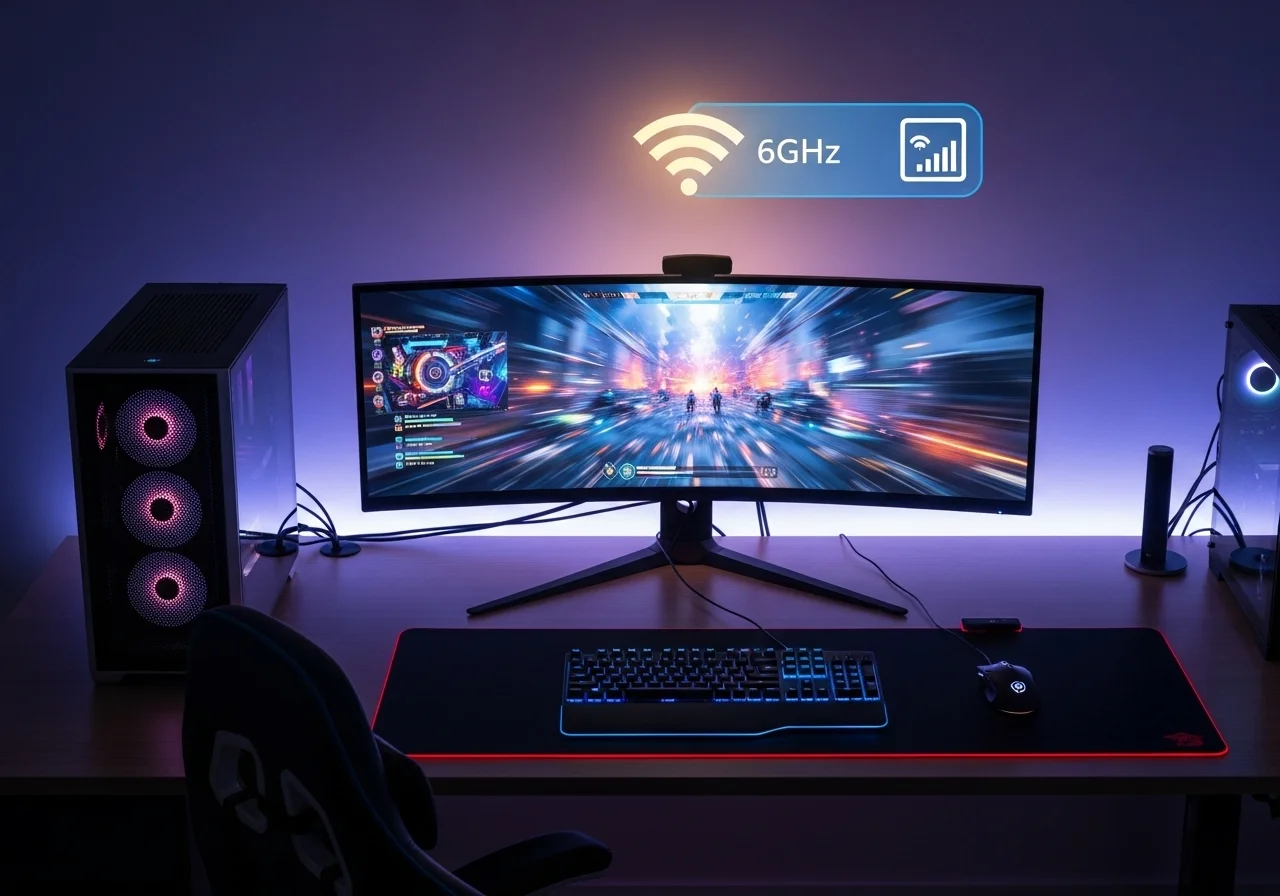
The Real Impact on Your Ping and Packet Loss
Lower latency is the holy grail for competitive gaming. WiFi 6E on the 6GHz band delivers exactly that.
By eliminating interference, your network can transmit data with minimal delay.
This directly translates to a lower ping, giving you a crucial advantage in fast-paced FPS titles or real-time strategy games.
Reduced packet loss ensures every command reaches the server without interruption, preventing frustrating stutters and lag spikes.
A bar chart showing average gaming latency in congested environments: 2.4 GHz (70ms), 5 GHz (25ms), and 6 GHz (8ms).
Studies indicate that in congested environments, WiFi 6E operating on the 6GHz band can deliver average gaming latency as low as 8 milliseconds.
This significantly outperforms the 5GHz (25ms) and 2.4GHz (70ms) bands, offering a massive boost in responsiveness.
Optimizing Your 6GHz Connection
To fully harness the power of 6GHz, ensure your gaming PC or console has a WiFi 6E adapter.
Position your router strategically. While 6GHz has incredible speed, its range can be slightly shorter than 5GHz.
Keep your router in a central location, ideally with a clear line of sight to your primary gaming machine.
Consider optimizing your router’s Quality of Service (QoS) settings to prioritize gaming traffic over other network activities.
Proper QoS can help fix bufferbloat and packet loss. It ensures stability even on a blazing fast 6GHz connection.
Key Benefits of 6GHz for Competitive Gaming:
- Massive Bandwidth: Handle multiple demanding devices without slowdowns.
- Dedicated Spectrum: No more fighting with legacy devices for airwaves.
- Ultra-Low Latency: Experience near-instantaneous reactions and lower ping.
- Increased Capacity: More channels mean less congestion, even in busy gaming houses.
- Enhanced Reliability: A cleaner signal means fewer disconnections and smoother gameplay.
Ready to put your optimized WiFi 6E connection to the test? Head over to Joltfly to see the real difference in performance.
Challenge your reaction time or test your aim accuracy with our specialized tools.
In Short
- The 6GHz band in WiFi 6E provides a dedicated, interference-free spectrum, crucial for competitive gaming.
- This new band delivers ultra-low latency (as low as 8ms) and reduced packet loss, significantly outperforming older WiFi bands.
- To optimize 6GHz performance, ensure compatible hardware, strategic router placement, and proper Quality of Service settings.
Critical Router Settings for Zero-Jitter Performance
Optimize Your WiFi 6E Router for Competitive Dominance
Lag can shatter your competitive edge. Even with a powerful rig, a poorly configured WiFi 6E router can introduce maddening jitter and packet loss.
It’s time to fine-tune your network, eliminating every millisecond of delay. Dominate your gaming circle by optimizing these critical router settings.
Master Quality of Service (QoS)
QoS is your secret weapon against network congestion. It allows you to prioritize gaming traffic above all else.
Imagine your game data getting a VIP pass while other devices download updates in the background. That’s the power of QoS.
Enable QoS in your router’s settings and allocate maximum priority to your gaming PC or console.
This drastically reduces bufferbloat and packet loss, giving you a smooth, responsive connection.
Ready to dive deeper? Learn how to fix bufferbloat and packet loss with QoS settings for a perfect network.
Select the Optimal WiFi 6E Channel
The 6GHz band of WiFi 6E offers exclusive, wide-open channels free from legacy device interference. This is a game-changer for competitive play.
Unlike crowded 2.4GHz and 5GHz bands, 6GHz provides up to seven super-wide, 160MHz channels.
These prevent congestion, ensuring your game data has a clear path to the server.
Use your router’s interface or a WiFi analyzer app to identify the least congested 6GHz channel. A clear channel means less interference and zero jitter.
Unleash Advanced Features: MU-MIMO & Beamforming
WiFi 6E routers come packed with technologies designed to boost performance. Make sure they are active.
- MU-MIMO (Multi-User, Multiple-Input, Multiple-Output): This feature allows your router to communicate with multiple devices simultaneously. It prevents a “queue” effect, ensuring consistent data flow to your gaming machine.
- Beamforming: Instead of broadcasting WiFi signals in all directions, beamforming directs a stronger signal directly towards your gaming device. This enhances signal strength and stability, crucial for low-latency gameplay.
Check your router’s wireless settings to confirm these features are enabled. They are often on by default but always worth verifying.
Prioritize Router Firmware Updates
Never underestimate the power of a firmware update. Router manufacturers constantly release updates to improve performance, fix bugs, and enhance security.
These updates can directly impact your WiFi 6E router’s stability and speed. Newer firmware might optimize 6GHz band usage, reducing latency and jitter.
Check your router’s admin panel regularly for available firmware updates. A quick update can often resolve hidden performance issues.
Secure Your Gaming Network with WPA3
While often overlooked, your network’s security protocol can impact performance. WiFi 6E supports WPA3, the latest and most secure standard.
WPA3 offers enhanced encryption and efficiency compared to older WPA2 protocols.
A more secure network is a more stable network, reducing potential interruptions.
Configure your WiFi 6E network to use WPA3 encryption for optimal performance and protection. This ensures your gaming data is both fast and safe.
Your Zero-Jitter Checklist
Run through this quick checklist to ensure your WiFi 6E router is primed for competitive action.
| Setting | Action | Impact |
|---|---|---|
| QoS (Quality of Service) | Enable and prioritize gaming devices. | Reduces lag, prevents packet loss. |
| WiFi 6E Channel | Select a clear, uncongested 6GHz channel. | Minimizes interference, ensures stable connection. |
| MU-MIMO | Verify it is enabled in router settings. | Improves multi-device performance, reduces queues. |
| Beamforming | Confirm this feature is active. | Directs stronger signal to your device. |
| Firmware | Update to the latest version. | Enhances stability, performance, and security. |
| WPA3 Encryption | Set as the preferred security protocol. | Boosts security and network efficiency. |
Optimizing these settings gives you a tangible advantage. Your network will be faster, more stable, and ready for your most intense gaming sessions.
Don’t just read about it, experience it. Test your setup and challenge your limits on Joltfly.
Head over to our Device Tests to measure your mouse latency, keyboard response, and overall input lag.
Enforcing Preferred Scanning Channels (PSC) and 160MHz Width
Unleash WiFi 6E Power with Preferred Scanning Channels (PSC)
Competitive gaming demands absolute minimal latency. Your WiFi 6E network can deliver this, but you need to optimize its settings.
Preferred Scanning Channels, or PSC, are key. These are specific 6 GHz channels marked as primary. Your devices will prioritize scanning these channels first.
This drastically speeds up connection times. It also reduces the active scanning your device performs, saving valuable milliseconds in congested environments.
Less time scanning means more time connected and dominating your lobby. It’s a small tweak with a big impact on your overall network efficiency.
Maximize Throughput with 160MHz Channel Width
The 6 GHz band offers massive bandwidth. To fully leverage this, you must enable 160MHz channel width.
This setting combines multiple smaller channels into one wide “superhighway” for data. The result is significantly higher throughput and blazing fast speeds.
For competitive gamers, this means smoother gameplay, faster downloads, and virtually no bandwidth bottlenecks, even with multiple devices.
According to CNET, 160MHz channels can double the throughput of 80MHz channels.
This directly translates to less lag and a more responsive gaming experience.
Higher bandwidth minimizes potential input lag, ensuring your actions register instantly.
To understand more about the impact of latency, check our guide on Response Time vs Input Lag.
A bar chart comparing theoretical throughput: 80MHz Channel (100% baseline) and 160MHz Channel (200% of baseline).
Configuration Steps for Peak Performance
Ready to supercharge your WiFi 6E network? Follow these steps in your router’s administration panel.
- Access Router Settings: Open a web browser and enter your router’s IP address (often 192.168.1.1 or 192.168.0.1). Log in with your credentials.
- Navigate to Wireless Settings: Find the section for “Wireless Settings” or “WiFi Settings.” Look for options specific to the 6 GHz band.
- Enable 160MHz Channel Width: Locate the “Channel Width” setting for your 6 GHz network. Change it to “160MHz” or “Auto (160MHz preferred).”
- Enforce Preferred Scanning Channels (PSC): This setting might be labeled “PSC,” “Preferred Channels,” or “DFS Channels.” Enable it. Your router will automatically select optimal channels.
- Apply and Reboot: Save your changes and reboot your router. Your network will restart with the new, optimized settings.
After these adjustments, run a speed test and monitor your in-game ping. You should see a noticeable improvement.
Challenge your gaming circle! Test your device performance on Joltfly today.
Experience the difference a truly optimized WiFi 6E connection makes.
Isolating the 6GHz Band and Configuring QoS
Optimize Your 6GHz Band for Peak Performance
To dominate your gaming circle, you need every possible edge. WiFi 6E offers a powerful solution with its dedicated 6GHz band.
This band is cleaner, less congested, and perfect for competitive gaming. It dramatically reduces interference from other devices.
Think of it like a private highway for your gaming traffic.
To fully leverage this, you must isolate the 6GHz band on your router.
Access your router’s administration panel, usually via a web browser. Look for Wi-Fi settings for the 6GHz band.
Create a unique SSID (network name) specifically for your 6GHz network. Avoid sharing this SSID with your 2.4GHz or 5GHz bands.
Connect only your primary gaming PC or console to this dedicated 6GHz SSID.
This ensures maximum bandwidth and minimal latency for your critical gaming device.
This isolation prevents other devices from crowding your gaming connection. It’s a critical step in achieving peak wireless performance.
A bar chart showing typical Wi-Fi latency: 2.4GHz (30ms), 5GHz (15ms), and 6GHz (5ms) for gaming in congested environments, based on PCMag observations.
Master QoS Settings for Zero Lag
Beyond isolating the 6GHz band, Quality of Service (QoS) is your next weapon against network lag.
QoS allows you to prioritize specific types of network traffic.
For competitive gaming, this means giving your game data top priority.
It helps prevent bufferbloat and minimizes packet loss, which are massive lag generators.
Access your router’s admin panel and navigate to the QoS settings.
The interface might vary, but the goal remains the same: identify and prioritize your gaming device.
Many routers feature a “Gaming Mode” or “Device Prioritization” section. You can often enter your gaming PC’s MAC address or IP address here.
Prioritize game-specific ports or applications if your router allows for granular control. This ensures game traffic always gets preferential treatment.
- Enable WMM (Wi-Fi Multimedia): This is often found within QoS settings and prioritizes network traffic based on type. Ensure it is enabled for gaming.
- Prioritize Gaming Devices: Set your gaming PC or console to the highest priority level.
- Allocate Bandwidth: Some routers let you reserve a portion of your bandwidth for specific devices. Dedicate a portion to your gaming rig.
By effectively configuring QoS, you ensure that even during heavy network usage, your game traffic flows smoothly.
This is crucial for maintaining low input lag and lightning-fast reactions.
Optimizing these settings provides a tangible competitive advantage. You’ll experience smoother gameplay and more consistent performance.
Now, put your network to the test. Head over to Joltfly’s Mouse Polling Rate Test or Aim Trainer.
See how your enhanced connectivity impacts your in-game performance. Challenge your friends to compare results!
In Short
- Configure Quality of Service (QoS) to prioritize gaming traffic, reducing bufferbloat and packet loss for a smoother connection.
- Select an optimal, uncongested 6GHz WiFi 6E channel to minimize interference and ensure zero-jitter performance.
- Enable advanced router features like MU-MIMO and Beamforming to enhance signal strength and ensure consistent data flow to gaming devices.
Windows 11 Driver Optimization and Physical Router Placement
Unlock Peak Performance with Driver Optimization
Your Wi-Fi 6E adapter is a powerful tool, but it is only as good as its drivers.
Outdated or misconfigured drivers can introduce latency and stuttering, sabotaging your competitive edge.
In Windows 11, proper driver management is crucial for minimizing input lag.
It is also essential for maximizing your network speed.
Update Your Wi-Fi 6E Drivers
First, ensure your Wi-Fi 6E adapter drivers are always up to date.
Manufacturers frequently release updates that improve performance, stability, and compatibility.
Head to your device manufacturer’s official website or use Windows Update. Always prioritize drivers directly from the Wi-Fi adapter’s vendor.
Think of it like tuning your high-performance gaming rig.
Optimizing your system’s core drivers, including chipset drivers, is crucial for overall performance.
Optimize Wi-Fi Adapter Settings in Windows 11
Once drivers are current, dive into advanced settings. In Windows 11, open Device Manager, find your Wi-Fi 6E adapter, right-click, and select “Properties.”
Go to the “Advanced” tab. Here are key settings to adjust for competitive gaming:
- Preferred Band: Set this to “6GHz” or “Prefer 6GHz band” to ensure you connect to the faster, less congested network.
- Transmit Power: Maximize this setting if available. Higher transmit power means a stronger signal and better range.
- Roaming Aggressiveness: Set this to “Lowest” or “Disabled.” This prevents your adapter from constantly searching for new access points, which can cause micro-stutters.
- Throughput Booster/Enhancer: Enable this if your adapter has it. It prioritizes network throughput for your device.
Adjusting these can shave off precious milliseconds of latency, giving you the edge in fast-paced titles.
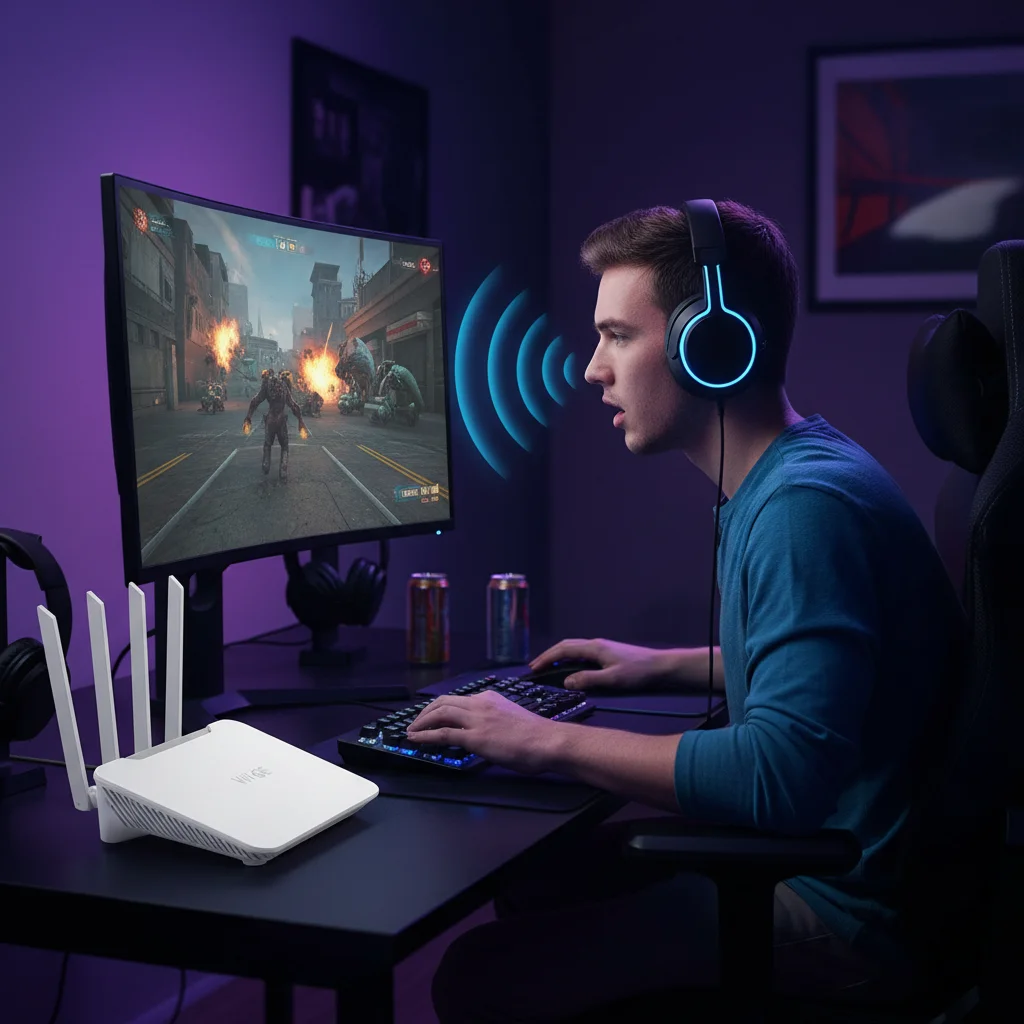
Strategic Router Placement for Unrivaled Latency
Even with perfect drivers, poor router placement can cripple your Wi-Fi 6E performance.
The 6GHz band is incredibly fast, but its signals are more susceptible to physical obstacles.
Optimize your router’s location to dominate your gaming circle with minimal latency.
Optimal Router Location
Position your Wi-Fi 6E router as centrally as possible within your gaming space. Line of sight between your PC and the router is your best friend.
Avoid placing it in enclosed spaces, behind large furniture, or inside cabinets. These blockages absorb or reflect Wi-Fi signals, degrading performance.
Minimize Physical Obstacles and Interference
Walls, especially concrete or brick, are signal killers for 6GHz Wi-Fi. Metal objects, like filing cabinets or refrigerators, are even worse.
Common household appliances can also cause interference. Microwaves, cordless phones, and even some Bluetooth devices can disrupt your Wi-Fi signal.
Keep your router clear of these interference sources.
A bar chart showing typical Wi-Fi signal attenuation in dB for 6GHz signals through common building materials: Drywall (3dB), Wood (5dB), Glass (single pane, 7dB), Brick (15dB), Concrete (20dB), and Metal (30dB).
Elevate Your Signal
Wi-Fi signals spread outwards and downwards from the antenna.
Placing your router on a high shelf or mounting it on a wall can improve coverage, especially for devices lower down.
This helps the signal clear minor obstructions and reach your gaming PC more effectively.
Run Joltfly’s Mouse Polling Rate Test to see if your system can handle intense network demands.
It is the perfect companion to your optimized Wi-Fi setup, ensuring zero input lag.
In Short
- Update Wi-Fi 6E drivers and optimize advanced adapter settings in Windows 11 to minimize latency and maximize network speed.
- Strategically place your Wi-Fi 6E router centrally, elevated, and free from physical obstacles or interference to ensure optimal signal and low latency.
Dominate the Server Now
You have the gear. You have the skills. Now your connection matches your ambition.
WiFi 6E isn’t just an upgrade; it is your secret weapon against lag spikes.
Tweaking these settings ensures every shot registers instantly. No more excuses.
Get in there, claim your victory, and show them what true speed feels like.
Frequently Asked Questions
Is WiFi 6E as good as Ethernet?
It is closing the gap! Ethernet is still king, but 6E is the closest wireless gets to wired stability.
It is perfect if you need the freedom to move without losing your competitive edge.
Do I need a new router for this?
Yes, absolutely. You need a router that specifically supports the 6GHz band.
Your old gear simply cannot access this exclusive fast lane. Upgrade to win.
Will WiFi 6E fix my high ping?
It kills local interference. If your ping spikes because of crowded channels, this is the fix.
Say goodbye to packet loss and hello to smooth, responsive gameplay.
What makes the 6GHz band special?
Think of it as a private highway. No older devices are allowed on this frequency.
This means zero traffic jams for your game data. It is pure speed.
