

Table of Contents
Tired of lag ruining your killstreak? It’s time to optimize Moonlight game streaming for low latency and take total control of your remote gameplay.
We’ll break down the settings, network tweaks, and hardware hacks you need to slash delays. Get ready to dominate your gaming circle with a flawless stream.
Key Takeaways
- Diagnose lag sources using Sunshine’s Performance Overlay metrics.
- Prioritize wired Ethernet or Wi-Fi 6 with QoS for stable connections.
- Balance bitrate and resolution to minimize client decoding time.
- Enable hardware decoding and NVIDIA Reflex to cut input delay.
- Select the HEVC codec for the best mix of quality and speed.
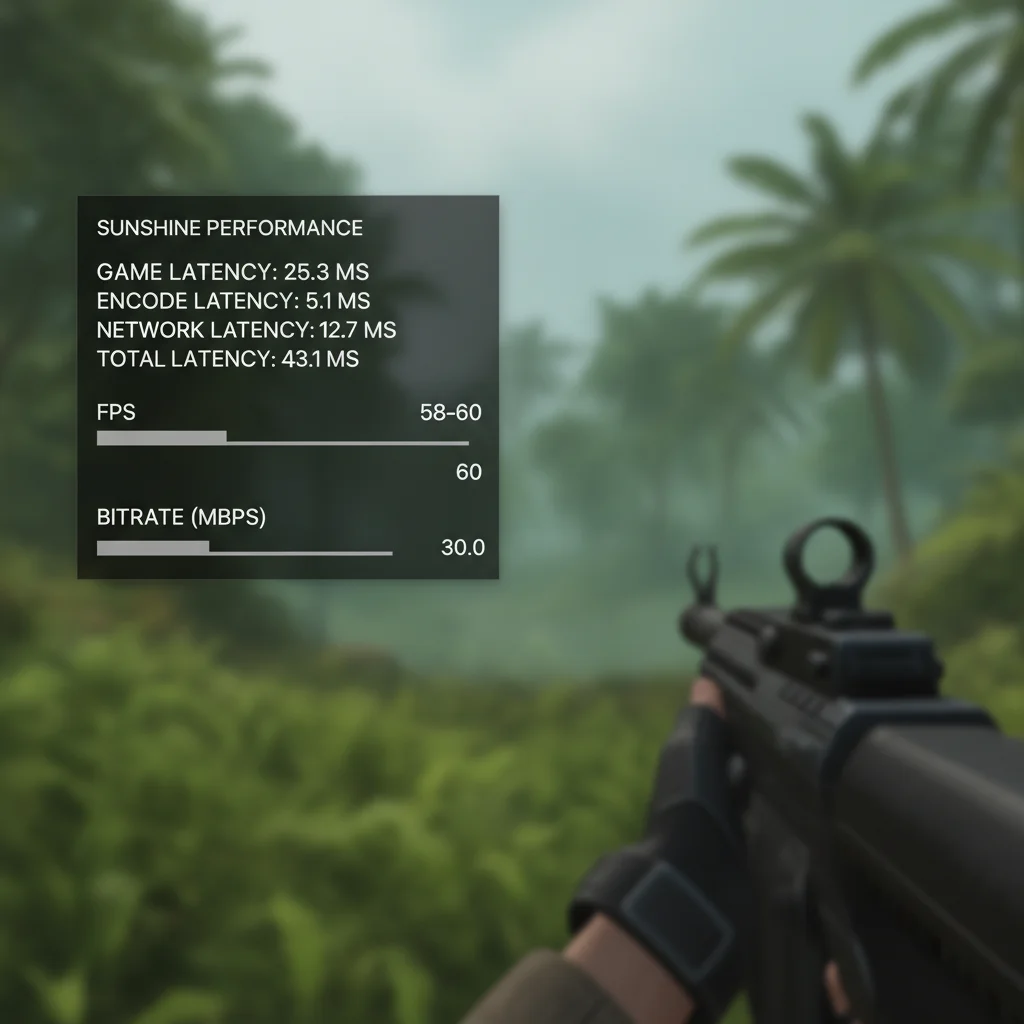
Using Sunshine’s Performance Overlay to Diagnose Latency Sources
Ready to crush lag and dominate your game? Sunshine’s Performance Overlay is your secret weapon.
This powerful tool helps you pinpoint exactly where latency is lurking in your Moonlight streaming setup.
Understanding these metrics means you can attack bottlenecks directly. No more guessing, just pure, data-driven optimization for peak performance.
Decoding the Latency Breakdown
The overlay displays critical metrics, each telling a story about your streaming pipeline. Let’s break down what each one means for your game.
- Game Render Latency: How long your PC takes to prepare a frame.
- Encoder Latency: The time it takes for your graphics card to compress that frame for streaming.
- Network Latency: The delay as the compressed frame travels across your network to the client device.
- Decoder Latency: How long your client device takes to decompress the frame.
- Display Latency: The final hurdle, from your client device to your screen’s pixel response.
Tackling Each Latency Source
Game Render Latency
This is all about your host PC’s raw power. A high render latency means your gaming rig is struggling to keep up with the game’s demands.
Action Plan: Lower in-game graphics settings, update GPU drivers, or ensure your host PC isn’t overloaded with background tasks.
Boost your FPS, and your render latency will drop.
Encoder Latency
Your GPU’s hardware encoder compresses the video stream. High encoder latency points to a bottleneck here.
Action Plan: Ensure you’re using hardware encoding (NVENC for NVIDIA, AMF/VCE for AMD).
Reduce your streaming resolution or bitrate in Sunshine settings. A powerful GPU helps significantly.
Network Latency
This is often the biggest culprit for streaming lag. It’s the time data spends traveling from your host PC to your client device.
Action Plan: Go wired! Use Ethernet cables on both ends. Wi-Fi introduces variability and interference.
For competitive gaming, every millisecond counts in your network connection. In fact, using a Cat 6 vs Cat 8 Ethernet cable can sometimes make a difference.
Also, prioritize your gaming traffic with Quality of Service (QoS) settings on your router.
A recent study by Dell’Anna et al. (2018) showed that network latency contributes significantly to cloud gaming delays.
This often ranges from 10ms to over 100ms depending on conditions.
A bar chart showing typical latency contributions (in milliseconds) for game streaming: Game Rendering (16ms), Encoding (15ms), Network (25ms), Decoding (8ms), and Display (10ms).
Decoder Latency
Your client device needs to decompress the video stream. If this is high, your client hardware or settings are the issue.
Action Plan: Use a more powerful client device. Ensure its drivers are updated.
Try lowering the streaming bitrate or resolution in Moonlight settings. Disable any unnecessary background apps on the client.
Display Latency
This is the final step, how quickly your client’s monitor can show the image. This isn’t usually a Moonlight/Sunshine issue but rather a display hardware one.
Action Plan: Enable your monitor’s Game Mode. Adjust overdrive settings. Consider a monitor with a faster response time for the ultimate competitive edge.
Master Your Latency, Master Your Game
By using Sunshine’s overlay, you gain the knowledge to target specific latency issues. No more broad strokes, just surgical precision in optimization.
Apply these insights, make your adjustments, and then head over to Joltfly to truly test your improvements.
Our Reaction Time Test and Aim Trainer can help you quantify your gains and prove your enhanced responsiveness.
In Short
- Sunshine’s Performance Overlay helps identify specific latency sources in game streaming, such as game render, encoder, network, decoder, and display latency.
- Understanding these metrics allows users to pinpoint bottlenecks and apply targeted optimization strategies to improve streaming performance.
- Each latency source has specific action plans, from adjusting in-game settings and using hardware encoding to optimizing network connections and client device performance.
Fixing High Network Latency: Bitrate and Infrastructure Optimization
Lag can crush your competitive edge, especially when streaming games with Moonlight. High network latency means delayed inputs and choppy visuals.
You need to tackle this head-on to dominate your gaming circle. We’ll optimize your bitrate and infrastructure for a seamless experience.
Bitrate Optimization: Finding Your Sweet Spot
Bitrate defines how much data per second Moonlight sends. Higher bitrate means better visual quality, but it also demands more network bandwidth.
Pushing too much data can choke your network, leading to frustrating latency spikes. Lowering it can reduce lag, but might make your game look blurry.
The key is finding the perfect balance for your specific setup. Start by adjusting your bitrate in Moonlight’s settings.
Experiment with steps like 5-10 Mbps down from your current setting. Look for improvements in responsiveness without sacrificing too much visual fidelity.
Your goal is minimal latency, not maximum eye candy, for competitive play.
Infrastructure Optimization: Build a Lag-Free Foundation
Your network setup is critical. A strong, stable connection is the backbone of low-latency game streaming.
Wired vs. Wireless: Choose Speed
Always opt for a wired Ethernet connection over Wi-Fi when possible. Wireless introduces inherent delays, packet loss, and interference.
A wired connection can significantly reduce latency. For competitive gaming, this is non-negotiable.
A bar chart showing typical gaming latency. Wired Ethernet connections typically offer 5-20ms latency. Wi-Fi connections can range from 20-100ms or higher, with 5GHz generally better than 2.4GHz.
According to general gaming tech consensus, Ethernet can offer average latency as low as 5-20 ms.
In contrast, Wi-Fi latency can range from 20-100 ms or even higher depending on your network conditions and hardware.
Router Quality and Placement
Your router is the heart of your network. Invest in a high-quality, gaming-focused router if you’re serious about performance.
Position your router centrally and away from obstructions. This helps maintain a strong, consistent signal for all devices.
Quality of Service (QoS) Settings
QoS settings on your router allow you to prioritize network traffic. Set your gaming PC or Moonlight streaming traffic as high priority.
This ensures your game data gets preferential treatment over other network activities, like downloads or video streaming.
Properly configuring QoS can prevent lag spikes and maintain a smooth connection.
Learn more about how to fine-tune these settings to stop lag, bufferbloat, and packet loss.
Ethernet Cable Type
Even your Ethernet cable choice matters. For optimal performance, use at least a Cat 6 cable.
Higher categories like Cat 7 or Cat 8 offer even better shielding and higher bandwidth capacity.
This reduces interference and ensures peak data transfer speeds.
Understanding the differences between Cat 6 vs. Cat 8 Ethernet can give you a measurable latency advantage.
Monitor Your Latency
Moonlight provides real-time latency overlays. Keep an eye on these metrics as you adjust your settings.
Look for consistency. Low, stable latency is your target for a truly competitive streaming experience.
Push your setup to its limits. Then, use Joltfly’s Reaction Time Test to see how these optimizations translate into raw speed.
Challenge your friends to compare Moonlight performance and dominate your gaming circle with a lag-free stream!
WiFi 6 Tuning and Router QoS Priorities for Game Streaming
Ready to level up your Moonlight game streaming? Optimizing your wireless connection is non-negotiable for competitive play.
WiFi 6 (802.11ax) offers game-changing improvements over older standards.
It’s not just about speed. WiFi 6 drastically reduces latency and boosts efficiency, especially in congested networks.
This means smoother gameplay and faster reactions for you.
Unleash WiFi 6 Power for Low Latency
WiFi 6 brings several key technologies to the table. These features are designed to handle multiple devices vying for bandwidth.
- Orthogonal Frequency-Division Multiple Access (OFDMA): This tech lets your router talk to multiple devices simultaneously. Imagine a highway where cars can share lanes efficiently, reducing traffic jams.
- Multi-User, Multiple-Input, Multiple-Output (MU-MIMO): Your router can transmit data to several devices at once. This significantly improves bandwidth allocation.
- Target Wake Time (TWT): TWT helps devices plan data transmissions. This reduces network congestion and power consumption for mobile devices.
In essence, WiFi 6 ensures your game stream gets the VIP treatment, even when other devices are active.
You’ll experience less stuttering and more consistent input lag.
Optimize Your WiFi 6 Setup
Getting the most from WiFi 6 requires smart setup. Placement and channel selection are critical.
- Router Placement: Place your router centrally and high up. Avoid obstructions like thick walls or large appliances that can block signals.
- 5GHz Band Priority: Always connect your streaming device to the 5GHz band. It offers higher speeds and less interference than the 2.4GHz band.
- Channel Selection: Use a Wi-Fi analyzer app to find the least congested 5GHz channel in your area. Manual selection can dramatically improve stability.
- Firmware Updates: Keep your router’s firmware updated. Manufacturers often release performance and stability enhancements.
A bar chart showing projected global Wi-Fi 6 adoption in home networks. In 2021, 30% adopted it, rising to an estimated 60% by 2024.
By 2024, it was projected that 60% of home networks globally would be using Wi-Fi 6.
This shows its widespread adoption and the performance benefits gamers are seeking.
Router QoS Priorities for Uninterrupted Streaming
Quality of Service (QoS) is your secret weapon against network bottlenecks.
It allows you to prioritize specific types of traffic, ensuring your Moonlight stream always gets the bandwidth it needs.
Without proper QoS, your game stream might get starved for bandwidth when someone starts downloading a large file or watching 4K video.
This leads to frustrating lag and packet loss.
You need to ensure your router prioritizes your gaming device and the Moonlight application.
This actively fights bufferbloat and keeps your latency consistent.
Setting Up QoS for Gaming
Access your router’s administration page, usually through a web browser. Look for “QoS,” “Traffic Prioritization,” or “Bandwidth Control” settings.
- Enable QoS: Turn on the QoS feature in your router settings.
- Prioritize Gaming Traffic: Many routers have pre-defined “Gaming” categories. If not, you can manually prioritize traffic based on device IP address or application ports (Moonlight typically uses ports like UDP 47998-48000).
- Upload/Download Caps: Some QoS settings allow you to set specific bandwidth limits. Focus on prioritizing low-latency traffic over raw download speed for streaming.
- WMM (Wi-Fi Multimedia): Ensure WMM is enabled for better wireless QoS. It prioritizes voice and video traffic, which your game stream leverages.
Proper QoS setup is essential to stop lag, fix bufferbloat, and prevent packet loss. It gives you a significant edge.
Ready to put these optimizations to the test?
Head over to Joltfly’s Mouse Latency Test or Keyboard Keys Latency Test to see the real-world impact of your network tuning.
Challenge your friends to compare scores and dominate your gaming circle!
In Short
- Optimize Moonlight bitrate to balance visual quality with network bandwidth, prioritizing low latency over maximum eye candy for competitive play.
- Establish a lag-free network foundation by using wired Ethernet, investing in a high-quality router, and configuring QoS settings to prioritize game traffic.
- Utilize WiFi 6 (802.11ax) for wireless connections to significantly reduce latency and boost efficiency in game streaming.
Minimizing Client Decoding Time and Input Delay
Client decoding time and input delay are silent killers in competitive game streaming.
They inject frustrating milliseconds into your gameplay loop. This added latency can cost you critical engagements.
You need to cut them down. Dominate your gaming circle by optimizing these factors.
Optimize Client Decoding Time
Client decoding is your local device processing the incoming video stream from your host PC.
A weak client GPU or CPU will struggle. This adds frustrating latency.
To fight this, match your Moonlight client settings to your device’s capabilities. Lower resolutions demand less processing.
Reduce the bitrate in your Moonlight settings. Start low and incrementally increase it until you notice visual artifacts, then dial it back.
Consider the video codec. H.264 requires less client decoding power than H.265.
While H.265 is more efficient for bandwidth, it taxes your client hardware more.
Always enable hardware decoding in Moonlight. This offloads the decoding task to your client GPU, which is far more efficient than your CPU.
Your display plays a vital role too. Calibrate your monitor’s overdrive settings to eliminate inverse ghosting.
This ensures clearer motion and reduces perceived latency.

Reduce Input Delay
Input delay is the total time from your physical input, like a mouse click, until that action appears on your screen.
This chain includes your input device, network transmission, host processing, and client rendering.
Wired peripherals generally offer the lowest input lag. If you use a wireless mouse or keyboard, ensure they have a robust, low-latency connection.
A high polling rate mouse sends updates to your host PC more frequently. Consider a mouse with an 8000Hz polling rate for peak precision and minimal delay.
Understand the difference between input lag and response time. For competitive play, minimizing input lag is your ultimate goal.
NVIDIA Reflex is a game-changer for reducing system latency. It synchronizes your CPU and GPU, clearing the render queue and cutting down input delay.
If your GPU supports it, enable NVIDIA Reflex or AMD Anti-Lag. This technology can provide a significant competitive edge.
You can learn more about these powerful tools in our NVIDIA Reflex vs AMD Anti-Lag guide.
A bar chart showing that a 10ms reduction in system latency can increase competitive FPS player K/D ratios by up to 4%, according to NVIDIA.
Moonlight Client Settings Checklist
Dive into these Moonlight client settings to further slash latency:
- Resolution: Set this to your client display’s native resolution or even slightly lower if your client struggles.
- Bitrate: Start with a lower bitrate, like 20-30 Mbps. Increase it slowly until visual quality is satisfactory without introducing lag.
- Codec: Experiment. H.264 is often lighter on client hardware. H.265 offers better image quality at lower bitrates, but requires more decoding power.
- Hardware Decoding: Crucial. Ensure this is always enabled to leverage your client GPU.
- Frame Pacing: Enable this setting for smoother, more consistent frame delivery, reducing micro-stutters.
- Direct Input: Activate this for raw mouse and keyboard input. It bypasses OS processing, providing the most immediate control.
Don’t just set it and forget it. Fine-tune each option to match your specific hardware and network.
Ready to feel the difference? Head over to Joltfly and challenge your own performance.
Try our Mouse Latency Test and prove your optimizations pay off.
Codec Impact: H.264 vs. HEVC vs. AV1 for Lowest Latency
Choosing the right video codec is a critical play for dominating your Moonlight game streaming experience.
The codec dictates how your game’s video is compressed, sent over your network, and then decoded. This process directly impacts your precious latency.
You need to understand the trade-offs between H.264, HEVC (H.265), and AV1.
Each offers a different balance of quality, bandwidth efficiency, and encoding/decoding latency. Your choice can make or break your competitive edge.
H.264: The Reliable Workhorse
H.264, also known as AVC, is the veteran in the streaming game. It boasts near-universal compatibility across devices and graphics cards.
This widespread support means fewer headaches getting your stream up and running.
Its encoding latency is typically low, especially with older hardware encoders.
This makes it a solid choice if your GPU is not the latest beast or if you prioritize raw speed over visual fidelity at a given bitrate.
However, H.264 is the least efficient of the three. It requires higher bitrates to achieve the same visual quality as its successors.
This can chew up more bandwidth, potentially bottlenecking your network and increasing overall latency if your connection isn’t robust.
HEVC (H.265): The Balanced Challenger
HEVC, or H.265, is the modern standard for many. It offers significantly better compression efficiency than H.264.
This often reduces bitrate by 20-30% for the same visual quality.
This means you get sharper images or smoother video with less bandwidth.
This efficiency is a massive win for competitive gamers looking to reduce network strain.
Less data traveling means faster delivery to your client device.
Most modern GPUs from NVIDIA (Pascal and newer) and AMD (Polaris and newer) feature excellent hardware HEVC encoders.
These hardware encoders deliver low encoding latency, making HEVC the sweet spot for many Moonlight users.
You gain quality and save bandwidth without significant latency penalties.
To dive deeper into how compression affects your gameplay, check out our guide on Display Stream Compression and input lag.
AV1: The Future, With a Catch
AV1 is the newest and most advanced codec on the block.
It promises incredible compression efficiency, potentially reducing bitrate by another 30% over HEVC for the same quality.
This is a game-changer for bandwidth-constrained setups.
The catch? AV1 encoding, especially via software, is highly compute-intensive.
This can introduce higher encoding latency compared to H.264 or HEVC, which is unacceptable for competitive gaming.
However, dedicated hardware AV1 encoders are now available on newer GPUs, such as NVIDIA’s RTX 40 series and Intel Arc cards.
With hardware acceleration, AV1’s encoding latency becomes much more competitive.
If you have one of these GPUs, AV1 can be a powerful option for maximizing visual quality with minimal network impact.
For most competitive gamers, balancing efficiency with the lowest possible encoding latency is key.
Understanding the difference between these factors is crucial to gaining an advantage.
Before you commit to a codec, remember that both input lag and response time contribute to your overall experience.
Learn more about optimizing these crucial metrics with our Gamer’s Ultimate Guide.
Codec Comparison at a Glance
Here’s a quick breakdown to help you choose your weapon in the codec battle:
| Codec | Bandwidth Efficiency | Encoding Latency (Hardware) | Hardware Support |
|---|---|---|---|
| H.264 | Good | Lowest | Universal |
| HEVC (H.265) | Better (20-30% more efficient than H.264) | Low | Widespread modern GPUs |
| AV1 | Best (30% more efficient than HEVC) | Low (with dedicated hardware) / High (software) | Newest GPUs (RTX 40 series, Intel Arc) |
A bar chart showing relative bitrate savings for equivalent quality: H.264 (0%), HEVC (20%), and AV1 (44%).
Your Best Codec for Moonlight Gaming
For most competitive gamers using Moonlight, HEVC (H.265) is the current champion.
It offers an excellent balance of visual quality, network efficiency, and low encoding latency, thanks to broad hardware encoder support.
If you own an NVIDIA RTX 40 series GPU or an Intel Arc card, experimenting with AV1 is worth it.
Ensure your client device also supports AV1 decoding to maximize its benefits.
Stick with H.264 if you encounter compatibility issues or are running older hardware.
Prioritize a stable, low-latency stream over peak visual fidelity if your hardware can’t handle newer codecs efficiently.
The ultimate test is your in-game performance.
Head over to Joltfly and try our Aim Trainer or Click Speed Test to see if your codec choice translates to faster reactions and better scores.
Challenge your gaming circle to see who optimized their Moonlight stream best!
In Short
- Minimize client decoding time by matching Moonlight settings (resolution, bitrate, H.264 codec) to your client hardware, enabling hardware decoding, and calibrating display overdrive.
- Reduce input delay by using wired peripherals, high polling rate mice, and activating NVIDIA Reflex or AMD Anti-Lag.
- Crucial Moonlight client settings like Resolution, Bitrate, Codec, Hardware Decoding, Frame Pacing, and Direct Input should be fine-tuned for optimal low-latency streaming.
