

Wondering if a KVM switch ruins your aim? We tested the input lag to see if convenience kills your competitive edge.
Don’t let hardware slow you down. Discover the specific KVM specs you need for zero-lag gaming and total domination.
Key Takeaways
- High-end KVM switches add negligible input lag (often <1ms) that is imperceptible in competitive play.
- Budget or older KVMs can introduce delays exceeding 2-3ms, hurting your reaction times.
- Prioritize KVMs with DisplayPort 1.4 and USB 3.0+ to support high refresh rates and 1000Hz+ polling.
- Avoid the ‘Refresh Rate Trap’ by ensuring your KVM supports the full bandwidth of your 240Hz+ monitor.
- Use Joltfly’s latency tools to test your mouse and keyboard performance through your KVM.
Quantifying Latency: Direct Connection vs. KVM Benchmarks
Understanding latency is crucial for competitive gamers.
Every millisecond counts.
We need to compare a direct connection to your PC against using a KVM switch.
When you plug your peripherals and display directly into your gaming rig, you experience the absolute minimum system latency.
This is your baseline performance.
A KVM switch introduces additional components into your signal path. These include circuitry for video, USB, and audio. Each can potentially add tiny delays.
Measuring the Micro-Moments of Delay
To quantify latency, we look at several points. Input devices like your mouse and keyboard are key. Display output also plays a significant role.
High-speed cameras and specialized hardware are used for precise measurement.
They capture the time from an action, like a mouse click, to its effect on screen.
Modern, high-quality KVM switches are designed to minimize this impact. They often use advanced video and USB passthrough technologies.
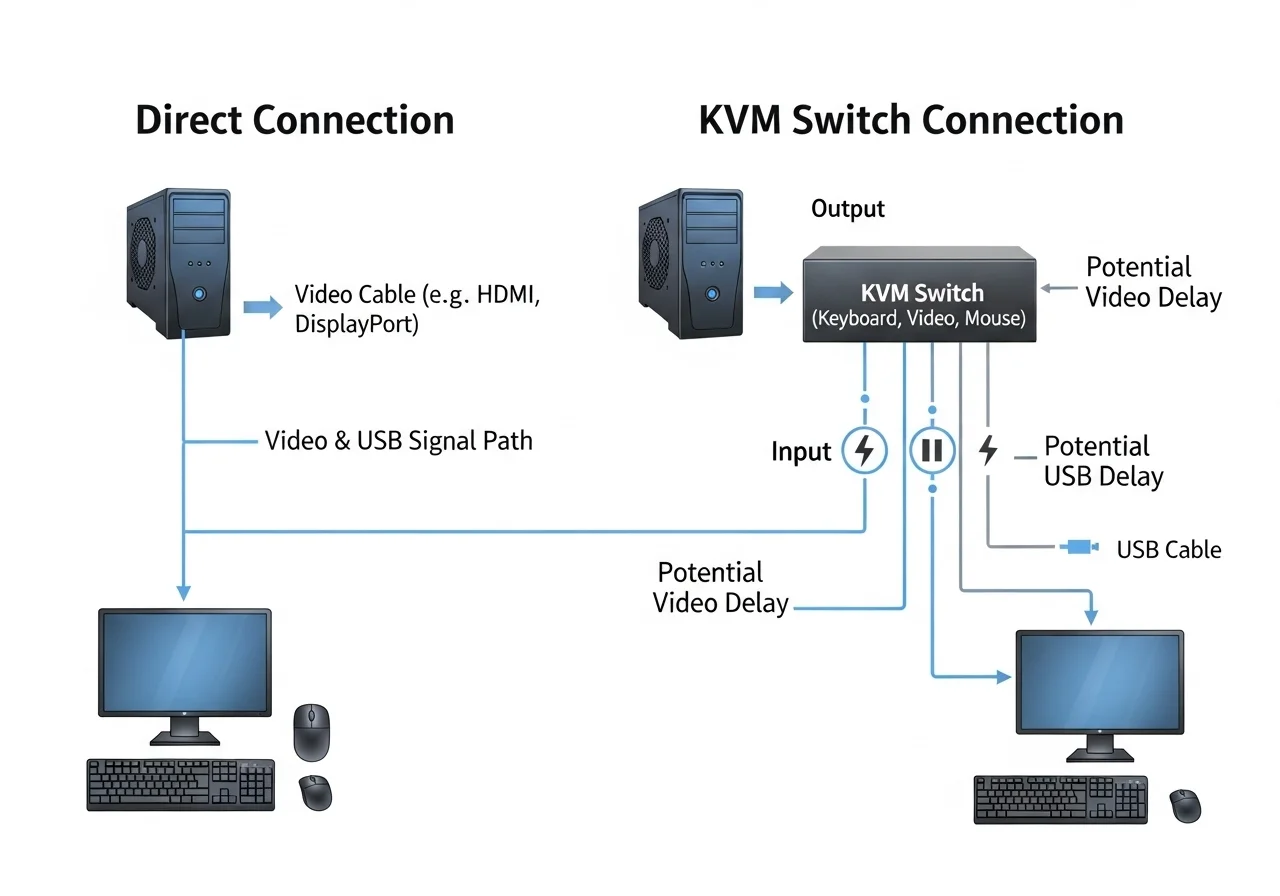
Benchmark Results: KVM vs. Direct
Studies and extensive testing provide valuable insights. For top-tier, high-refresh rate KVMs, the added latency is often negligible.
PC Gamer, referencing testing by Linus Tech Tips, notes that a good KVM can add less than 1 millisecond of input lag.
This is a tiny fraction of overall system latency.
However, cheaper or older KVM models might introduce more noticeable delays.
These could range from a few milliseconds up to 5ms or even higher for very poor units.
For competitive gamers, even small delays matter. NVIDIA’s research shows that players can detect latency differences as small as 2-3 milliseconds.
This means a high-end KVM’s minimal lag is often imperceptible. A budget KVM, however, might push you past that threshold.
To test your own equipment’s responsiveness, try Joltfly’s Mouse Latency Test or the Keyboard Keys Latency Test.
A bar chart comparing added latency from KVM switches against the average gamer’s perceptible threshold. High-End KVMs add around 0.8ms, Budget KVMs add about 4ms, and the perceptible threshold for gamers is around 2.5ms.
Choosing Your KVM: A Latency-Focused Comparison
When selecting a KVM, specific features impact latency. Your goal is to keep every input crisp and instantaneous.
| Feature | Impact on Latency | Recommendation |
|---|---|---|
| Video Standard | DisplayPort 1.4+ offers higher bandwidth, less compression lag. | Prioritize KVMs supporting DP 1.4 or HDMI 2.1. |
| USB Polling Rate | Ensure passthrough supports 1000Hz or higher for peripherals. | Check for dedicated USB 2.0/3.0 ports for mouse/keyboard. |
| Hot-Key Switching | Can be faster than physical button presses. | Look for KVMs with reliable hot-key functionality. |
| Quality of Cables | Poor cables degrade signals, introducing minor delays. | Use high-quality, certified cables. |
A KVM is a powerful tool for streamlining your setup. However, the wrong choice can hinder your competitive edge.
Always opt for high-quality, modern KVMs if latency is your primary concern. Test your setup thoroughly after installation.
Challenge your friends to a Click Speed Test on Joltfly. See who has the lowest input lag and fastest reflexes!
In Short
- High-quality, modern KVM switches introduce negligible latency (often less than 1ms), which is generally imperceptible to competitive gamers.
- Cheaper or older KVMs can add noticeable delays, potentially exceeding the 2-3ms threshold detectable by gamers.
- To minimize latency, select KVMs with advanced video standards (DP 1.4+), high USB polling rates (1000Hz+), and use high-quality cables.
Differentiating Display Lag from Peripheral Input Delay
Winning in competitive gaming demands a deep understanding of every millisecond of delay.
You need to distinguish between different types of lag to optimize your setup.
Two critical categories are display lag and peripheral input delay.
While often used interchangeably, they represent distinct delays in your gaming pipeline. Knowing the difference empowers you to target specific issues.
What is Display Lag?
Display lag is the time it takes for your monitor to process an image signal and actually display it on screen. It’s the visual delay you experience.
This delay directly impacts how quickly you see game events unfold. High display lag means you react to outdated information.
Factors like your monitor’s internal processing, refresh rate, and even scaling options contribute to this. For deeper insights, check out our guide on Response Time vs Input Lag.
What is Peripheral Input Delay?
Peripheral input delay is the time between your physical action, like a mouse click or keyboard press, and when that action registers in the game.
This is the delay in your mouse, keyboard, or controller sending its signal to your PC. It’s about your actions, not the visuals.
Key influences include your device’s polling rate, the type of connection (wired versus wireless), and even driver efficiency.
You can test your mouse’s responsiveness directly with Joltfly’s Mouse Latency Test.
Why the Distinction Matters for KVM Switches
A KVM switch primarily manages connections for your peripherals and display. Understanding these lag types helps you predict a KVM’s impact.
Most KVM switches are designed to pass display signals transparently, minimizing display lag. However, peripheral handling can introduce subtle delays.
The key concern with KVMs usually lies with how they handle the USB data path for your mouse and keyboard.
Modern KVMs for gaming aim to reduce this impact, but it’s crucial to select one that prioritizes low-latency peripheral passthrough.
Here’s a quick breakdown of the differences:
| Factor | Display Lag | Peripheral Input Delay |
|---|---|---|
| Source | Monitor’s internal processing, display pipeline. | Mouse, keyboard, controller, USB hub, drivers. |
| What it affects | How quickly you see game visuals. | How quickly your actions register in-game. |
| Key metrics | Response time, refresh rate, MPRT. | Polling rate, USB latency, wireless latency. |
| How KVMs affect it | Minimal if direct video passthrough, but can vary. | Can introduce micro-delays in USB signal routing. |
To dominate, you need to minimize both forms of lag. Focus on a high refresh rate monitor for display lag.
For peripheral input delay, prioritize high polling rates and wired connections, or top-tier wireless tech.
Test your overall system response time on Joltfly and see how you stack up. Challenge your gaming circle to beat your best scores!
In Short
- Display lag is the time it takes for your monitor to display an image, while peripheral input delay is the time between your physical action and its registration in-game.
- Understanding the distinction between these two types of lag is crucial for optimizing competitive gaming setups, as they are affected by different factors (e.g., refresh rate for display lag, polling rate for peripheral input delay).
- KVM switches primarily minimize display lag but can introduce subtle micro-delays in peripheral input, making it important to choose a KVM designed for low-latency peripheral passthrough.
The Esports KVM Checklist: Buying Guide for Competitive Gaming
Ready to dominate your gaming circle, even with multiple PCs? A KVM switch can be a game-changer, but choosing the right one is critical.
The wrong KVM can introduce frustrating input lag, crushing your competitive edge. You need to pick wisely to maintain peak performance.
This guide cuts through the noise. We’ll show you exactly what to look for to ensure your KVM enhances your setup, not hinders it.
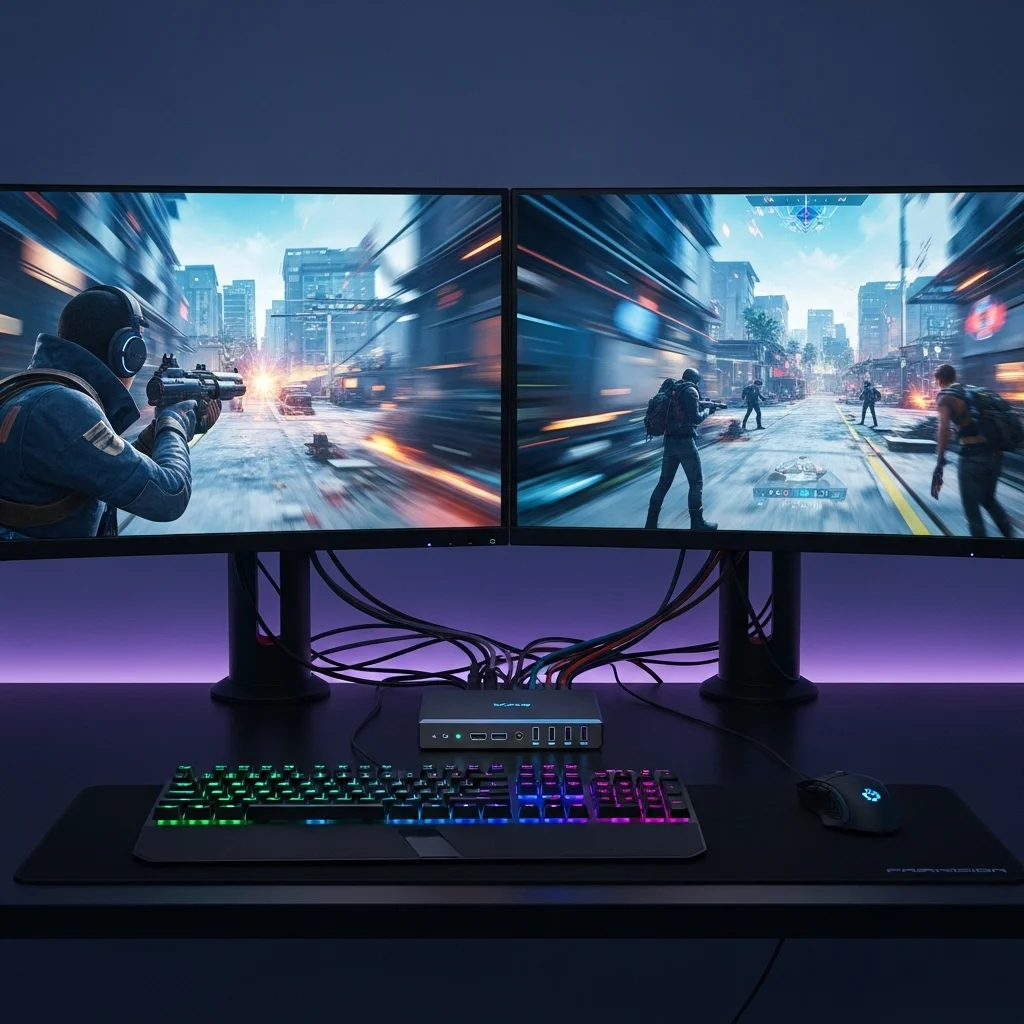
Key KVM Features for Zero-Lag Gaming
When every millisecond counts, your KVM must be built for speed. Here’s what competitive gamers demand:
- High Refresh Rate & Resolution Support: Your KVM needs to handle the latest display standards. Look for DisplayPort 1.4 or HDMI 2.1 to support 144Hz, 240Hz, or even 360Hz at 1080p, 1440p, or 4K.
This ensures your visuals remain buttery smooth and responsive.
- USB 3.0+ for Peripherals: Ensure the KVM supports USB 3.0 or higher. This is vital for maintaining high polling rates from your gaming mouse and keyboard.
A KVM that degrades your mouse polling rate is an instant deal-breaker.
- Zero or Near-Zero Latency: This is paramount. Reputable KVMs are designed to introduce minimal input lag, often measured in sub-millisecond figures.
Avoid cheap, generic KVMs that don’t specify their latency performance. Every millisecond adds up, affecting your response time and input lag.
- EDID Emulation: This feature keeps your display settings active on the inactive PC. It prevents resolution changes and desktop reorganization when switching.
Smooth transitions mean you’re always ready for action, without waiting for your monitors to reconfigure.
- Hot-Key Switching: Fast switching is essential in competitive environments. Look for KVMs that offer quick hot-key commands for instant transitions between systems.
This keeps you in the game, minimizing downtime between matches or during practice sessions.
Why Polling Rate Matters
Your gaming mouse and keyboard communicate with your PC at a specific polling rate. This is how often they report their position or key presses.
A KVM must pass these signals through transparently. Many competitive gamers now use peripherals with 1000Hz, 4000Hz, or even 8000Hz polling rates.
A bar chart showing common polling rates for competitive gaming peripherals: Standard (Gaming) at 1000Hz, High-End (Gaming) at 4000Hz, and Ultra-High (Gaming) at 8000Hz.
A KVM that can’t handle these high rates will bottleneck your input, negating the benefits of your premium gear.
Always check KVM specifications to ensure full USB polling rate passthrough.
Testing Your KVM Setup on Joltfly
Once you’ve selected a KVM, testing its real-world performance is crucial. Don’t just trust the specs; verify them.
Joltfly offers powerful tools to help you measure your peripheral performance:
- Use our Mouse Polling Rate Test to confirm your mouse maintains its advertised polling rate through the KVM.
- Challenge your reaction times with the Reaction Time Test to see if your KVM introduces any noticeable delays.
- Assess your overall input system responsiveness with our Device Tests.
Test your setup with and without the KVM to directly compare performance metrics.
This data will empower you to make informed choices and optimize your gaming rig.
Don’t settle for anything less than peak performance. Choose your KVM wisely and use Joltfly to ensure you always have the competitive edge!
Mandatory Specs: DisplayPort 1.4, DDM, and Independent USB Switching
To dominate in competitive gaming, every millisecond counts. Choosing the right KVM switch is critical to maintaining your edge.
Generic KVMs can introduce frustrating input lag. You need specific features to ensure your KVM switch doesn’t hold you back.
Let’s break down the mandatory specs that protect your performance.
DisplayPort 1.4: Uncompromised Visuals
First, prioritize KVMs with DisplayPort 1.4 support. This is non-negotiable for high-refresh-rate gaming monitors.
It handles 4K resolution at 120Hz or even 144Hz, and 1440p at 240Hz or higher, without compression.
Lower versions, like DisplayPort 1.2, might force Display Stream Compression (DSC).
This can happen for high resolutions and refresh rates.
While DSC is efficient, some competitive gamers prefer to avoid its potential latency. DP 1.4 bypasses this concern entirely.
Dynamic Device Mapping (DDM) / USB Emulation
Next, look for KVMs with Dynamic Device Mapping (DDM) or advanced USB emulation. This is vital for consistent peripheral performance.
Many KVMs constantly disconnect and reconnect USB devices when switching. This causes brief interruptions.
It can even reset your 8000Hz polling rate.
DDM technology keeps your peripherals continuously connected. They remain linked to the KVM’s internal emulator.
This is true even when switching between different computers.
This means your mouse and keyboard maintain their polling rate, DPI settings, and macros without interruption.
No more frustrating lag spikes after a switch.
It ensures instant recognition and responsiveness. Think of it as a seamless bridge for your high-performance gear.
Independent USB Switching
Beyond DDM, independent USB switching is a game-changer. This allows you to switch your video signal and USB peripherals separately.
Imagine streaming. You switch your game PC, but your mic and webcam stay connected to your streaming PC.
This is where independent USB switching shines.
For competitive play, it means you can manage your setup more flexibly. It reduces complexity and potential points of failure.
This separation helps prevent any conflicts or delays that could arise from simultaneous switching of all devices.
Key KVM Features for Competitive Gamers
To summarize, here’s a quick checklist for your next KVM switch:
- DisplayPort 1.4 or higher: For uncompressed, high-refresh-rate visuals.
- Dynamic Device Mapping (DDM): Ensures continuous peripheral connection and stable polling rates.
- Independent USB Switching: Offers flexible control over video and peripheral routing.
- High USB Polling Rate Support: Critical for 1000Hz, 4000Hz, or 8000Hz mice.
- Low Latency Design: Look for KVMs specifically marketed for gaming or professional use.
Don’t let subpar KVM switches sabotage your gameplay. Invest in the right gear.
Ensure every click and movement is registered instantly.
Ready to test your gear? Head over to Joltfly’s Device Tests.
Measure your mouse polling rate, keyboard latency, and more. Challenge your friends and climb the leaderboards!
The Refresh Rate Trap: Avoiding 60Hz Bottlenecks in 240Hz Setup
You’ve invested in a blazing-fast 240Hz monitor. Maybe even 360Hz. This hardware gives you a massive edge in competitive titles.
But a hidden bottleneck can steal that advantage: your KVM switch.
Many KVMs, especially older models, simply cannot handle the sheer bandwidth required for such high refresh rates.
They might downgrade your signal, trapping your high-refresh setup at a mere 60Hz. That’s a huge competitive disadvantage.
Here’s why this matters:
A bar chart showing frame times: 60Hz (16.67ms), 144Hz (6.94ms), 240Hz (4.17ms).
As you can see, the time it takes for a new frame to display drops drastically with higher refresh rates.
At 60Hz, each frame takes approximately 16.67 milliseconds to update.
Compare that to 4.17 milliseconds at 240Hz. That difference is critical for reacting faster than your rivals.
Identify the Refresh Rate Bottleneck
Before blaming your KVM, confirm your monitor’s actual refresh rate. Check your display settings in Windows or your GPU control panel.
It should explicitly state 240Hz or your target refresh rate.
If it’s stuck at 60Hz, your KVM is likely the culprit.
Choose the Right KVM for High Refresh Rates
To avoid the 60Hz trap, your KVM and cables need to support the necessary bandwidth.
Look for KVMs that specifically advertise support for your desired resolution and refresh rate.
- DisplayPort 1.4: Essential for 4K at 120Hz or 1440p at 240Hz. Some even support 8K at 60Hz.
- HDMI 2.1: Crucial for 4K at 120Hz or 1440p at 240Hz on consoles and newer PCs.
- DSC (Display Stream Compression): This feature allows higher resolutions and refresh rates over existing cables. Understand its impact by reading our guide on Display Stream Compression and input lag.
- Certified Cables: Don’t skimp on cables. Use high-quality, certified DisplayPort or HDMI cables that match your KVM and monitor’s capabilities.
Even with the right KVM, always verify your settings. Ensure your GPU drivers are updated and configured correctly for the maximum refresh rate.
Test Your Setup’s Motion Clarity
Once you’ve upgraded your KVM and cables, verify your display’s performance. Use Joltfly’s tools to see the real impact.
Our Display Motion Blur Calculator can help you quantify improvements in visual clarity.
Eliminate the 60Hz bottleneck. Dominate your opponents with the full power of your high-refresh rate display!
In Short
- Choosing the right KVM switch is critical for competitive gaming to avoid input lag and maintain peak performance.
- Essential KVM features for zero-lag gaming include high refresh rate/resolution support (DisplayPort 1.4+), USB 3.0+ for high polling rate peripherals, zero latency, EDID emulation, and hot-key switching.
- Always test your KVM setup with performance tools to ensure it doesn’t bottleneck your gaming peripherals or introduce noticeable delays.
