

Random SSD disconnects kill your momentum and tank your rank. You need a rock-solid rig to stay competitive and dominate the lobby.
We will diagnose the crash using Event Viewer and apply the exact fix to stop these dropouts. Get your storage stable and back in the game.
Key Takeaways
- Use Windows Event Viewer to identify critical error IDs 11, 15, and 51.
- Disable PCIe Link State Power Management to prevent drive sleep issues.
- Update NVMe firmware and motherboard BIOS to resolve compatibility conflicts.
- Reseat your M.2 drive and improve cooling to stop thermal throttling.
- Verify your system stability and aim speed on Joltfly after fixing the drive.
Diagnose the Crash: Event Viewer IDs 11, 15, and 51
Identify the Root Cause with Event Viewer
Random NVMe SSD disconnects can destroy your gaming flow and cost you critical rounds. To crush these issues, you need to become a digital detective.
Windows Event Viewer is your most powerful tool. It logs every critical system event, including the errors that trigger your drive disconnects.
Navigate to Event Viewer for Diagnostic Clues
Accessing the Event Viewer is straightforward. Hit Win + R, type “eventvwr.msc”, and press Enter.
Once open, navigate to Windows Logs > System. This is where your NVMe SSD’s cry for help will appear.

You’ll want to filter these logs.
Look for specific Event IDs related to disk and storage issues. The key culprits for NVMe disconnects are often 11, 15, and 51.
Decoding Event ID 11: The Controller Warning
Event ID 11 typically indicates a driver issue or a problem with the storage controller itself.
Your system is warning you that the NVMe controller is struggling. This could point to outdated NVMe drivers, a failing SSD firmware, or even a motherboard chipset issue.
Decoding Event ID 15: Device Not Ready
When you see Event ID 15, it means your system tried to access the NVMe device, but it wasn’t ready. This suggests a power delivery problem.
Imagine your PC yelling, “Hey, where’d my SSD go?!” It’s a clear signal something is cutting off the drive’s access.
Decoding Event ID 51: Paging Operation Failure
Event ID 51 points to a paging operation failure, often tied to corrupted system files or bad sectors. Your system tried to write data, but the drive failed.
This is a serious red flag that your SSD’s integrity might be compromised or there are underlying OS issues.
Actionable Fixes for NVMe Disconnects
Once you’ve identified the Event IDs, you can target your troubleshooting. Here’s a breakdown of common fixes:
- Update NVMe Drivers & Firmware: Always grab the latest drivers from your SSD manufacturer’s website or motherboard vendor. Check for firmware updates too.
- Check Power Management Settings: Ensure your NVMe drive isn’t being prematurely powered down. In Windows Power Options, disable “Link State Power Management” for PCI Express.
- Verify PCIe Lane Allocation: Improper PCIe lane configuration can starve your NVMe of the bandwidth it needs, leading to disconnects. Optimize your setup to ensure your drive gets dedicated lanes. Learn more about how to optimize PCIe lane allocation for gaming.
- Run System File Checker (SFC): Corrupted system files can cause Event ID 51. Open Command Prompt as administrator and run
sfc /scannow. - Inspect Physical Connections: For M.2 NVMe drives, ensure it’s seated firmly in its slot. A loose connection can cause intermittent disconnects.
- Update Chipset Drivers: Your motherboard’s chipset drivers are crucial for managing communication between components. Outdated ones can cause problems. Discover how chipset drivers affect gaming performance.
According to a 2019 Statista report based on Mindfactory sales data, SSDs showed a failure rate of only 0.2% in gaming PCs.
This is significantly lower than GPUs (3.6%) or motherboards (2.1%).
While outright SSD failure is rare, other component interactions or software issues often cause “disconnects.”
A bar chart showing Gaming PC Component Failure Rates (2019): GPUs (3.6%), PSUs (2.3%), Motherboards (2.1%), RAM (1.5%), SSDs (0.2%), and CPUs (0.1%).
Don’t let NVMe disconnects hold you back.
Use the Event Viewer to pinpoint the exact problem and apply these fixes to get back to dominating your gaming circle.
In Short
- Windows Event Viewer is the primary tool for diagnosing NVMe SSD disconnects, focusing on Event IDs 11, 15, and 51 in the System logs.
- Event ID 11 indicates driver/controller issues, 15 suggests power/connection problems, and 51 points to paging failures or corrupted files.
- Common fixes include updating drivers/firmware, checking power management, verifying PCIe lanes, running SFC, inspecting physical connections, and updating chipset drivers.
Primary Fix: Disable PCIe Link State Power Management
Eliminate Random NVMe Disconnects
Random NVMe SSD disconnects can ruin your gaming session.
These issues lead to crashes or severe stuttering, directly impacting your competitive edge.
This problem often stems from an aggressive power-saving feature: PCIe Link State Power Management.
It’s designed to reduce power consumption by putting your PCIe devices into a low-power state.
This includes your NVMe SSD, particularly when not under heavy load.
While useful for laptops or general use, this feature can cause instability during high-performance gaming.
Your NVMe drive might not wake up fast enough, leading to frustrating disconnects and game interruptions.
Why This Setting Harms Your Gaming Performance
Modern games constantly demand rapid data access from your NVMe SSD.
When Link State Power Management is enabled, your drive can momentarily “sleep.”
This quick power cycling can cause your operating system to lose communication with the drive.
The result? Stutters, freezes, or even outright game crashes at critical moments.
For competitive gamers, every millisecond counts in a match.
This power setting is a hidden enemy to consistent performance and stable gameplay.
Step-by-Step Guide: Disable PCIe Link State Power Management
Follow these steps to ensure your NVMe SSD remains fully powered and responsive.
This is crucial for preventing random disconnects during intense gaming sessions.
- Press Windows Key + R to open the Run dialog.
- Type control and hit Enter to open the Control Panel.
- Navigate to Hardware and Sound, then click Power Options.
- Click Change plan settings next to your currently active power plan.
- Select Change advanced power settings.
- Scroll down and expand PCI Express.
- Expand Link State Power Management.
- Change the setting for both On battery and Plugged in to Off.
- Click Apply, then OK to save your changes.
Reboot your system after making these adjustments.
This ensures they take full effect and stabilize your NVMe SSD.
This simple tweak can significantly boost your drive’s stability and prevent issues.
Optimize Your PCIe Lanes for Peak Performance
Disabling PCIe Link State Power Management is just one optimization.
Understanding how your PCIe lanes are allocated is also critical for system performance.
Improper PCIe lane allocation can create significant bottlenecks.
This is especially true in systems with multiple high-bandwidth devices.
Ensure your GPU and NVMe SSDs have the dedicated bandwidth they truly need.
This avoids performance issues and keeps your system running at peak efficiency.
After adjusting these power settings, challenge your system’s stability.
Use Joltfly’s various device tests to benchmark your setup and confirm improvements.
In Short
- Random NVMe SSD disconnects and game interruptions are frequently caused by aggressive PCIe Link State Power Management.
- Disabling PCIe Link State Power Management prevents NVMe drives from entering a low-power state, ensuring stability and responsiveness during gaming.
- Optimizing PCIe lane allocation for high-bandwidth devices like GPUs and NVMe SSDs is also crucial for preventing performance bottlenecks.
Eliminate Thermal Shutdowns and Firmware Conflicts
Conquer NVMe Thermal Throttling for Uninterrupted Gaming
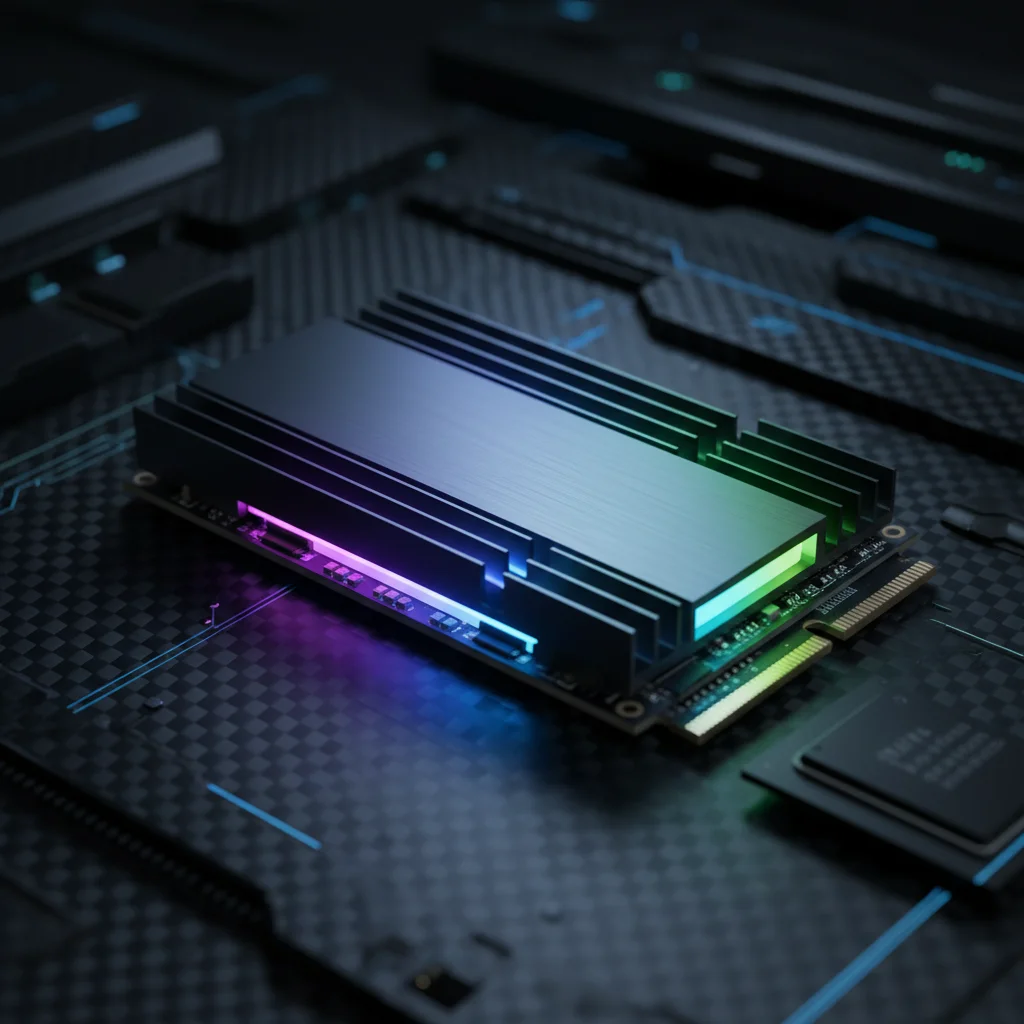
Random NVMe SSD disconnects can ruin your game. Often, the culprit isn’t a faulty drive but extreme heat or outdated firmware.
High temperatures force your NVMe SSD to throttle performance. This protection mechanism prevents damage.
However, it can lead to data transfer issues, manifesting as game freezes or system stutters.
In competitive gaming, these interruptions are unacceptable. You need peak performance, not thermal shutdowns.
Identify and Resolve Overheating Issues
NVMe SSDs, especially PCIe Gen4 and Gen5 drives, generate significant heat under heavy load. Without proper cooling, performance degrades rapidly.
A study by Puget Systems showed that some NVMe drives can see their sustained write speeds drop by over 50% when temperatures hit critical levels.
This massive speed reduction impacts game loading, asset streaming, and overall system responsiveness.
A bar chart illustrating NVMe SSD sustained write performance: 6000 MB/s at optimal 50°C versus 3000 MB/s at high 70°C.
To combat this, ensure your NVMe SSD has adequate cooling. Many modern motherboards include integrated heatsinks.
If yours does not, invest in an aftermarket solution.
Better case airflow is also crucial. Position case fans to direct cool air over your storage devices.
For more insights on preventing thermal issues, check out our guide on how to fix laptop PCH thermal throttling stutter.
Tackle Firmware and Driver Conflicts
Outdated or corrupt NVMe SSD firmware and chipset drivers are silent assassins of stability.
They can cause your drive to behave erratically, leading to disconnects.
Manufacturers constantly release updates to improve compatibility, stability, and performance.
Skipping these updates leaves your system vulnerable to known issues.
A mismatch between your SSD’s firmware and your motherboard’s chipset drivers can result in communication errors.
These errors often manifest as random drive disappearances during intense gaming sessions.
Steps to Update and Optimize
- Check Manufacturer’s Website: Visit your NVMe SSD manufacturer’s support page for the latest firmware. Follow their instructions precisely for updating.
- Update Chipset Drivers: Go to your motherboard manufacturer’s website. Download and install the latest chipset drivers for your specific model.
- Windows Storage Drivers: Ensure you are using the correct storage drivers provided by Microsoft or your SSD manufacturer. Sometimes, older generic drivers cause issues.
- BIOS/UEFI Update: While riskier, updating your motherboard’s BIOS/UEFI can resolve deep-seated compatibility problems with NVMe drives. Proceed with caution.
Keeping your system’s drivers updated is a foundational step for gaming performance. Learn more about how chipset drivers affect gaming performance.
Stay on top of these updates to ensure your NVMe SSD delivers consistent, lag-free performance.
Don’t let thermal shutdowns or firmware conflicts hold you back. Implement these fixes and get back to dominating your gaming circle on Joltfly.
Updating NVMe Drivers and BIOS Versions
Why Driver and BIOS Updates are Crucial
Random NVMe disconnects can crush your gaming sessions.
These frustrating interruptions often stem from outdated drivers or BIOS.
Ensuring your system’s core software is current is a critical fix. You can eliminate stutters and maintain peak performance.
Your NVMe SSD relies on specific drivers to communicate efficiently with your system.
Outdated drivers can lead to communication errors, manifesting as disconnects. Think of it as a language barrier between your SSD and your PC.
A recent driver update often includes stability fixes and performance enhancements. Similarly, your motherboard’s BIOS controls fundamental hardware interactions.
New BIOS versions often address compatibility issues with newer NVMe drives. They can also improve power management, preventing unexpected shutdowns.
Keeping both updated ensures your NVMe operates smoothly.
Updating Your NVMe Drivers
This process is straightforward but requires precision.
Always download drivers directly from the NVMe manufacturer’s website.
Avoid generic driver update tools, as they can sometimes cause more issues.
Here’s how to tackle it:
- Identify Your NVMe Model: Use Device Manager (Windows Key + X, then ‘Device Manager’). Expand ‘Disk drives’ to see your NVMe model.
- Visit Manufacturer’s Site: Go to the official support page for your SSD brand, such as Samsung, Western Digital, or Crucial.
- Download Latest Driver: Find the latest NVMe driver for your specific model and operating system.
- Install the Driver: Follow the installation instructions provided by the manufacturer. This usually involves running an executable file.
- Restart Your PC: A system restart ensures the new drivers are fully integrated.
Beyond NVMe drivers, ensuring your entire system is cool and stable is key.
Keeping an eye on issues like PCH thermal throttling can prevent further stutters.
Updating Your Motherboard BIOS
Updating your BIOS is a more advanced procedure. It can significantly boost stability but carries a small risk if done incorrectly.
Only proceed if you are comfortable following precise instructions.
- Identify Motherboard Model: Use tools like CPU-Z or simply check your motherboard itself.
- Visit Manufacturer’s Site: Go to your motherboard manufacturer’s support page, such as ASUS, MSI, Gigabyte, or ASRock.
- Download Latest BIOS: Find the most recent BIOS version compatible with your exact motherboard model.
- Read Instructions Carefully: Each manufacturer has specific steps, often involving a USB flash drive. Do NOT skip this step.
- Flash the BIOS: Follow the manufacturer’s guide meticulously. Power interruptions during this can be catastrophic.
A successful BIOS update can resolve numerous system glitches. It can often enhance compatibility and overall gaming performance.
Boost Your Gaming Stability
Don’t let random NVMe disconnects cost you critical clutch moments. Proactively updating your drivers and BIOS fortifies your system’s foundation.
This allows your NVMe to deliver consistent, lightning-fast storage access. It’s about optimizing every component for a competitive edge.
After ensuring your NVMe is running perfectly, challenge your reflexes.
Head over to Joltfly and try our Reaction Time Test.
See if your updated system helps you dominate the leaderboards!
Hardware Checks: M.2 Reseating and Heat Mitigation
Reseat Your NVMe SSD for Unshakeable Stability
Random NVMe SSD disconnects can be a nightmare during intense gaming sessions.
Often, the culprit isn’t a faulty drive, but a connection issue.
Your M.2 drive might not be seated perfectly in its slot, leading to intermittent failures.
Tiny vibrations, chassis flex, or even dust can compromise the connection.
This can cause your drive to disappear mid-game, leading to crashes and lost progress.
Step-by-Step NVMe Reseating Guide
Don’t let a loose connection ruin your game. Follow these steps to secure your drive:
- Power Down: Fully shut down your PC and unplug the power cable from the wall.
- Access Drive: Open your PC case and locate the NVMe SSD. It’s usually a small stick-like component.
- Remove Retaining Screw: Carefully unscrew the small screw holding the drive in place.
- Gentle Removal: Gently pull the NVMe SSD straight out of its M.2 slot. Avoid twisting or bending.
- Inspect Contacts: Check the gold contacts on both the SSD and within the M.2 slot for any dust or debris. Use compressed air if needed.
- Reinsert Firmly: Insert the SSD back into the slot at a slight angle. Push it down until it’s flush.
- Secure Drive: Reinstall the retaining screw or latch to hold the drive firmly in place.
- Test: Close your PC case, plug it back in, and power it on. Test your games.
Conquer NVMe Heat for Uninterrupted Gaming Performance
NVMe SSDs are incredibly fast, but this speed often comes with significant heat generation.
Under heavy loads, especially during gaming, these drives can get extremely hot.
Excessive heat triggers thermal throttling, a protection mechanism that slows down the drive.
In severe cases, throttling can lead to unstable performance, data corruption, or even complete disconnects.
Effective Heat Mitigation Strategies
Take control of your NVMe temperatures to ensure consistent, peak performance.
- Utilize Heatsinks: Many modern motherboards come with integrated M.2 heatsinks.
- Ensure yours is installed correctly and making good contact with your NVMe drive.
- If your SSD lacks a heatsink, investing in an aftermarket one can dramatically lower temps.
- Optimize Case Airflow: Good airflow throughout your PC case is paramount.
- Strategic placement of intake and exhaust fans helps dissipate heat efficiently.
- Direct some airflow over your NVMe drive for maximum cooling impact.
- Monitor Temperatures: Keep an eye on your NVMe SSD’s operating temperature.
- Tools like CrystalDiskInfo or HWMonitor provide real-time thermal data.
- Aim to keep temperatures below 70°C (158°F) during gaming. Spikes above 80°C are a clear warning sign.
Preventing thermal throttling is key to maintaining stable gaming performance across all your components.
Optimizing your system’s thermals ensures no part of your rig holds you back.
Explore more ways to keep your hardware cool and prevent performance drops with our guide on safe motherboard VRM temps for gaming.
In Short
- NVMe SSDs require adequate cooling to prevent thermal throttling and performance degradation during intense gaming sessions.
- Regularly updating NVMe SSD firmware, chipset drivers, and Windows storage drivers is crucial to prevent random disconnects and maintain stability.
- Outdated BIOS/UEFI can cause compatibility issues, and updating it can resolve deep-seated problems with NVMe drives.
Ready for Stable Gaming?
Don’t let hardware glitches steal your wins. You have the tools to fix those random disconnects now.
Check your thermal pads and update those drivers immediately. Stability is king in competitive play.
Get back in the lobby and dominate without fear. Your NVMe is ready for the heat of battle!
Frequently Asked Questions
Why does my NVMe disconnect while gaming?
It is usually overheating or outdated drivers. High-performance games push drives hard, causing thermal shutdowns.
Will a heatsink stop the disconnects?
Absolutely. A good heatsink dissipates heat effectively. It prevents thermal throttling and keeps your drive active.
Do I need to update my BIOS?
Yes, outdated BIOS versions often cause compatibility issues. Check your motherboard manufacturer’s site for updates.
Is my SSD failing or is it just settings?
Run a health check with CrystalDiskInfo first. If the health stats are good, it is likely just power settings or heat.
