

You want the fastest reaction times to dominate the server. Choosing the right sync method is critical for shaving off milliseconds.
We break down RTSS Scanline Sync vs G-Sync input lag to see which tool gives you the ultimate competitive edge. Let’s optimize your rig.
Key Takeaways
- G-Sync delivers consistent low latency and tear-free visuals with an easy hardware-based setup.
- RTSS Scanline Sync can achieve ultra-low input lag but requires complex, per-game software tuning.
- High GPU usage causes frame time variance, so capping FPS is vital for stability in both methods.
- Test your optimizations using Joltfly tools to ensure you are actually gaining a speed advantage.
RTSS Scanline Sync vs. G-Sync: The Input Lag Verdict
G-Sync: The Adaptive Input Lag Champion
For most competitive gamers, G-Sync delivers an unparalleled experience. It dynamically matches your monitor’s refresh rate to your GPU’s frame rate.
This eliminates screen tearing and stutter. The magic happens when you cap your in-game FPS slightly below your monitor’s maximum refresh rate.
For example, aim for 141 FPS on a 144Hz display. This keeps G-Sync active consistently.
This setup provides incredibly smooth visuals with minimal input lag. It’s a plug-and-play solution that significantly enhances responsiveness.
RTSS Scanline Sync: The Ultra-Low Latency Tweak
RTSS Scanline Sync offers a different path to reducing input lag. It’s a software-based solution, not relying on specialized monitor hardware like G-Sync.
This method aims to eliminate screen tearing at a specific horizontal scanline on your display. It works by precise frame timing and presentation.
When tuned perfectly, Scanline Sync achieves extremely low input lag. It is a favorite for pros chasing every millisecond.
However, it demands more technical knowledge and per-game tuning. It’s an advanced optimization for those who truly want to push the limits.
Input Lag Comparison: G-Sync vs. RTSS Scanline Sync
Deciding between G-Sync and RTSS Scanline Sync boils down to your priorities. G-Sync offers broad, consistent performance with ease of use.
RTSS Scanline Sync can offer peak low-latency performance in very specific, optimized scenarios. It’s a niche tool for dedicated tweakers.
Understanding the fundamental difference between these input-smoothing technologies is key.
Dive deeper into general lag concepts with our Response Time vs Input Lag: A Gamer’s Ultimate Guide.
A bar chart comparing average input lag (in milliseconds) for different display synchronization methods: V-Sync OFF (10ms), G-Sync + Cap (12ms), and V-Sync ON (25ms).
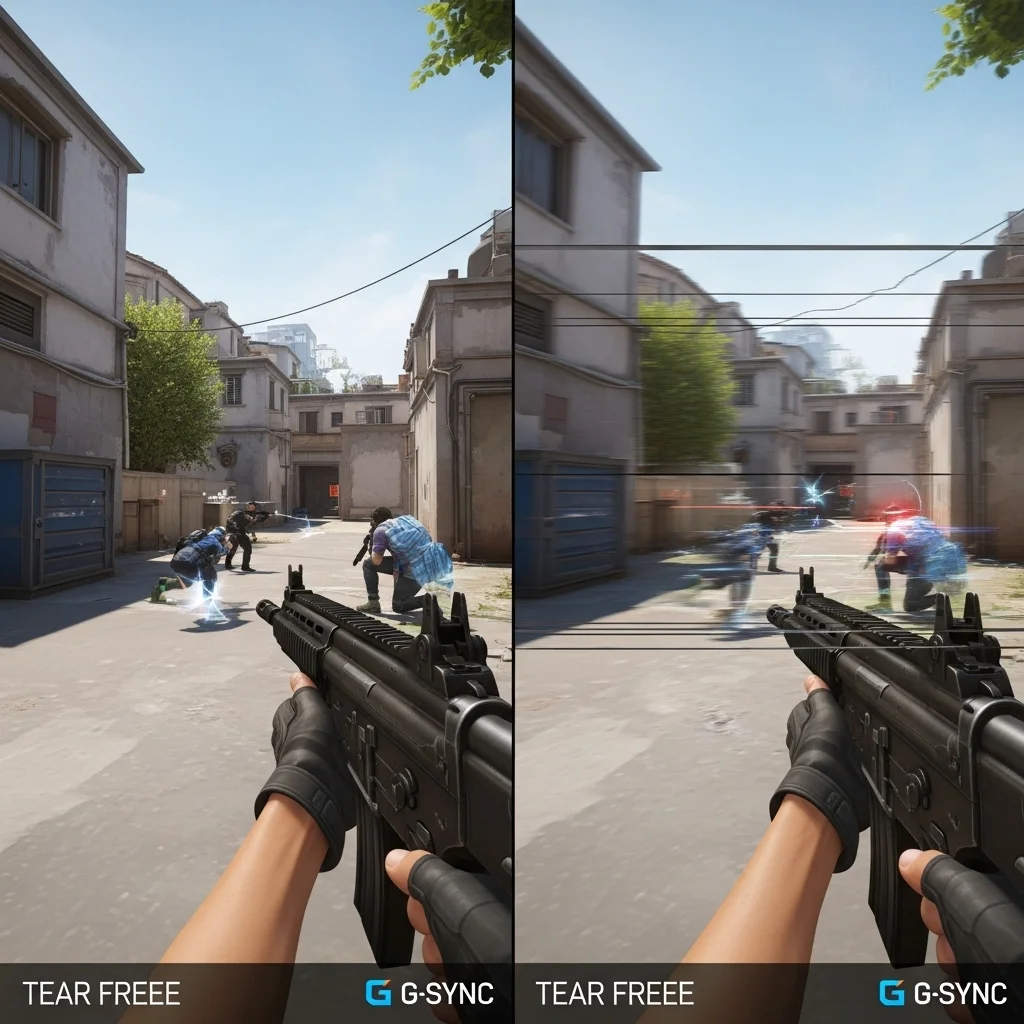
Data shows G-Sync with a frame cap nearly matches V-Sync off speeds, minus the tearing. Conversely, standard V-Sync adds significant lag.
Which Solution Wins for Your Setup?
Here’s a quick breakdown to help you decide which input lag solution is right for your competitive gaming arsenal.
| Feature | G-Sync (Hardware VRR) | RTSS Scanline Sync (Software) |
|---|---|---|
| Core Technology | Hardware-based Variable Refresh Rate | Software-based frame pacing |
| Tearing Elimination | Excellent, always tear-free within VRR range | Good, eliminates tearing at specific scanline |
| Input Lag Potential | Very low, consistent performance | Potentially ultra-low in ideal conditions |
| Setup Complexity | Easy: requires G-Sync monitor & NVIDIA GPU | Advanced: requires per-game tuning in RTSS |
| Hardware Requirement | G-Sync/G-Sync Compatible monitor, NVIDIA GPU | Any monitor, any GPU (via RivaTuner Statistics Server) |
| Ideal Use Case | Smooth, consistent experience across all games | Dedicated ultra-low lag for specific high-FPS titles |
Approaches to input lag differ. NVIDIA also offers NVIDIA Reflex to optimize rendering. It often complements G-Sync for the ultimate competitive edge.
Test your reaction speed to see improvements. Head over to Joltfly’s Reaction Time Test and challenge your gaming circle to beat your best.
In Short
- G-Sync provides smooth, tear-free visuals with consistently low input lag for most competitive gamers through hardware-based variable refresh rate.
- RTSS Scanline Sync is a software-based solution capable of ultra-low input lag in specific, optimized scenarios but requires advanced technical knowledge and per-game tuning.
- While G-Sync offers ease of use and consistent performance, RTSS Scanline Sync caters to those seeking peak low-latency in niche situations.
The Decision Matrix: Is Scanline Sync Worth the Effort?
Unlocking Peak Performance: Scanline Sync’s Niche Appeal
You are a competitive gamer chasing that elusive edge. Every millisecond counts. This is where the debate between RTSS Scanline Sync and G-Sync heats up.
Scanline Sync offers low input lag while eliminating tearing. It achieves this by precisely timing frame delivery to a specific scanline on your monitor.
The payoff can be immense for those who master its setup. You get smooth, tear-free visuals with input responsiveness that can often rival uncapped framerates.
The Effort vs. Reward Equation
While the benefits are tempting, Scanline Sync demands dedication. It’s not a plug-and-play solution like G-Sync.
You’ll need to meticulously configure it within RivaTuner Statistics Server (RTSS), often requiring per-game adjustments.
Finding that perfect scanline index takes patience and testing. A misstep can introduce stutter or even more tearing.
This level of fine-tuning is for the dedicated enthusiast, the gamer who lives to optimize every aspect of their rig.
G-Sync: The Seamless Powerhouse
Contrast this with G-Sync. If you have a compatible monitor and NVIDIA GPU, G-Sync delivers a superior visual experience with minimal fuss.
It dynamically adjusts your monitor’s refresh rate to match your GPU’s frame output. The result is tear-free, fluid gameplay across a wide FPS range.
G-Sync introduces tiny input lag compared to uncapped frames. However, it is consistent and generally much lower than traditional V-Sync.
For most competitive players, G-Sync provides an excellent balance of visual fidelity and low input lag, without the deep dive into software tweaking.
Making Your Choice: A Gamer’s Guide
Deciding between Scanline Sync and G-Sync depends on your priorities and tolerance for configuration.
Are you willing to invest significant time to squeeze every last drop of input lag out of your system, even at the risk of some setup complexity?
Or do you prefer a robust, adaptive solution that works seamlessly with minimal configuration?
| Feature | RTSS Scanline Sync | NVIDIA G-Sync |
|---|---|---|
| Tearing Control | Excellent, if configured perfectly | Excellent, adaptive |
| Input Lag | Potentially lowest (with perfect tune) | Very low, consistent |
| Setup Complexity | High, per-game tuning required | Low, largely plug-and-play |
| Hardware Requirement | Any monitor (RTSS software) | G-Sync compatible monitor & NVIDIA GPU |
| Flexibility | Game-specific, can be finicky | Wide FPS range, automatic |
| Ideal User | Extreme low-lag enthusiasts | Most competitive gamers seeking balance |
Test Your System, Dominate the Game
Ultimately, the best choice empowers your gameplay. Understand how display tech, like response time vs input lag, affects performance.
Don’t just read about it, test it yourself. Use Joltfly’s Device Tests to measure system performance and find your competitive edge.
Refine your settings, challenge your friends, and dominate your gaming circle with optimized hardware and skills.
Understanding GPU Usage Limitations and Stability
Harnessing Your GPU for Peak Performance and Stability
Your GPU is the heart of your gaming experience. Understanding how GPU usage impacts performance is crucial for competitive play.
Pushing your graphics card to its limits can introduce unexpected stutters and inconsistent frame delivery, directly affecting input responsiveness.
GPU Load: The Silent Killer of Consistency
When your GPU runs at or near 100% utilization, it means it’s working overtime. This intense workload can lead to varying frame times.
Inconsistent frame times create micro-stutters. This makes smooth aiming and precise movements incredibly difficult to achieve.
Both RTSS Scanline Sync and G-Sync aim for smooth visuals, but their effectiveness can degrade under unstable GPU loads.
Scanline Sync and Consistent Frame Rates
RTSS Scanline Sync requires a consistent frame rate matching your refresh rate.
If your GPU struggles to maintain this, you will see artifacts or feel hitching.
It’s like hitting a perfect rhythm. If your GPU misses a beat, the whole sync falls apart, impacting your gaming flow.
G-Sync’s Adaptability Under Scrutiny
G-Sync adapts the monitor’s refresh rate to your GPU’s output. This reduces tearing and stutter within its variable refresh rate window.
However, G-Sync isn’t magic. When your GPU constantly bounces between extreme frame rates or drops below the G-Sync range, input lag increases.
Maintaining a stable, high frame rate within the G-Sync window is key to maximizing its benefits and minimizing latency.
Optimizing GPU Usage for Rock-Solid Stability
To dominate your gaming circle, you need to ensure your GPU delivers frames as consistently as possible. Here’s how to keep it stable:
- Cap Your Frames: Use in-game settings or external tools like RTSS to cap your FPS just below your monitor’s refresh rate for Scanline Sync, or within your G-Sync range.
- Lower Settings: Reduce demanding graphics options like shadows, anti-aliasing, or texture quality. This lightens the load on your GPU.
- Monitor Temperatures: High GPU temperatures can lead to thermal throttling, severely impacting performance. Ensure adequate cooling.
- Update Drivers: Always run the latest GPU drivers from NVIDIA or AMD for optimal performance and stability fixes.
- Utilize Optimization Tech: Technologies like NVIDIA Reflex and AMD Anti-Lag can help reduce render queue latency. Learn more about these solutions in our guide on NVIDIA Reflex vs AMD Anti-Lag.
Monitoring your frame times is a powerful way to gauge GPU stability. Tools like CapFrameX or MSI Afterburner can help you visualize your frame delivery.
A line chart illustrating how frame time variance generally increases as GPU utilization approaches 100%. At 50% GPU utilization, variance is around 1.2ms; at 70% it’s 2.5ms; at 90% it rises to 4.8ms; and at 99% it significantly jumps to 8.5ms, indicating degraded stability.
Higher frame time variance means less consistent frame delivery, which translates directly to a less responsive and fluid gaming experience.
Keep your GPU usage in check. Test your system’s stability with Joltfly’s Mouse Latency Test to see if your optimizations pay off.
In Short
- Scanline Sync offers potentially the lowest input lag with tear-free visuals but demands extensive, per-game configuration.
- G-Sync provides an excellent balance of tear-free, fluid gameplay with very low and consistent input lag, requiring minimal setup for compatible hardware.
- The choice between the two depends on a gamer’s willingness to meticulously fine-tune for every millisecond saved versus preferring a seamless, adaptive solution.
How to Hide the Tearline: A Visual Troubleshooting Guide
Eliminate Distracting Tearlines and Dominate Visually
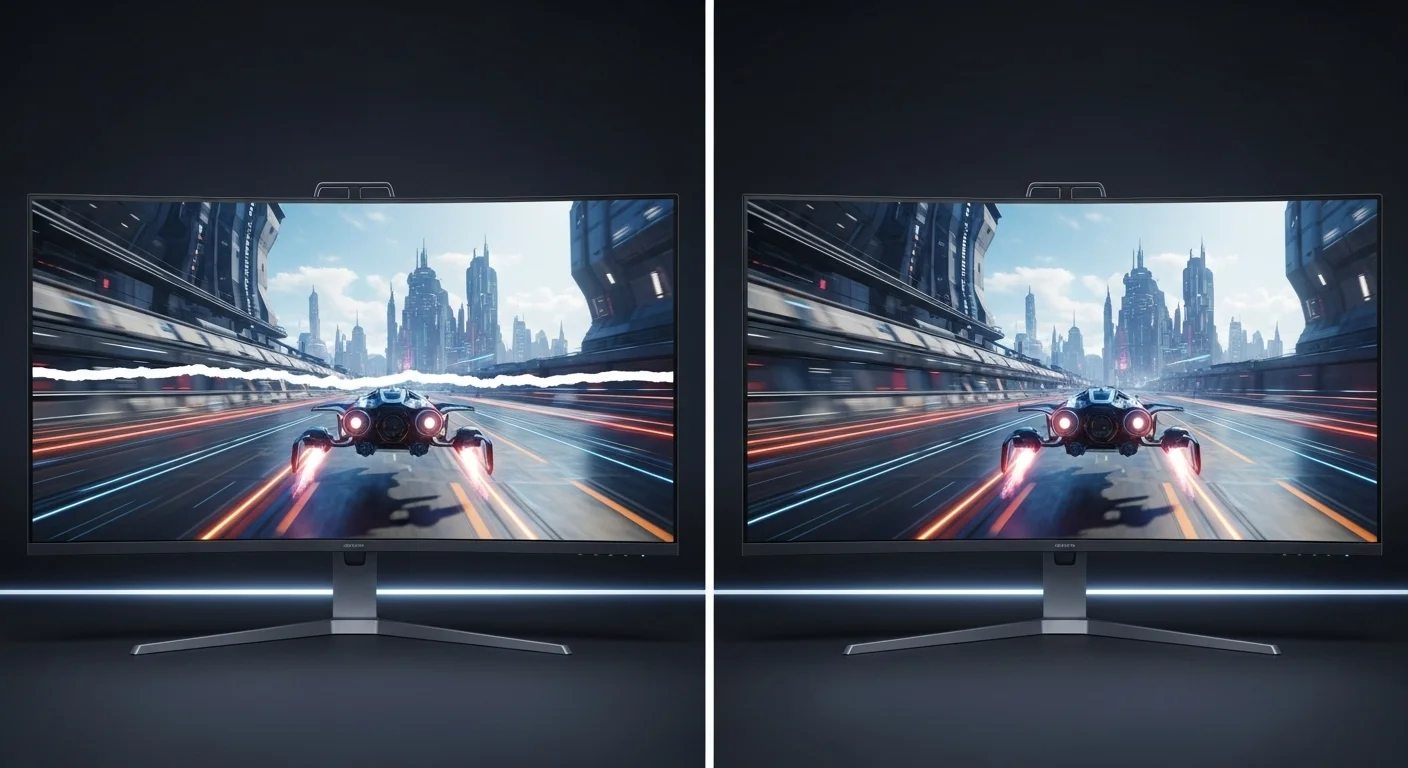
Nothing breaks focus like a persistent tearline. For competitive gamers, visual glitches can cost you crucial milliseconds and ultimately, the win.
Concealing these visual imperfections is key to maintaining peak performance and enjoying fluid gameplay.
Mastering RTSS Scanline Sync for Flawless Frames
RTSS Scanline Sync is a powerful solution to combat tearing. It works by synchronizing frame presentation with your monitor’s refresh cycle.
Instead of eliminating tearing entirely like G-Sync, it pushes the tearline to an invisible part of the screen, typically the top or bottom border.
This technique allows you to experience tear-free visuals without the significant input lag penalties often associated with traditional V-Sync.
Proper calibration is essential. You need to identify your optimal frame rate target and the ideal scanline offset to effectively hide the tearline.
Configuring RTSS Scanline Sync
Follow these steps to fine-tune your Scanline Sync settings in RivaTuner Statistics Server (RTSS):
- Identify Your Native Refresh Rate: Know your monitor’s maximum refresh rate.
- Set a Frame Rate Limit: In RTSS, set a global or per-game frame rate limit slightly above or below your monitor’s refresh rate. Experiment with values like 143 FPS for a 144Hz monitor.
- Enable Scanline Sync: Navigate to the Scanline Sync settings within RTSS.
- Adjust Scanline Sync Index: This is the critical setting. Start with a value around 50. Increase or decrease this value gradually.
- Test In-Game: Load a fast-paced game and observe the screen. You’re looking for the tearline to disappear or become imperceptible.
- Fine-Tune for Perfection: Small adjustments to the index can shift the tearline vertically. Keep tweaking until it’s off-screen or totally hidden by UI elements.
Unleashing the Power of G-Sync and FreeSync
VRR technologies like G-Sync and FreeSync offer a hardware-level solution. They dynamically match your monitor’s refresh rate to your GPU’s frame rate.
This ensures every frame is displayed completely, eliminating tearing across the entire screen, not just hiding it.
The result is incredibly fluid motion and a consistently smooth visual experience, which is paramount in competitive gaming.
G-Sync generally offers the best experience. However, issues like G-Sync brightness flickering can arise, which are fixable with settings and firmware.
G-Sync vs. Software Sync Input Lag
Comparing input lag between G-Sync and Scanline Sync is nuanced. G-Sync generally provides lower lag than traditional V-Sync, especially at fluctuating rates.
However, an optimized Scanline Sync setup can sometimes rival G-Sync’s performance. Always test your personal setup to find your competitive edge.
A bar chart comparing average input lag: V-Sync On (30ms), G-Sync/FreeSync (10ms), No Sync/Scanline Sync (Optimized) (8ms).
As illustrated, optimized “no sync” methods like Scanline Sync can achieve extremely low input lag. This makes them highly attractive for pro players.
Optimizing for the Win: Visual Fidelity and Responsiveness
Whether you lean towards RTSS Scanline Sync or embrace G-Sync, the goal is clear: a pristine visual experience without compromising your competitive edge.
Each method requires careful setup and testing to truly unlock its potential. Dive into your settings and experiment.
Ensure you check for other visual disruptions. Use the Joltfly Display Stutter and Tearing Calculator to analyze performance and find improvements.
Challenge yourself to achieve the cleanest, most responsive display possible. Your reaction time and overall performance will thank you.
Fine-Tuning the Sync Scanline Index for Perfect Pacing
Unlock Peak Pacing with Scanline Index Tuning
You crave seamless gameplay. While G-Sync delivers incredible fluidity, RTSS Scanline Sync offers a powerful alternative for precise frame pacing.
Mastering the Sync Scanline Index is your secret weapon. It eliminates micro-stutter and achieves visual consistency, even without adaptive sync.
Understanding the Scanline Sync Mechanism
Scanline Sync, a feature within RivaTuner Statistics Server (RTSS), controls exactly when your GPU renders a frame relative to your monitor’s refresh cycle.
It essentially dictates the vertical position on your screen where a new frame begins to draw.
This timing minimizes tearing by flipping a new frame at a specific scanline. It offers a smoother experience than raw uncapped framerates.
Traditional V-Sync can introduce input lag. Scanline Sync provides a balance, keeping latency low while drastically reducing visual artifacts.
Your Playbook for Optimal Scanline Index Adjustment
Fine-tuning the Scanline Index requires experimentation, but the payoff is immense. You’ll achieve a buttery-smooth display that rivals adaptive sync.
Here’s how to dial it in:
- Target Your FPS: First, cap your framerate slightly above your monitor’s refresh rate, perhaps 1-3 FPS higher. This gives Scanline Sync a buffer to work with.
- Access RTSS: Open RivaTuner Statistics Server. Locate your game profile and find the “Scanline Sync” option.
- Initial Index Value: Start with an index value around 50 for a 60Hz display, or scale proportionally for higher refresh rates (e.g., 100-120 for 144Hz, 150-180 for 240Hz).
- Observe and Adjust: Launch your game and carefully look for screen tearing. If tearing appears near the top, decrease the index. If it’s near the bottom, increase it.
- Small Increments: Make adjustments in small steps, like 1 to 5 points at a time. The sweet spot is often subtle but makes a huge difference.
- Test in Game: Always test changes in actual gameplay. Different games might benefit from slightly different index values due to varying rendering pipelines.
Visualizing Scanline Sync’s Impact
The goal is to eliminate visible stutter and screen tearing. An incorrect scanline index can lead to minor visual hitches that disrupt your focus and timing.
With precise tuning, your display will feel far more responsive and fluid, directly impacting your competitive performance.
Use Joltfly’s Display Stutter and Tearing Calculator to understand and quantify these visual anomalies before and after tuning.
A bar chart illustrating the subjective perceived smoothness: V-Sync Off (40%), V-Sync On (70%), and Scanline Sync Optimized (95%).
A well-tuned Scanline Sync index elevates your gaming experience. It provides near-adaptive sync fluidity without the associated hardware cost or latency.
Dive into settings, test pacing, and feel the difference on Joltfly’s device tests. Challenge your gaming circle to see who achieves the best setup.
In Short
- RTSS Scanline Sync is a software solution that hides screen tearlines by pushing them to an invisible area of the display, requiring careful calibration for low input lag.
- G-Sync and FreeSync are hardware-based Variable Refresh Rate (VRR) technologies that eliminate screen tearing by dynamically matching the monitor’s refresh rate to the GPU’s frame rate, offering fluid visuals and generally low input lag.
Sync Your Way to Victory
RTSS Scanline Sync is a beast for frame pacing, but it demands fine-tuning. It is for those who love to tinker.
G-Sync remains the king of convenience. It adapts instantly, keeping your gameplay tear-free without the headache.
Stop guessing and start testing! Optimize your rig today and dominate your next match with zero lag.
Frequently Asked Questions
Which method has lower input lag?
RTSS can edge out G-Sync if tuned perfectly. However, G-Sync offers consistent low latency straight out of the box.
Can I use RTSS and G-Sync together?
Technically yes, but it is often redundant. Pair G-Sync with an in-game frame cap for the smoothest experience.
Is RTSS Scanline Sync free to use?
Absolutely. It is a powerful, free tool included with RivaTuner Statistics Server. Save your cash for better hardware!
Do I need a special monitor for RTSS?
No! RTSS works on any display. Unlike G-Sync, you do not need certified hardware to fix that annoying screen tearing.
