

Tired of black bars limiting your vision? You bought an ultrawide monitor to dominate the map, not to stare at empty black space.
We will show you how to force full-screen resolution safely. From native settings to hex edits, get ready to unlock true immersion and crush the competition.
Key Takeaways
- Start with safe in-game and GPU driver settings to fix aspect ratios without anti-cheat risks.
- Utilize Flawless Widescreen to automatically patch unsupported titles for instant immersion.
- Master advanced hex editing to force custom resolutions in stubborn or older games.
- Correct stretched HUDs and UI elements to maintain vital situational awareness.
- Verify your pixel-perfect setup with Joltfly’s display tools to ensure maximum accuracy.
The Hierarchy of Solutions: Safety and Anti-Cheat Warnings
Ready to conquer those pesky black bars? Before you dive in, understand the risks. Not all solutions are created equal.
Some methods are perfectly safe. Others can trigger anti-cheat systems, especially in competitive titles.
Your goal is maximum immersion without jeopardizing your account. Let’s break down the hierarchy of solutions.
Prioritize Safe, Built-in Options First
Always start with the safest approaches. These are usually built into your games or graphics drivers.
Game developers often include native ultrawide support. Check in-game display settings for resolution options like 21:9 or 32:9.
Graphics driver control panels are your next best friend. NVIDIA Control Panel and AMD Adrenalin Software offer scaling options.
You can set GPU scaling to aspect ratio or full-panel. This can help stretch or fit the image properly.
However, be mindful of GPU scaling vs. display scaling for minimal input lag in competitive scenarios.
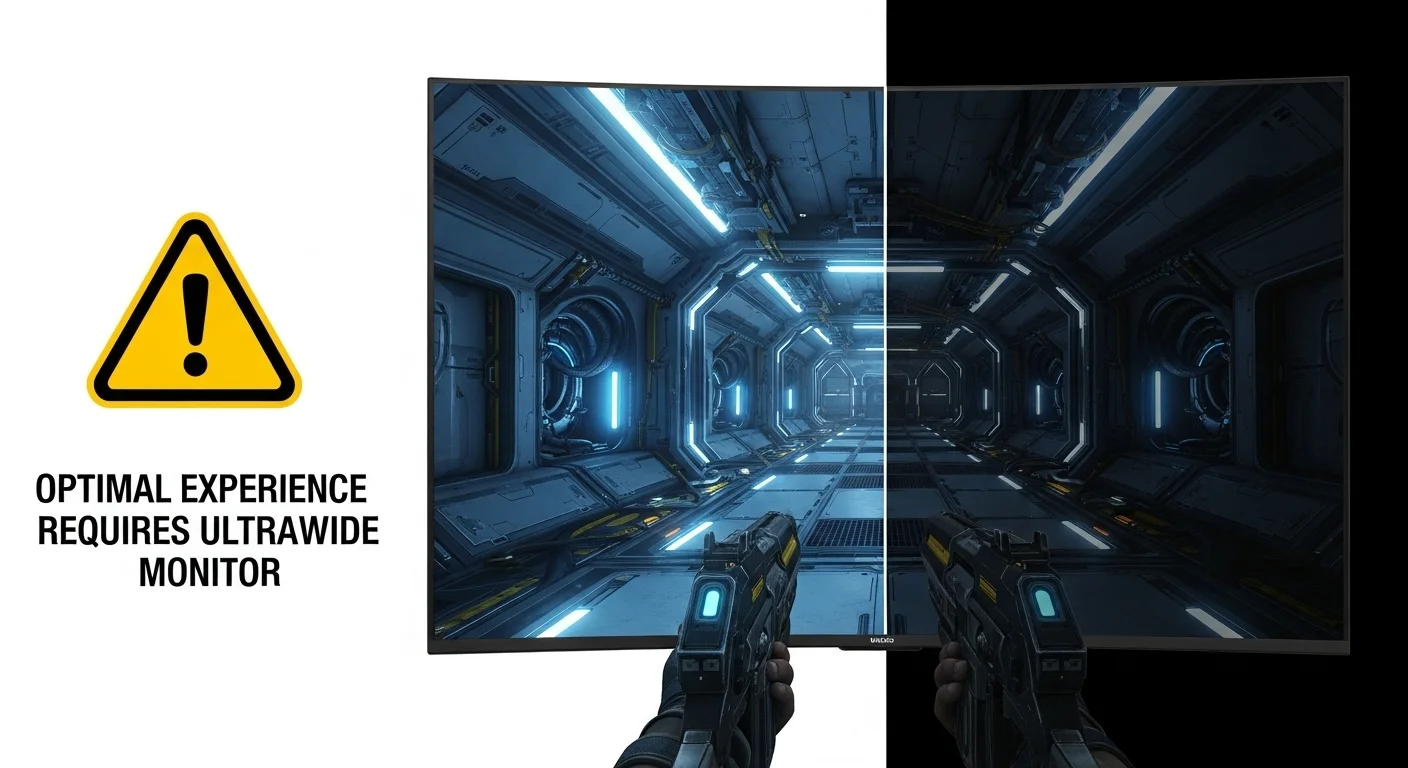
The Middle Ground: Community Patches and Tweaks
If native support is missing, the gaming community often steps up. Unofficial patches or “mods” can force ultrawide resolutions.
These are often shared on forums like PCGamingWiki or specific game subreddits. Always download from trusted sources.
Tools like Flawless Widescreen also aim to fix ultrawide issues for many titles. They inject code into running games.
While often safe, using third-party tools carries a slight risk. Research them thoroughly before installing.
The Risky End: Memory Editing and Hex Edits
Some methods involve directly editing game files or memory. This is the highest risk category.
Hex editing executable files or using memory scanners to change resolution values can bypass game limitations.
The problem? Anti-cheat systems are designed to detect such modifications. They see these as attempts to cheat.
Even if you’re just fixing black bars, an automated system might flag your account. This could lead to a ban.
For competitive games, we strongly advise against these methods. It’s not worth the risk to your account.
Solution Safety Hierarchy
- Safest: In-game settings, graphics driver options.
- Moderate Risk: Community-made patches, Flawless Widescreen, Universal Unreal Engine 4 Unlocker.
- Highest Risk: Direct game file/memory modification (hex editing, custom executables).
The ultrawide monitor market is booming. Mordor Intelligence projects significant growth from 2024 to 2029.
Estimates see it rising from USD 13.91 billion to USD 22.95 billion. This indicates a massive increase in adoption among gamers.
A bar chart showing the projected ultrawide monitor market size: USD 13.91 billion in 2024, growing to USD 22.95 billion in 2029.
This growth means more players like you are facing the black bar challenge. Always check your display aspect ratio to ensure your settings are correct.
Stay sharp, gamer! Use the safest methods first. Test your display with Joltfly’s tools to ensure peak performance.
In Short
- Solutions for ultrawide black bars have a risk hierarchy, from safe built-in options to risky memory editing.
- Always prioritize built-in game or graphics driver settings for ultrawide support to avoid anti-cheat system issues.
- Community patches are a moderate-risk option, but direct game file or memory modifications carry the highest risk of account bans.
Level 1 & 2: Native Settings and Config File Modifications
Conquer Black Bars: First-Layer Fixes
You’re ready to dominate with your ultrawide monitor, but black bars are holding you back.
These frustrating borders are a common nuisance. They usually appear when a game doesn’t natively support your monitor’s aspect ratio.
It’s time to take control. Start with in-game settings and graphics drivers. These are your first lines of attack to reclaim your full display.
Game Settings: The Initial Offensive
Many modern titles offer robust ultrawide support right out of the box. Dive into the graphics options first.
Look for resolution and aspect ratio settings. Your goal is to match them to your monitor’s native ultrawide resolution, like 2560×1080 or 3440×1440.
- Resolution: Select your monitor’s native ultrawide resolution. This is the simplest fix.
- Aspect Ratio: Choose 21:9 or 32:9 if available. Some games may label it as “Ultrawide.”
- Field of View (FOV): Adjust your FOV carefully. Incorrect FOV can stretch the image, distorting your view and competitive edge.
Experiment with these settings. A perfectly scaled image gives you a massive advantage.
Graphics Driver Panel: System-Wide Solutions
When in-game settings fall short, your GPU control panel is the next battleground. Both NVIDIA and AMD offer powerful scaling options.
This can force a game to render in your desired aspect ratio, even if it doesn’t offer it directly.
NVIDIA Control Panel
Right-click your desktop and open the NVIDIA Control Panel.
Navigate to “Display” then “Adjust desktop size and position.”
Here, select “Full-screen” under “Scaling mode.” Crucially, set “Perform scaling on” to “GPU.”
This ensures your graphics card handles the scaling. It often provides better results than display scaling.
For a deep dive into optimal scaling, check out our guide on GPU Scaling vs Display Scaling.
AMD Radeon Software
Open AMD Radeon Software. Go to the “Display” tab.
Look for “Scaling Mode.” Choose “Full Panel” or “Preserve full aspect ratio” and ensure “GPU Scaling” is enabled.
This tells your AMD GPU to stretch the image to fill your ultrawide display.
Config File Modifications: Unleash the Power User
For older titles or games with stubborn black bars, you might need to get your hands dirty with config files. This is where you directly edit game settings.
Warning: Always back up your config files before making changes. Incorrect edits can cause game instability.
Locating Config Files
Game config files are typically `.ini`, `.cfg`, or `.xml` files.
They are usually found in the game’s installation directory, `Documents` folder, or `AppData` folder.
A quick online search for “[Game Name] ultrawide fix” often reveals the exact file and lines to modify.
Editing Resolution and Aspect Ratio
Open the config file with a text editor like Notepad.
Look for lines related to `Resolution`, `Width`, `Height`, or `AspectRatio`.
Change these values to match your ultrawide resolution, e.g., `Width=3440` and `Height=1440`.
You might need to add or modify an aspect ratio line like `AspectRatio=21:9` if it’s missing.
Save the file and set it to “Read-only” if the game keeps reverting your changes.
Ultrawide Monitor Adoption in Gaming
The popularity of ultrawide monitors is on the rise among gamers, yet 16:9 remains dominant.
According to the Steam Hardware Survey for December 2023, approximately 2.22% of gamers use a 21:9 aspect ratio.
This shows a niche but growing demand for proper ultrawide support.
A pie chart showing gaming monitor aspect ratio distribution: 16:9 (73.97%), 16:10 (4.75%), 21:9 (2.22%), and Other (19.06%).
Test Your Setup
After applying these fixes, launch your game to see the full ultrawide glory.
Pay attention to any stretching or distortion. Fine-tuning might be necessary.
Once your display is optimized, push your skills to the max.
Head over to Joltfly’s Aim Trainer to test your target accuracy on your newly expanded battlefield.
In Short
- To eliminate black bars on ultrawide monitors, first check in-game settings for native resolution, aspect ratio, and FOV adjustments.
- If in-game options are insufficient, utilize your graphics card’s control panel (NVIDIA or AMD) to force full-screen GPU scaling.
- For older or uncooperative games, modify configuration files (e.g., .ini, .cfg) to manually set the ultrawide resolution and aspect ratio.
Level 3: Using Flawless Widescreen and Third-Party Tools
Ready to truly dominate your ultrawide display? Sometimes, native game settings just aren’t enough. Many titles leave frustrating black bars on the sides.
This is where third-party tools become your secret weapon. They inject fixes directly into games, pushing your visual experience to the next level.
Unleashing Flawless Widescreen
Flawless Widescreen is a legendary tool in the ultrawide gaming community. It’s a game-changer for unsupported titles.
This application dynamically patches games in real-time. It targets common issues like incorrect aspect ratios and restricted Fields of View (FOV).
Using it can transform your gameplay. You get full screen immersion, eliminating those distracting black bars.
It also corrects UI elements. This ensures your Heads-Up Display (HUD) appears correctly, not stretched or cut off.
How to Deploy Flawless Widescreen:
- Download and Install: Grab the latest version from the official Flawless Widescreen website.
- Launch the Tool: Run Flawless Widescreen before starting your game.
- Select Your Game: In the application, find your desired game from the supported list.
- Apply the Fix: The tool will automatically apply the necessary patches.
- Start Your Game: Launch the game as usual. You should now see it running in full ultrawide glory.
Always exercise caution with third-party tools. While Flawless Widescreen is generally safe, strict anti-cheat systems might flag it.
Always research your specific game’s compatibility before installation.
Exploring Other Potent Third-Party Solutions
Flawless Widescreen isn’t the only option. The community offers other powerful tools and methods.
- Universal Widescreen Patcher (UWPS): This tool offers broad compatibility. It’s another excellent choice for games lacking native ultrawide support.
- Game-Specific Mods: For highly popular titles, dedicated modding communities often release specific ultrawide fixes. Check resources like the PC Gaming Wiki. These are tailored for optimal performance.
- Hex Editing (Advanced): For the most intrepid gamers, hex editing game files can force ultrawide resolutions. This is a highly technical method. It carries risks and requires expert knowledge.
Before diving into these, always back up your game files. This safeguards your progress against any unforeseen issues.
These tools give you a competitive edge. They maximize your visual real estate. This allows for better situational awareness in many titles.
A bar chart showing estimated gaming monitor market share by aspect ratio: 16:9 (65%), 21:9 Ultrawide (18%), 32:9 Super Ultrawide (7%), and Other (10%).
As you can see, ultrawide monitors represent a significant and growing portion of the gaming market. This makes mastering these fixes crucial.
Understanding your display’s aspect ratio capabilities is key to conquering these challenges. Use our Display Aspect Ratio Calculator to fine-tune your setup.
Don’t let black bars limit your gameplay. Take control and enjoy your games the way they were meant to be experienced on your ultrawide display.
Once you’ve eliminated those black bars, head over to Joltfly.
Test your newfound visual advantage with our Aim Trainer & Mouse Accuracy Test and dominate your gaming circle!
In Short
- Third-party tools like Flawless Widescreen are essential for optimizing unsupported games on ultrawide displays by removing black bars and correcting UI elements.
- Flawless Widescreen dynamically patches games in real-time to correct aspect ratios and FOV for full ultrawide immersion.
- Always exercise caution with third-party tools, researching game compatibility with anti-cheat systems and backing up game files before use.
Level 4: Manual Hex Editing for Unsupported Games
You’ve tried in-game settings. You’ve dabbled with third-party tools.
But some older titles, or deeply unsupported games, still mock you with black bars on your ultrawide screen. This is where you level up.
Manual hex editing is the ultimate, last-resort maneuver. It’s for the most dedicated gamers.
It’s not for the faint of heart, but it offers unparalleled control over your display.
When official support fails, you take the reins. You’ll dive deep into a game’s executable code to force your desired ultrawide resolution.
This method requires precision and patience. But the payoff is a truly immersive, black bar-free experience that few others will achieve.
Gear Up: Essential Tools for the Hex Warrior
Before you begin, gather your arsenal. You need the right tools to navigate the digital battlefield.
- Hex Editor: Programs like HxD or Hex Workshop are your primary weapons. They let you view and modify raw binary data.
- Calculator: A scientific calculator that handles hexadecimal conversions is crucial for translating resolutions.
- Backup Drive: Always, always backup your game files. This is your insurance policy against a bad edit.
- Patience and Precision: These aren’t software tools, but they are essential for success.
The Mission: Step-by-Step Hex Editing
Approach this task with focus. Every byte matters. Here’s your game plan for removing those stubborn black bars.
- Backup Your Game: Before touching anything, create a full backup of the game’s executable file (often a .exe). Copy it to a safe location.
- Identify the Target: Locate the game’s primary executable (.exe) in its installation directory.
- Find Your Current Resolution in Hex:
- Determine the exact resolution the game currently runs at (e.g., 1920×1080).
- Convert both the width and height values to hexadecimal. For 1920, it’s 0x0780. For 1080, it’s 0x0438.
- Remember, hex editors often display bytes in reverse order (Little Endian). So, 0x0780 becomes 80 07. 0x0438 becomes 38 04.
- The full pattern might look like `80 07 00 00 38 04 00 00`. Common patterns are also `39 8E 04 00 00 00 00 00 E0 07 00 00 00 00 00 00` for 1920×1080. Search for variations.
- Convert Your Desired Ultrawide Resolution:
- Choose your ultrawide resolution, for example, 3440×1440.
- Convert 3440 to hex: 0x0D70. In Little Endian: 70 0D.
- Convert 1440 to hex: 0x05A0. In Little Endian: A0 05.
- Open the Executable in a Hex Editor: Launch your hex editor and open the game’s .exe file.
- Search for Resolution Patterns:
- Use the “Find” or “Search” function in your hex editor.
- Look for the hexadecimal patterns of common resolutions (like 1920×1080, 1280×720, 2560×1440) that are typically hardcoded.
- You’ll often find these patterns repeated. You might need to experiment to find the correct one affecting display.
- Replace with Ultrawide Values:
- Carefully replace the hex values for the standard resolution with your ultrawide resolution’s hex values.
- Ensure you maintain the correct byte order.
- Save and Test: Save the modified .exe file. Launch the game to see if your ultrawide resolution is now active.
This might take several attempts.
Keep track of your changes carefully.
For precise display output, you might want to run a Joltfly Display 1:1 Pixel Mapping Test afterward. This ensures perfect clarity.
Master the Aspect Ratio for Visual Victory
Understanding aspect ratios is key to a flawless ultrawide experience. Hex editing directly manipulates these underlying values.
Standard 16:9 games have a different pixel distribution than 21:9 or 32:9 ultrawide monitors.
You’re not just changing numbers, you’re redefining the game’s canvas.
Curious about how various resolutions stack up?
Check out our Display Aspect Ratio Calculator to compare different screen setups.
Risks & Rewards: Proceed with Caution
Hex editing is powerful, but it’s not without peril.
Incorrect edits can corrupt game files. This forces a reinstall.
Some anti-cheat systems might flag modified executables, potentially leading to bans.
Always weigh the risk against the reward.
For single-player games or titles without strict anti-cheat, the reward of full ultrawide immersion often outweighs the risk.
For competitive online titles, exercise extreme caution.
You wouldn’t want to compromise your account.
Always prioritize official fixes first.
Level Up Your Display, Dominate the Game!
Mastering hex editing gives you an incredible edge.
It shows your commitment to optimizing every aspect of your gaming experience.
Once your display is dialed in, it’s time to test your skills.
Head over to Joltfly’s Aim Trainer & Mouse Accuracy Test.
See how your enhanced visual field boosts your precision and reaction time.
Challenge your friends to see who can achieve the highest score on their perfectly optimized ultrawide setup!
In Short
- Manual hex editing is an advanced, last-resort method for forcing ultrawide resolutions in unsupported games.
- The process requires specialized tools like a hex editor, a hexadecimal calculator, and a crucial backup of game files.
- It involves converting desired resolutions to hexadecimal and carefully replacing existing resolution patterns within the game’s executable code.
Troubleshooting: Correcting Stretched HUD and UI Elements
Stretched HUD and UI elements can totally kill your immersion.
They cripple your competitive edge on an ultrawide display.
You finally eliminated black bars, only to find your minimap is wider than your character, or your crosshair looks off.
This isn’t just annoying, it’s a disadvantage. You need precise visual feedback to dominate your gaming circle.
Why Your UI Gets Stretched
The core issue often lies in how game engines handle different aspect ratios.
Many titles, especially older ones, are hard-coded for 16:9 or 16:10 displays.
When you force a 21:9 or 32:9 resolution, the game renders the world correctly.
However, UI elements often just scale horizontally. This leads to that distorted, stretched look.
A bar chart showing popular gaming monitor resolutions: 1920×1080 (59.41%), 2560×1440 (16.51%), 2560×1080 Ultrawide (1.05%), and 3440×1440 Ultrawide (1.04%). Data from the Steam Hardware Survey, September 2023.
Ultrawide adoption is growing among competitive gamers.
However, traditional aspect ratios still dominate.
As of the September 2023 Steam Hardware Survey, 2560×1080 ultrawide monitors represent only 1.05% of users.
Similarly, 3440×1440 ultrawide monitors account for just 1.04%.
This explains why native support for perfect UI scaling can be overlooked by developers.
Actionable Fixes for Distorted UI
Don’t let a stretched HUD hold you back. Here’s how to fight back and regain control of your visual experience.
1. Dive into In-Game Settings
This is always your first line of defense. Many modern games offer specific ultrawide settings.
- Aspect Ratio: Look for options like “Auto,” “21:9,” or “32:9.”
- UI Scaling: Some games have a dedicated UI scale slider or presets. Adjust it until elements look natural.
- Safe Zone/HUD Margins: These settings can sometimes pull UI elements away from the screen edges, preventing extreme stretching.
2. Unleash Community Patches and Mods
For games lacking native ultrawide support, the gaming community often steps up.
Websites like PCGamingWiki are invaluable resources for finding solutions.
Search for your specific game along with “ultrawide fix” or “HUD mod.”
These community patches can inject code to correctly render UI elements.
They ensure a proper aspect ratio and eliminate stretching.
3. Tweak GPU Driver Settings
Your graphics card control panel can sometimes help.
While not a direct UI fix, ensuring your GPU isn’t forcing incorrect scaling is crucial.
Verify your scaling mode is set to “Aspect Ratio” or “No Scaling.”
Always ensure your display’s native resolution is selected.
This prevents your GPU from distorting the image before it even reaches the game.
4. Advanced Fixes: Configuration Files & Hex Editing
This is for the pros who want ultimate control over their setup.
Many games store display settings in plain text configuration files, like .ini or .cfg.
You can manually edit these files to force specific resolutions or aspect ratios.
For more stubborn cases, hex editing the game’s executable can be an option.
However, proceed with extreme caution and always back up your original files!
After applying any of these fixes, verify your display output.
You can check your display’s pixel mapping on Joltfly.
This confirms your resolution and scaling are truly 1:1. It ensures no hidden distortions are present.
Optimize Your Vision, Optimize Your Play
A pristine, correctly scaled UI is vital for situational awareness and split-second decisions. Don’t compromise your vision.
Once your HUD is perfectly aligned, take your setup a step further.
Calibrate your display’s colors on Joltfly.
This ensures optimal visual fidelity and a competitive advantage.
Then, head over to Joltfly’s Trainer Games or Click Speed Test section.
Challenge your friends!
See whose optimized setup delivers the ultimate competitive edge and dominates the leaderboard.
In Short
- Stretched UI elements on ultrawide displays commonly occur because game engines often default to traditional aspect ratios, leading to visual distortion and competitive disadvantage.
- Low ultrawide adoption rates contribute to developers overlooking native UI scaling support in many titles, especially older ones.
- Fixes for distorted UI include adjusting in-game settings, utilizing community patches and mods, tweaking GPU driver settings, or performing advanced configuration file edits.
