

You hit the trigger, but the sound comes late. That split-second delay in VoiceMeeter is costing you kills and ruining your competitive edge.
Don’t let audio lag hold you back. We’re going to strip away the delay and optimize your settings for instant, real-time feedback.
Get ready to tweak your drivers, buffers, and system priorities. It’s time to reduce VoiceMeeter audio latency for gaming and start winning.
Key Takeaways
- Switch to WDM or KS drivers to bypass processing layers and drastically cut latency.
- Lower your ASIO and WDM buffer sizes to the absolute minimum stable values for speed.
- Synchronize sample rates across all devices to eliminate CPU-intensive resampling delays.
- Set high CPU priority for VoiceMeeter to prevent audio dropouts during intense gameplay.
- Isolate CPU cores to stop background apps from stealing resources from your audio chain.
Prioritize WDM and KS Drivers for Instant Response
Unlock Ultra-Low Latency with WDM and KS
In competitive gaming, every millisecond counts. Your audio setup is no exception.
VoiceMeeter offers various driver options, and your choice critically impacts latency.
To dominate your gaming circle, you need the absolute fastest audio response.
Why WDM and KS Drivers Reign Supreme
Windows Driver Model (WDM) and Kernel Streaming (KS) drivers provide a more direct path for audio data.
This direct connection bypasses layers of processing that traditional drivers use.
It drastically reduces your audio latency.
For gamers, this means hearing footsteps, ability cues, and crucial game sounds with virtually no delay.

Comparing Driver Latency for Peak Performance
Let’s break down the latency differences between common audio driver types.
You’ll quickly see why WDM and KS are your go-to choices in VoiceMeeter for a competitive edge.
A bar chart showing typical audio driver latency: ASIO (5ms), WASAPI (Exclusive/KS-like) (10ms), WDM (20ms), MME/DirectX (80ms). Source: Sweetwater.
As you can see, MME and DirectX add significant delay.
This extra time can cost you precious in-game seconds.
A high-latency audio path is like playing with a delayed controller.
You wouldn’t tolerate that for your inputs, so don’t for your audio.
Learn more about how different forms of lag impact your gameplay in our guide on response time vs input lag.
Setting Up WDM/KS in VoiceMeeter
To configure VoiceMeeter for ultra-low latency, follow these steps:
- Open VoiceMeeter and locate the ‘A1’ output selector on the top right.
- Click the dropdown menu next to ‘A1’.
- Prioritize options starting with “WDM:” or “KS:” for your primary audio output device.
- Select the specific output of your gaming headset or speakers.
- Repeat this process for any other hardware outputs (A2, A3) you are actively using.
This simple change dramatically reduces the audio pipeline delay, giving you real-time sound.
If you experience any audio crackling after adjusting settings, check your VoiceMeeter buffer sizes.
Start with a buffer of 512 samples and reduce it gradually.
Always test your setup in-game after making changes to confirm optimal performance.
Mastering your audio drivers is a key step to dominating the leaderboard.
Fine-tune your VoiceMeeter settings and hear every critical detail.
In Short
- Prioritize WDM and KS drivers in VoiceMeeter for ultra-low latency and a competitive edge in gaming.
- WDM and KS drivers provide a direct audio path, bypassing processing layers to significantly reduce sound delay.
- Configure VoiceMeeter by selecting WDM or KS options for your primary audio outputs (A1, A2, A3) to optimize performance.
Minimize Buffering and Enable Swift Mode in System Settings
Fine-Tune Voicemeeter Buffering for Ultra-Low Latency
Buffering is a necessary evil in audio processing. But in competitive gaming, it can spell disaster. Every millisecond of delay impacts your reaction time.
Voicemeeter uses buffers to manage audio data and prevent crackling. Your goal is to find the lowest stable buffer settings your system can handle.
Too much buffer is like a ping spike for your ears. It puts you at a disadvantage in fast-paced titles where instant audio cues are crucial.
Optimize ASIO Buffer Sizes
ASIO drivers are the gold standard for low-latency audio. Voicemeeter leverages this to deliver crisp, immediate sound.
Access Voicemeeter’s “System Settings / Options” menu. Look for the “ASIO Buffer Size” setting.
Start by incrementally lowering this value. A common starting point for gamers is 256 samples, then move down to 128, 96, or even 64 samples.
Lowering the buffer size demands more CPU power. If you experience crackling or glitches, slightly increase the buffer size until stability is achieved.
Adjust WDM and MME Buffer Latency
Beyond ASIO, Voicemeeter also processes audio through Windows Driver Model (WDM) and Multimedia Extensions (MME) drivers.
These drivers generally have higher latency than ASIO, but their settings are still critical for overall system performance.
In the “System Settings / Options” window, adjust the “WDM Buffering” and “MME Buffering” sliders.
Aim for the lowest stable settings here too. For WDM, try values like 128 or 256 samples. For MME, 512 samples is often a good low-latency target.
Experimentation is key. Push these values down until you hear distortions, then back off one step.
Activate High-Performance Main Thread (Swift Mode)
To truly minimize latency, you need to tell Voicemeeter to prioritize its audio processing. This is where “High Performance Main Thread” comes in.
Think of this as engaging a “Swift Mode” for your audio engine. It dedicates more CPU resources to Voicemeeter’s core functions, reducing delays.
Navigate to “System Settings / Options” in Voicemeeter. Locate and check the box for “High Performance Main Thread” under the ‘General Settings’ section.
Enabling this feature can drastically cut down processing time for your audio signals.
However, monitor your CPU usage. If your system is already strained, this option might introduce stuttering in other applications or games.
A finely tuned buffer helps you hear footsteps just in time. If you still have audio crackling, a high polling rate mouse is often the unexpected culprit.
Recommended Voicemeeter Buffer Settings
Finding the perfect balance requires testing. Use this table as a starting point to dial in your low-latency setup.
| Driver Type | Recommended Low-Latency Range (Samples) | Performance Impact |
|---|---|---|
| ASIO | 64 – 128 | Highest CPU demand, lowest latency |
| WDM | 128 – 256 | Moderate CPU demand, low latency |
| MME | 256 – 512 | Lower CPU demand, higher baseline latency |
Always test after each adjustment. Play your favorite game and listen for any crackling or audio dropouts.
The goal is crystal-clear, real-time audio. Don’t settle for anything less. Push your system to its limits, then back off slightly for stability.
Want to measure your system’s overall input responsiveness? Head over to Joltfly and try our Reaction Time Test to see if your efforts are paying off.
In Short
- Optimize Voicemeeter’s ASIO, WDM, and MME buffer sizes to the lowest stable settings to minimize audio latency.
- Enable “High Performance Main Thread” (Swift Mode) in Voicemeeter to prioritize audio processing and reduce delays.
- Experimentation is key to finding the ideal buffer settings that provide ultra-low latency without introducing audio distortions or system instability.
Synchronize Sample Rates to Eliminate Resampling Delay
The Latency Trap: Why Sample Rates Matter
When your audio devices and Voicemeeter disagree on sample rates, you’re setting yourself up for unnecessary latency.
This mismatch forces your system into constant “resampling,” a real-time conversion process.
Each conversion step adds precious milliseconds of delay to your audio chain.
In competitive gaming, even the smallest delay can be the difference between a clutch play and a frustrating loss.
You need every advantage to dominate your gaming circle, and sharp audio is non-negotiable.
Unifying Your Audio Ecosystem for Zero Delay
Synchronizing sample rates across all your audio inputs and outputs is a critical optimization step.
It eliminates the CPU-intensive resampling process, directly cutting down audio lag.
Imagine perfectly aligned gear, delivering raw, unadulterated audio signals.
This means clearer sound cues, precise enemy tracking, and faster reaction times.
Every millisecond you save brings you closer to peak performance.
Understanding how different types of latency impact your game is key to winning more. Learn more about response time vs input lag to get the edge.
Step-by-Step Voicemeeter Configuration
Let’s align your Voicemeeter settings for a streamlined, low-latency audio path.
- Launch Voicemeeter: Open your Voicemeeter application.
- Identify Main Output: Look for your primary hardware output, usually labeled “A1.”
- Access System Settings: Click on the “Menu” option in the top right, then select “System Settings / Options.”
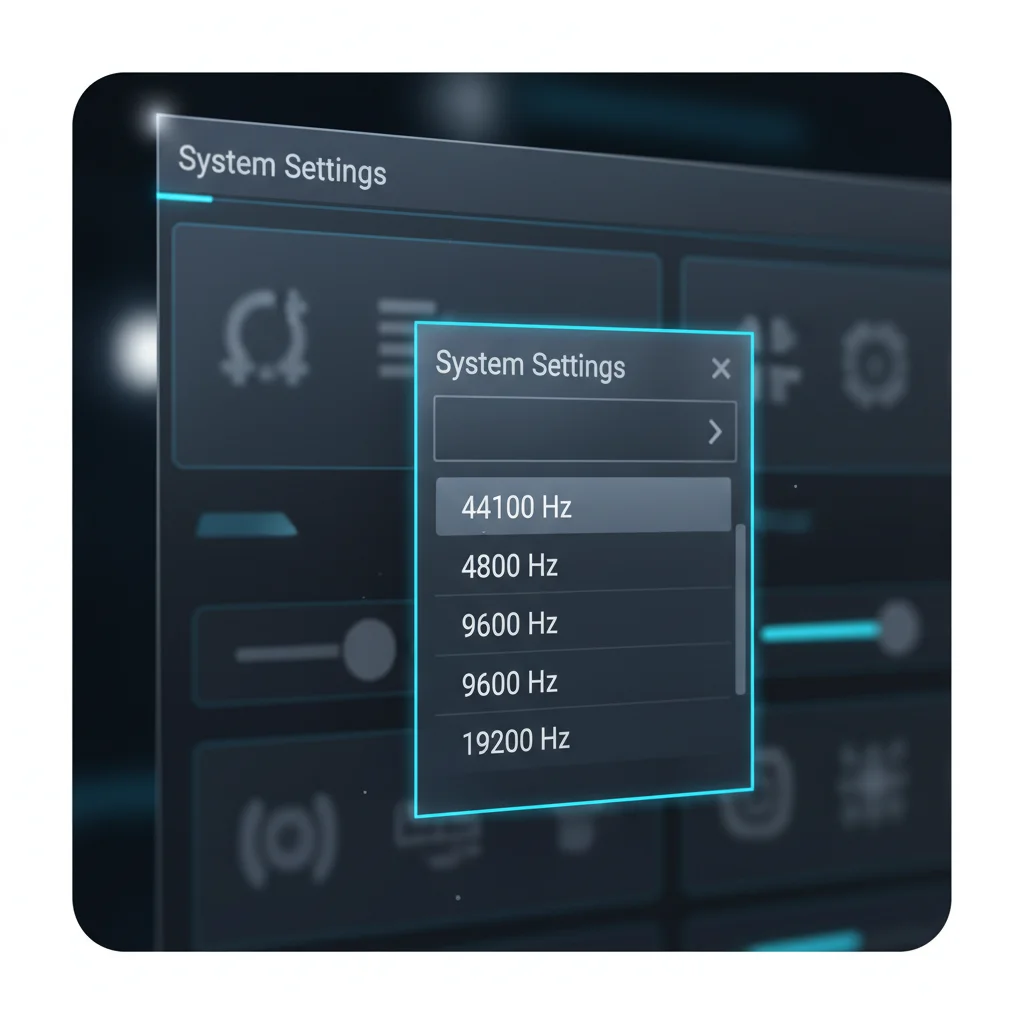
- Set Master Sample Rate: Locate “Voicemeeter Main SampleRate” and choose a common rate, such as 48000 Hz or 44100 Hz.
- Apply Changes: Confirm your selection to ensure the new rate is active.
Aligning Windows Sound Settings
Your individual Windows audio devices must mirror Voicemeeter’s master sample rate.
- Open Sound Settings: Right-click the speaker icon on your taskbar and select “Sound Settings” or “Sounds.”
- Navigate to Sound Control Panel: In the new window, find and click “Sound Control Panel.”
- Configure Playback Devices: Under the “Playback” tab, right-click each output device Voicemeeter uses. Select “Properties,” then the “Advanced” tab.
- Match Sample Rate: Set the “Default Format” to match your Voicemeeter master sample rate. For example, select “2 channel, 16 bit, 48000 Hz (DVD Quality).”
- Configure Recording Devices: Switch to the “Recording” tab and repeat this process for your microphone and any other input devices. Ensure their sample rates also match.
The Game-Changing Impact
By synchronizing sample rates, you cut down on hidden audio processing.
This directly translates to lower audio latency, giving you a crucial audible edge in games.
Imagine hearing enemy footsteps a critical fraction of a second sooner.
That extra time allows for a faster reaction, potentially turning the tide of battle.
Precise sound imaging means you can pinpoint threats instantly, without audio lag holding you back.
Don’t just hear the game, experience it with zero delay.
Challenge your gaming circle to see who can achieve the lowest audio latency with these tweaks!
Then, head over to Joltfly and put your reaction time to the ultimate test.
In Short
- Mismatched sample rates between audio devices and Voicemeeter cause resampling, which introduces unnecessary audio latency.
- Synchronizing sample rates across all audio inputs, outputs, and Voicemeeter eliminates resampling, significantly reducing audio lag.
- This optimization involves configuring Voicemeeter’s master sample rate and aligning all individual Windows audio device settings to match it.
Optimize CPU Priority for Competitive Gaming Stability
Master Your CPU Priority for Zero Audio Lag
In competitive gaming, every millisecond counts. Your CPU’s priority settings can be the secret weapon against dreaded audio latency.
When your CPU struggles, audio processing gets pushed aside. This creates frustrating delays between in-game sound cues and your headset.
Optimizing CPU priority ensures your game and critical audio applications, like Voicemeeter, get the resources they demand.
Why CPU Priority Matters for Gamers
Imagine your PC as a finely tuned racing machine. Without proper priority management, background apps are like unnecessary drag.
They slow down your main engine, the CPU.
For audio, this means vital sound data can arrive late, impacting your ability to react to footsteps or gunshots.
Elevating your game’s CPU priority tells Windows to dedicate more processing power to it. This reduces the chance of audio dropouts and input lag.
How to Adjust CPU Priority in Windows
Taking control of your CPU priority is straightforward. You can make these critical adjustments through Task Manager.
- Launch your game and Voicemeeter.
- Press Ctrl + Shift + Esc to open Task Manager.
- Navigate to the Details tab.
- Find your game’s executable file (e.g., “game.exe”).
- Right-click the process, hover over Set priority, and choose Above normal or High.
- Repeat for Voicemeeter’s main process (e.g., “VoicemeeterPro.exe” or “VoicemeeterBanana.exe”).
Be cautious with “Realtime” priority. It can sometimes destabilize your system, leading to crashes.
Aim for “High” for your game and “Above normal” or “High” for Voicemeeter to strike a perfect balance.
Advanced CPU Priority Settings & Best Practices
Beyond basic Task Manager adjustments, other settings influence your CPU’s performance for gaming.
Ensure your CPU isn’t hitting thermal limits, which can cause severe throttling. This leads to unexpected performance dips.
Check out our guide on how to fix CPU power limit throttling to keep your system running smoothly.
Disable Unnecessary Background Processes
Every running application consumes CPU cycles. Before diving into a competitive match, close all non-essential programs.
This includes web browsers, streaming apps, and any utilities you do not need for gameplay.
A cleaner system means more CPU power dedicated to your game and critical audio processing.
Optimize Windows Game Mode
Windows Game Mode is designed to enhance gaming performance. However, sometimes it needs a tweak to function optimally.
Ensure it is enabled, but be aware that in some cases, it can cause stuttering. If you experience issues, we have solutions.
Consult our guide on how to fix Windows Game Mode stuttering for ultimate FPS gains.
Regularly check for Windows and graphics driver updates to keep your system in top shape for competitive play.
Monitor CPU Usage
Understanding your CPU utilization helps identify bottlenecks. Use Task Manager’s Performance tab or third-party tools to monitor usage during gameplay.
High CPU usage, especially nearing 100%, indicates a potential bottleneck. This could directly lead to increased audio and input latency.
A bar chart illustrating the simulated impact of different CPU priorities on game performance.
It shows ‘Normal Priority’ at 90%, ‘Above Normal Priority’ at 95%, and ‘High Priority’ at 98%.
This chart provides a simulated representation.
Actual results may vary significantly based on your specific system, game, and other running applications.
The goal is always to push your system to its optimal performance edge for a competitive advantage.
Maintain Peak Performance with Joltfly
Optimizing CPU priority is just one crucial step in eliminating latency. To truly dominate, you need to test your skills and hardware consistently.
Joltfly offers a powerful suite of tools to help you benchmark your reflexes and overall system responsiveness.
Challenge yourself on our ultra-responsive Aim Trainer. Or push your clicking limits with our intense Click Speed Test.
Share your scores with your gaming circle and prove you are the ultimate competitor!
Isolating Core Affinity to Prevent Game Interference
Unlock Peak Performance by Isolating Cores
You know the drill. Every millisecond counts in competitive gaming. Voicemeeter can introduce unwanted latency if not properly managed.
Background processes and your game fight for CPU resources. This contention creates lag and audio delays that impact your crucial in-game awareness.
What is CPU Core Affinity?
CPU core affinity dictates which processing cores your applications can use. By isolating Voicemeeter and your game to specific cores, you prevent overlaps.
This dedicated resource allocation significantly reduces audio latency and improves overall system responsiveness. It gives you a decisive advantage.
Setting Core Affinity for Voicemeeter and Your Game
Take control of your CPU. Direct Voicemeeter and your primary game to their own dedicated cores. This method ensures smooth audio processing.
Here is a step-by-step guide to optimize your setup.
Step 1: Open Task Manager
Press Ctrl + Shift + Esc to launch Task Manager. Navigate to the “Details” tab. This tab provides a comprehensive view of all running processes.
Step 2: Locate Voicemeeter Processes
Find all Voicemeeter-related executables. These usually include VoicemeeterPro.exe, VoicemeeterAux.exe, or VoicemeeterPotato.exe.
Right-click on each Voicemeeter process, then select “Set affinity.”
Step 3: Assign Cores for Voicemeeter
Uncheck “All Processors.” Assign Voicemeeter to one or two less-utilized cores, like CPU 0 and 1. These are often physical cores, minimizing latency.
Click “OK” to apply these changes. This gives Voicemeeter a dedicated workspace.
Step 4: Assign Cores for Your Game
Now, launch your game. Once it is running, return to Task Manager and find your game’s executable. Right-click on it and select “Set affinity.”
Uncheck the cores assigned to Voicemeeter. Distribute remaining cores to your game. If Voicemeeter uses 0 and 1, your game can use 2, 3, 4, and beyond.
This prevents conflicts. If you still face CPU issues, learn how to fix CPU power limit throttling causing stuttering.
Click “OK.” Remember, these settings reset after a reboot, so you will need to re-apply them or use a third-party tool for persistence.
Advanced Core Affinity Optimization
Fine-tuning your core assignments can further enhance your gaming experience. Consider your CPU’s architecture.
Experiment with different configurations to find what works best for your specific hardware and game. Strike a balance between background apps and your game.
| Process | Recommended Core Assignment | Benefit |
|---|---|---|
| Voicemeeter | CPU 0-1 (or specific physical cores) | Stable, low-latency audio processing |
| Game | Remaining physical cores | Maximized game FPS and responsiveness |
| Other Apps | Lowest priority, shared cores | Prevents interference with critical tasks |
By effectively managing core affinity, you ensure that Voicemeeter and your game both run at peak efficiency.
Test your latency improvements by trying various Joltfly device tests. Challenge your gaming circle to see who can achieve the lowest input lag!
In Short
- Optimizing CPU priority for competitive games and critical audio applications prevents lag and system stutters by dedicating essential processing resources.
- Users can adjust CPU priority via Task Manager, setting games to “High” and audio apps to “Above normal” or “High” for optimal balance.
- Further performance improvements include disabling unnecessary background processes, optimizing Windows Game Mode, and monitoring CPU usage to avoid bottlenecks.
Unleash Your True Speed
You now have the tools to crush input lag. By tweaking buffers and selecting WDM, your audio becomes instant.
Instant audio means faster reactions. Stop letting delay kill your streak. You are ready to dominate the leaderboard.
Jump into a match and feel the difference. Go get that win!
Frequently Asked Questions
Why does Voicemeeter lag?
It is often due to high buffer settings. Switch to WDM or ASIO drivers for the fastest response times.
What is the best buffer size?
Aim for 128 samples or lower. If audio crackles, bump it to 256. Find the sweet spot between speed and clarity.
Does Voicemeeter lower FPS?
Not noticeably! Voicemeeter is efficient. However, ensure process priority is set to High to prevent audio dropouts.
Can I use MME drivers?
Avoid MME for gaming. It adds significant delay. Always prioritize WDM or KS for that competitive edge.
