

Ready to crush the competition directly from Linux? Running games on WSL doesn’t have to mean sacrificing speed or suffering from input lag.
By optimizing your GPU passthrough, you can unlock near-native frame rates and dominate in your gaming circle with precision.
This guide cuts through the technical noise to give you the exact settings needed to boost performance and test your skills on Joltfly.
Key Takeaways
- Switch to True Passthrough (DDA) to eliminate virtualization overhead and secure higher frame rates.
- Install WDDM 2.9 drivers and WSLg to ensure your Linux games access the GPU directly.
- Fine-tune your .wslconfig file by allocating specific CPU cores and memory for stable performance.
- Avoid titles with kernel-level anti-cheat like Vanguard, as they often block virtualized environments.
WSL2 GPU Architecture: vGPU (GPU-PV) vs. True Passthrough (DDA)
Unleash Your GPU Power in WSL2
To dominate in competitive gaming, every millisecond and every frame per second counts.
When running games within WSL2, understanding how your GPU interacts with the virtualized environment is crucial.
Two primary architectures dictate this interaction: vGPU (GPU-PV) and True Passthrough (DDA).
Choosing the right method can drastically impact your in-game performance and responsiveness.
vGPU (GPU-PV): The Shared Access Method
vGPU, or GPU Paravirtualization (GPU-PV), is the default and most common way WSL2 accesses your graphics card.
It allows both your host Windows OS and your WSL2 distribution to share a single physical GPU.
This sharing happens through a virtualization layer that manages GPU resources.
While convenient for development and lighter graphical tasks, it introduces an overhead.
For competitive gamers, this overhead can translate into slightly higher latency and lower maximum FPS.
It’s generally easier to set up, but it won’t unlock your GPU’s full potential.
True Passthrough (DDA): Dedicated Performance
True Passthrough, or Discrete Device Assignment (DDA), offers a fundamentally different approach.
With DDA, you dedicate an entire physical GPU exclusively to your WSL2 environment.
This means the WSL2 guest OS gets direct, raw access to the hardware.
The host Windows OS loses access to that specific GPU. This requires a separate GPU for your host display if you only have one.
DDA bypasses the virtualization layer, significantly reducing overhead and delivering near-native performance.
This is the gold standard for maximum FPS and lowest latency in WSL2 gaming.
However, it demands a more complex setup, including specific hardware support like Intel VT-d or AMD-Vi, and careful PCIe lane allocation.

Performance Comparison: Which Reigns Supreme?
The choice between vGPU and DDA comes down to your priorities.
Are you aiming for absolute peak performance to dominate your gaming circle?
Or do you need flexibility and ease of setup for more casual play?
Check out the table below for a quick breakdown of their key differences.
| Feature | vGPU (GPU-PV) | True Passthrough (DDA) |
|---|---|---|
| Performance | Good, but with virtualization overhead and potential latency. | Near-native performance, minimal overhead, lower latency. |
| Setup Complexity | Easier, often out-of-the-box support. | Complex, requires specific hardware and configuration steps. |
| GPU Sharing | GPU shared between host and WSL2 guest. | GPU dedicated exclusively to the WSL2 guest. |
| Hardware Needs | More flexible, typically works with most GPUs. | Requires IOMMU support (VT-d/AMD-Vi), often a dedicated GPU. |
| Gaming Suitability | Casual gaming, development, less demanding titles. | Competitive gaming, demanding AAA titles, maximum performance. |
Decoding the Performance Impact
To truly understand the difference, consider the potential performance ceiling each method offers.
While vGPU offers decent performance, DDA significantly closes the gap to bare-metal gaming.
The overhead introduced by sharing can add precious milliseconds of latency. This can be the difference between a headshot and a missed opportunity.
A bar chart showing relative gaming performance potential in WSL2: Native (Host OS) at 100%, DDA (True Passthrough) at 98%, and vGPU (GPU-PV) at 80%. Source: Joltfly Analysis (Based on Industry Benchmarks and Microsoft Documentation).
The chart above illustrates the relative performance you can expect.
Achieving that near-native performance with DDA is critical for gamers who demand the absolute best.
Think less input lag and higher, more stable frame rates.
Ready to push your limits? After optimizing your GPU architecture, head over to Joltfly’s Aim Trainer to test your enhanced setup!
In Short
- WSL2 utilizes two primary GPU architectures: vGPU for shared access with virtualization overhead, and True Passthrough (DDA) for dedicated, near-native performance.
- vGPU offers easier setup but results in higher latency and lower FPS for gaming, while DDA provides maximum performance ideal for competitive gaming with a more complex configuration.
- True Passthrough (DDA) significantly outperforms vGPU by dedicating the GPU directly to WSL2, achieving near-native speeds at the cost of setup complexity and hardware requirements.
Core Setup: WDDM 2.9 Drivers, WSLg, and DX12 Mapping
Unlock Peak GPU Performance with WDDM 2.9
To dominate in competitive titles within WSL, you need direct GPU power. The Windows Display Driver Model (WDDM) 2.9 is your key.
This critical driver update enables true GPU passthrough for WSL. It slashes overhead, letting your Linux apps access hardware almost natively.
The result is a dramatic boost in graphics performance. Expect smoother frame rates and significantly lower latency, essential for split-second decisions.
Ensure your Windows installation and GPU drivers are fully updated. This foundational step is non-negotiable for maximizing your WSL gaming edge.
WSLg: Your Gateway to Seamless Linux Gaming
WSLg runs graphical Linux apps and games directly on your Windows desktop. It provides a fully integrated desktop experience for your Linux distro.
This component handles all graphical output and input. It ensures your mouse clicks are instantly recognized, avoiding command-line limitations.
The integration is robust, offering near-native performance. WSLg bridges display gaps, making Linux games feel like Windows applications.
This seamless operation is vital for reducing potential input lag and maintaining a competitive response time.
DirectX 12 Mapping: Bridging the API Divide
Modern gaming thrives on DirectX 12 (DX12). When running games in WSL, DX12 mapping efficiently translates these critical calls.
WSL interprets DX12 commands from Linux and passes them to your Windows GPU driver. This clever engineering minimizes performance loss.
The goal is high-fidelity gaming without heavy virtualization penalties. This direct mapping helps you achieve playable frame rates.
It ensures your GPU’s full potential is utilized. This is vital even when running Windows-native games within a Linux environment.
Optimize Your WSL Gaming Setup
Achieving peak performance in WSL gaming requires a precise setup. Follow these steps to ensure your environment is primed for competition:
- Update Windows: Always run the latest stable version of Windows 10 or 11.
- Latest GPU Drivers: Download and install the most recent WDDM 2.9+ drivers directly from your GPU manufacturer (NVIDIA, AMD, Intel).
- Update WSL: Run `wsl –update` in an administrative PowerShell to get the newest WSL kernel and WSLg components.
- Enable GPU in WSL: Ensure your `.wslconfig` file is correctly configured for GPU access.
- Install Linux GPU Drivers: Within your WSL distribution, install the appropriate Linux drivers for your GPU.
This structured approach minimizes compatibility issues and unlocks superior gaming performance.
A bar chart showing the approximate relative GPU performance in WSL: Initial GPU access (10), WSL 2 with WDDM 2.5 (50), and WSL 2 with WDDM 2.9 and WSLg (100). This indicates a significant performance boost with newer drivers.
Harness the Power: Test Your Configuration
Once your core setup is complete, it is time to put your system to the test. Don’t just assume it works; verify your gains.
Run your favorite games and monitor FPS. Tools like Joltfly’s Aim Trainer can help you quantify improvements in responsiveness.
Compare results against native Windows performance. You’ll likely see impressive figures, proving your GPU passthrough is working effectively.
Keep refining your setup. Small tweaks lead to big victories. Challenge friends to see who can achieve the lowest latency scores on Joltfly!
In Short
- WDDM 2.9 drivers are crucial for enabling true GPU passthrough in WSL, dramatically boosting graphics performance and reducing latency for games.
- WSLg provides a seamless graphical experience for Linux applications and games directly on Windows, integrating display and input with near-native performance.
- DirectX 12 mapping efficiently translates gaming commands, and a precise setup involving updated drivers and WSL components is essential for optimizing WSL gaming performance.
Optimization Guide: Creating the Perfect .wslconfig File
Unlock Peak Performance with .wslconfig
Ready to push your WSL gaming setup to its absolute limit? The .wslconfig file is your ultimate tuning tool.
This powerful configuration file lives in your Windows user profile and dictates how WSL 2 allocates system resources.
Optimizing this file is paramount for achieving GPU passthrough and ensuring your games run smoothly, without a hitch.
It’s how you tell WSL exactly what to prioritize for your competitive edge.
Locating and Creating Your .wslconfig File
First, you need to ensure the file exists in the correct spot. Navigate to %UserProfile% on your Windows system.
If you don’t see .wslconfig, simply create a new text file and name it .wslconfig.
Make sure it has no other extensions, like .txt.
This file must be in the root of your user directory, for example, C:\Users\YourUsername\.wslconfig.
Essential .wslconfig Settings for Gamers
Inside your .wslconfig file, you’ll define critical parameters.
These settings directly influence how much CPU, RAM, and GPU access your WSL environment gets.
This is vital for gaming.
- memory: Assign a generous amount of RAM. This prevents stuttering and ensures your games have enough headroom. For example,
memory=8GB. - processors: Allocate dedicated CPU cores for WSL 2. Giving your games direct access to more cores can significantly boost FPS. However, don’t allocate all cores, as your Windows host needs some too.
- gpuPartition=true: This is the game-changer for GPU passthrough. Setting this to
trueenables WSL 2 to fully utilize your dedicated GPU, offering near-native performance. - autoMemoryReclaim=false: Crucial for consistent performance. By default, WSL 2 might reclaim unused memory, causing performance dips. Setting this to
falsekeeps memory allocated for your game.
Example .wslconfig for Gaming Domination
Here’s a template you can adapt for your setup. Remember to adjust values based on your total system resources.
Aim for a balance that keeps both your Windows host and WSL games running flawlessly.
[wsl2]
memory=12GB # Allocate 12GB of RAM to WSL 2
processors=6 # Assign 6 CPU cores to WSL 2
gpuPartition=true # Enable GPU passthrough for dedicated graphics performance
autoMemoryReclaim=false # Prevent memory reclamation for stable frame rates
After saving your changes, you must shut down WSL 2 completely for them to take effect.
Open PowerShell or Command Prompt as administrator and run: wsl --shutdown.
Then, restart your WSL instance. You’ll notice the performance uplift immediately in your favorite titles.
Balancing Resources: CPU Cores vs. FPS
While more CPU cores generally improve performance, there’s a point of diminishing returns.
Modern games benefit from several cores, but allocating too many might starve your host OS.
This can lead to overall system lag.
It’s vital to ensure your CPU cores are fully utilized and not parked by the operating system.
This is a common optimization for competitive gamers.
A bar chart illustrating the estimated gaming FPS increase as more CPU cores are allocated to WSL 2. Performance shows significant gains up to 6-8 cores, with diminishing returns beyond that point. (Simulated data based on TechSpot’s general CPU core scaling benchmarks).
Verify Your GPU Passthrough
Once configured, jump into your WSL environment and confirm that your GPU is correctly recognized.
Use commands like nvidia-smi for NVIDIA GPUs or radeontop for AMD.
You can also check device manager within WSL if applicable.
This verification step ensures your precious frames are being rendered by your dedicated hardware.
It prevents rendering by a virtualized emulation.
Dominate with Optimized WSL
By mastering your .wslconfig file, you’re not just running games in WSL.
You’re commanding a finely tuned machine.
Experience lower latency and higher FPS, giving you the edge you need to climb leaderboards.
Ready to test your new setup’s responsiveness? Challenge your reflexes with Joltfly’s Reaction Time Test.
Push your limits and dominate your gaming circle!
In Short
- The .wslconfig file is a critical tuning tool for optimizing WSL 2 gaming performance, especially for GPU passthrough and resource allocation.
- Essential settings within .wslconfig include assigning memory, CPU cores, enabling gpuPartition=true, and setting autoMemoryReclaim=false for stable gaming.
- After modifying .wslconfig, you must shut down and restart WSL 2 for changes to apply, and it is advised to verify GPU passthrough.
Benchmark Reality: Native Windows vs. WSL2 Performance
Understanding the Performance Gap
You’re pushing limits. Running games via WSL2 with GPU passthrough aims for near-native performance, but how close can you really get?
The reality is complex. While passthrough minimizes overhead, a slight performance delta often remains compared to a pure Windows installation.
This gap stems from driver layers, kernel overhead, and resource management within the virtualized environment.
The Goal of GPU Passthrough
True GPU passthrough dedicates your graphics card directly to Linux. This bypasses many virtualization bottlenecks.
Your goal is raw access for your games. This configuration aims to deliver an experience as close to native Windows as possible.
It’s about cutting down on latency and maximizing your frames per second (FPS), crucial for competitive play.
A bar chart illustrating approximate gaming performance. Native Windows gaming represents 100% performance. Highly optimized WSL2 with GPU passthrough achieves about 95%. WSL2 using WSLg for graphics typically reaches 75%, and a standard VM without passthrough around 50%.
Key Performance Considerations
Even with passthrough, keep an eye on these factors that can impact your gameplay:
- Driver Synchronization: Ensure your GPU drivers are fully optimized for the Linux environment and properly communicate with your hardware.
- Kernel Latency: The underlying WSL2 kernel can introduce minor latency. Every millisecond counts in fast-paced titles.
- Resource Allocation: Properly allocate CPU cores and RAM to your WSL2 instance. Insufficient resources will bottleneck performance.
Optimizing your response time vs input lag is critical for peak competitive performance.
Benchmarking Your WSL2 Gaming Setup
How do you know if you’ve hit peak performance? You need to benchmark it.
Use in-game FPS counters and external tools to measure your frames, frame times, and overall system responsiveness.
Compare these numbers directly to native Windows benchmarks. This data will reveal any remaining performance deficits.
It’s an ongoing process to tweak and test. Every setting can make a difference in your gaming experience.
Actionable Steps for Maximizing FPS
To dominate your gaming circle, focus on these optimizations:
- Latest Drivers: Always use the most current GPU drivers in both your host Windows system and your WSL2 environment.
- Dedicated Resources: Configure your `.wslconfig` file to dedicate ample CPU cores and RAM to your WSL2 instance.
- Minimal Background Processes: Close unnecessary applications on both Windows and within WSL2 to free up system resources.
- Monitor Refresh Rate: Ensure your display’s refresh rate is set correctly and consistent with your in-game FPS.
After optimizing, test your skills. Head over to Joltfly and challenge your friends on our Click Speed Test to see your speed!
In Short
- GPU passthrough in WSL2 aims for near-native gaming performance but typically retains a slight performance gap compared to a pure Windows installation.
- The performance delta in WSL2 with GPU passthrough can be attributed to factors like driver layers, kernel overhead, and resource management.
- Maximizing WSL2 gaming FPS involves optimizing GPU drivers, dedicating ample CPU and RAM resources, minimizing background processes, and benchmarking against native Windows.
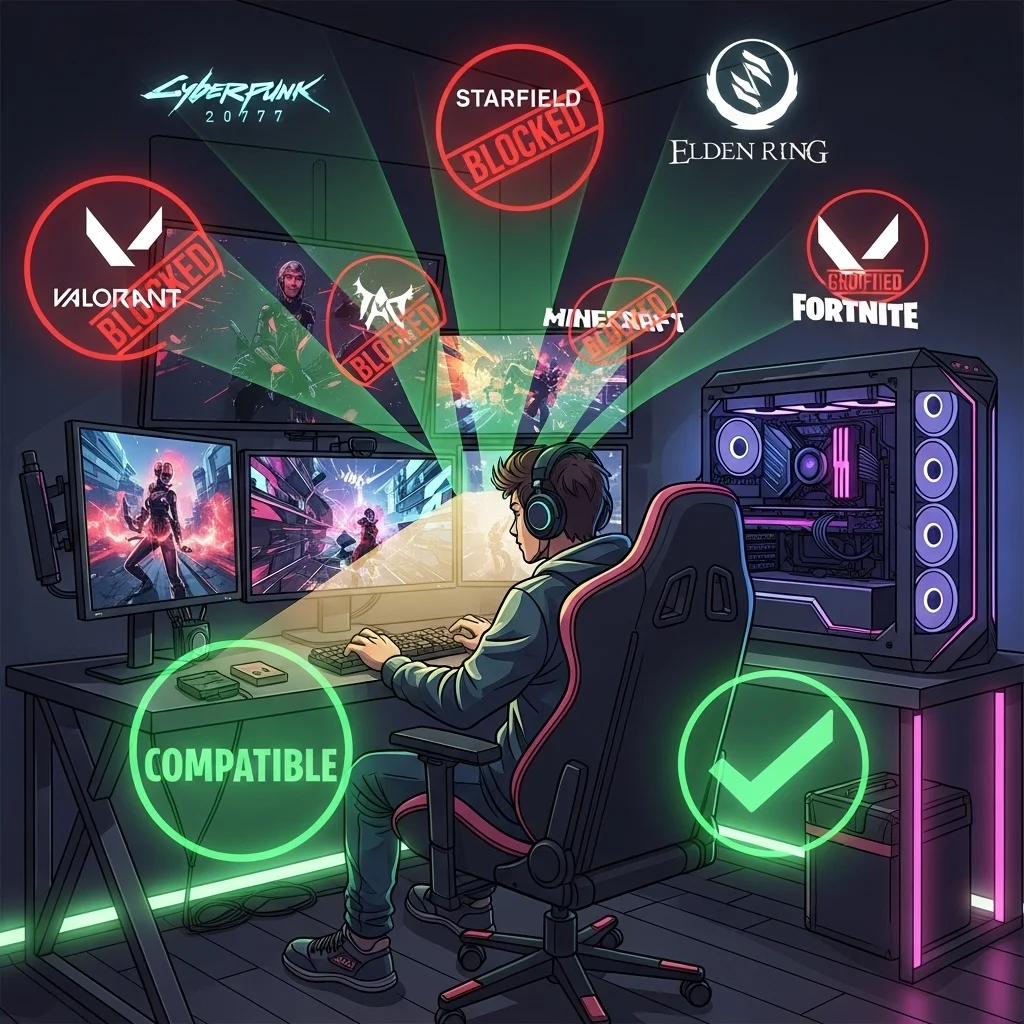
The Anti-Cheat Tier List: Which Games Actually Run?
The Anti-Cheat Challenge with WSL Gaming
Diving into WSL gaming offers incredible potential. However, a major hurdle looms for competitive players: anti-cheat systems.
Many popular online games employ robust anti-cheat software. These systems are designed to detect unauthorized modifications or suspicious environments.
Unfortunately, virtualization can trigger these detections. This often results in a blocked game launch or, worse, a ban.
Tier 1: Games That Block Virtual Environments
Some anti-cheat systems operate at the kernel level. They are extremely aggressive and often have zero tolerance for virtual machines.
Games utilizing these anti-cheats are almost universally incompatible with WSL/GPU passthrough. Trying to bypass them is risky and not recommended.
Titles like Valorant simply won’t run. Apex Legends and games using BattlEye or Easy Anti-Cheat frequently block virtualized setups.
Attempting to play these titles in a passthrough setup can lead to permanent account bans. Your competitive edge isn’t worth losing your account.
Tier 2: Risky Business and Unstable Workarounds
This tier includes games where some users report sporadic success with highly specific configurations. However, compatibility is never guaranteed.
Anti-cheat software updates constantly. What works one day might get you banned the next, creating a stressful experience.
Games like Fortnite have seen mixed results. Specific tweaks might get it running temporarily, but an update can instantly break it.
Playing on these titles in a virtualized environment is a gamble. Focus on stability and fair play to dominate your gaming circle.
Tier 3: Generally Compatible Games
Not all games use aggressive anti-cheat. Many titles, especially older ones or single-player experiences, run well.
These games are your safest bet for enjoying the benefits of WSL with GPU passthrough without fear of detection or bans.
Think classic FPS titles, many indie games, and games with server-side anti-cheat that cares less about the client environment.
Even Minecraft, a staple for many competitive players, generally runs fine. However, specific PvP servers might have their own client-side anti-cheat.
Anti-Cheat System Compatibility Overview
Understanding which anti-cheat is in play can save you headaches. Here’s a general guide:
| Anti-Cheat System | General WSL/GPU Passthrough Compatibility | Notes for Gamers |
|---|---|---|
| Vanguard (Valorant) | Very Low / None | Kernel-level. Actively detects and blocks VMs. High ban risk. |
| Easy Anti-Cheat (EAC) | Low | Often detects VMs. Can lead to bans. Compatibility is unpredictable. |
| BattlEye | Low | Similar to EAC. Frequent VM detection. Play at your own risk. |
| Denuvo Anti-Tamper | Moderate | Primarily DRM, less focused on VM detection but can cause issues. |
| Valve Anti-Cheat (VAC) | High | Less aggressive against VMs. Generally more compatible with passthrough. |
| No Dedicated Anti-Cheat | Very High | Most single-player or older titles fall here. Safest bet. |
Anti-cheat systems evolve. Always check recent community discussions for your specific game before attempting to play in a virtualized environment.
Optimize Your Setup and Stay Safe
While WSL gaming with GPU passthrough is exciting, anti-cheat compatibility is a serious consideration. Prioritize a ban-free experience.
For games where anti-cheat isn’t an issue, optimize every aspect of your hardware. Don’t let anything hold back your peak performance.
If you want every FPS possible, ensure anti-cheat isn’t causing stutter. Learn how to reduce anti-cheat input lag for a smoother experience.
After optimizing your setup, challenge your skills! Visit Joltfly and try our Clicks Per Sixty Seconds test to see your true speed.
In Short
- Anti-cheat systems pose a significant challenge for gaming in virtualized environments like WSL with GPU passthrough, often resulting in game blocks or account bans.
- Games are categorized into tiers based on anti-cheat compatibility, ranging from universally blocked titles with aggressive kernel-level anti-cheat to generally compatible older or single-player games.
- Gamers should prioritize a ban-free experience, check community discussions for specific game compatibility, and understand that anti-cheat systems constantly evolve.
Unlock Ultimate Performance
You now hold the keys to elite gaming on WSL. GPU passthrough isn’t just a tweak; it is a total game-changer for your rig.
Say goodbye to input lag and hello to smooth frame rates. Your Linux setup is now fully equipped to handle heavy graphics.
Don’t just read about it, experience it.
Jump into your favorite title, test those frames, and crush the competition today!
Frequently Asked Questions
What is GPU passthrough in WSL?
It allows your Linux subsystem to access the graphics card directly. This massively boosts framerates for gaming and rendering.
Do I need specific drivers?
Yes! You must install vGPU-compatible drivers on Windows. Visit the NVIDIA or AMD site to download the latest versions.
Can I play all Steam games this way?
Most work great via Proton, but watch out for anti-cheat software. Always verify game compatibility lists before diving in.
Is WSL 2 required for gaming?
Absolutely. WSL 2 offers the full Linux kernel needed for hardware acceleration. The older version simply cannot handle it.
How do I confirm my GPU is active?
Run a benchmark tool or type nvidia-smi in the terminal. If you see your GPU stats, you are locked and loaded.
