

Table of Contents
Is your aim drifting when you reset your mouse during a firefight? You might have the wrong Lift-Off Distance (LOD) settings holding you back.
We’ll break down High vs. Low LOD mechanics and show you exactly how to optimize your sensor for pixel-perfect precision.
Let’s get your setup tournament-ready.
Key Takeaways
- Low LOD is preferred for competitive gaming to prevent cursor drift during mouse resets.
- High LOD causes erratic sensor tracking when lifting the mouse, ruining muscle memory.
- Perform the DIY DVD Stack Test to accurately measure your mouse’s physical cutoff point.
- Adjust driver settings to match your specific mousepad surface for consistent performance.
- Test your optimized configuration on Joltfly to confirm tracking stability.
High vs. Low LOD Settings: Mechanics and Competitive Impact
Mastering Mouse Lift-Off Distance (LOD)
Understanding your mouse’s Lift-Off Distance (LOD) is critical for dominating in competitive games.
It defines how far the mouse can lift before tracking stops.
This setting directly impacts your precision, especially when making rapid, sweeping movements that require frequent mouse resets.
The High LOD Challenge
A high LOD means your mouse continues to track even when lifted a significant distance from your mousepad.
This sounds convenient, but creates problems for aim.
Imagine lifting your mouse to reposition it for a huge flick shot. With high LOD, any slight tilt while airborne translates into unwanted cursor shifts.
This can throw off your aim instantly, costing you crucial milliseconds and potentially the round.
It creates inconsistency, making muscle memory harder to build.
Unleashing Precision with Low LOD
Low LOD is the gold standard for competitive gamers. It ensures your mouse stops tracking almost immediately after leaving the surface.
This setting provides unparalleled control. When you lift your mouse to recenter it, you can be confident that your cursor won’t drift.
It’s vital for players who use lower DPI settings and make large, sweeping arm movements, as frequent lifts are part of their aiming technique.
You gain absolute confidence in your movements, allowing you to focus purely on your target.
For advanced insights, explore how mouse sensor position affects aim.
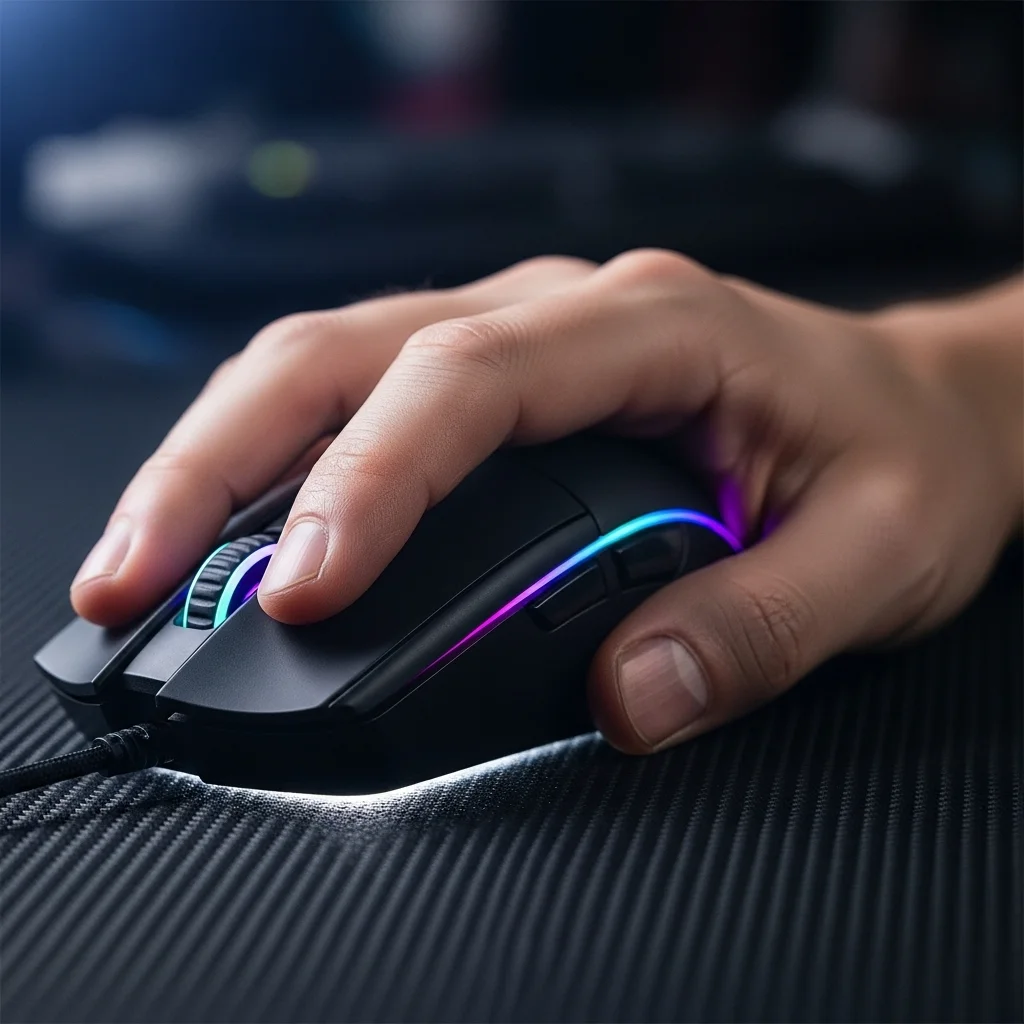
Competitive Impact: Precision vs. Distraction
In high-stakes competitive gaming, every millisecond and pixel of accuracy matters. Low LOD directly contributes to this precision.
It eliminates the “floaty” feeling associated with high LOD, allowing for crisp, predictable movements.
This consistency is paramount for building muscle memory.
High LOD introduces a variable you simply cannot afford. It’s a source of unpredictable input that can ruin critical plays.
According to a 2023 ProSettings survey, over 60% of professional FPS players use an effective DPI (eDPI) of 800 or below. This requires frequent mouse lifts.
A bar chart showing professional FPS players’ effective DPI distribution: Below 800 eDPI (62%), 800-1600 eDPI (28%), and Above 1600 eDPI (10%).
Optimizing for Your Playstyle
Most modern gaming mice offer adjustable LOD settings through their software. Always aim for the lowest possible setting that doesn’t cause tracking issues.
Experimentation is key. Some mice perform better than others, so test different values to find your sweet spot.
Your mousepad also plays a role. Certain surfaces can affect how consistently your sensor performs at very low LODs.
LOD Settings Breakdown
Here’s a quick comparison to help you understand the core differences and their implications.
| Feature | High LOD | Low LOD |
|---|---|---|
| Tracking Behavior | Tracks when lifted significantly | Stops tracking almost instantly |
| Cursor Stability | Prone to accidental movement/drift | Extremely stable, no unwanted movement |
| Competitive Suitability | Not recommended, introduces inconsistency | Essential for precision and muscle memory |
| Ideal For | Casual use (unoptimized) | Competitive FPS, RTS, MOBA titles |
| Player Benefit | None in competitive scenarios | Superior control, accurate repositions |
Don’t let a poorly configured LOD setting hold you back. Optimize your setup and start dominating your gaming circle.
Ready to put your mouse control to the ultimate test? Head over to Joltfly’s Aim Trainer & Mouse Accuracy Test and challenge your precision!
In Short
- Mouse Lift-Off Distance (LOD) determines how far a mouse can be lifted before tracking stops, significantly impacting precision in competitive gaming.
- High LOD causes unwanted cursor shifts when repositioning the mouse, leading to inconsistency, while low LOD provides superior control and stability.
- Competitive players should aim for the lowest possible LOD setting on their mouse to ensure precise and consistent aim, especially when making frequent lifts.
DIY Calibration: The DVD Stack Test for Accurate Measurement
Mastering Your Mouse’s Lift-Off Distance
Understanding your mouse’s Lift-Off Distance (LOD) is crucial. This is the height at which your mouse sensor stops tracking when lifted from your mousepad.
A poorly set LOD can lead to missed shots, inaccurate flicks, and overall inconsistent aim, costing you critical in-game moments.
Why DIY LOD Testing Matters
Many modern gaming mice offer software-based LOD adjustments.
However, knowing your mouse’s true physical LOD helps you fine-tune these settings with precision.
The DIY DVD stack test is a classic, reliable method to accurately measure your mouse’s lift-off distance at home. It’s a quick, free way to gain an edge.
The DVD Stack Test: Step-by-Step Guide
Ready to calibrate your gear? This simple test uses standard DVDs or CDs to determine your mouse’s effective LOD.
Each disc typically measures around 1.2 mm in thickness. This provides a consistent, measurable unit for your calibration.
- Prepare Your Surface: Place your mouse on your regular gaming mousepad. Ensure your mouse is connected and functioning.
- Establish a Baseline: Gently lift your mouse until the cursor stops moving. Note this approximate height in your mind. This is your mental reference point.
- Start Stacking: Place one DVD directly in front of your mouse. Lift your mouse onto the DVD, then lift it again until the sensor stops tracking.
- Incremental Testing: Keep adding DVDs one by one. After each added DVD, lift your mouse from the stack until the cursor stops moving on your screen.
- Identify the Cut-Off: The number of DVDs where your mouse just barely stops tracking when lifted is your approximate LOD. For instance, if it tracks on 2 DVDs but not on 3, your LOD is between 2.4 mm and 3.6 mm.
- Refine Your Measurement: Once you find the range, you can use thinner objects like credit cards (approx. 0.76 mm) or thick paper sheets to pinpoint the exact height.
- Record Your Results: Make a note of your mouse’s measured LOD. This data is invaluable for optimizing your software settings.
Optimizing Your Mouse Settings Based on LOD
Once you know your physical LOD, you can adjust your mouse’s software settings to match. Most gaming mouse software allows you to set a low, medium, or high LOD.
For most competitive gamers, a lower LOD setting is preferred. This minimizes unwanted cursor movement when you lift and reposition your mouse.
Why a Low LOD Gives You an Edge
Imagine you’re in a clutch situation. You need to make a quick 180-degree flick, but your mouse runs out of space. You lift it to reposition.
With a high LOD, your crosshair might drift erratically while you lift, throwing off your aim. A low LOD prevents this, ensuring pixel-perfect precision.
Consider the data on mouse usage. A recent ProSettings.net report showed that over 70% of professional FPS players prefer a low LOD setting.
A pie chart showing Pro FPS Player LOD Preference: Low LOD (70%), Medium LOD (20%), High LOD (10%).
This preference highlights the competitive advantage of precise LOD control.
Next Steps for Dominating Your Games
After optimizing your LOD, put your newfound precision to the test. Head over to Joltfly’s Aim Trainer & Mouse Accuracy Test.
Challenge your friends and see who can achieve the most consistent scores. With your LOD dialed in, you’re set to dominate your gaming circle!
In Short
- Understanding and adjusting your mouse’s Lift-Off Distance (LOD) is critical for competitive gaming to ensure consistent and accurate aim.
- The DIY DVD stack test is a classic and reliable method to accurately measure your mouse’s physical LOD at home using standard discs.
- A lower LOD setting is generally preferred by competitive gamers as it minimizes unwanted cursor movement when lifting and repositioning the mouse, providing a significant competitive advantage.
Diagnosing Sensor Issues: The LOD Troubleshooting Matrix
Unmasking LOD Issues: Your Competitive Edge
In competitive gaming, every millisecond and every pixel counts. Your mouse’s Lift-Off Distance, or LOD, is a critical factor.
When LOD settings are off, your sensor can misbehave. This leads to frustrating issues that cost you crucial kills and matches.
Don’t let phantom movements or tracking glitches hold you back. It’s time to diagnose and conquer these problems.
Identifying Common LOD-Related Glitches
You know the feeling: you lift your mouse slightly to reset position, and your cursor jumps across the screen.
Or perhaps your aim feels inconsistent, like the sensor is picking up unwanted movement even when it shouldn’t.
These are classic signs of an LOD issue. High LOD can track unintended movement, while extremely low LOD might cause tracking to cut out too soon.
The LOD Troubleshooting Matrix
Use this matrix to pinpoint what’s going wrong with your mouse sensor and LOD settings. It’s your roadmap to precise control.
| Issue Observed | Potential Cause | Actionable Solution |
|---|---|---|
| Cursor moves when mouse is lifted slightly. | LOD set too high for your grip style or mousepad. | Lower LOD setting in software. Test on Joltfly’s Mouse Drift Test. |
| Mouse tracking cuts out too soon when lifting. | LOD set too low, or rough mousepad surface. | Increase LOD setting in software. Ensure a clean, consistent mousepad. Consider cleaning your mousepad. |
| Inconsistent tracking, random jumps. | Dirty sensor lens, damaged mouse skates, or uneven surface. | Clean the sensor thoroughly. Replace worn mouse skates. Use a flat, high-quality mousepad. |
| Jittery movement, especially at high DPI. | Dust on sensor, poor sensor quality, or surface reflection. | Clean sensor, try a different mousepad surface (e.g., solid black). Update mouse firmware. |
| LOD settings don’t seem to make a difference. | Outdated mouse firmware, incorrect software profile, or hardware defect. | Update mouse firmware. Reinstall mouse software. Factory reset mouse if possible. |
Advanced Diagnostics: Leveraging Joltfly Tools
Once you’ve made adjustments, you need to test rigorously. Joltfly offers tools to help you verify your mouse’s performance.
Use our Mouse Polling Rate Test to ensure your mouse is communicating consistently with your PC.
A stable polling rate is crucial for smooth sensor data transmission, impacting overall precision.
According to ProSettings.net, 70% of Valorant pros use a 1000Hz polling rate. Newer trends even favor 8000Hz for lower latency.
This highlights the competitive edge gained by optimizing every mouse setting, including LOD.
A bar chart showing polling rate preferences among professional Valorant players: 1000Hz (70%), 8000Hz (15%), 4000Hz (5%), and Other/Default (10%).
Don’t just guess your settings. Use Joltfly’s precise tools to get objective data and dominate your gaming circle.
Challenge your friends to see whose mouse setup is truly optimized for peak performance.
Optimizing for Surface Texture: Hard vs. Cloth vs. Glass
Mastering Your Mousepad: Hard, Cloth, or Glass?
Your mousepad isn’t just a surface; it’s a critical component. The texture directly influences your mouse’s tracking and how your LOD settings perform.
Each material, from soft cloth to slick glass, presents unique challenges and advantages for competitive play.
Cloth Mousepads: The Go-To for Control
Cloth pads are the most common choice among gamers. They offer a balanced feel, providing both control and a smooth glide.
The woven texture allows your mouse sensor to track consistently, making them forgiving for various mouse types.
For cloth pads, a low LOD setting is often preferred. This minimizes unwanted cursor movement when you lift your mouse for micro-adjustments.
Hard Mousepads: Unleash Your Speed
Hard mousepads, typically made from plastic or resin, prioritize speed. Their low-friction surface lets your mouse glide with minimal resistance.
This can be fantastic for games requiring rapid flicks and wide sweeps.
With hard pads, your sensor generally picks up consistent data. A low to medium LOD is usually effective for tracking.
Glass Mousepads: The Apex of Precision
Glass mousepads represent the cutting edge for ultimate precision and speed. They offer an incredibly consistent, ultra-low friction surface.
This translates to pinpoint accuracy and effortless gliding, especially when paired with high-quality mouse skates.
For glass pads, a very low LOD is crucial. Any accidental tracking can severely disrupt your aim on such a precise surface.
A pie chart showing preferred gaming mousepad material: Cloth (72%), Hard Plastic (15%), Glass/Metal (5%), Other (8%).
Surface & LOD Synergy: Your Competitive Edge
Optimizing LOD for your mousepad material is a competitive necessity. It ensures every flick and micro-adjustment is registered with precision.
Poor LOD settings can lead to “mouse stutter” or inconsistent tracking when you lift your mouse, costing you crucial milliseconds.
Beyond LOD, remember to fine-tune other mouse settings like polling rate for a truly optimized experience.
Quick Reference: Mousepad vs. LOD
| Mousepad Material | Key Characteristics | Recommended LOD Setting | Ideal for Gamers Who Prioritize |
|---|---|---|---|
| Cloth | Balanced friction, good control, soft feel | Low | Consistent tracking, precise micro-adjustments |
| Hard (Plastic/Resin) | Low friction, fast glide, durable | Low to Medium | Rapid movements, quick flicks |
| Glass | Ultra-low friction, extreme precision, smooth | Very Low | Pinpoint accuracy, effortless glide |
Experiment with your mouse’s LOD settings on Joltfly’s various device tests to find what truly enhances your gameplay and helps you dominate.
Changing LOD Values in Driver Software: A Quick Guide
Accessing Your Mouse’s Software for LOD Control
Ready to fine-tune your mouse for peak performance? Adjusting your Lift-Off Distance (LOD) is a critical step for competitive gamers.
Most modern gaming mice allow you to tweak this setting directly through their proprietary driver software.
This software gives you precise control, ensuring your mouse behaves exactly how you need it to.
Navigating Popular Mouse Software
The exact steps vary slightly between brands, but the core process remains consistent. You’ll typically look for sensor or performance settings.
Here’s a general guide to help you find and change your LOD settings.
- Download and install the official driver software for your specific gaming mouse model.
- Connect your mouse to your PC and launch the software.
- Navigate to the sensor or performance settings section within the application.
- Look for options like “Lift-Off Distance,” “Surface Calibration,” or “Sensor Calibration.”
- Adjust the LOD value. Remember, lower usually means more precise control during lifts.
- Save your changes and test them in-game immediately.
Logitech G HUB
Logitech users, prepare to customize your experience.
- Open Logitech G HUB.
- Select your mouse from the main interface.
- Click on the “Sensitivity (DPI)” tab on the left.
- Look for the “Lift-Off Distance” or “Surface Tuning” section.
- If available, use the slider or predefined settings to adjust your LOD.
Razer Synapse
Razer’s Synapse software offers robust customization.
- Launch Razer Synapse.
- Select your Razer mouse from the “Devices” tab.
- Go to the “Calibration” section.
- Enable “Lift-Off Distance” if it’s not already active.
- Adjust the numerical value or choose from preset options to set your preferred LOD.
- You can even perform surface calibration for optimal tracking.
SteelSeries GG
SteelSeries Engine, part of SteelSeries GG, puts you in command.
- Open SteelSeries GG and navigate to the “Engine” tab.
- Select your SteelSeries mouse.
- Look for the “Settings” or “Performance” tab.
- Find the “Lift Off Distance” option.
- Use the slider or dropdown menu to adjust the LOD to your preference.
After adjusting your LOD, jump into your favorite FPS game and feel the difference. Small tweaks can lead to big gains in accuracy.
Don’t forget to optimize other crucial mouse settings too, such as checking for any mouse acceleration that might hinder your aim.
A bar chart showing common DPI settings among professional FPS gamers: 400 DPI (45%), 800 DPI (30%), 1600 DPI (15%), and Other (10%).
Approximately 75% of pro FPS gamers prefer DPI settings between 400 and 800. This range offers optimal precision for competitive play.
This highlights the importance of fine-tuning all mouse settings for competitive play.
Mastering these controls helps you dominate your gaming circle.
Looking for more ways to enhance your competitive edge? Explore how to optimize mouse debounce time for even faster clicks.
After you’ve dialed in your LOD, head over to Joltfly and test your new precision with our Device Tests.
In Short
- Incorrect Lift-Off Distance (LOD) settings can significantly hinder competitive gaming performance, causing issues like phantom movements or tracking glitches.
- A troubleshooting matrix helps diagnose specific LOD problems and offers actionable solutions, such as adjusting LOD settings, cleaning the sensor, or updating firmware.
- Utilizing tools like Joltfly’s Mouse Drift Test and Polling Rate Test is crucial for rigorously testing and optimizing mouse settings to gain a competitive edge.
Master Your Mouse Control
Dialing in the right LOD is crucial for consistent aim. It stops your cursor from jittering when you reposition your mouse.
Most pros stick to a low LOD for maximum precision. It keeps your crosshair steady during those frantic swipes.
Jump into your settings and test it out! Find your sweet spot and start dominating the leaderboard today.
Frequently Asked Questions
What exactly is Mouse LOD?
It stands for Lift-Off Distance. It measures the specific height at which your sensor stops tracking movement.
Should I use High or Low LOD for FPS?
For shooters, Low is usually superior. It prevents unwanted cursor movement when you lift the mouse to recenter.
How do I change my LOD settings?
Download your mouse manufacturer’s software. Look for ‘lift-off distance’ or ‘surface calibration’ tabs to tweak it.
Why does my cursor move when I lift my mouse?
Your LOD is likely set too high. This causes the sensor to keep tracking even when the device is slightly in the air.
