

Table of Contents
- Diagnosing Shader Stutter: Is It Your Hardware or the Game Engine?
- The Master Fix: Automating DirectX and GPU Cache Cleaning
- Driver Optimization: Unlimited Shader Cache and DDU Reinstallation
- The DXVK Async Method: Eliminating Stutter in Single-Player Games
- Essential Tweaks: DX12 vs. DX11, Game Mode, and Background Apps
Is shader compilation stutter ruining your aim and costing you matches?
There is nothing more frustrating than freezing mid-fight because your PC is struggling to process game assets.
It is time to stop the lag and take full control of your gaming rig.
In this guide, we will show you exactly how to fix shader compilation stutter on PC using pro-level optimizations.
From automating cache cleaning to mastering driver settings, you will learn how to smooth out your frame rates and get back to dominating your gaming circle.
Key Takeaways
- Diagnose whether hardware bottlenecks or software glitches are causing your shader stutter.
- Automate DirectX and GPU cache cleaning with a custom batch script for consistent performance.
- Optimize NVIDIA and AMD driver settings to ‘Unlimited’ shader cache to prevent recompilation lag.
- Implement DXVK Async to eliminate stutter in single-player titles by compiling shaders in the background.
- Fine-tune in-game settings like DX12 vs DX11 and enable Windows Game Mode for maximum FPS.
Diagnosing Shader Stutter: Is It Your Hardware or the Game Engine?
Pinpoint the Source of Your Stutter
Shader compilation stutter can wreck your in-game flow. It’s frustrating when your frames drop or your screen freezes mid-fight.
You need to know if your hardware is bottlenecking you or if the game engine is the culprit.
This diagnosis is key to crushing your competition without annoying hiccups.
Hardware Bottlenecks: Is Your Rig Holding You Back?
Your PC’s components work together. If one can’t keep up, you get stutter.
Shader compilation is demanding. It hits your GPU, CPU, and even your RAM.
Outdated or underpowered hardware is a common cause for performance issues.
Check your system specifications against the game’s recommended settings. This is your first battlefield assessment.
For example, slow RAM timings or frequency can severely impact how quickly textures and shaders load.
- Graphics Card (GPU): The primary workhorse for shaders. A weak GPU struggles.
- Processor (CPU): Compiles shaders before the GPU renders them. A slow CPU creates a bottleneck.
- RAM (Memory): Insufficient or slow RAM can cause delays in loading shader data.
- Storage (SSD/HDD): Older HDDs can’t fetch shader assets fast enough, leading to hitches. Upgrade to an SSD for faster load times.

Game Engine & Software Culprits: Beyond Your PC’s Power
Sometimes, your hardware is perfectly fine, but the game itself is the problem.
Poorly optimized game engines, buggy drivers, or OS-level conflicts can trigger shader stutter.
Many games compile shaders “on the fly” during gameplay. This can lead to noticeable hitches the first time a new effect or area is loaded.
Modern solutions like NVIDIA Reflex or AMD Anti-Lag focus on reducing latency caused by rendering pipelines.
Common Software-Related Issues:
- Game Optimization: Some titles are just not well-optimized.
- Graphics Drivers: Outdated or corrupt drivers can severely impact performance. Always keep them current.
- Operating System (OS): Background processes or specific Windows versions can introduce issues.
- DirectX/Vulkan Versions: Ensuring you have the correct and updated API versions is crucial.
- Shader Cache Issues: Corrupt or full shader caches can force recompilation, causing stutter.
How to Isolate the Stutter: Your Diagnostic Toolkit
Become a master diagnostician to eliminate shader stutter.
Follow these steps to narrow down the cause and get back to dominating.
- Monitor Your Hardware: Use tools like MSI Afterburner or HWMonitor. Track GPU usage, CPU usage, RAM, and temperatures during gameplay. Spikes or drops can indicate a bottleneck.
- Update Drivers: Always install the latest stable GPU drivers from NVIDIA, AMD, or Intel. Do a clean installation.
- Check Game Settings: Lower graphics settings, especially those related to texture quality, shadow quality, and anti-aliasing. See if the stutter improves.
- Verify Game Files: Use your game launcher (Steam, Epic, etc.) to verify the integrity of game files. Corrupt files can cause major issues.
- Clean Shader Cache: Clear your GPU driver’s shader cache. This forces the game to rebuild them cleanly.
- Test Other Games: Play a few different demanding titles. If stutter is only in one game, it’s likely a game-specific optimization issue.
According to a Statista report from March 2023, 28% of PC gamers worldwide experienced performance issues, including low FPS and stuttering, in the past year.
A bar chart showing common PC gaming issues. Bugs/Glitches (31%), Performance Issues (28%), Lack of Content (25%), Server Issues (24%), and Technical Issues (23%).
Understanding this breakdown empowers you to tackle your performance issues head-on.
After diagnosing, head over to Joltfly and challenge your speed and reaction time with our Aim Trainer & Mouse Accuracy Test to ensure your personal skills are sharp while you fine-tune your rig.
In Short
- Shader stutter can stem from either hardware bottlenecks (GPU, CPU, RAM, storage) or software issues (game optimization, drivers, OS, shader cache).
- Diagnosing shader stutter requires monitoring hardware, updating drivers, verifying game files, clearing shader caches, and adjusting game settings.
- Understanding whether the problem is hardware- or software-related is crucial for effectively resolving in-game performance issues.
The Master Fix: Automating DirectX and GPU Cache Cleaning
Shader compilation stutter can halt your gameplay.
It breaks immersion and costs you crucial milliseconds.
This infuriating lag often stems from corrupted or outdated DirectX and GPU shader caches.
Your PC stores compiled shaders to load game assets faster.
These files prevent re-compilation every time you load a scene.
However, when caches become corrupted or bloated, they create a performance bottleneck.
Clearing them forces your system to rebuild fresh, optimized shaders.
This restores smooth, uninterrupted gameplay and boosts your frame rates.
Manually hunting down these cache folders is tedious and prone to error.
The true master fix lies in automation. A simple batch script can tackle this problem.
It sweeps away problematic caches before you even launch your favorite game.
This ensures your system is always primed for peak performance.
Crafting Your Automated Cache Cleaner
Creating this powerful tool is straightforward. Open Notepad and paste the following commands.
These commands target common DirectX and GPU shader cache locations, ensuring a deep clean.
del /Q /S /F "%LOCALAPPDATA%\D3DSCache\*"
del /Q /S /F "%LOCALAPPDATA%\NVIDIA\DXCache\*"
del /Q /S /F "%LOCALAPPDATA%\AMD\DXCache\*"
Save the file as clear_shaders.bat or any name ending in .bat.
Then, right-click the saved file and select “Run as administrator” before gaming.
For ultimate convenience, consider scheduling this script via Windows Task Scheduler.
Why Automation Gives You the Edge
Automating this cleanup isn’t just about convenience. It’s about consistent, competitive advantage.
You eliminate a common source of stutter without constant manual intervention.
- Consistent Performance: Enjoy reliable frame rates game after game.
- Reduced Stutter: Minimize those jarring micro-freezes during critical moments.
- Faster Loading: Experience quicker load times as shaders rebuild efficiently.
- Simplified Maintenance: Forget manual folder hunting, stay focused on dominating.
- Competitive Advantage: Focus on your skills, not your PC’s hiccups.
This proactive approach keeps your system lean and mean.
It ensures you always step into the arena with an optimized machine, free from performance hitches.
For more strategies to optimize your PC and gain an edge, explore our ultimate optimization guide.
Don’t let shader stutter hold you back from climbing leaderboards.
Ready to push your limits beyond just fixing stutter?
Head over to Joltfly and challenge your Aim Trainer skills.
See how low you can get your reaction time after optimizing your rig!
In Short
- Corrupted DirectX and GPU shader caches are a primary cause of game stutter and performance issues.
- Clearing these caches forces systems to rebuild optimized shaders, improving frame rates and reducing stutter.
- Automating the cache cleaning process with a simple batch script provides a consistent competitive advantage and simplifies PC maintenance.
Driver Optimization: Unlimited Shader Cache and DDU Reinstallation
Optimize your rig to crush shader compilation stutter and dominate your opponents. Your graphics drivers are the backbone of your gaming experience. Outdated or corrupted drivers can sabotage your performance, leading to frustrating stutters and input lag.This section covers two critical steps: optimizing your shader cache and performing a clean driver reinstallation using DDU. Master these to unlock smoother gameplay.
Unlock Your Shader Cache Potential
Shader compilation stutter occurs when your GPU needs to compile graphical instructions on the fly. This causes micro-freezes as your system struggles to keep up.
A sufficiently large shader cache allows your system to store these compiled shaders. This means less real-time compilation, resulting in consistently smooth frames and reduced stutter.
NVIDIA Control Panel Settings
For NVIDIA users, boosting your shader cache is straightforward. Open your NVIDIA Control Panel.

- Navigate to Manage 3D settings.
- Scroll down to find Shader Cache Size.
- Set this option to Unlimited.
- Click Apply to save your changes.
This ensures your GPU has ample space to store shaders. It drastically cuts down on stutter, especially in new games or after driver updates.
AMD Radeon Software Settings
AMD users can also optimize their shader cache. Open your AMD Radeon Software.
- Go to the Gaming tab.
- Select Global Graphics.
- Look for the Shader Cache setting.
- Choose AMD Optimized or Unlimited for best results.
- Confirm your selection.
This simple adjustment can dramatically improve performance. You will notice fewer hitches during intense gameplay.
DDU Reinstallation: The Ultimate Clean Slate
Sometimes, simply updating drivers isn’t enough. Residual files from old drivers can conflict with new ones. This leads to instability and stutter.
A Display Driver Uninstaller (DDU) performs a complete, clean removal of all graphics driver components. It’s like a fresh start for your GPU.
A clean driver installation can often resolve persistent shader stutter. It also fixes other performance issues and graphical glitches.
How to Use DDU for a Flawless Driver Install
Follow these steps carefully to perform a DDU reinstallation.
- Download DDU: Get the latest version of Display Driver Uninstaller from a reputable source like Wagnardsoft.
- Download Latest Drivers: Visit your GPU manufacturer’s website (NVIDIA or AMD) and download the newest drivers for your specific card. Do not install them yet.
- Disconnect from the Internet: This prevents Windows Update from automatically installing generic drivers.
- Boot into Safe Mode: Restart your PC. During startup, press the key to enter safe mode (often F8 or Shift+Restart).
- Run DDU: Once in Safe Mode, run DDU. Select your GPU brand (NVIDIA, AMD, or Intel) and choose the “Clean and restart” option.
- Install New Drivers: After your PC restarts, install the fresh drivers you downloaded earlier.
- Reconnect Internet: Once the drivers are installed, you can reconnect to the internet.
This process ensures that no old driver fragments are causing issues. It optimizes your system for peak gaming performance and minimal latency.
Understanding how your hardware impacts your gaming experience is crucial. For further insights into latency, check out our guide on response time vs. input lag.
Measure Your Improvements on Joltfly
After optimizing your drivers and shader cache, it’s time to test your gains. Head over to Joltfly and run our various Device Tests.
Check your system’s responsiveness and overall performance. Challenge your gaming circle to see who can achieve the smoothest framerates post-optimization!
In Short
- Optimize shader cache settings (Unlimited for NVIDIA or AMD Optimized/Unlimited for AMD) to reduce stutter caused by real-time shader compilation.
- Perform a clean graphics driver reinstallation using DDU to remove old, conflicting driver files and resolve performance issues.
- These driver optimization techniques are essential for achieving smoother gameplay and overall system stability.
The DXVK Async Method: Eliminating Stutter in Single-Player Games
Shader compilation stutter can ruin even the most epic single-player gaming moments. That sudden freeze, even for a split second, breaks your immersion and can impact your performance. But there’s a powerful tool to combat this: the DXVK Async method.
This technique is a game-changer for many titles. It eliminates those annoying micro-stutters caused by shaders compiling on the fly. You’ll get a significantly smoother experience, letting you focus on dominating the game world.
What is DXVK Async?
DXVK is a translation layer. It converts DirectX 9, 10, and 11 calls into Vulkan API calls. Vulkan is a modern graphics API that often handles shaders more efficiently.
The “Async” part is the magic. It tells DXVK to compile shaders asynchronously, meaning in the background. Instead of pausing your game, the compilation happens while you play, preventing those jarring hitches.
This method doesn’t pre-compile all shaders like some in-game options. It processes them as needed but does so without freezing your screen. It’s an active solution to keep your frame times consistent.
How to Implement DXVK Async
Ready to banish that stutter? Follow these steps to set up DXVK Async for your single-player games. Remember, this is primarily for games that use DirectX 9, 10, or 11.
- Download DXVK: Head to the official DXVK GitHub releases page. Download the latest stable version. It will usually be a `.tar.gz` archive.
- Extract the Files: Unpack the downloaded archive. Inside, you’ll find folders like `x32` and `x64`. These contain the necessary `.dll` files.
- Identify Game Bit-ness: Determine if your game is 32-bit (x32) or 64-bit (x64). Most modern games are 64-bit. Use Task Manager (Details tab) if unsure, or check the game’s installation directory.
- Copy DLLs to Game Folder: Navigate to your game’s executable directory (where the `.exe` file is located). Copy the `d3d11.dll` and `dxgi.dll` files from the appropriate `x64` or `x32` DXVK folder into this game folder. For older DirectX 9 games, you might also need `d3d9.dll`.
- Create DXVK Configuration File: In the same game folder, create a new text file named `dxvk.conf`. Open it with a text editor.
- Enable Async Compilation: Add the following line to the `dxvk.conf` file: `dxvk.enableAsync = true`. Save and close the file.
- Ensure Vulkan Drivers: Make sure your graphics drivers are up to date and support Vulkan. This is crucial for DXVK to function correctly.
After these steps, launch your game. You should notice a significant reduction in shader compilation stutter. The initial load or areas might still see some compilation, but without the hard freezes.
Important Considerations
While DXVK Async is powerful, keep a few things in mind.
- Anti-Cheat: This method is generally not recommended for online multiplayer games. Many anti-cheat systems detect modifications like DXVK and may result in a ban. Stick to single-player experiences to avoid issues.
- Performance Impact: While eliminating stutter, some users might experience a slight, negligible performance overhead due to the translation layer. Test it to see the impact on your specific setup.
- Vulkan Support: Your GPU and drivers must fully support Vulkan. Most modern hardware does, but older systems might struggle.
By implementing DXVK Async, you’re taking control of your gaming experience. You’re actively optimizing your PC to perform at its peak.
This moves you closer to an ultra-smooth, competitive edge.
Once you’ve eliminated visual stutter and tearing, challenge your precision and reaction skills.
Head over to Joltfly’s Display Stutter and Tearing Calculator to measure your display’s performance metrics and ensure a truly fluid gaming display!
In Short
- DXVK Async eliminates shader compilation stutter in single-player games by translating DirectX calls to Vulkan and compiling shaders asynchronously in the background.
- Implementing DXVK Async involves downloading the DXVK files, copying appropriate DLLs to the game directory, and creating a ‘dxvk.conf’ file with ‘dxvk.enableAsync = true’.
- This method is not recommended for online multiplayer games due to anti-cheat systems and requires up-to-date Vulkan compatible graphics drivers.
Essential Tweaks: DX12 vs. DX11, Game Mode, and Background Apps
Unleash Peak Performance: DirectX, Game Mode, and Background Optimization
Shader compilation stutter can ruin your competitive edge. It interrupts your flow, causes frustrating hitches, and can cost you crucial in-game moments.
But don’t worry. You can minimize these annoying pauses with a few key system adjustments.
Optimizing your PC’s fundamental settings is crucial for maintaining a smooth frame rate.
DirectX 12 vs. DirectX 11: The API Showdown
The rendering API your game uses can significantly impact performance. DirectX 12, or DX12, is generally more modern.
It offers lower CPU overhead, allowing for better resource utilization on multi-core processors.
This can lead to higher frame rates and smoother gameplay, especially in CPU-bound scenarios.
However, DX12 also places more responsibility on the game developers for optimization.
A poorly implemented DX12 renderer can sometimes lead to more stutter, including shader compilation issues.
DX11, while older, is often more mature and consistently optimized by developers.
For shader compilation stutter, the specific game matters. Some titles perform better on DX12, others on DX11.
Action Point: Experiment with both DX12 and DX11 settings in your game’s graphics menu.
Test each API thoroughly to see which offers a more stable and stutter-free experience.
You might be surprised by the results, as optimal performance can vary significantly from game to game.
Activate Game Mode for Maximum Focus
Windows Game Mode is designed to prioritize your game’s performance above background tasks.
When enabled, it directs system resources, like CPU and GPU power, specifically to your active game.
This can help prevent background processes from hogging precious cycles that your game needs for smooth shader compilation and rendering.
Turning it on is a quick and easy win for performance.
Here’s how to enable it:
- Press the Windows key + I to open Settings.
- Navigate to Gaming, then select Game Mode.
- Toggle the Game Mode switch to “On.”
This simple tweak ensures your PC is always ready to deliver its best in competitive scenarios.
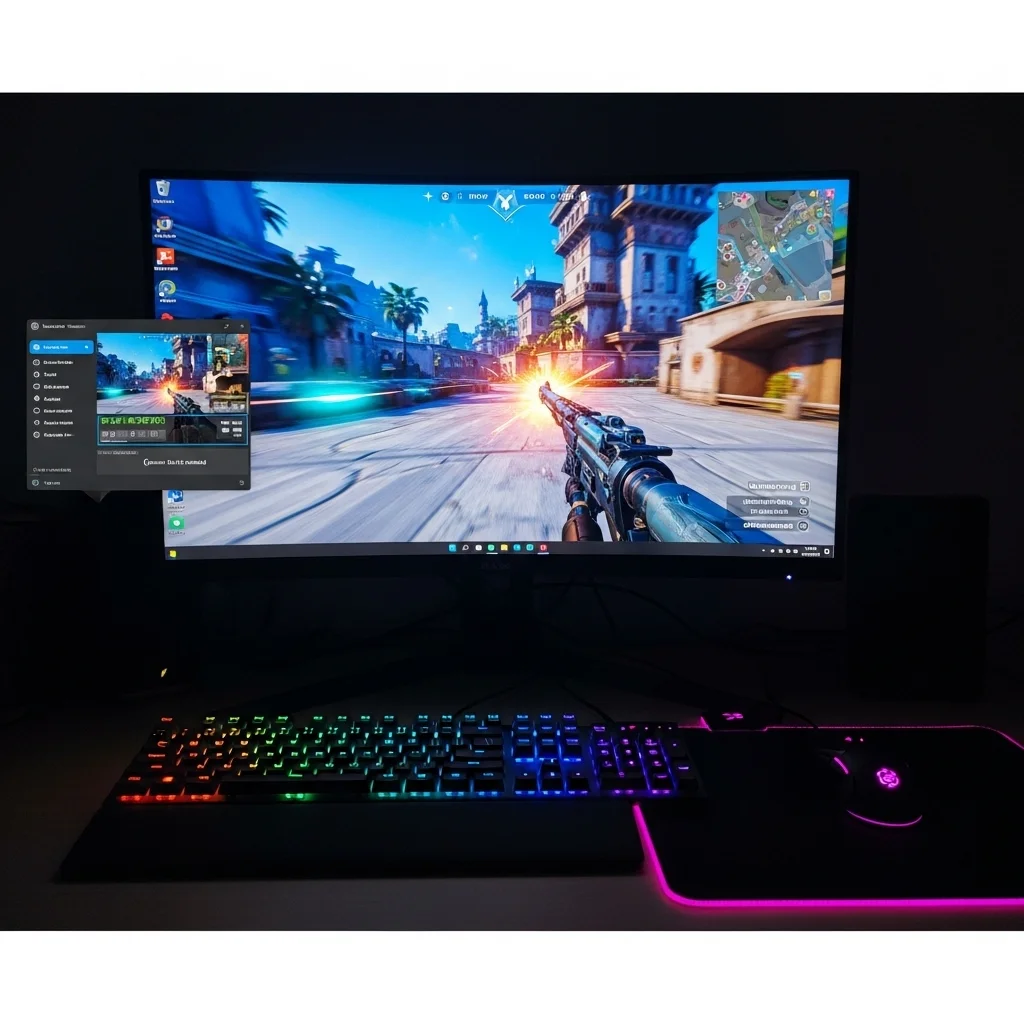
Shut Down Background Apps: Reclaim Your Resources
Every open application consumes CPU, RAM, and GPU resources. These background processes can fight your game for system attention.
When your system is compiling shaders, any competition for resources can introduce noticeable stutter.
Eliminate unnecessary distractions to give your game full priority.
Even small apps can accumulate into a significant resource drain.
Think about chat clients, web browsers with many tabs, streaming software, or even system utilities.
Here’s how to effectively manage background applications:
- Task Manager: Open Task Manager (Ctrl+Shift+Esc). Go to the “Processes” tab. Identify and close any high-resource demanding applications before launching your game.
- Startup Apps: In Task Manager, go to the “Startup” tab. Disable programs you don’t need running immediately when Windows starts. This prevents them from consuming resources from the get-go.
- Browser Tabs: Close all unnecessary browser tabs. Modern browsers can be massive resource hogs.
- Cloud Services: Pause or exit cloud sync services like Dropbox, OneDrive, or Google Drive while gaming.
By aggressively managing background apps, you free up your PC to focus solely on rendering your game.
This reduces the likelihood of shader compilation stutter and boosts overall FPS consistency.
Optimizing your system’s core performance goes beyond just closing apps.
For deeper insights into hardware optimization that can impact overall system fluidity, explore how RAM Timings vs Frequency: Optimize for Peak Gaming can give you an edge.
A bar chart showing the relative gaming performance (FPS) with different background applications running. No background apps (100%), Browser with many tabs (92%), Streaming Software (85%), and Antivirus Scan (75%).
Ready to put your optimized setup to the test? Head over to Joltfly and challenge your speed with our Click Speed Test or refine your precision with our Aim Trainer.
Prove your optimization efforts pay off and dominate your gaming circle today!
In Short
- Experiment with both DX12 and DX11 in games to find the optimal rendering API for stable, stutter-free performance.
- Activate Windows Game Mode to prioritize your game’s performance by directing system resources specifically to it.
- Shut down unnecessary background applications and manage startup programs to free up CPU, RAM, and GPU resources for smoother gameplay.
