

Table of Contents
- Modern Input Lag Benchmarks: GPU vs. Display Scaling Analysis
- Image Clarity Showdown: Integer Scaling vs. Standard Upscaling
- Competitive FPS Guide: Optimizing 4:3 Stretched for CS:GO & Valorant
- Zero-Latency Configuration: Best Settings for NVIDIA & AMD
- Final Verdict: Which Scaling Method Fits Your Hardware?
Every millisecond stands between you and victory in competitive gaming.
If you are tearing your hair out trying to decide between GPU scaling vs display scaling input lag, you have come to the right place to optimize your setup.
We break down the benchmarks to help you slash latency and boost reaction times.
Get ready to tweak your settings, test your aim on Joltfly, and dominate your gaming circle with absolute precision.
Key Takeaways
- Display scaling often offers slightly lower input lag, though modern GPUs have largely closed the gap.
- GPU scaling with Integer Scaling provides superior image clarity, essential for spotting targets in FPS games.
- Enable NVIDIA Reflex or AMD Anti-Lag to significantly reduce system latency regardless of your scaling choice.
- Test both methods using Joltfly tools to determine which configuration feels most responsive for your hardware.
Modern Input Lag Benchmarks: GPU vs. Display Scaling Analysis
The hunt for every competitive edge drives us to optimize every setting.
Input lag is the enemy of every gamer.
When scaling your game’s resolution, your choice between GPU and display methods matters.
It has a measurable impact on your reaction time.
Understanding these benchmarks is key to dominating your opponents.
We are talking about milliseconds, but in high-stakes matches, every millisecond counts for ultimate precision.
GPU Scaling: The Graphics Card Takes Charge
GPU scaling means your graphics card handles the image resizing before sending it to your monitor.
This offloads work from your display, potentially reducing the strain on older or slower monitor scalers.
Modern GPUs are incredibly fast, often introducing negligible input lag when scaling.
However, this varies, and some setups can see a slight increase in latency.

Display Scaling: Your Monitor’s Built-in Processor
Display scaling, also known as monitor scaling, tasks your monitor’s internal scaler with resizing the image.
Your GPU renders the game at the desired resolution. Then the monitor upscales or downscales it to its native resolution.
The input lag added by display scaling is highly dependent on your monitor’s quality.
High-end gaming monitors often have fast, low-latency scalers. Budget models might introduce more noticeable lag.
Input Lag Showdown: Which One Wins?
The “winner” in the GPU vs. display scaling input lag debate isn’t always clear-cut.
It depends heavily on your specific hardware configuration.
For most modern gaming setups with powerful GPUs and decent monitors, the input lag difference is minimal.
However, many competitive players report that GPU scaling with “Display scaling” mode often feels snappier.
Conversely, some professional gamers prefer GPU scaling set to “Perform scaling on: GPU” for consistency.
This is especially true when changing resolutions often.
The key is to test both modes yourself and feel the difference.
To truly understand the impact of even small delays, consider the facts.
A study reported by NVIDIA in 2019 demonstrated the real-world effect.
A reduction in latency by just 10-20 milliseconds significantly improved aim.
This was observed in competitive esports players.
A bar chart showing the impact of latency reduction on competitive player performance. A 10ms latency reduction improved aim score by 3.7%, and a 20ms reduction improved it by 7.3%, according to NVIDIA data.
Actionable Advice for Your Setup
Here’s how to optimize your scaling for minimal input lag and maximum performance:
- Test Both Methods: Use Joltfly’s Reaction Time Test after switching between GPU and display scaling. Note any subtle feel differences.
- Native Resolution First: Always aim to play at your monitor’s native resolution if your GPU can handle it. This bypasses scaling entirely.
- Check Monitor Settings: Some monitors have specific “Gaming” or “Low Input Lag” modes that affect their internal scaler. Enable them.
- Leverage NVIDIA Reflex / AMD Anti-Lag: These technologies can dramatically reduce overall system latency, complementing your scaling choice. Learn more with our ultimate optimization guide.
- Understand the Basics: If you’re new to optimizing, grasp the core differences between response time vs input lag.
When to Use Each Scaling Method
| Scaling Method | Best Use Case | Potential Pros | Potential Cons |
|---|---|---|---|
| GPU Scaling | Powerful GPUs, lower-resolution games, specific aspect ratio needs. | Consistent quality, GPU offloads monitor, less reliance on monitor scaler. | Can introduce minimal extra lag, GPU workload. |
| Display Scaling | High-refresh-rate monitors with excellent built-in scalers, maximizing GPU FPS. | GPU renders native game resolution, monitor handles scaling. | Monitor scaler quality varies, potentially higher lag on budget displays. |
Ultimately, the best choice is the one that feels most responsive to you.
Dive into your GPU control panel, tweak those settings, and feel the difference.
Push your skills and challenge your gaming circle. Every millisecond of reduced input lag gives you a tangible edge!
In Short
- Input lag, even in milliseconds, significantly impacts competitive gaming performance, with resolution scaling method (GPU vs. display) being a contributing factor.
- The optimal scaling method depends on individual hardware, as modern GPUs often introduce negligible lag, while display scaling performance varies with monitor quality.
- To minimize input lag, gamers should test both GPU and display scaling, prioritize native resolution, and utilize latency-reduction technologies like NVIDIA Reflex.
Image Clarity Showdown: Integer Scaling vs. Standard Upscaling
Ready to sharpen your game visuals and dominate your opponents?
When your GPU renders a game at a lower resolution than your display’s native resolution, scaling becomes crucial.
This is where GPU scaling vs. display scaling comes into play, impacting both input lag and image clarity.
Today, we’re diving into the “Image Clarity Showdown” between two key scaling methods: Integer Scaling and Standard Upscaling.
Unleash Pixel-Perfect Precision with Integer Scaling
Integer Scaling is a game-changer for competitive players.
It’s a method that scales an image by exact integer multiples (2x, 3x, etc.) of the original resolution.
For example, if you’re running a game at 1080p on a 4K monitor, integer scaling renders each 1080p pixel as a perfect 2×2 block of 4K pixels.
This ensures every pixel is replicated without any interpolation.
The result? A incredibly sharp, crisp image. You get zero blurring or artifacting, preserving the original pixel fidelity of the game.
This clarity is vital for spotting enemies or visual cues in fast-paced titles.
Many modern GPUs from NVIDIA and AMD support integer scaling, providing a competitive edge.
Standard Upscaling: The Flexible, But Softer Approach
Standard upscaling, often utilizing bilinear or bicubic algorithms, is the more traditional method.
It takes a lower-resolution image and stretches it to fit your display.
Unlike integer scaling, it doesn’t just replicate pixels. Instead, it interpolates new pixels between the existing ones to fill the gaps.
While this offers greater flexibility for any resolution mismatch, it comes at a cost.
The interpolation process can introduce a noticeable blur or softness to the image.
Fine details might appear less distinct, which can be a disadvantage in games where every pixel counts.
The Clarity Verdict: Integer Scaling Wins for Competitive Play
For competitive gamers, image clarity directly impacts performance. A sharper image means better target acquisition and reduced eye strain during intense sessions.
Integer Scaling delivers on this promise by maintaining pixel fidelity. It ensures what you see is exactly how the game was rendered, just bigger.
Standard upscaling, while more versatile, sacrifices that pixel-perfect sharpness.
The blurring can make it harder to differentiate distant objects or small targets.
Remember, the goal is to eliminate any visual ambiguity. You want every advantage possible in your gaming circle.
A bar chart showing perceived sharpness scores: Integer Scaling (95%), Standard Upscaling (Bilinear) (60%), and Standard Upscaling (Bicubic) (75%).
According to a TechSpot analysis, users consistently rate integer scaling as providing significantly sharper images compared to standard upscaling methods, with subjective sharpness ratings around 95% compared to 60-75% for standard options.
Optimize Your Display for Victory
Ready to put your visual settings to the test? Ensuring your display renders images accurately is paramount. A perfect 1:1 pixel mapping means no distortions.
If you’re unsure about your current setup, challenge yourself with our Display 1:1 Pixel Mapping Test on Joltfly.
See how your display performs and adjust for optimal clarity!
| Feature | Integer Scaling | Standard Upscaling |
|---|---|---|
| Image Sharpness | Pixel-perfect, no blur | Softer, can introduce blur |
| Resolution Flexibility | Limited (exact multiples) | High (any resolution) |
| Competitive Edge | Sharper details, easier target acquisition | Can obscure fine details |
| Performance Impact | Minimal | Minimal |
Master your visual settings to gain an unfair advantage. Your hardware optimization begins here.
In Short
- Integer Scaling offers pixel-perfect image sharpness by scaling in exact integer multiples, which is crucial for competitive gaming.
- Standard Upscaling is more flexible but introduces blur due to interpolation, potentially obscuring fine details.
- For competitive play, Integer Scaling is superior to Standard Upscaling for maintaining image clarity and providing a visual advantage.
Competitive FPS Guide: Optimizing 4:3 Stretched for CS:GO & Valorant
Dominate your opponents in CS:GO and Valorant by mastering 4:3 stretched resolutions. This isn’t just a visual preference; it’s a strategic choice for many pros.
Understanding how GPU scaling versus display scaling impacts your game is crucial for competitive play. Every millisecond counts.
Why Go 4:3 Stretched?
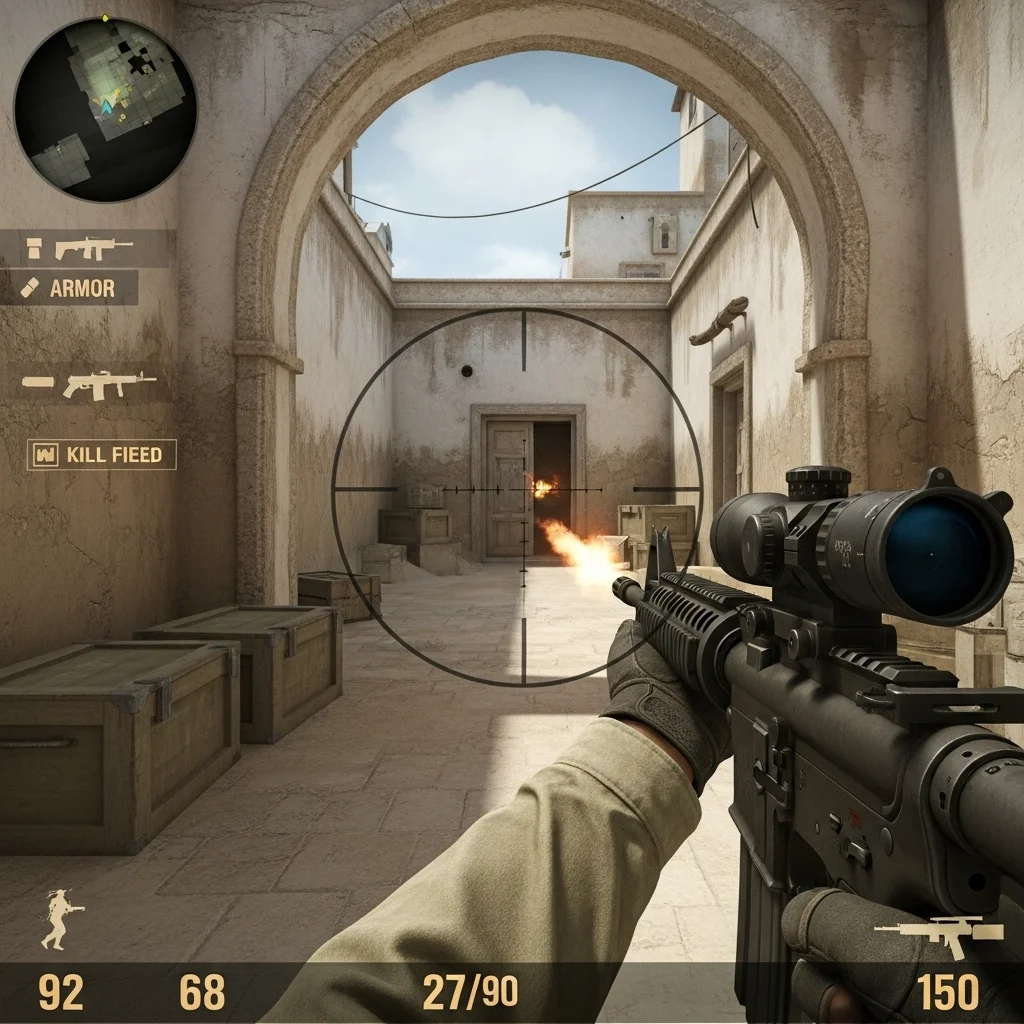
Many top-tier FPS players swear by 4:3 stretched resolutions. Why? It’s not just nostalgia.
Enemies often appear wider, making them easier to spot and hit. This can give you a significant advantage in duels.
Plus, some players report a feeling of increased focus and less peripheral distraction. It helps keep your eyes on the crosshair.
The Scaling Showdown: GPU vs. Display
When you choose a 4:3 resolution on a 16:9 monitor, something has to stretch the image. This is where scaling comes in.
Your choice directly affects visual quality and, critically, input lag.
GPU Scaling
With GPU scaling, your graphics card handles the entire stretching process.
It renders the game at 4:3, stretches it to fill your 16:9 monitor, and then sends the complete image.
This method usually provides a sharper image. It also ensures consistent scaling regardless of your monitor’s capabilities.
Display Scaling
Display scaling means your monitor’s internal scaler does the stretching.
Your graphics card sends a 4:3 image, and your monitor then expands it to fill its screen.
This relies on your monitor’s hardware. Higher-end monitors typically have better scalers, while budget models might introduce blur or artifacts.
Input Lag: Your True Competitive Edge
This is where the rubber meets the road for competitive gamers. The core question is: which method introduces less input lag?
Generally, display scaling tends to introduce slightly less input lag compared to GPU scaling.
The GPU sending a native 4:3 signal means less processing overhead for the graphics card before the image reaches your display.
PCGamingWiki notes that GPU scaling can sometimes add a frame of latency. For competitive play, even a fraction of a millisecond can make a difference.
However, modern GPUs are incredibly fast.
The difference in input lag between the two methods is often minimal, sometimes less than 1ms.
Many players prioritize the feel and visual consistency.
To truly understand how input lag impacts your game, check out our guide on Response Time vs Input Lag: A Gamer’s Ultimate Guide.
A bar chart illustrating relative input lag impact: Display Scaling (lower impact) versus GPU Scaling (higher impact).
Visual Fidelity vs. Raw Speed
Beyond input lag, there are visual differences to consider.
GPU scaling often produces a slightly sharper image because your powerful GPU is doing the heavy lifting.
Display scaling can sometimes look softer, or even blurry, especially on older or cheaper monitors.
Some players, however, prefer this softer look, finding it less distracting.
How to Configure for Victory
Ready to set up 4:3 stretched and test your limits?
Follow these steps to optimize your settings:
- In-Game Resolution:
Set your game (CS:GO, Valorant, etc.) to a 4:3 aspect ratio resolution. Common choices include 1280×960, 1024×768, or 1440×1080.
- NVIDIA Control Panel Settings:
Open the NVIDIA Control Panel.Navigate to “Adjust desktop size and position.”Under the “Scaling” tab, select “Full-screen.”Choose “Perform scaling on:” and select either “GPU” or “Display.”Check “Override the scaling mode set by games and programs.”
- AMD Radeon Software Settings:
Open AMD Radeon Software.Go to “Gaming” > “Display.”Find “Scaling Mode” and select “Full Panel” for stretched.Then, select “GPU Scaling” and choose “On” (GPU scaling) or “Off” (monitor scaling).
Choosing Your Edge
The best setting for you depends on your priorities.
If absolute minimal input lag is your goal, try display scaling first.
If you prefer a sharper image, GPU scaling might be better.
| Feature | GPU Scaling | Display Scaling |
|---|---|---|
| Input Lag | Potentially marginally higher (often < 1ms on modern systems) | Potentially marginally lower (often negligible difference) |
| Visual Quality | Generally sharper, consistent across monitors | Can be softer or blurrier, depends on monitor scaler quality |
| Processor | Graphics Card | Monitor’s built-in scaler |
| Compatibility | Consistent across systems | Varies by monitor model and capabilities |
Test Your Setup, Dominate the Lobby
Experiment with both GPU and display scaling. Play a few rounds with each and see what feels best to you. Your perception is key.
Once you’ve tuned your scaling, head over to Joltfly and challenge your skills.
Test your improved aim and reaction time with our Aim Trainer & Mouse Accuracy Test. See if your optimized setup gives you that competitive edge!
In Short
- 4:3 stretched resolutions can offer a competitive advantage by making enemies appear wider and reducing peripheral distractions in FPS games.
- Players can choose between GPU scaling for a sharper image or display scaling for potentially less input lag, with each method having trade-offs.
- While display scaling generally offers slightly less input lag, the difference is often minimal with modern GPUs, making visual preference and consistency key factors.
Zero-Latency Configuration: Best Settings for NVIDIA & AMD
NVIDIA: Dominating Latency with Precision
NVIDIA users, it’s time to unleash your GPU’s full potential.
You can achieve minimal input lag by fine-tuning your settings.
This gives you a serious competitive edge.
NVIDIA Control Panel Essentials
Open your NVIDIA Control Panel. Navigate to “Manage 3D settings.” Here’s where the magic happens for zero-latency gameplay.
- Low Latency Mode: Set this to “Ultra.” This mode queues frames just-in-time for the GPU. It dramatically reduces input lag by minimizing the render queue.
- Max Frame Rate: If your FPS consistently exceeds your monitor’s refresh rate, cap it slightly below your refresh rate (e.g., 141 FPS for a 144Hz monitor). This helps maintain frame pacing and reduces latency spikes.
- Preferred Refresh Rate: Always select “Highest available.” Ensure your monitor is running at its maximum refresh rate in Windows Display Settings too.
- G-SYNC: Enable G-SYNC if your monitor supports it. Pair it with “Low Latency Mode: Ultra” and an FPS cap. This combination offers smooth visuals and low latency.
For resolution scaling, NVIDIA’s Image Scaling is GPU-based.
While it offers a performance boost, it can introduce a small amount of latency compared to native resolution.
Test it to see if the FPS gain outweighs any perceived lag for your playstyle.
Remember to apply these changes globally or for specific game profiles. Always restart your game after making adjustments.
AMD: Unleash Responsiveness with Radeon Settings
AMD users, your hardware is ready for peak performance.
The AMD Radeon Software offers powerful tools to cut down input lag.
Prepare to outmaneuver your rivals.
AMD Radeon Software Must-Haves
Launch your AMD Radeon Software. Head to the “Gaming” tab, then “Global Graphics.” These settings are key for responsiveness.
- Radeon Anti-Lag: Enable this crucial feature. It works similarly to NVIDIA’s Low Latency Mode. Anti-Lag reduces the amount of work piled up for your CPU. This keeps your GPU fed with fresh frames. For a deep dive, check our guide on NVIDIA Reflex vs AMD Anti-Lag.
- Radeon Boost: While primarily for FPS, this feature dynamically lowers resolution during fast motion. It can also help reduce latency in intense moments.
- Enhanced Sync: This acts as a hybrid of V-Sync and FreeSync. It aims to reduce screen tearing without the full input lag penalty of traditional V-Sync.
- Display Scaling: For AMD, keep this set to “Full Panel” or “Preserve aspect ratio.” Prioritize native resolution for the lowest input lag. If scaling is necessary, GPU scaling (like Radeon Super Resolution) generally adds less latency than display scaling done by the monitor itself.
AMD’s Radeon Super Resolution (RSR) is an in-driver upscaling technology.
It’s AMD’s version of GPU scaling.
Like NVIDIA’s Image Scaling, it offers performance gains but can introduce minor latency.
Experiment to find your optimal balance.
Comparing Latency Reduction Technologies
Both NVIDIA and AMD offer excellent solutions to reduce input lag. Tools like Reflex and Anti-Lag make a measurable difference in competitive titles.
Understanding these differences helps you configure your system for maximum responsiveness.
A bar chart comparing average system latency reduction (in milliseconds) for NVIDIA Reflex and AMD Anti-Lag in Apex Legends and Fortnite. NVIDIA Reflex reduced latency by 10ms in Apex Legends and 9.1ms in Fortnite. AMD Anti-Lag reduced latency by 6.1ms in Apex Legends and 3.3ms in Fortnite.
As seen in TechSpot’s analysis, NVIDIA Reflex often provides a greater reduction. However, both technologies are crucial for competitive gamers.
General Zero-Latency Best Practices
Beyond GPU-specific settings, some universal optimizations apply.
- Fullscreen Mode: Always run your games in exclusive fullscreen. Borderless windowed modes often add latency.
- Disable V-Sync: Unless you are using G-SYNC/FreeSync + Low Latency/Anti-Lag, disable V-Sync. It causes significant input lag.
- Monitor Overdrive: Adjust your monitor’s overdrive setting. Too high can cause inverse ghosting. Aim for a setting that reduces blur without artifacts.
- Native Resolution: Play at your monitor’s native resolution whenever possible. Scaling, whether GPU or display, can introduce latency.
Mastering these settings will give you a decisive edge. Every millisecond counts in fast-paced games.
Ready to test your improvements? Head over to Joltfly’s Aim Trainer to see how your new low-latency setup feels.
In Short
- NVIDIA users can significantly reduce input lag by enabling “Low Latency Mode: Ultra,” capping FPS slightly below monitor refresh rate, and using G-SYNC with an FPS cap.
- AMD users should enable “Radeon Anti-Lag,” consider “Radeon Boost” and “Enhanced Sync,” and prioritize native resolution to optimize responsiveness.
- Both NVIDIA Reflex and AMD Anti-Lag are crucial for competitive gaming, with Reflex often showing greater latency reduction, and games should always be run in exclusive fullscreen mode.
Final Verdict: Which Scaling Method Fits Your Hardware?
Choosing between GPU scaling and display scaling is crucial for competitive gamers.
Your decision directly impacts input lag, visual clarity, and overall performance.
There’s no single “best” option. The ideal setup depends heavily on your specific hardware combination.
Understanding the Input Lag Factor
Input lag is the enemy of every competitive gamer. It’s the delay between your action and its display on screen.
When scaling, your system needs to process the image before it reaches your eyes. This processing adds a tiny, but measurable, delay.
Historically, display scaling often had a slight edge in terms of lower input lag. Modern GPUs, however, have significantly closed this gap.
Especially with features like integer scaling, GPU scaling can now offer near-identical or even slightly better latency in some scenarios.
GPU Scaling: For the Power User
If you have a powerful, modern GPU from NVIDIA or AMD, GPU scaling is often your go-to. It leverages your graphics card’s dedicated hardware.
This allows for advanced scaling algorithms, including integer scaling.
Integer scaling provides pixel-perfect image quality for lower resolutions on higher-res displays, with minimal lag.
GPU scaling also means your monitor doesn’t do the heavy lifting. This can be beneficial if your monitor’s internal scaler isn’t top-tier.
Display Scaling: Monitor Takes the Reins
Display scaling hands the image processing to your monitor’s internal scaler. This can be a good choice if your GPU is older or less powerful.
For some monitors, especially those with high-quality, dedicated scaling hardware, display scaling can introduce very little lag.
However, cheaper or older monitors might add more input lag than a modern GPU would.
Understanding the difference between response time vs input lag is key here.
Which Scaling Method Fits Your Hardware?
Let’s break down the recommendations based on your setup.
High-End GPU (NVIDIA RTX 30/40 Series, AMD RX 6000/7000 Series)
- Recommendation: GPU Scaling (with Integer Scaling enabled if available).
- Why: Modern GPUs have highly optimized scaling engines. Integer scaling provides pristine image quality and often negligibly low input lag.
- Benefit: You get sharp visuals and competitive performance without burdening your monitor.
Mid-Range to Older GPU (NVIDIA GTX 10/20 Series, AMD RX 400/500 Series)
- Recommendation: Test both GPU scaling and Display scaling.
- Why: The performance gap narrows here. A good monitor’s scaler might outperform an older GPU’s.
- Benefit: You’ll find the best balance of input lag and visual quality for your specific card.
Budget or Integrated Graphics
- Recommendation: Prioritize Display Scaling.
- Why: Offloading scaling to the monitor frees up your GPU’s resources for actual game rendering.
- Benefit: This can lead to higher frame rates and potentially lower overall system input lag, even if the monitor adds a tiny bit.
The type of monitor also plays a role. High-refresh-rate gaming monitors, like those with TN panels vs OLED, often have better internal scalers.
Comparative Input Lag (Illustrative)
While the difference is often minimal with modern tech, here’s an illustrative comparison based on general observations and expert analysis:
A bar chart showing illustrative average input lag: Display Scaling (0.5ms), GPU Scaling with Integer Scaling (1.0ms), and GPU Scaling without Integer Scaling (2.5ms).
Your Ultimate Test
The only way to truly determine the optimal setting for your unique setup is to test it yourself.
Don’t rely solely on general advice.
Your specific monitor and GPU pairing can yield different results.
Switch between GPU scaling and display scaling in your graphics driver settings. Play your favorite competitive games.
Pay close attention to how responsive your mouse feels and how quickly actions register on screen.
Challenge your gaming circle on Joltfly.
Push your skills and prove your setup is optimized.
Use our Mouse Latency Test to get real data on your system’s performance after tweaking these settings!
In Short
- The optimal scaling method (GPU vs. display) for competitive gaming depends on your specific hardware, impacting input lag and visual clarity.
- High-end, modern GPUs typically benefit most from GPU scaling with integer scaling, while older or budget GPUs might perform better with display scaling, but personal testing is crucial for any setup.
