

Table of Contents
- Technical Root Cause: How Process Prioritization Creates Stutter
- The Primary Fix: Disabling Game Mode and Xbox Background Recording
- Resolving Hardware-Accelerated GPU Scheduling (HAGS) Conflicts
- Targeted Optimization: Disable Fullscreen Optimizations per Game
- Final Audit: Drivers, Power Plans, and Windows 10 vs 11 Verification
Is Windows Game Mode turning your smooth gameplay into a stuttery mess? It creates resource conflicts that actually hurt your performance.
Don’t let lag ruin your aim. We’ll show you exactly how to fix Windows Game Mode stuttering and optimize your PC for a true competitive edge.
Key Takeaways
- Disable Windows Game Mode and Xbox background recording to stop resource hogging.
- Turn off Hardware-Accelerated GPU Scheduling (HAGS) to prevent unexpected frame drops.
- Disable Fullscreen Optimizations on specific game executables to lower input lag.
- Update GPU drivers and switch to the High Performance power plan for maximum stability.
Technical Root Cause: How Process Prioritization Creates Stutter
Ever wonder why your game stutters even with Windows Game Mode enabled? It comes down to how your PC manages its workload. This is called process prioritization.
Your operating system, Windows 10 or 11, juggles hundreds of tasks simultaneously. These include background apps, system services, and, of course, your game.
Process prioritization assigns importance levels to these tasks. High-priority tasks get more CPU and memory resources. Low-priority tasks wait their turn.
Windows Game Mode aims to give your game the highest possible priority. It tells your PC, “Hey, focus all your power here!” This should reduce interruptions and boost performance.
However, this system isn’t perfect. Sometimes, essential background tasks get starved of resources. When these tasks finally demand attention, they can momentarily steal resources from your game.
This resource contention causes micro-freezes or frame drops. You experience this as irritating stuttering. It breaks your immersion and ruins your competitive edge.
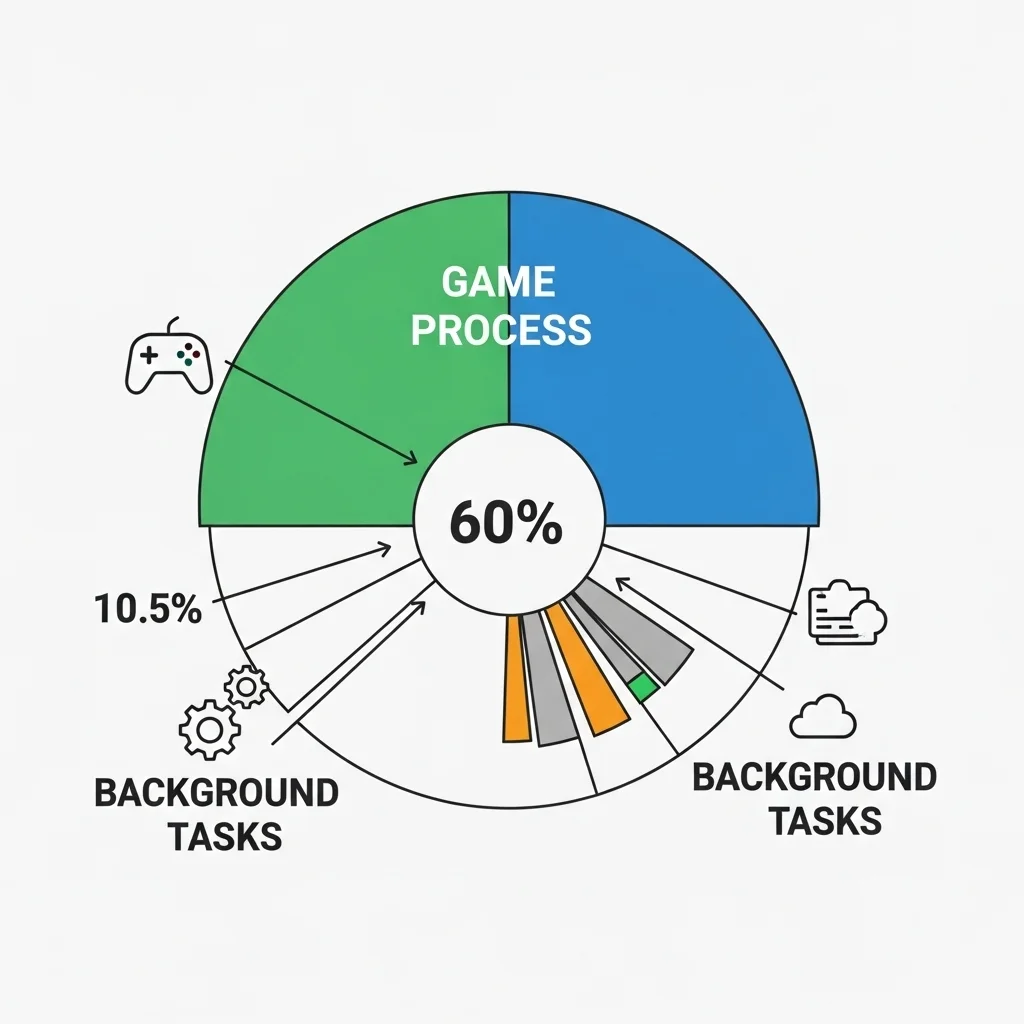
Think of it like a strict bouncer at a club. Game Mode tries to push your game to the front of the line. But if the club manager (the OS) needs to let in a VIP (a critical system process), everyone else briefly stops.
This is especially noticeable on systems with fewer CPU cores or slower RAM. The limited resources become even more strained.
For competitive gamers, even a split-second stutter can mean the difference between a headshot and a respawn. This is why understanding these root causes is crucial.
In fact, many gamers report issues with background processes. According to Statista, as of March 2023, 37% of PC gamers worldwide cited “too many background programs running” as a reason for poor gaming performance.
A bar chart showing reasons for poor PC gaming performance: Too many background programs running (37%), Outdated drivers (34%), Insufficient RAM (31%), Slow internet connection (29%), Outdated CPU/GPU (27%).
Common Stutter Culprits Beyond Game Mode
While Game Mode intends to help, several background elements can still cause issues:
- Third-party overlays: Discord, GeForce Experience, Xbox Game Bar, and other overlays can add overhead.
- Antivirus scans: These can spike CPU usage at critical moments.
- Background updates: Windows Update or game launcher updates can hog bandwidth and CPU cycles.
- Monitoring software: Tools showing FPS or temperatures can sometimes interfere.
- Inefficient drivers: Outdated or buggy graphics and chipset drivers are major stutter sources.
Addressing these issues is key to smooth gameplay. You need to take control of your system’s resources.
Understanding these technical details empowers you to troubleshoot effectively. You can hunt down the specific process causing trouble and eliminate it.
Don’t let hidden processes ruin your competitive experience. You can also explore how to fix other types of performance hitches with our guide on fixing shader compilation stutter.
Test your system’s limits and track performance spikes with Joltfly’s Display Stutter and Tearing Calculator. It gives you the data you need to dominate your gaming circle.
In Short
- Windows Game Mode’s process prioritization can cause game stutter when essential background tasks momentarily reclaim resources, especially on systems with limited CPU or RAM.
- Common stutter culprits beyond Game Mode include third-party overlays, antivirus scans, background updates, monitoring software, and inefficient drivers.
- Understanding these technical root causes empowers gamers to troubleshoot effectively and optimize their system for smoother performance.
The Primary Fix: Disabling Game Mode and Xbox Background Recording
Ready to crush those annoying stutters?
Reclaim your flawless gameplay now. Windows Game Mode and Xbox Game Bar’s background recording features can often be the culprits.
Ironically, instead of boosting your FPS, these features sometimes hog precious system resources.
This resource contention can lead to frustrating micro-stutters and frame drops. It directly impacts your in-game performance.
It’s time to take control and optimize your system for peak performance.
Let’s disable these potential stutter-causers right now.
Disable Windows Game Mode
Game Mode aims to prioritize your game’s resources. However, it often mismanages this prioritization, leading to instability in many competitive titles.
Turning it off is a quick fix that many pro gamers swear by.
- Open Settings: Press
Windows key + I. - Navigate to Gaming: Find and click on the “Gaming” section.
- Select Game Mode: In the left pane, click on “Game Mode.”
- Toggle Game Mode Off: Ensure the switch is set to “Off.”
This simple toggle can free up your system.
You might instantly feel a smoother experience in your favorite FPS or battle royale games.
Disable Xbox Game Bar Background Recording
The Xbox Game Bar is a powerful tool for capturing epic moments.
However, its background recording feature constantly uses CPU and GPU cycles.
This hidden resource drain can introduce significant stuttering, especially in demanding games. Shut it down for maximum stability.
- Open Settings: Again, press
Windows key + I. - Navigate to Gaming: Click the “Gaming” section.
- Select Captures: In the left pane, click on “Captures.”
- Toggle “Record in the background while I’m playing a game” Off: Make sure this crucial switch is disabled.
Eliminating background recording ensures your system dedicates full power to your game.
Say goodbye to unexpected hitches during clutch plays.
Applying these two fixes is your first line of defense against Windows-induced stuttering.
Many competitive players report significant improvements after disabling them.
Beyond these primary adjustments, other factors like shader compilation stutter can impact your frame delivery.
After making these changes, jump back into your game.
Feel the difference in responsiveness and consistent frame rates.
Want to measure your improvements?
Head over to Joltfly and test your mouse latency.
See how optimized your setup truly is, and challenge your friends in your gaming circle!
In Short
- Windows Game Mode and Xbox Game Bar’s background recording features can cause in-game stutters and frame drops by consuming system resources.
- Disabling both Game Mode and Xbox Game Bar’s background recording can significantly improve gaming performance and ensure smoother gameplay.
- Instructions are provided to turn off Game Mode and the ‘Record in the background’ option within Windows settings to optimize system resources for gaming.
Resolving Hardware-Accelerated GPU Scheduling (HAGS) Conflicts
Hardware-Accelerated GPU Scheduling (HAGS) is a feature in Windows designed to improve graphics performance. It aims to offload some GPU scheduling tasks from the CPU. This can reduce latency and boost frame rates.
However, this powerful feature isn’t always a magic bullet. For some gamers, HAGS can actually introduce performance issues. You might experience frustrating stuttering or unpredictable frame drops. This often happens due to conflicts with specific game engines, older drivers, or other system optimizations.
While HAGS promises performance gains, real-world results can vary. For instance, testing a high-end GPU like the RTX 2080 Super in Battlefield V showed a slight decrease in average frames per second when HAGS was enabled.
A bar chart showing average FPS in Battlefield V for RTX 2080 Super: HAGS Off (139.7 FPS) vs. HAGS On (138.8 FPS).
This data highlights that HAGS doesn’t always provide a benefit. In some cases, it can actively hinder your gaming performance.
How to Disable HAGS and Reclaim Smooth Gameplay
If you’re battling stuttering, disabling HAGS is a critical troubleshooting step. Follow these quick steps to take control:
- Right-click on your desktop and select “Display settings.”
- Scroll down and click on “Graphics settings” under the “Related settings” section.
- Look for “Hardware-accelerated GPU scheduling” at the top.
- Toggle the switch to “Off.”
- Restart your PC immediately for the changes to take effect.
After restarting, launch your favorite game and check for improvements. Test thoroughly to see if the stuttering has vanished. This simple toggle could be your key to consistent frame rates.
Optimize Further: Beyond HAGS
Disabling HAGS is a solid first move. However, competitive gaming demands total optimization. Understanding other performance-enhancing technologies is crucial.
Explore solutions like NVIDIA Reflex vs AMD Anti-Lag to further reduce system latency. These technologies can significantly impact your responsiveness in-game.
After making changes, always validate your setup. Use Joltfly’s Display Stutter and Tearing Calculator. It helps you accurately identify any remaining display issues. Ensure your screen delivers pristine, tear-free visuals.
Keep testing, keep optimizing, and dominate your gaming circle with Joltfly!
In Short
- Hardware-Accelerated GPU Scheduling (HAGS) is a Windows feature designed to improve graphics performance by offloading tasks from the CPU.
- Despite its aim, HAGS can sometimes introduce performance issues like stuttering or frame drops, and doesn’t always provide a benefit.
- Disabling HAGS in Display settings is a critical troubleshooting step for resolving stuttering and improving game performance.
Targeted Optimization: Disable Fullscreen Optimizations per Game
Unlock your peak performance by fine-tuning Windows settings for each game. Fullscreen Optimizations, a feature designed to enhance performance and windowed mode experience, can sometimes cause frustrating stuttering and input lag.
This is a common issue that can throw off your timing and precision in fast-paced games. Take control and disable it for a smoother, more responsive gameplay experience.
Eliminating these hitches gives you a distinct advantage. Every millisecond counts when you are in a clutch situation.
Why Disable Fullscreen Optimizations?
Fullscreen Optimizations aim to combine the benefits of exclusive fullscreen with borderless windowed mode. However, for many competitive gamers, this feature introduces more problems than solutions.
It can interfere with how your game directly accesses the GPU, leading to frame drops, micro-stutters, and even increased input lag. You need direct control, not an OS layer adding overhead.
When disabled, your game runs in true exclusive fullscreen. This often means better resource allocation and lower latency. It’s a critical step to achieve maximum FPS and responsiveness.
Step-by-Step: Disable FSO for Specific Games
This targeted approach ensures your favorite titles run at their absolute best. Follow these steps to gain that competitive edge.
- Locate the Game’s Executable: Find the `.exe` file for the game you want to optimize. This is usually in the game’s installation directory.
- Access Properties: Right-click on the game’s `.exe` file and select “Properties” from the context menu.
- Navigate to Compatibility Tab: In the Properties window, click on the “Compatibility” tab.
- Disable Fullscreen Optimizations: Check the box that says “Disable fullscreen optimizations.”
- Apply and Confirm: Click “Apply” then “OK” to save your changes.
- Repeat for All Games: Apply this setting individually to every game where you experience stuttering or desire maximum performance.
Remember, this is a per-game setting. You’ll need to adjust each game individually. This precision tuning gives you power over your gaming environment.
Test Your Performance
After disabling Fullscreen Optimizations, jump back into your game. Pay close attention to any improvements in frame rate stability and input responsiveness.
Many players report significant reductions in stuttering and a smoother feel. You might notice a noticeable difference in your reaction times and overall control.
For a deeper dive into display settings, check out our guide on GPU Scaling vs Display Scaling to minimize input lag even further.
Ready to test your newly optimized setup? Head over to Joltfly and try our Aim Trainer & Mouse Accuracy Test to see how much your precision has improved. Challenge your gaming circle to beat your new high scores!
In Short
- Fullscreen Optimizations in Windows can cause stuttering and input lag in games.
- Disabling Fullscreen Optimizations per game can lead to improved performance, lower latency, and a smoother gaming experience.
- To disable, locate the game’s executable, right-click for Properties, go to the Compatibility tab, and check “Disable fullscreen optimizations”.
Final Audit: Drivers, Power Plans, and Windows 10 vs 11 Verification
Drivers: Your First Line of Defense
Outdated drivers are often the silent assassins of peak performance. They can cause brutal stuttering and undermine your competitive edge.
Your GPU drivers are especially critical. Always ensure they are up-to-date.
Perform a clean installation of new drivers. This removes old, potentially conflicting files.
NVIDIA users can use DDU (Display Driver Uninstaller) in Safe Mode for a truly fresh start.
AMD users should utilize AMD Cleanup Utility for the same effect.
Don’t forget chipset drivers and other essential hardware components. Keep them current to minimize system bottlenecks.
Optimizing your GPU settings is key to victory. Dive deep into your graphics control panel.
Explore options like low latency modes to further boost responsiveness and reduce input lag.
For more advanced GPU optimizations, check out our guide on NVIDIA Reflex vs AMD Anti-Lag.
Power Plans: Unleash Your PC’s Full Potential
Your Windows power plan directly impacts your gaming performance. The default “Balanced” mode won’t give you maximum FPS.
Switch to “High Performance” or “Ultimate Performance” mode.
This ensures your CPU and GPU receive consistent power, preventing throttling that leads to stuttering.
To change your power plan:
- Search for “Edit power plan” in the Windows search bar.
- Click “Power Options.”
- Select “High Performance” or “Ultimate Performance.”
- If “Ultimate Performance” is hidden, you can enable it via Command Prompt.
This simple tweak can unlock hidden frames and smoother gameplay.
In benchmarks by TechSpot in 2023, activating the Ultimate Performance power plan in Windows 11 showed minor but consistent FPS gains, sometimes up to 2% in demanding titles like Cyberpunk 2077, compared to the Balanced plan.
A bar chart showing that the Ultimate Performance power plan can offer an average FPS gain of 2% compared to the Balanced power plan, based on 2023 TechSpot benchmarks.
Windows 10 vs. 11 Verification for Gaming
The choice between Windows 10 and 11 can influence your gaming experience. Both have their pros and cons.
Windows 11 brought Game Mode improvements and features like DirectStorage. However, it also introduced potential compatibility issues.
For some systems, Windows 10 still offers slightly better stability and raw performance in specific titles.
Windows 11 typically has a more modern UI and advanced security. Test both if you can.
Ensure Game Mode is configured correctly regardless of your OS. Paradoxically, sometimes disabling it can fix stuttering.
Here’s a quick verification checklist for both operating systems:
- Game Mode: Toggle it On/Off and test performance in your problematic games.
- Graphics Settings: Ensure your game is set to “High performance” under Graphics settings in Windows.
- Background Apps: Restrict background processes. Close unnecessary apps before gaming.
- Notifications: Disable notifications during gameplay for uninterrupted focus.
- Updates: Keep your OS updated, but be wary of major updates right before a tournament.
Experimentation is key. What works for one setup might not work for yours.
Take Control: Monitor Your Performance
After adjusting drivers and power plans, it’s crucial to verify the impact. Don’t just guess at improvements.
Use tools to monitor FPS, frame times, and overall system latency.
These metrics reveal real performance gains and help pinpoint remaining issues.
Track your improvements. See how your system responds under pressure.
Ready to put your system to the ultimate test and push your own limits?
Head over to Joltfly. Practice your reaction time with our Reaction Time Test.
Challenge your accuracy and speed with the Aim Trainer & Mouse Accuracy Test. Dominate your gaming circle!
In Short
- Ensure all drivers, especially GPU and chipset drivers, are clean-installed and up-to-date to prevent stuttering and maximize performance.
- Switch your Windows power plan to “High Performance” or “Ultimate Performance” to guarantee consistent power delivery to your CPU and GPU, preventing throttling.
- Optimize your Windows settings by configuring Game Mode, graphics settings, and background apps, and experiment with Windows 10 vs. 11 for the best gaming experience.
