

Struggling with stretched menus on your 21:9 monitor? It’s time to reclaim your screen real estate.
Stop losing easy fights due to bad visibility.
Master the fix for ultrawide game UI scaling and HUD position.
Optimize your setup, avoid anti-cheat bans, and dominate the competition with Joltfly.
Key Takeaways
- Understand Hor+ mechanics to expand your FOV without losing vertical vision.
- Use tools like Flawless Widescreen to correct stretched UI elements instantly.
- Center your HUD to improve reaction times and create a better streaming layout.
- Avoid anti-cheat bans by sticking to safe, community-verified configuration edits.
Mechanics of Aspect Ratio: Hor+, Vert-, and UI Anchoring
Unlock the secrets behind ultrawide gaming. Understanding aspect ratio mechanics like Hor+, Vert-, and UI anchoring is key.
This knowledge helps you fix those frustrating UI scaling and HUD position issues.
Dominate your visual experience. Don’t let it hold you back.
Hor+ Explained: Your Wider View Advantage
Hor+ (Horizontal Plus) is the gold standard for ultrawide gaming.
When you switch to a wider aspect ratio, the vertical field of view (FOV) remains constant.
The game simply adds more horizontal space to your vision.
This expands your peripheral awareness, giving you a competitive edge in many titles.
You see more of the battlefield, enemies, or environmental cues.
Vert-: The Pitfall to Avoid
Vert- (Vertical Minus) is the opposite, and it’s a major drawback for ultrawide users.
With Vert-, the horizontal FOV stays fixed, and the game crops the vertical view.
You lose precious vertical screen real estate, essentially zooming in and limiting your vision.
This can severely impact gameplay, making you miss critical information above or below your crosshair.
It’s a frustrating experience that takes away your advantage.
Always aim for Hor+ support in your games.
UI Anchoring: Keeping Your HUD in Check
UI anchoring determines where elements like your mini-map, health bar, and ammo counter sit on screen.
On ultrawide monitors, improper UI anchoring is a common headache.
Some games stretch the UI across the entire vast width, making crucial information too spread out.
Other titles might “anchor” the UI to the far corners, forcing your eyes to travel excessively.
Common UI Anchoring Problems:
- Stretched UI: Elements distort or become pixelated when forced to fill the extra width.
- Corner Anchoring: HUD elements are pushed to the extreme edges, making them difficult to track quickly.
- Center Anchoring: Some UIs might remain close to the center, but still feel off-balance on a wide screen.
Ideally, UI elements should be anchored towards the center of your peripheral vision.
This allows for quick glances without excessive eye movement, crucial for competitive play.
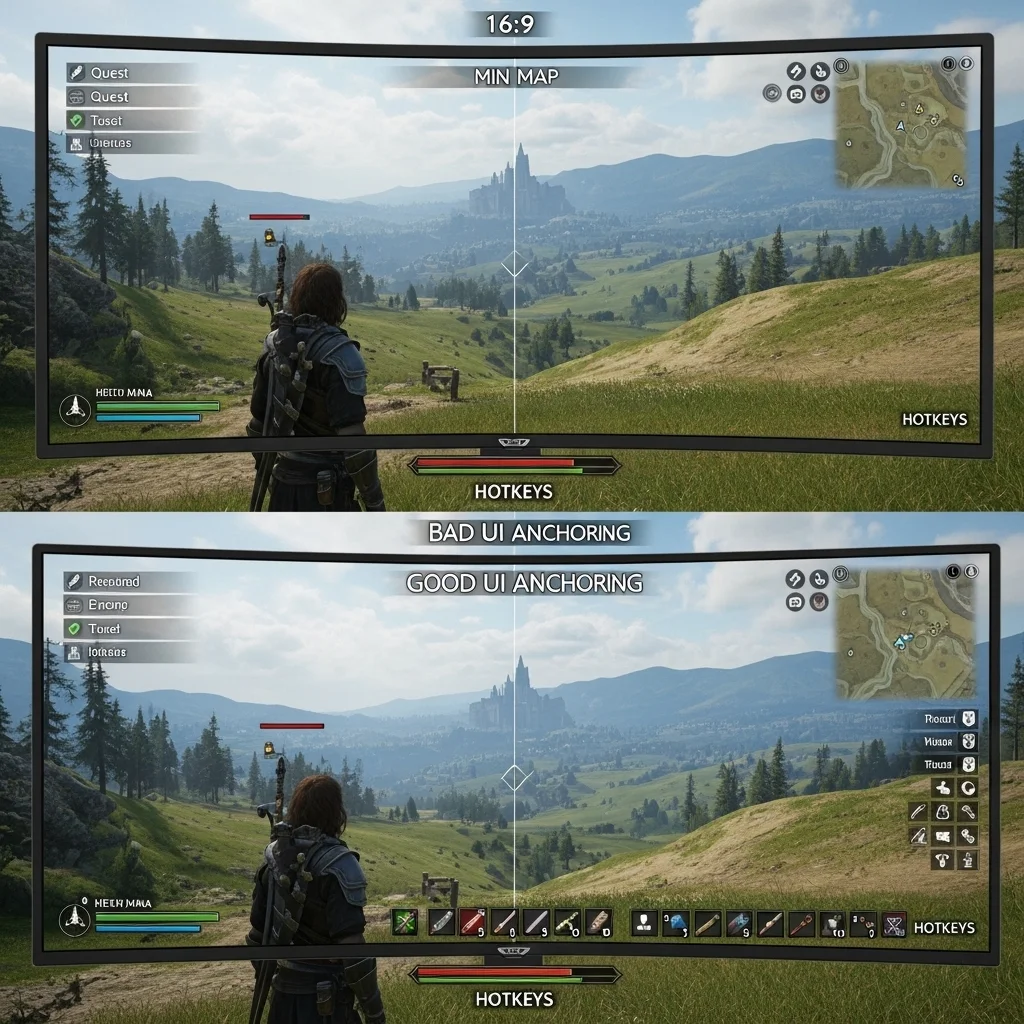
Many games offer settings to adjust UI scaling or HUD position.
Dive into your game’s display settings to customize these options.
Sometimes, community mods are the only way to achieve perfect UI placement.
For more display optimization, you can use a Display Aspect Ratio Calculator to ensure your setup is precise.
Ultrawide Adoption: A Growing Trend
The ultrawide display market is expanding rapidly.
This signals that more gamers are embracing this immersive experience.
As more players adopt ultrawide, the pressure on game developers to implement proper scaling and UI anchoring increases.
This growth highlights the importance of understanding these mechanics to optimize your setup.
A bar chart showing the global ultrawide display market value: USD 2.64 billion in 2022, projected to reach USD 5.48 billion by 2030.
The global ultrawide display market was valued at USD 2.64 billion in 2022.
It is projected to nearly double to USD 5.48 billion by 2030.
This significant growth underscores why fixing ultrawide UI and HUD issues is so crucial for your gaming community.
Actionable Steps to Win
Always check if a game supports Hor+ natively. This is your first line of defense against poor scaling.
Experiment with in-game UI scaling options. Move sliders, resize elements, and find your sweet spot.
Look for community patches or mods if official support is lacking. The gaming community often provides solutions.
If you’re still battling black bars or weird stretching, check out our guide on Remove Black Bars on Ultrawide Games: Full Screen Fixes.
Mastering these mechanics will give you an undeniable edge.
In Short
- Hor+ expands horizontal field of view and is ideal for ultrawide gaming, while Vert- crops vertical view and should be avoided.
- Proper UI anchoring is crucial for ultrawide monitors, ensuring HUD elements are centrally located for optimal usability and quick tracking.
- To optimize ultrawide gaming, check for native Hor+ support, adjust in-game UI settings, and explore community mods to resolve scaling and HUD placement issues.
Implementing Fixes: From Flawless Widescreen to Hex Editing
Tired of your ultrawide setup giving you UI headaches? It’s time to dive into the solutions that will reclaim your immersive gaming experience.
We’re talking about more than just tweaking in-game settings. You’ll learn to conquer those stretched menus and misplaced HUD elements.
Get ready to implement powerful fixes that give you the ultimate edge in your favorite titles.
No more excuses for subpar visuals. It’s time to dominate your display.
Software Solutions: Flawless Widescreen & Beyond
Many games don’t natively support ultrawide resolutions properly. This often leaves you with stretched UIs or misplaced HUD elements.
Thankfully, dedicated communities and tools exist to bridge this gap.
One of the most popular tools is Flawless Widescreen.
This application specifically targets common ultrawide issues in a vast library of games.
It dynamically injects fixes to correct field of view (FOV), UI scaling, and HUD positioning.
Using Flawless Widescreen is typically straightforward. You launch the application, select your game, and apply the available fixes.
This often resolves the problem instantly, saving you from complex manual tweaks.
Beyond Flawless Widescreen, many games have specific community-made patches or mods.
These are often found on modding websites or game-specific forums. They cater to unique issues within a single title.
Always check a game’s dedicated modding community. You might find a perfect fix for your ultrawide woes.
Remember to back up your game files before installing any mods.
Ultrawide monitors are gaining traction among competitive gamers.
In 2023, 11.2% of gaming monitors sold worldwide were 21:9 ultrawide, while 3.2% were 32:9 super ultrawide.
This growing segment highlights the need for robust scaling solutions.
A pie chart showing gaming monitor market share by aspect ratio in 2023: 16:9 (71.9%), 21:9 Ultrawide (11.2%), 32:9 Super Ultrawide (3.2%), Other (13.7%).
Advanced Tactics: Hex Editing for Ultimate Control
When automated tools or community patches fall short, hex editing is your last resort.
This method requires a deeper understanding. It involves directly modifying a game’s executable file.
You will change values related to resolution, aspect ratio, or UI scaling.
Hex editing is powerful because it bypasses engine limitations. You literally rewrite how the game interprets display parameters.
This can unlock true ultrawide support when nothing else works.
How Hex Editing Works
You use a hex editor, like HxD, to open the game’s executable file. You then search for specific hexadecimal values.
These values often represent resolutions (e.g., 1920×1080) or aspect ratios (e.g., 1.777 for 16:9).
Your goal is to find these values and replace them with ones corresponding to your ultrawide resolution.
For example, replacing a 16:9 aspect ratio value (1.777 or 39 8EE3 3F) with a 21:9 value (2.333 or 9A 99 19 40).
This process is highly game-specific. You’ll need to research what values to search for in your particular game.
Forums like WSGF (Widescreen Gaming Forum) are invaluable resources for this information.
Before you touch any game files, create a backup. Modifying executables incorrectly can corrupt your game, making it unplayable.
Always proceed with caution.
For some games, the issue isn’t just UI scaling but also black bars appearing. You can often fix these in tandem.
Learn more about how to remove black bars on ultrawide games for a truly full-screen experience.
Key Steps for Hex Editing:
- Backup: Copy your game’s executable file to a safe location. This is non-negotiable.
- Identify Values: Research the specific hex values for your game’s resolution or aspect ratio. WSGF is your best friend here.
- Use a Hex Editor: Open the game’s executable (usually an .exe file) with a hex editor.
- Search and Replace: Find the relevant values (e.g., 16:9 aspect ratio) and replace them with your desired ultrawide values (e.g., 21:9).
- Test: Launch the game and check if the UI scaling and HUD position are fixed.
If you’re unsure about specific aspect ratio calculations, use a display aspect ratio calculator to get precise values.
This minimizes errors when manually inputting new dimensions.
Mastering these techniques will transform your ultrawide gaming experience. Say goodbye to awkward UIs and hello to seamless immersion.
Now, go forth and dominate with your perfectly scaled ultrawide setup!
In Short
- Ultrawide monitors often face UI and HUD issues in games due to a lack of native support, requiring specific fixes.
- Solutions range from user-friendly software like Flawless Widescreen and community-made patches to advanced hex editing for direct game file modification.
- Hex editing offers ultimate control for ultrawide display issues when other methods fail, but always requires backing up game files beforehand.
Critical Safety Guide: Anti-Cheat Triggers and HUD Alignment
You’ve got that stunning ultrawide setup, but is your UI holding you back?
Fixing ultrawide game UI scaling and HUD position is crucial for competitive play.
However, messing with game files can trigger anti-cheat systems. This guide keeps you safe.
Navigating the Anti-Cheat Minefield
Modifying game files or injecting third-party overlays to fix your ultrawide HUD might seem like a quick win.
But beware. Aggressive anti-cheat software can flag these actions as cheating.
This risk can lead to temporary bans or even permanent account suspensions.
Your competitive integrity is paramount. Avoid any tools that directly alter game code or memory.

Secure HUD Alignment: Play Smart, Not Sorry
Dominating your gaming circle means optimizing legally. Many games offer built-in solutions for ultrawide displays.
Always check your in-game settings first. Look for options related to ‘HUD Scaling’, ‘UI Aspect Ratio’, or ‘Safe Zones’.
These settings are designed to adjust UI elements without risking an anti-cheat flag.
Some games allow editing configuration (.ini) files for display settings. Ensure you only modify documented, safe parameters.
Stick to adjustments that are explicitly permitted or widely recognized as safe by the game’s community.
Driver-level scaling can also help. Your GPU control panel, whether NVIDIA, AMD, or Intel, often has scaling options.
Experiment with GPU scaling vs display scaling.
Understanding the difference can minimize input lag while improving UI presentation.
Optimize Your HUD, Optimize Your Wins
A perfectly scaled HUD isn’t just about aesthetics. It’s a critical component of your competitive edge.
When crucial information like mini-maps, health bars, or kill feeds are stretched or off-screen, your reaction time suffers.
This directly impacts your response time and overall decision-making.
You need vital data at a glance, without constantly scanning your vast ultrawide screen.
Proper alignment ensures you stay focused on the action, not on hunting for your cooldowns.
Safe Ultrawide HUD Practices Checklist
- Always use in-game settings: Prioritize official options for UI and HUD scaling.
- Consult game forums: Check community-verified methods for ultrawide support.
- Utilize GPU driver settings: Adjust scaling via NVIDIA Control Panel or AMD Adrenalin.
- Stick to documented config file edits: Only change parameters known to be safe.
- Avoid third-party injectors: Never use external tools that modify game memory or graphics pipeline.
- Steer clear of unsupported mods: Even if they look good, they can trigger anti-cheat.
A bar chart showing the projected share of ultrawide (21:9) monitors in global PC monitor shipments: 2.5% in 2020, an estimated 3.5% in 2023, and a projected 4.0% by 2026.
The market for ultrawide monitors is growing.
Statista data projects that the global share of 21:9 monitors in PC shipments will reach 4% by 2026.
Don’t let incorrect UI scaling hinder your performance or risk your account.
Prioritize safe, in-game solutions to get your ultrawide HUD perfectly dialed in.
Once your UI is sharp, head over to Joltfly and put your enhanced setup to the test.
Challenge your friends on the Aim Trainer & Mouse Accuracy Test and prove your dominance!
Identifying Mods That Trigger Easy Anti-Cheat
Game on an ultrawide monitor? You know the struggle: perfectly centered HUDs, stretched UI elements, and black bars.
Mods can fix these issues, but they sometimes clash with anti-cheat systems like Easy Anti-Cheat (EAC).
EAC protects competitive integrity by detecting unauthorized software.
Even innocent UI mods can be flagged if they alter game files or memory in ways EAC deems suspicious.
Don’t get banned trying to optimize your ultrawide experience. Here’s how to identify mods that might trigger EAC.
Understand EAC’s Watch List
EAC scans for changes to core game files, memory, and running processes.
Mods that inject code, modify `.exe` files, or alter DLLs are high-risk.
Even a benign ultrawide fix can look like a cheat to an automated system. It’s about how the mod achieves its goal.
Strategies to Spot Risky Mods
You need a systematic approach to keep your account safe while enjoying your ultrawide setup.
1. Consult Community Knowledge
- Official Forums: Check the game’s official forums or dedicated subreddits. Players often report EAC flags caused by specific mods.
- Mod Pages: Read descriptions, comments, and bug reports on Nexus Mods or similar platforms. Mod authors usually warn about EAC compatibility.
2. Test Mods Incrementally
Never install multiple new mods at once. This is a recipe for disaster.
Add one ultrawide UI mod at a time. Launch the game, play for a bit, and ensure no EAC warnings appear.
This isolates the problem mod effectively.
3. Monitor Your Game Files
After installing a mod, verify your game files through your launcher, like Steam. This can sometimes detect unauthorized changes.
EAC performs its own integrity checks, but manual verification helps.
4. Prioritize Configuration File Edits
Mods that only modify configuration files (e.g., `.ini` files) are generally safer. These are often supported by anti-cheat systems.
Avoid mods that require external injectors or executables unless they are widely confirmed as EAC-safe by trusted sources.
Example Scenario: Finding a HUD Fix
Imagine you want to fix a stretched HUD in your favorite FPS game.
You find two mods:
- Mod A: Requires you to download an external `.exe` that patches the game’s main executable.
- Mod B: Provides a new `.ini` file with specific ultrawide resolution settings and UI scaling values.
Mod B is the safer bet here. It modifies data, not executable code, making it less likely to trigger EAC.
Optimize Your Display, Not Just Your Game
Sometimes, UI scaling issues can be mitigated by understanding how your display and GPU handle resolutions.
Take control of your setup. Learning about GPU scaling vs. display scaling can provide solutions that don’t involve risky mods.
Actionable Advice for Ultrawide Gamers
To dominate your gaming circle on ultrawide, you need a stable setup.
Always prioritize official in-game settings. If those fall short, lean on community-vetted, configuration-based mods.
Test your setup rigorously. You don’t want an EAC ban ruining your grind.
Centering the HUD for Streaming and Competitive Visibility
Ultrawide monitors immerse you like nothing else, but they can stretch your UI and HUD to the extreme edges.
This creates a serious competitive disadvantage.
You need crucial information like maps, ammo counts, and health bars to be instantly visible.
Centering your HUD pulls this data into your core field of view.
This simple adjustment means less eye movement, faster reaction times, and more dominant gameplay.
Every millisecond counts in competitive matches.
The Streaming Advantage
For streamers, HUD placement is even more critical. Your ultrawide display looks amazing to you.
However, your audience often sees a cropped or letterboxed view.
If your HUD elements are pushed to the far corners, they might be completely cut off for your viewers.
This ruins their experience and hides vital game information.
Centering your HUD ensures that all essential UI elements are visible.
It keeps them perfectly framed within the common 16:9 aspect ratio that most viewers use.
It guarantees a professional, clean stream layout that keeps your audience engaged. Don’t let your ultrawide monitor create viewing headaches.
How to Center Your HUD for Peak Performance
Taming your ultrawide HUD requires a few key steps. Not all games support native ultrawide HUD scaling, so you might need creative solutions.
- Check In-Game Settings: Always start here. Many modern titles offer UI scaling or HUD position adjustments. Look for “UI Scale,” “HUD Scale,” or “Safe Zone” options.
- Community Mods: For games without native support, dedicated communities often create mods. Websites like PCGamingWiki are excellent resources for finding these solutions. Be cautious and back up your game files.
- Custom Resolutions: As a last resort, you can force a 16:9 resolution with black bars on the sides. While this sacrifices some screen real estate, it centers your entire display, including the HUD.
- GPU Control Panel Scaling: Utilize your NVIDIA or AMD control panel. You can sometimes force aspect ratio scaling, which might help, though it’s less precise for HUD elements alone.
Optimizing your display settings goes beyond HUD placement. Fine-tuning aspects like contrast and color range can give you a visibility edge.
Explore Best Monitor Settings for Visibility in Dark Games to further enhance your competitive view.
Ultrawide Adoption in Gaming
The popularity of ultrawide monitors for gaming is on the rise. More players are embracing these expansive displays for immersion.
This makes proper HUD management even more vital. You need to adapt to these new visual landscapes to maintain your edge.
A bar chart showing monitor unit shipments by aspect ratio in 2023: 16:9 (90.5%), 21:9 (2.4%), 16:10 (1.2%), Other (5.9%).
In 2023, 16:9 displays still dominated monitor shipments at 90.5%.
However, the 21:9 (ultrawide) segment accounted for 2.4% and continues to grow.
This trend means more gamers face UI scaling challenges. By centering your HUD, you future-proof your setup for competitive play and streaming.
Stay ahead of the curve. Test your newfound visibility in intense scenarios.
Head over to Joltfly’s Aim Trainer and see how quickly you can acquire targets with an optimized HUD.
Challenge your friends to see who can react fastest. Dominate your gaming circle by mastering every detail.
In Short
- Optimizing ultrawide game UI is crucial for competitive play, but modifying game files or using third-party tools to fix HUD scaling can trigger anti-cheat systems and lead to account bans.
- Safely align ultrawide HUDs by utilizing in-game settings, documented config file edits, and GPU driver scaling, while strictly avoiding external tools that alter game code or memory.
- A properly scaled HUD improves competitive performance by ensuring vital information is easily accessible, enhancing reaction time and overall decision-making.
