

Does your aim feel sluggish or inconsistent in Unreal Engine games? Negative mouse acceleration might be sabotaging your muscle memory and reaction speed.
Stop letting invisible settings ruin your K/D ratio. Use this guide to fix your config, enable raw input, and dominate the competition with pinpoint accuracy.
Key Takeaways
- Edit the Engine.ini file to completely disable mouse smoothing and unwanted acceleration.
- Turn off ‘Enhanced Pointer Precision’ in Windows settings to ensure 1:1 mouse movement.
- Use console commands like ‘ShowDebug Mouse’ to verify raw input data in real-time.
- Developers should enable the WindowsRawInput plugin to guarantee precise aiming mechanics.
The Universal Config Fix for Players: Editing Engine.ini
Negative mouse acceleration can derail your aim, turning precision movements into frustrating guesswork.
It acts like an invisible force against your aim. Slow movements drag the crosshair, while fast flicks send it flying.
This inconsistency crushes your competitive edge.
For Unreal Engine games, a universal fix lives within the `Engine.ini` configuration file.
Editing this file ensures your mouse input remains raw. This guide helps you achieve crucial consistency.
Locating Your Engine.ini File
First, you need to find the `Engine.ini` file. Its location can vary slightly depending on the game.
Typically, you’ll find it in your game’s saved folder within your AppData directory. The most common path follows this structure:
C:\Users\YOUR_USERNAME\AppData\Local\GAME_NAME\Saved\Config\WindowsNoEditor\Engine.ini
Replace `YOUR_USERNAME` with your actual username. Swap `GAME_NAME` with the specific game folder you are optimizing.
Make sure to enable “Show hidden files” in File Explorer options if you cannot find AppData.
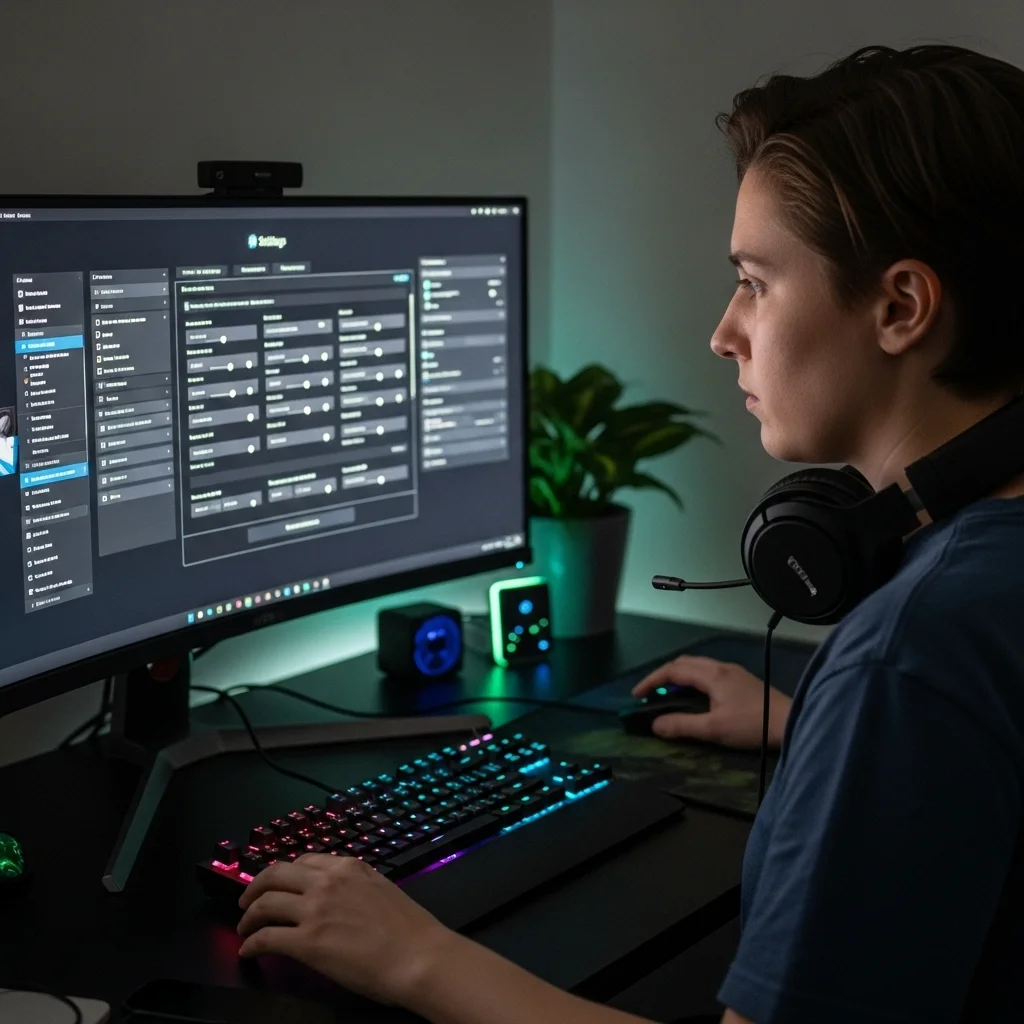
Editing for Raw Input and Precision
Once you’ve located `Engine.ini`, open it with a simple text editor like Notepad.
Be careful not to alter other lines. We are adding specific commands to ensure raw mouse input.
Scroll to the very bottom of the file. You will add a new section or append to an existing `[SystemSettings]` section.
It is best to create a new `[SystemSettings]` section. If it already exists, simply add the new lines to it.
Add the following lines of code. This overrides unwanted acceleration or smoothing algorithms.
This change gives you direct 1:1 mouse movement, crucial for competitive play.
- `[SystemSettings]`
- `bSmoothFrameRate=False`
- `bUseVSync=False` (Optional, but often recommended for input lag)
- `r.VSync=0` (Optional, complements bUseVSync=False)
- `[/Script/Engine.InputSettings]`
- `bEnableMouseSmoothing=False`
After adding these lines, save the `Engine.ini` file. If prompted, ensure you have the necessary permissions.
Setting the file to “Read-only” helps. It prevents the game from reverting your changes.
Right-click the file, go to properties, and check the “Read-only” box.
A pie chart showing that approximately 95% of professional FPS players disable mouse acceleration for consistent aim, while 5% use it.
Why This Works
The `bEnableMouseSmoothing=False` command is vital. It eliminates unwanted smoothing directly.
This forces the game to read your mouse input exactly as it’s sent from your device.
Pros understand the value of raw input. About 95% of FPS pros disable acceleration for consistent aim, according to ProSettings.net.
Consistency is king in high-stakes gaming.
You can further boost your performance by ensuring `bSmoothFrameRate=False` and disabling VSync.
These settings help reduce overall input lag, giving you the fastest response times possible.
For more insights into optimizing your mouse, learn why you need to turn off mouse smoothing for gaming.
Verifying Your Fix
After applying the `Engine.ini` fix, jump into your game. Test your aim and movement.
You should feel a direct connection. Your mouse movements will match on-screen actions perfectly.
To confirm the fix, use the Joltfly Mouse Acceleration Test. It measures if on-screen distance matches physical movement speed.
Eliminate any doubt and confirm your raw input dominance.
Challenge your friends to try this fix. See who achieves the most consistent aim!
Copy-Paste Code to Disable Smoothing and Acceleration
Ready to reclaim control in Unreal Engine? Mouse acceleration can cripple your precision.
These settings introduce inconsistency, making your mouse movements unpredictable.
True competitive advantage comes from raw, unadulterated input. You need a 1:1 response from your mouse.
Banish these unwanted effects with a few quick code tweaks. You’ll gain pinpoint accuracy.
Disable Mouse Smoothing in Input.ini
First, tackle mouse smoothing. It tries to smooth input but adds lag and imprecision.
It makes micro-adjustments difficult.
Locate your game’s `Input.ini` file. It is usually found in the `Config\WindowsNoEditor\` folder.
Open `Input.ini` with a text editor.
Add the following lines under the `[/Script/Engine.InputSettings]` section, or create the section if it doesn’t exist:
bEnableMouseSmoothing=False
MouseSmoothingStrength=0.0
MouseSmoothingDuration=0.0
These lines explicitly instruct the engine to disable mouse smoothing entirely. Zero smoothing strength means direct input.
Eliminate Mouse Acceleration in Engine.ini
Next, deal with mouse acceleration. This setting changes cursor speed based on physical movement speed.
It’s a nightmare for muscle memory.
Find your game’s `Engine.ini` file. It is in the same directory as `Input.ini`.
Open `Engine.ini` using a text editor.
Add the following lines, ideally at the bottom of the file, or under a `[/Script/Engine.PlayerInput]` section if it exists:
bViewAccelerationEnabled=False
ViewAccelerationScale=0.0
Set `bViewAccelerationEnabled` to False. Also set `ViewAccelerationScale` to zero for raw movement.
Every twitch and flick will translate directly to in-game movement.
Confirm Your Settings and Dominate
After making these changes, save both `.ini` files.
Set them to “read-only” in properties. This prevents the game from reverting your changes.
This is crucial for maintaining consistent performance.
Your aim will feel snappier now. This is the competitive edge you need.
Head over to Joltfly’s Aim Trainer to test your newfound precision and challenge your gaming circle.
Sharpen those skills and climb the leaderboards!
Using Console Commands to Test Sensitivity
Unreal Engine offers console commands to fine-tune performance. They are secret weapons against inconsistent aim.
Mastering these commands helps you dig deep. You can identify exactly why your aim feels off.
Ready to gain an unfair advantage?
Accessing the Developer Console
First, open the console. Press the tilde (`~`) or grave accent (`\“) key during gameplay.
A small text input window will appear.
This is where you’ll input commands to reveal hidden data and modify core game settings. Get ready to take control.
Essential Console Commands for Sensitivity Testing
You need specific commands to understand input. They help visualize raw data for informed decisions.
- `ShowDebug Mouse`: This command is a game-changer. It overlays real-time mouse input data onto your screen. You’ll see raw mouse movement, delta values, and more.
- `sensitivity `: Directly adjusts your in-game mouse sensitivity. Start with a base value and iterate from there.
- `fov `: Changes your Field of View. A higher FOV can make your sensitivity feel lower, and vice-versa. Test different values to see their impact.
Observe the `ShowDebug Mouse` output while moving. Look for discrepancies between physical and on-screen data.
Testing for Negative Mouse Acceleration
Negative acceleration creates inconsistency. Fast flicks move the crosshair less than slow sweeps.
Here’s how to use console commands to pinpoint this issue:
- Establish a Baseline: Find a distinct point on your screen. Place your mouse at one end of your mousepad. Move your mouse slowly across the entire pad, noting where your crosshair lands.
- Perform Quick Flicks: Reset your mouse. Now, make a very fast flick across the exact same distance on your mousepad. Observe where your crosshair stops.
- Analyze `ShowDebug Mouse` Output: While performing these tests, keep `ShowDebug Mouse` active. If you see inconsistent delta values or unexplained reductions in movement during fast flicks, you’ve likely identified negative acceleration.
- Adjust and Re-test: Modify your in-game sensitivity using the `sensitivity` command. Some games might offer a specific `bForceNoMouseAcceleration` command or similar, though this is less common in modern Unreal Engine titles.
Your goal is 1:1 mouse movement. Crosshair travel should be consistent regardless of speed.
For more detailed analysis, you can also test your mouse acceleration on Joltfly.
Optimizing Your Sensitivity for Peak Performance
Once you’ve tackled negative acceleration, you can fine-tune your sensitivity. Use the `sensitivity` command to find your sweet spot.
Experiment with small increments. Perform quick turns and micro-adjustments. Find the balance of speed and accuracy.
Your mouse’s DPI also plays a huge role. Use a Mouse DPI/eDPI Calculator to understand your effective sensitivity.
A bar chart showing average eDPI (Effective Dots Per Inch) for professional players in various FPS games: CS:GO (800), Valorant (260), and Apex Legends (1100).
The chart shows average eDPI values among pros.
It highlights the importance of finding what works for you.
Don’t just copy pros. Find your own optimal settings through rigorous testing.
Dominate Your Gaming Circle
Taking control of your sensitivity with console commands is a pro move. It removes inconsistencies that hold back your aim.
Now, put your refined skills to the test. Head over to Joltfly’s Aim Trainer to validate your new settings.
Challenge your friends and show them what true precision feels like!
In Short
- Negative mouse acceleration significantly hinders aiming precision in games.
- The Engine.ini file in Unreal Engine games can be edited to eliminate mouse acceleration and smoothing, providing raw 1:1 mouse input.
- Adding specific lines like bEnableMouseSmoothing=False to the Engine.ini file ensures consistent aim, crucial for competitive play, as widely adopted by pro players.
For Developers: How to Implement Raw Input Correctly
As a game developer, ensuring precise, unadulterated mouse input is critical for competitive titles.
Negative acceleration throws off aim. It leads to frustration and inconsistent performance. Implementing raw input in Unreal Engine is the ultimate solution.
Raw input bypasses the OS’s default processing. No artificial smoothing will interfere with movements.
You deliver a true 1:1 aiming experience. This empowers players to achieve consistent muscle memory and dominate their opponents.
Enabling Raw Input in Unreal Engine
To implement raw input correctly, you’ll need to leverage Unreal Engine’s built-in `WindowsRawInput` plugin.
This plugin captures raw mouse data directly. It sidesteps any OS-level alterations.
Enable the Plugin: Navigate to Edit > Plugins in your Unreal Engine project. Search for “Windows RawInput” and enable it. Restart the editor to apply changes.
Configure Input Device Settings: Open your project’s `DefaultInput.ini` file. Add or modify the following lines to register your mouse as a raw input device:
[WindowsRawInput.RawInputSettings]
bEnabled=True
bRegisterForMice=True
+DeviceConfigurations=(VendorId=0, ProductId=0, bMatchAnyId=True, bCaptureGlobalDevice=False, bRegisterForRelativeMovement=True)
Setting `bMatchAnyId=True` ensures all connected mice are captured as raw input.
Handle Raw Input in C++: You’ll need to subscribe to the raw input delegate to process the data. In your player controller or game state, override `BeginPlay()` to register for raw mouse input events.
// In your .h file
void OnRawMouseMove(const FRawInputData& RawInputData);
// In your .cpp file (e.g., PlayerController)
void AMyPlayerController::BeginPlay()
{
    Super::BeginPlay();
    if (GEngine)
    {
        GEngine->Get ];
        FSlateApplication::Get().RegisterRawInputDelegate().AddUObject(this, &AMyPlayerController::OnRawMouseMove);
    }
}
void AMyPlayerController::OnRawMouseMove(const FRawInputData& RawInputData)
{
    if (RawInputData.Mouse.bMoved)
    {
        // Process RawInputData.Mouse.X and RawInputData.Mouse.Y
        // Apply this directly to camera rotation without scaling or smoothing
    }
}
Ensure you unregister the delegate in `EndPlay()` to prevent memory leaks.
Disable Engine Mouse Smoothing: Double-check that any engine-level mouse smoothing or acceleration settings are disabled. These can often be found in Project Settings > Input or within specific camera components.
A true raw input setup means the engine directly uses the delta values from the mouse sensor.
The Impact of Raw Input on Performance
Raw input drastically improves fidelity. Players feel a direct connection between movement and camera rotation.
This eliminates the unpredictable feeling of negative acceleration.
This consistency boosts competitive play. Practice translates directly into improved performance.
Reducing mouse latency is another key benefit, as the data path is more direct.
A bar chart showing that 85% of competitive gamers prefer raw input, 10% are neutral, and 5% prefer OS acceleration.
Commitment to raw input shows dedication. It ensures the purest, most responsive control.
For players, a high mouse polling rate combined with raw input delivers ultimate precision.
Test your implementation on Joltfly. Ensure zero acceleration and fine-tune every detail.
In Short
- Raw input is essential for competitive games to provide precise, unadulterated mouse movement by bypassing operating system processing.
- Implementing raw input in Unreal Engine requires enabling the ‘WindowsRawInput’ plugin, configuring DefaultInput.ini, handling input through C++ delegates, and disabling engine mouse smoothing.
- This implementation leads to improved mouse fidelity, reduced latency, and a consistent 1:1 aiming experience, significantly benefiting competitive gamers.
Critical Windows Settings: Turning Off Enhanced Pointer Precision
Ready to dominate? The first step to eliminating inconsistent input lies in Windows settings.
You need to disable “Enhanced Pointer Precision.”
This setting is Windows’ form of acceleration. It adjusts cursor speed based on movement speed.
It is a nightmare for competitive gaming. Muscle memory fails when input constantly changes.

Turn this off for a 1:1 relationship. Connect physical movements directly to the cursor.
This is vital for pinpoint accuracy and repeatable aim.
Here’s how to banish inconsistent precision and gain an edge:
- Open Mouse Settings: Type “mouse settings” into your Windows search bar and hit Enter.
- Access Additional Mouse Options: In the Mouse settings window, scroll down and click on “Additional mouse options” under “Related settings.” This opens the classic Mouse Properties dialog.
- Navigate to Pointer Options: Click on the “Pointer Options” tab.
- Disable Enhanced Pointer Precision: Under the “Motion” section, find the checkbox labeled “Enhance pointer precision.”
Uncheck this box immediately. - Apply and Confirm: Click “Apply,” then “OK” to save your changes.
Mouse movements become predictable now. Consistent input is crucial for precise muscle memory.
Now that your Windows settings are optimized, you can truly control your aim. Remember to properly set your consistent mouse sensitivity across all your games.
You can also use Joltfly’s Mouse DPI/eDPI Calculator to fine-tune your DPI and eDPI for optimal performance.
Head over to Joltfly’s Device Tests section. Test precision and see the impact of consistent input.
Challenge your friends to match your newfound accuracy!
In Short
- Enhanced Pointer Precision is Windows’ mouse acceleration, which inconsistently adjusts cursor speed and hinders muscle memory for competitive gaming.
- Disabling this setting ensures a direct 1:1 mouse input, which is crucial for achieving pinpoint accuracy and developing consistent aim.
