

Table of Contents
Is hidden monitor flickering wrecking your aim? Temporal dithering creates invisible eye strain that ruins your focus and reaction speed in competitive play.
Stop letting fatigue cost you wins. Learn to disable FRC on your GPU, fix visual clarity, and optimize your setup to dominate your gaming circle on Joltfly.
Key Takeaways
- Temporal Dithering (FRC) creates invisible flicker that drains your eye endurance and focus.
- Disable dithering in NVIDIA, AMD, or Intel control panels to stabilize your image immediately.
- macOS users on Apple Silicon can use Stillcolor to banish artifacts and gain a visual edge.
- Upgrade to true 8-bit monitors to eliminate the need for FRC simulation and reduce fatigue.
- Test your optimized setup with Joltfly tools to prove your sharper reaction times.
Diagnosing Hidden Eye Strain: Temporal Dithering (FRC) vs. PWM Flicker
Unmasking the Invisible Threat: Temporal Dithering
You push your monitor to its limits, chasing every frame for that competitive edge. But what if your display itself is secretly sabotaging your performance?
Hidden technologies like Temporal Dithering, also known as Frame Rate Control (FRC), can cause subtle eye strain.
This discomfort can degrade your focus and reaction time, costing you crucial wins.
What is Temporal Dithering (FRC)?
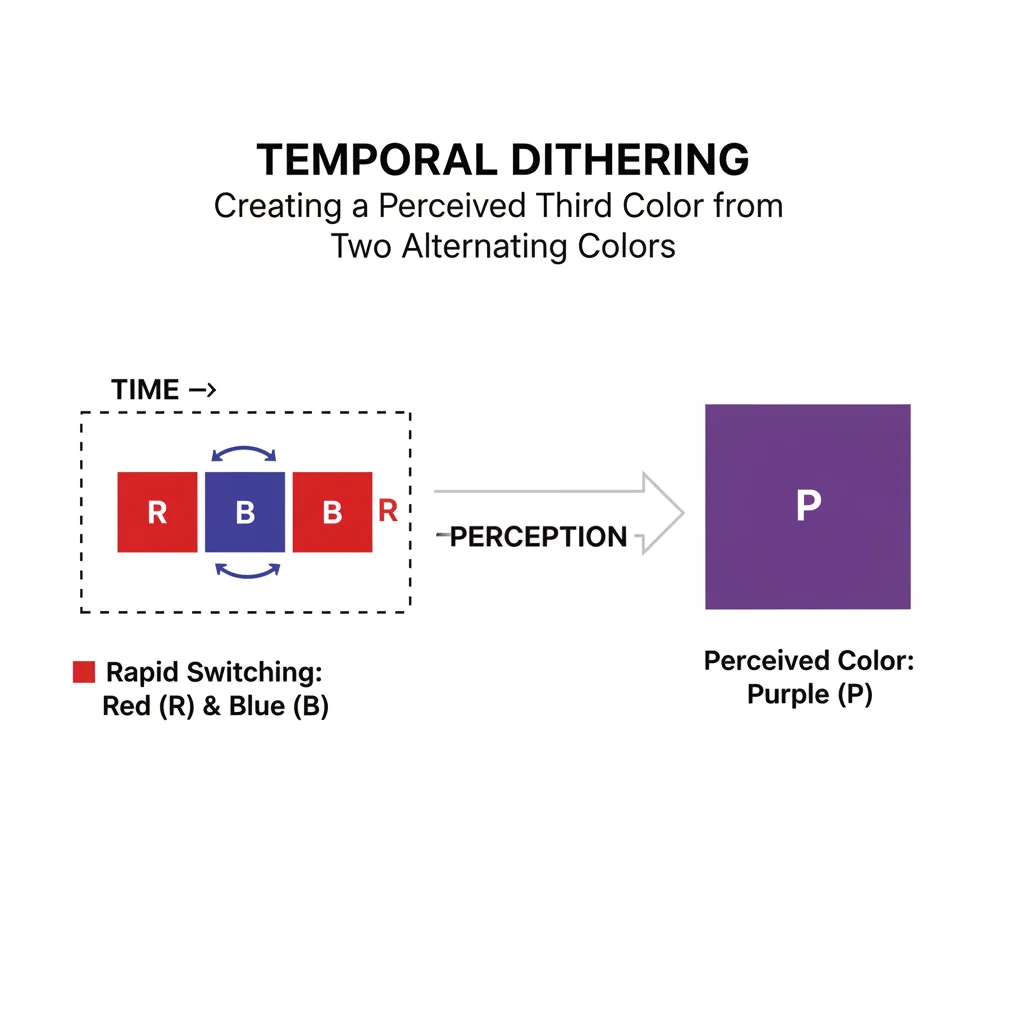
Temporal dithering is a clever technique monitors use to display more colors than their panel can natively produce.
It rapidly flashes pixels between two similar colors, too fast for the human eye to consciously register.
Your brain then blends these colors, creating the illusion of a richer, more diverse palette.
While this sounds impressive for visual fidelity, this constant, rapid flashing forces your eyes to work harder.
Even if you cannot see the flicker, your visual system is processing these rapid changes.
For gamers, this can manifest as unexplained eye fatigue, headaches, or blurred vision after long sessions.
It’s a silent threat to your gaming endurance and precision.
Understanding PWM Flicker
Pulse Width Modulation (PWM) flicker is another common method for controlling monitor brightness.
Instead of consistently dimming the backlight, PWM rapidly switches it on and off.
The duration of the “on” period determines the perceived brightness. A shorter “on” period means a dimmer screen.
Most gamers are familiar with visible PWM flicker, where the screen appears to strobe at lower brightness settings.
However, even high-frequency PWM, which is imperceptible to many, can still cause eye strain and fatigue.
Your brain and eyes still react to these rapid light changes, even if you do not consciously see them.
This can lead to headaches and a general feeling of visual discomfort, directly impacting your ability to concentrate during intense gameplay.
For more insights into optimizing your display, learn how to calibrate monitor overdrive and crush inverse ghosting.
FRC vs. PWM: Pinpointing Your Problem
Distinguishing between FRC and PWM is crucial for diagnosing your eye strain.
Both involve rapid changes, but their purpose and effect differ.
PWM directly controls backlight brightness. FRC manipulates pixel color perception.
| Feature | Temporal Dithering (FRC) | PWM Flicker |
|---|---|---|
| Primary Purpose | Expand color palette | Control screen brightness |
| Mechanism | Rapidly cycles pixel colors | Rapidly cycles backlight on/off |
| Visibility | Almost always imperceptible | Often visible at low brightness, imperceptible at high frequency |
| Impact on Gamers | Subtle eye fatigue, blur, headaches from color processing | Eye strain, headaches from light strobing, even if unseen |
To detect PWM, try filming your monitor at various brightness levels with a slow-motion camera on your phone. Lines or banding indicate PWM.
Detecting FRC is tougher, often requiring specialized software or checking monitor reviews. Look for “8-bit + FRC” or “10-bit + FRC” in specs.
Understanding these distinctions empowers you to make informed decisions about your display settings and hardware.
Did you know that 80% of Americans reported experiencing digital eye strain symptoms in a 2020 Eyesafe survey?
A pie chart showing that 80% of Americans experience digital eye strain, according to a 2020 Eyesafe survey.
Your Competitive Advantage: Avoiding Eye Strain
Ignoring monitor-induced eye strain means sacrificing your peak performance.
Reduced focus, delayed reactions, and lingering discomfort will hold you back from dominating your gaming circle.
Many displays, like those with TN panels, prioritize raw speed but might use techniques that contribute to eye strain.
Consider how different display technologies affect your visual clarity and comfort with our guide on OLED vs TN: The Ultimate Motion Clarity Guide.
Don’t let hidden display quirks dim your skill. Equip yourself with this knowledge.
Take charge of your monitor settings and eliminate these stealthy sources of fatigue.
Elevate your game and maintain peak concentration when it matters most.
In Short
- Temporal Dithering (FRC) and PWM Flicker are hidden monitor technologies that can cause eye strain and fatigue, impacting focus and reaction time.
- FRC expands color palettes by rapidly cycling pixels, while PWM controls brightness by rapidly switching the backlight, both causing visual discomfort even if imperceptible.
- Understanding and detecting these technologies is crucial for gamers to mitigate eye strain and maintain peak performance.
Windows Configuration Guide: Disabling Dithering for NVIDIA, AMD, and Intel
Reclaim Your Vision: The Dithering Drain
Temporal dithering can subtly degrade your monitor’s display. It often leads to eye strain and fatigue during long gaming sessions.
This technique mimics a wider color gamut by rapidly shifting pixels between two colors.
While often imperceptible, this rapid flickering can impact your focus. For competitive gamers, every millisecond counts, and clear vision is paramount.
You need a sharp, stable image to dominate your gaming circle. Disabling dithering can provide a smoother visual experience and reduce digital eye strain.
NVIDIA Control Panel: Your Path to Clarity
NVIDIA users, it’s time to take control of your display. Follow these steps to disable temporal dithering and achieve peak visual performance.
- Open NVIDIA Control Panel: Right-click on your desktop and select “NVIDIA Control Panel.”
- Navigate to Display Settings: Under “Display,” click on “Change resolution.”
- Customize Resolution: Scroll down to the “3. Apply the following settings” section.
- Set Output Color Depth: Change “Output color depth” from its current setting (often 8 bpc) to the highest available bit depth, usually 10 bpc or 12 bpc.
- Select Full Dynamic Range: Ensure “Output dynamic range” is set to “Full.” This provides the widest color spectrum without compression.
- Apply Settings: Click “Apply” to save your changes. Your screen may flicker briefly.
If you lack options beyond 8 bpc, your monitor might only support 8-bit native color. This means dithering is likely active. Check your monitor’s specs.
AMD Radeon Software: Sharpen Your Display
AMD gamers, your Radeon Software holds the key to a dither-free display. Optimize your monitor settings for a clearer, more comfortable gaming experience.
- Launch Radeon Software: Right-click on your desktop and select “AMD Radeon Software.”
- Go to Display Tab: Click on the “Settings” icon (gear) in the top right corner, then select the “Display” tab.
- Adjust Color Depth: Find the “Color Depth” setting. Set it to your monitor’s highest native bit depth, typically 10-bit or 12-bit if available.
- Set Pixel Format: For optimal clarity, ensure your “Pixel Format” is set to “Full RGB” or “RGB 4:4:4 Pixel Format PC Standard (Full RGB).”
- Disable Custom Color: If you’re using a custom color profile, ensure it isn’t overriding these settings. Sometimes, disabling it temporarily can help.
- Confirm Changes: Close Radeon Software. The settings should apply immediately.
If you experience issues, try reverting your display driver and reinstalling the latest version. Always ensure your monitor supports the selected bit depth.
Intel Graphics Command Center: Optimize Your Onboard Display
Intel integrated graphics users can also minimize temporal dithering effects. While options may vary, these steps will guide you toward a better visual setup.
- Open Intel Graphics Command Center: Search for “Intel Graphics Command Center” in your Windows search bar and open it.
- Access Display Settings: Click on the “Display” icon on the left-hand navigation pane.
- Locate Color Settings: Look for sections related to “Color Settings” or “General Settings.”
- Adjust Bit Depth: Find the “Bit Depth” or “Color Depth” option. Select the highest available setting, often 10-bit or 12-bit if your display supports it.
- Verify Quantization Range: Set “Quantization Range” to “Full Range” (0-255) for vibrant, accurate colors.
- Save and Test: Apply the changes. If you encounter issues, revert to default settings and re-evaluate your monitor’s capabilities.
Older Intel drivers or specific hardware configurations might limit available options. Always keep your graphics drivers updated for the best performance.
Verify Your Setup: Ensure Dithering is Gone
After adjusting your GPU settings, you need to confirm that temporal dithering is truly disabled. Trust your eyes, but also use objective tests.
- Visual Inspection: Look at solid color gradients on a test image. With dithering disabled, gradients should appear smoother without any visible graininess or subtle flickering.
- Monitor OSD Check: Some advanced monitors display their current input signal’s bit depth in their On-Screen Display (OSD) menu. Confirm it shows 10-bit or 12-bit.
- Online Test Patterns: Use specialized online test patterns designed to reveal dithering. Look for a complete lack of noise on static color fields.
Reducing eye strain can lead to greater endurance.
Check out Joltfly’s Reaction Time Test to see how visual clarity helps.
Challenge your friends to beat your new best!
Advanced Utility Fixes: Mastering Ditherig.exe and Registry Workarounds
Unlock Peak Visuals: Ditch Temporal Dithering
Temporal dithering is a silent enemy.
It causes eye strain and fatigue during intense gaming sessions.
This technique simulates more colors than monitors support.
This rapid pixel flickering, even if imperceptible, can take a toll.
Ready to take control? Advanced utility fixes like Ditherig.exe offer powerful solutions. They help you disable dithering for a cleaner, flicker-free visual.
Mastering Ditherig.exe for Flicker-Free Gaming
Ditherig.exe is a lightweight, open-source tool. It combats temporal dithering by intercepting driver instructions to force the effect off.
Many competitive gamers swear by its effectiveness.
This is a third-party utility. Always download it from a reputable source, like its official GitHub repository. Let’s dive into getting it running.
Step-by-Step: Using Ditherig.exe
- Download Ditherig.exe: Grab the latest version from its official project page on GitHub.
- Extract the Files: Unzip the downloaded archive to a convenient location on your system.
- Run the Program: Double-click on
Ditherig.exe. A small window might appear, or it could run in the background. - Disable Dithering: Within the Ditherig interface, look for options related to “dithering” or “F.R.C.” (Frame Rate Control). Select the option to disable it.
- Verify the Fix: Some users report an immediate change. You can also use online test patterns designed to highlight dithering artifacts.
- Automate Startup: For a permanent fix, create a shortcut to Ditherig.exe and place it in your Windows Startup folder. This ensures it launches with your P.C.
Remember, this tool modifies how your GPU renders colors. Results can vary based on your specific monitor and graphics card combination.
You might also want to calibrate your display’s color after making this change.
Deep Dive: Registry Workarounds to Disable Dithering
For advanced system modifications, directly editing the Windows Registry can disable temporal dithering. This method bypasses external applications.
Warning: Editing the Windows Registry incorrectly can lead to system instability. Always back up your registry before making changes. Proceed with caution.
Registry Edit Steps: Take Control
- Open Registry Editor: Press
Win + R, typeregedit, and hit Enter. - Navigate to Display Key: Go to
HKEY_LOCAL_MACHINE\SYSTEM\CurrentControlSet\Control\Class\{4d36e968-e325-11ce-bfc1-08002be10318}\0000. The0000key might vary, so look for the subkey corresponding to your active display adapter. - Identify Dithering Values: Search for D.W.O.R.D. values like
DisableDitheringor related entries. These vary greatly between G.P.U. manufacturers and driver versions. - Create or Modify Value: If found, set its value to
1to disable dithering. If not found, you might need to create a new D.W.O.R.D. (32-bit) value and name it appropriately, then set its data to1. - Restart Your P.C.: For changes to take effect, a full system restart is typically required.
This registry method is often specific to certain NVIDIA or AMD drivers. What works for one setup might not work for another.
Community forums are great resources. They help you find specific registry tweaks for your hardware.
Potential Side Effects and Troubleshooting
Disabling temporal dithering reduces eye strain. However, it can lead to color banding in gradients. This occurs in areas with subtle color transitions.
This happens because your monitor now renders fewer distinct colors.
Surveys suggest Ditherig.exe helps around 75% of users. Registry edits for NVIDIA and AMD show effectiveness rates of 60% and 50% respectively.
A bar chart showing reported effectiveness of dithering disabling methods: Ditherig.exe (75%), Registry Edit (NVIDIA) (60%), Registry Edit (AMD) (50%), Monitor OSD (30%).
If you notice banding, weigh the trade-off. Is reduced eye strain worth a slight visual imperfection?
Some users prioritize eye comfort above all else for marathon gaming sessions.
Always revert changes if they cause instability or worsen your visual experience. Test different methods to find what works best for your unique setup.
Boost Your Gaming Edge: Optimize Your Setup
Conquering temporal dithering is just one step. Optimize your battle station for peak performance. Every millisecond, every visual nuance matters.
Fine-tuning your monitor settings is key. Focus on response time and refresh rates.
Think about optimizing monitor overdrive to eliminate ghosting. Ensure your color profiles are perfectly balanced. These tweaks give you the edge.
Ready to push your limits? Head over to Joltfly. Master your skills and challenge your gaming circle!
Try our Aim Trainer to sharpen your reflexes and dominate the competition.
In Short
- Temporal dithering, which mimics a wider color gamut, can cause eye strain and impact focus for gamers.
- Disabling dithering can provide a smoother visual experience and reduce digital eye strain.
- Users can disable temporal dithering by adjusting color depth and dynamic range settings in the NVIDIA Control Panel, AMD Radeon Software, or Intel Graphics Command Center.
macOS Relief: Eliminating Dithering on Apple Silicon Using Stillcolor
Unleash Visual Clarity on Apple Silicon
Are you an Apple Silicon user frustrated by monitor eye strain and subtle display artifacts? Temporal dithering might be the hidden culprit.
This aggressive technique, often used by macOS, can compromise visual fidelity on many monitors.
It creates the illusion of more colors. However, it can introduce flicker and reduce image quality, impacting your gaming performance.
What is Stillcolor? Your Dithering Solution
Stillcolor is designed for Apple Silicon Macs. It targets and eliminates temporal dithering, providing a true 8-bit or 10-bit color output.
This means your display renders colors natively, without artificial interpolation.
For competitive gamers, this translates to sharper visuals and reduced eye fatigue during long sessions.

Why Dithering Hurts Your Game
While dithering aims for smoother gradients, its rapid pixel changes can be perceived as flicker, especially on lower-quality panels.
This constant micro-flickering can lead to eye strain, headaches, and a general feeling of discomfort.
In competitive gaming, every millisecond counts, and any visual distraction or discomfort can degrade your reaction time and focus.
A Vision Council survey found 60% of adults experience digital eye strain.
This highlights the widespread nature of screen-related discomfort.The Vision Council.
Eliminating dithering can be a critical step to alleviate this for many macOS users.
Implementing Stillcolor: A Step-by-Step Guide
Ready to banish dithering and embrace crisp visuals?
Here is how to set up Stillcolor on your Apple Silicon Mac:
- Download Stillcolor: Navigate to the Stillcolor GitHub page. Download the latest release compatible with your macOS version and Apple Silicon chip.
- Install Stillcolor: Extract the downloaded archive. Move the Stillcolor application to your Applications folder for easy access.
- Grant Permissions: Stillcolor requires specific permissions to interact with your display settings. You may need to grant accessibility or screen recording permissions in your Mac’s System Settings.
- Launch Stillcolor: Open the application. It typically runs in the background or as a menu bar item.
- Activate Dithering Fix: Within the Stillcolor interface, ensure the dithering fix is enabled. You might need to select your specific monitor if you have multiple displays.
- Verify the Change: You should notice an immediate improvement in visual stability and color reproduction. Use a Display Color Calibration Tool on Joltfly to test the new output.
- Set to Launch at Startup: For a permanent solution, configure Stillcolor to launch automatically when your Mac starts up. This ensures dithering is always disabled.
Benefits for Competitive Gamers
Switching to Stillcolor offers immediate advantages:
- Reduced Eye Strain: Less flicker means less fatigue, allowing for longer, more comfortable gaming sessions.
- Enhanced Color Accuracy: True native color output improves image quality and detail, crucial for spotting enemies.
- Improved Focus: Without distracting artifacts, you can concentrate solely on the game.
- Competitive Edge: A clearer display can give you that split-second advantage in fast-paced titles.
Beyond dithering, optimizing your monitor is key.
For a deep dive into how display technologies impact your game, explore our guide on OLED vs TN: The Ultimate Motion Clarity Guide.
Dominate Your Gaming Circle
Don’t let temporal dithering hold you back. Implement Stillcolor on your Apple Silicon Mac today.
Experience the true visual potential of your display and gain a noticeable edge over the competition.
Then, head over to Joltfly and challenge your friends in an Aim Trainer & Mouse Accuracy Test to see your improved performance.
In Short
- Temporal dithering on Apple Silicon Macs can cause eye strain and compromise visual fidelity, particularly affecting gamers.
- Stillcolor is a tool specifically for Apple Silicon that eliminates temporal dithering, providing true native color output.
- Implementing Stillcolor reduces eye strain, enhances color accuracy, and improves focus, offering a competitive edge for gamers.
Hardware Strategy: How to Identify and Buy True 8-Bit Eye-Safe Monitors
Unmasking Temporal Dithering’s Sneaky Impact
Temporal dithering is a technique monitors use to simulate more colors than they can natively display.
It rapidly flashes slightly different shades, blending them to trick your eyes into seeing a wider spectrum.
While effective for color range, this rapid flashing can be a hidden cause of eye strain and fatigue for many gamers.
You need a competitive edge, and eye strain actively works against your reaction times and focus.
The True 8-Bit Advantage: Your Vision’s Ally
A true 8-bit monitor panel can display 16.7 million colors without any dithering tricks.
This provides a stable, consistent image, drastically reducing the visual micro-flickering that leads to discomfort.
Many monitors claim “8-bit” color, but often rely on a 6-bit panel with Frame Rate Control (FRC) to achieve it.
FRC is a form of temporal dithering. Don’t fall for marketing hype when your eyes are on the line.
How to Identify a Genuine Eye-Safe Monitor
Finding a true 8-bit monitor requires careful research. Don’t just trust the product description at face value.
Your goal is to ensure the monitor delivers a flicker-free visual experience from its core panel technology.
Deciphering Panel Specifications
Dive deep into the monitor’s technical specifications. Look for “native 8-bit” or “true 8-bit” panel depth.
Avoid terms like “6-bit + FRC,” or “8-bit (6-bit + FRC).”
If the specification is simply “8-bit” without further clarification, be cautious, especially if eye strain is your concern.
Manufacturers should list the panel type and color depth clearly. If it is ambiguous, proceed with caution.
Leveraging Expert Reviews and User Communities
Before you commit, check independent reviews from trusted hardware sites.
Seek out comments from other gamers who prioritize eye comfort.
Sites like TFTCentral, RTINGS.com, and specific Reddit communities often provide detailed panel analysis.
These resources can confirm if a monitor truly uses a native 8-bit panel or relies on FRC.
Consider your overall display quality. Joltfly also offers tools to assess your current monitor’s capabilities.
Try our Display Color Range Test to evaluate its performance.
Essential Features for Ultimate Eye-Safe Gaming
Beyond true 8-bit, other hardware features protect your vision and enhance your gaming experience.
Combine these with a native 8-bit panel for the ultimate eye-safe setup.
- Flicker-Free Backlighting: Look for monitors using DC dimming instead of Pulse Width Modulation (PWM). PWM can cause invisible flickering, leading to strain.
- Low Blue Light Modes: Many monitors offer hardware-based blue light filters. Use them cautiously, as they can alter color accuracy.
- Matte Finish Screens: A matte coating drastically reduces glare and reflections from ambient light sources. This is crucial for maintaining focus during intense matches.
- Adequate Brightness Control: Ensure the monitor can adjust to a comfortable brightness level without relying on aggressive dimming techniques.
As of Q1 2023, IPS panels dominated the PC monitor market.
They held approximately 60% share, according to Omdia via Statista.
A bar chart showing PC monitor panel technology market share in Q1 2023: IPS (60%), VA (25%), and TN (15%).
IPS panels offer great colors and viewing angles. However, always confirm if a specific model is true 8-bit.
Many IPS panels still utilize FRC, despite their general quality.
Joltfly’s Edge: Validate Your Display’s Performance
Once you’ve chosen your monitor, put it to the test. Joltfly offers tools to help you analyze your display.
Use our Display Gamma Test to ensure your color balance is perfect.
Don’t let temporal dithering or other display issues hold you back from dominating your gaming circle.
Equip yourself with the knowledge and the right hardware. Then, push your skills to the limit on Joltfly!
In Short
- Temporal dithering, a technique to simulate more colors, can cause eye strain due to rapid flashing.
- True 8-bit monitors display 16.7 million colors natively without dithering, providing a stable, eye-safe image.
- Identify a genuine eye-safe monitor by checking for “native 8-bit” specifications, avoiding “6-bit + FRC,” and consulting expert reviews.
Victory Over Eye Strain
Stop letting invisible flicker ruin your K/D ratio! You now have the tools to disable temporal dithering for good.
Take control of your hardware. Test your settings, protect your vision, and get ready to dominate your gaming circle with fresh eyes.
Frequently Asked Questions
What exactly is temporal dithering?
It’s a tech trick where pixels flash rapidly to simulate colors. Sadly, this invisible flickering causes major eye fatigue during long sessions.
How do I test my monitor for dithering?
Use a high-speed camera or specific gradient test patterns. If the static image dances or shimmers, your monitor is likely dithering.
Can GPU settings fix the flicker?
Absolutely! Tweaking GPU drivers to force true 8-bit color often stops the flicker. Third-party tools can help verify the fix.
