

Is invisible lag ruining your killstreak?
That sudden stutter isn’t just bad luck; it is likely your PCH overheating and throttling your performance.
Don’t let hidden heat kill your game. We will show you how to diagnose PCH thermal throttling and fix it for good so you can dominate the competition.
Key Takeaways
- Monitor PCH temps with HWInfo64 to catch invisible overheating above 85°C.
- Clean vents and use cooling pads to reduce passive heat buildup immediately.
- Undervolt your CPU to lower overall chassis temperature and reduce PCH stress.
- Apply thermal pads or copper shims for a permanent hardware cooling fix.
- Verify your smooth, lag-free performance with the Joltfly Aim Trainer.
Diagnosing the Invisible Stutter: Monitoring PCH Temperatures
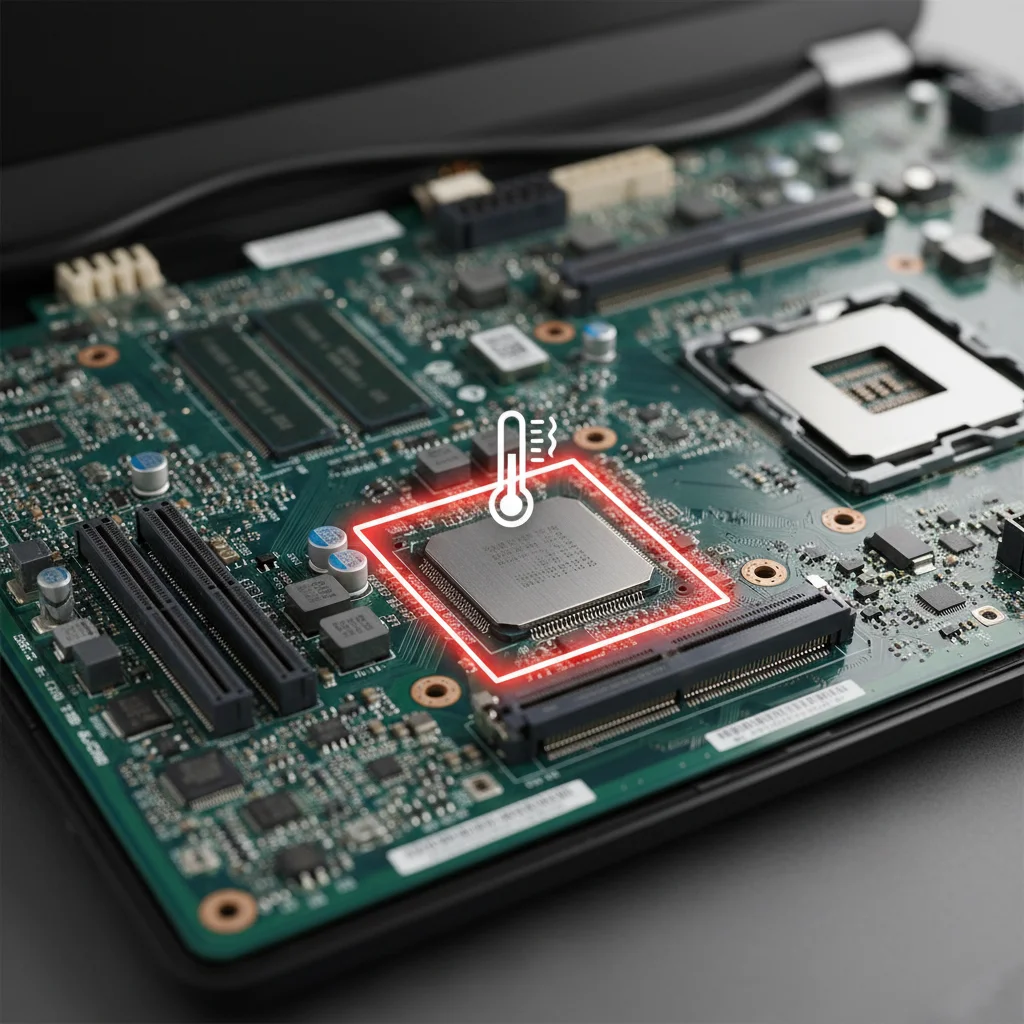
Unmasking the PCH: Your Laptop’s Hidden Hotspot
Ever notice those frustrating, inexplicable stutters or sudden frame drops mid-game? Your PCH, the Platform Controller Hub, might be the silent culprit.
This vital chipset manages critical data flow between your CPU, storage, and peripherals, making it central to your laptop’s performance.
When your PCH overheats, it triggers thermal throttling. This protective measure reduces its performance to prevent damage.
For you, however, it means game-breaking lag right when it matters most.
Why PCH Temperatures Matter for Competitive Gaming
The PCH is constantly working, even if you don’t always hear about it. High temperatures on this component can destabilize your entire system.
This instability leads to inconsistent performance. You need to ensure every component is running optimally to maintain peak FPS and smooth gameplay.
Ignoring PCH temps means leaving a crucial performance factor unchecked.
Essential Tools for PCH Temperature Monitoring
To fight the invisible stutter, you need to see it. Specialized software allows you to monitor PCH temperatures in real-time.
This data is your first line of defense against unexpected performance dips.
Here are some top tools preferred by the gaming community:
- HWMonitor: A lightweight, free tool that provides comprehensive sensor readings, including PCH, CPU, and GPU temps.
- HWInfo64: Offers more detailed sensor information and logging capabilities for in-depth analysis of your system’s thermals.
- AIDA64 Extreme: A premium option with extensive monitoring, benchmarking, and diagnostic features for serious optimizers.
Run these tools in the background while gaming to capture accurate temperature data under load.
Understanding Safe PCH Temperature Ranges
What’s a “safe” PCH temperature? While generally cooler than your CPU or GPU, consistently exceeding 80-85°C under load suggests a problem.
For most Intel chipsets, a healthy PCH will operate between 50°C and 75°C during heavy gaming.
Anything above 85°C consistently points to potential throttling and a need for immediate intervention.
Just like monitoring your motherboard VRM temps, keeping an eye on your PCH is crucial.
It ensures system stability and prevents performance bottlenecks in your intense gaming sessions.
A bar chart showing potential performance loss from thermal throttling: Minor Throttling (85-90°C) results in 10% loss, Moderate Throttling (90-95°C) in 20% loss, and Severe Throttling (>95°C) in 30% loss.
Thermal throttling is a real performance killer. It can severely impact your in-game experience.
According to TechSpot, sustained high temperatures lead to a significant drop in FPS.
Severe cases can even cause up to a 30% performance reduction, directly affecting your competitive edge.
Diagnosing the Stutter: What Your Data Tells You
Once you’ve collected temperature data, analyze it closely. Look for sudden spikes in PCH temperature.
These spikes often coincide directly with game stutters or noticeable performance drops.
If your PCH temps consistently hit the danger zone, it confirms thermal throttling is causing your issues.
This critical insight empowers you to take targeted, effective action to fix the problem.
Understanding these thermal limits is crucial. It is just as important as knowing how to fix CPU power limit throttling.
Remember, each component in your laptop plays a vital role in your overall gaming experience.
Take Control: Next Steps to Combat Throttling
Don’t let PCH throttling hold you back from peak performance. Once diagnosed, you can implement effective solutions.
These might include improving laptop airflow, cleaning internal components, or considering thermal pad replacements.
Monitoring your PCH temperatures is your crucial first step to dominating the competition.
Arm yourself with this vital knowledge, take immediate action, and reclaim your smooth, lag-free gameplay.
Ready to push your limits? Visit Joltfly’s Device Tests to explore more ways to optimize your rig.
Ensure every component is performing at its absolute best and gain that competitive edge.
In Short
- The Platform Controller Hub (PCH) is a critical component that, when overheated, can cause significant performance stutters and frame drops due to thermal throttling.
- Monitoring PCH temperatures with specialized software like HWMonitor or HWInfo64 is crucial for diagnosing and preventing unexpected performance dips.
- Consistently exceeding 80-850C on the PCH under load indicates a problem and requires intervention to maintain system stability and avoid up to 30% performance reduction.
The Hardware Flaw: Why Laptop PCH Dies Overheat Without Heatsinks
Understanding the PCH: Your Laptop’s Hidden Hot Spot
Your laptop’s Platform Controller Hub, or PCH, is often called the “nerve center.” It manages crucial components like USB ports, SATA drives, and PCIe lanes.
This central role means constant data flow and significant heat generation. Yet, many laptop designs neglect its cooling needs, especially in thin chassis.
The Overlooked Thermal Problem
Unlike the CPU or GPU, which usually get robust heatsinks and fans, the PCH is frequently left with minimal thermal management.
Often, it relies on a simple thermal pad or passive cooling, a critical oversight for competitive gamers.
This design choice can lead to severe PCH thermal throttling during intense gaming sessions or heavy workloads.
A bar chart illustrating common causes of laptop hardware repair worldwide, showing that overheating accounts for 25% of issues.
A Statista report from 2021 indicates that overheating is a major cause of laptop hardware failures. It accounts for approximately 25% of all reported issues.
This highlights the widespread nature of thermal problems.
Impact on Your Gaming Performance
When the PCH overheats, your entire system suffers. You’ll experience frustrating stutters, sudden frame drops, and increased input lag.
This is because the PCH slows down to prevent damage, bottlenecking data transfer and affecting overall system responsiveness.
For competitive gamers, this performance hit can be the difference between a clutch play and a frustrating defeat.
Why Manufacturers Skip Proper Cooling
Several factors contribute to this hardware flaw. Space constraints in thin laptops make it challenging to integrate bulky heatsinks.
Cost-cutting measures also play a role. A dedicated PCH heatsink adds to manufacturing expenses, which some brands try to avoid.
This compromises long-term stability and gaming performance for a sleeker profile or lower price point.
Recognizing PCH Overheating Symptoms
Don’t let hidden hardware issues ruin your grind. Watch out for these signs that your PCH might be overheating:
- Consistent micro-stutters even with good FPS.
- Sudden, unexplained drops in system performance.
- Lag or unresponsiveness from peripherals connected via USB.
- Increased temperatures reported by monitoring software for the chipset area.
- General system instability or random crashes.
Take Control of Your Laptop’s Thermals
Understanding the PCH’s role and its cooling challenges is the first step to conquering thermal throttling.
Poor chipset thermal management can significantly impact your gaming experience.
Learn more about how these crucial components affect performance in our guide on Do Chipset Drivers Affect Gaming Performance? The Truth.
Stay tuned for actionable fixes to tackle this hardware flaw and get your laptop running at peak performance.
In Short
- The PCH, a vital laptop component managing crucial functions, frequently overheats due to inadequate cooling, especially in thin chassis designs.
- This overlooked thermal problem causes severe performance degradation, including stutters and frame drops, significantly impacting competitive gaming.
- Manufacturers often neglect proper PCH cooling due to space constraints and cost-cutting, despite overheating being a major cause of laptop hardware failures.
The PCH Survival Guide: A Risk-Based Hierarchy of Fixes
Dominate Your Thermals: The Initial Attack Plan
PCH throttling is a stealthy enemy, causing frustrating stutters and lag. But you have the power to combat it.
Our survival guide offers a tiered approach, starting with easy, low-risk fixes before diving into more advanced tactics.
Get ready to unleash your laptop’s full potential.
Clear the Air: Dust & Ventilation
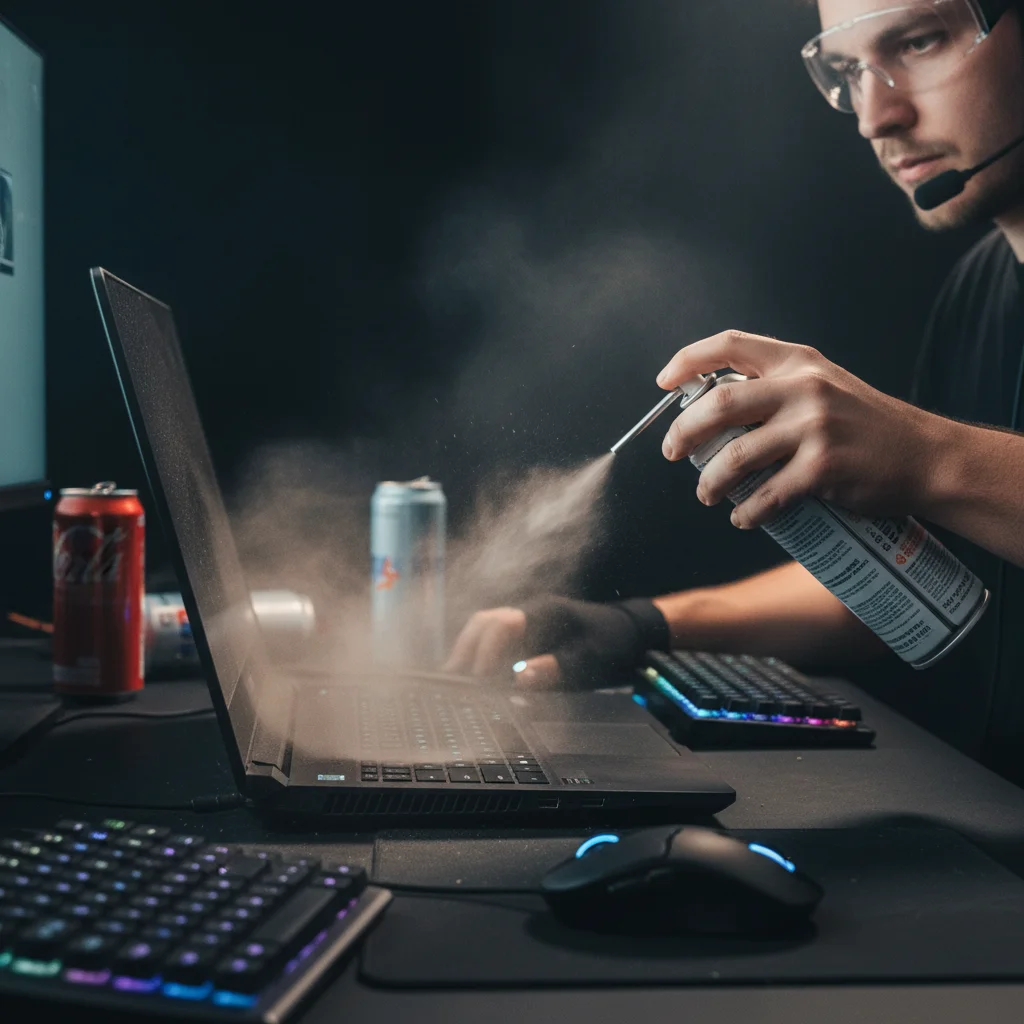
The simplest fix often delivers the biggest gains. Dust is a thermal killer, choking your laptop’s cooling system.
Regularly clean your fan vents with compressed air. Ensure your laptop has room to breathe, especially during intense gaming sessions.
Don’t block those crucial air intakes and exhausts.
Consider a quality laptop cooling pad. These can significantly reduce temperatures, sometimes by as much as 5-10°C.
This simple addition can provide critical airflow, especially if your laptop’s built-in cooling is struggling.
A bar chart showing average temperature drops: Cooling Pad (7°C), Internal Cleaning (10°C), Repasting Thermal Paste (12°C).
Power Up Smart: Windows Settings
Your Windows power plan can impact PCH temperatures. High performance modes push components harder, generating more heat.
Experiment with balanced power plans. You might find a sweet spot that reduces heat without a noticeable performance hit in some titles.
Navigate to “Edit Power Plan” then “Change advanced power settings.” Look for processor power management options.
Adjust the maximum processor state. Try reducing it slightly, perhaps to 95-98%, to see if it stabilizes temperatures.
Driver Dominance: Keep Your Chipset Fresh
Outdated chipset drivers can lead to inefficient power management and higher PCH temperatures.
Always ensure your motherboard chipset drivers are up to date. Visit your laptop manufacturer’s website or the chipset vendor’s site (Intel, AMD).
Download the latest official drivers. Installing them can often resolve underlying communication issues that contribute to throttling.
Want to dive deeper into driver impact? Learn more about whether chipset drivers affect gaming performance and how to leverage them.
Advanced Tactics: Taking Control of Your PCH
If the initial steps aren’t enough, it’s time for more direct action. These methods require a bit more technical comfort, but they offer powerful results.
Thermal Pad Overhaul: Direct Intervention
The PCH often uses a thermal pad, not paste, to transfer heat to its heatsink. Over time, these pads can dry out or compress, losing effectiveness.
If you’re comfortable opening your laptop, consider replacing the PCH thermal pad. Use a high-quality, non-conductive thermal pad of the correct thickness.
This requires careful disassembly. Refer to your laptop’s service manual or reputable online guides for precise instructions.
It’s a more involved fix, but often the most effective for persistent PCH throttling.
BIOS Boost: System Level Control
Some laptops offer advanced BIOS/UEFI settings that can influence PCH behavior or fan curves.
Access your BIOS during startup. Look for sections related to advanced power management, thermal control, or fan speed settings.
You might be able to adjust fan curves to be more aggressive, kicking in earlier to prevent heat buildup around the PCH.
Exercise caution when changing BIOS settings. Incorrect adjustments can lead to instability. Only modify settings you understand.
Understanding your system’s thermal limits is key. Keep an eye on safe motherboard VRM temps and other critical components to maintain stability.
Don’t let PCH throttling hold back your game. Implement these fixes and track your performance with Joltfly’s Device Tests.
Challenge your gaming circle to optimize their rigs and see who truly dominates the frames!
Level 1 (Safe): Indirect Cooling via Undervolting and Airflow
Master Undervolting for PCH Control
Thermal throttling is a notorious enemy of consistent performance. Your laptop’s Platform Controller Hub (PCH) can suffer from heat buildup.
This leads to frustrating stutters and reduced frame rates, directly impacting your gaming edge.
Undervolting offers a safe and effective strategy to combat PCH heat indirectly, enhancing stability and performance.
By lowering the voltage supplied to your CPU and other components, you reduce overall heat generation.
This trick helps your entire system run cooler, including the PCH.
How to Safely Undervolt Your Laptop’s PCH and CPU
Applying an undervolt can significantly reduce temperatures without sacrificing clock speed.
Tools like Intel Extreme Tuning Utility (XTU) or ThrottleStop empower you to precisely adjust voltage settings.
Start with small decrements, typically -5mV to -10mV at a time.
After each adjustment, rigorously test your system’s stability with demanding games or benchmarks.
Monitor your temperatures closely to see the impact. A stable undervolt can improve your system’s thermal headroom.
This prevents throttling across your components, including the PCH.
If you face CPU power limit throttling, undervolting can also provide critical relief, boosting sustained performance.
According to TechSpot, undervolting can reduce CPU temperatures by 5 to 15 degrees Celsius.
A bar chart showing the average CPU temperature reduction from undervolting is 10 degrees Celsius, based on TechSpot data.
Optimize Airflow to Beat the Heat
Beyond internal adjustments like undervolting, external airflow is crucial. Laptops are compact, making heat dissipation a constant challenge.
Proper ventilation can make a huge difference. Good airflow directly impacts how effectively your laptop can shed heat.
This includes heat generated by the PCH, which is often located near other hot components.
Essential Airflow Tactics for Gamers
- Use a Laptop Cooling Pad: These pads lift your laptop and often include fans, significantly improving air circulation beneath the chassis. This allows cool air to reach intake vents more efficiently.
- Clear Your Vents: Dust and debris are thermal enemies. Regularly clean your laptop’s intake and exhaust vents with compressed air to maintain unrestricted airflow.
- Elevate Your Laptop: Even without a dedicated cooling pad, elevating the laptop slightly can improve air intake. Use a stand or even simple risers to create space.
- Game in a Cool Environment: The ambient room temperature directly affects your laptop’s cooling capabilities. Keep your gaming space cool to give your laptop a fighting chance against PCH throttling.
- Avoid Soft Surfaces: Never game with your laptop directly on a bed, couch, or blanket. These surfaces block crucial intake vents, trapping heat and accelerating throttling.
Implement these simple strategies. You will experience a noticeable drop in PCH temperatures and enjoy smoother, more consistent gameplay.
Challenge your friends to see who can achieve the lowest PCH temps after optimizing their setup.
Level 2 (Advanced): Measuring and Installing Thermal Pads or Shims
Mastering PCH Thermal Management
Your PCH, or Platform Controller Hub, is a vital component in your laptop. It manages crucial data flow between your CPU, storage, and peripherals.
When the PCH overheats, it triggers thermal throttling. This dramatically slows down data transfer, causing frustrating stutters and input lag.
Optimizing PCH thermals is a key step to unlock consistent performance and eliminate those annoying frame drops that cost you crucial wins.
Diagnosing PCH Throttling and Identifying Needs
Before diving into hardware modifications, confirm your PCH is the culprit. Use monitoring software like HWMonitor or HWiNFO to track PCH temperatures.
Run demanding games or benchmarks. Look for temperatures consistently climbing above 80°C, often paired with noticeable performance dips or stutters.
Persistent stuttering, even after addressing CPU or GPU thermals, points towards PCH throttling.
A bar chart showing typical PCH operating temperatures: Idle (Normal) at 40C, Load (Normal) at 60C, Warning at 78C, and Throttling at 90C.
Addressing this issue can greatly improve your overall system responsiveness and help fix Windows Game Mode stuttering.
Choosing Your Thermal Solution: Pads or Shims?
Once you confirm PCH throttling, you have two primary solutions: thermal pads or copper shims. Both improve heat transfer, but they serve different scenarios.
Thermal Pads: The Flexible Choice
Thermal pads are pliable, silicone-based materials with thermal conductivity. They are excellent for filling irregular gaps.
This helps create uniform contact between components and heatsinks. They come in various thicknesses and thermal conductivity ratings (W/mK).
Higher W/mK values mean better heat transfer.
Copper Shims: Precision Performance
Copper shims are thin, solid copper plates. They offer superior thermal conductivity compared to most pads, but require extremely precise sizing.
Shims are best used when the gap is very consistent and flat, allowing for direct metal-to-metal contact with a thin layer of thermal paste on both sides.
Measuring for Success
Accurate measurement is critical. You will need a digital caliper for this task. Carefully disassemble your laptop and locate the PCH.
If there’s an existing thermal pad, measure its compressed thickness. If no pad is present, measure the gap between the PCH chip and the heatsink.
Aim for a thermal pad thickness that is slightly thicker than your measured gap.
It should compress slightly to ensure full contact without bending the motherboard.
For shims, aim for a thickness that precisely matches the gap, plus a minimal allowance for thermal paste.
Installation: Precision is Key
This is an advanced procedure, requiring care and attention to detail. Proceed only if you are confident with laptop disassembly.
Preparation Checklist
- Acquire appropriate thermal pads (e.g., Thermal Grizzly Minus Pad 8) or copper shims.
- Gather tools: small Phillips head screwdrivers, plastic pry tools, digital calipers, isopropyl alcohol, and lint-free cloths.
- Static discharge precautions are essential. Use an anti-static wrist strap.
- Take photos at each disassembly step for easy reassembly.
Step-by-Step Application
- Gently clean the PCH chip and the corresponding heatsink area with isopropyl alcohol. Ensure both surfaces are completely dry.
- For thermal pads, cut the new pad to fit the exact dimensions of the PCH chip. Remove the protective films from both sides.
- Carefully place the thermal pad onto the PCH. Ensure it sits flat and covers the entire surface.
- For copper shims, apply a very thin, even layer of quality thermal paste to both sides of the shim. Place it precisely on the PCH.
- Reattach the heatsink, applying even pressure. Re-tighten screws in a diagonal pattern to ensure uniform contact.
Final Steps and Verification
Carefully reassemble your laptop. Take your time to ensure all cables are reconnected and screws are in place.
Once reassembled, boot your system and re-run your temperature monitoring software. Load up your favorite competitive game.
Observe your PCH temperatures. You should see a significant drop and more stable performance, eliminating those annoying stutters.
If you’ve played your cards right, you’ll feel the difference immediately.
Head over to Joltfly’s Aim Trainer or Click Speed Test to truly feel the boost in your responsiveness.
In Short
- Combat PCH throttling by improving ventilation (cleaning, cooling pads), updating chipset drivers, and optimizing Windows power settings.
- For persistent PCH throttling, consider advanced fixes like replacing the thermal pad or adjusting thermal controls in the BIOS/UEFI.
Cool Down and Level Up
You now have the ultimate toolkit to banish lag for good. PCH throttling will not hold you back anymore.
Apply these thermal pads and tweaks today. Your laptop will run smoother and cooler than ever before.
Get back in the game and show them who is boss. Dominate your circle with rock-solid FPS!
Frequently Asked Questions
What is PCH thermal throttling?
It happens when your laptop’s chipset gets too hot. This forces the system to slow down instantly to cool off.
This causes massive in-game stuttering. Fixing it keeps your frame rates stable during intense battles.
How do I fix PCH overheating?
The best fix is adding a thermal pad between the PCH chip and the laptop’s bottom case.
This transfers heat away effectively. A laptop cooling pad can also assist with airflow.
Will undervolting help with stuttering?
Absolutely! Undervolting reduces power draw, which lowers overall system temperatures significantly.
Less heat means less throttling risk. It is a massive win for your gaming performance.
