

Is your steering wheel feeling numb or heavy in the corners? You might be a victim of FFB clipping, the silent killer of lap times and immersion.
Don’t let flat feedback ruin your race. Learn how to diagnose clipping, tune your force feedback settings, and reclaim that competitive edge today.
Key Takeaways
- FFB clipping occurs when game torque demands exceed your wheel’s physical limits.
- Use in-game telemetry to spot flatlined force graphs and lost detail.
- Tune your Master Gain and in-game settings to hit 85% peak utilization.
- Apply non-linear response curves to entry-level wheels for better mid-range feel.
- Iterate your tests on track to ensure sharp, responsive feedback.
Understanding FFB Clipping: When Torque Demand Exceeds Output
What is FFB Clipping?
Force Feedback (FFB) clipping is the enemy of precise control in sim racing. It happens when your game demands more torque from your wheel than it can produce.
Think of it like an audio amplifier pushing sound past its maximum volume. The sound distorts and flatlines.
Your racing wheel does the same with force. Instead of delivering nuanced feedback, it hits its limit and outputs a uniform, flat force.
The Impact on Your Sim Racing Performance
Clipping robs you of critical information. When your wheel clips, you lose vital feedback about tire grip, road texture, and impending slides.
This lack of detail means you cannot react as quickly or precisely. You might understeer, oversteer, or miss crucial braking points.
Ultimately, clipping slows you down and shatters your immersion. You need that direct connection to the virtual track to dominate your lap times.
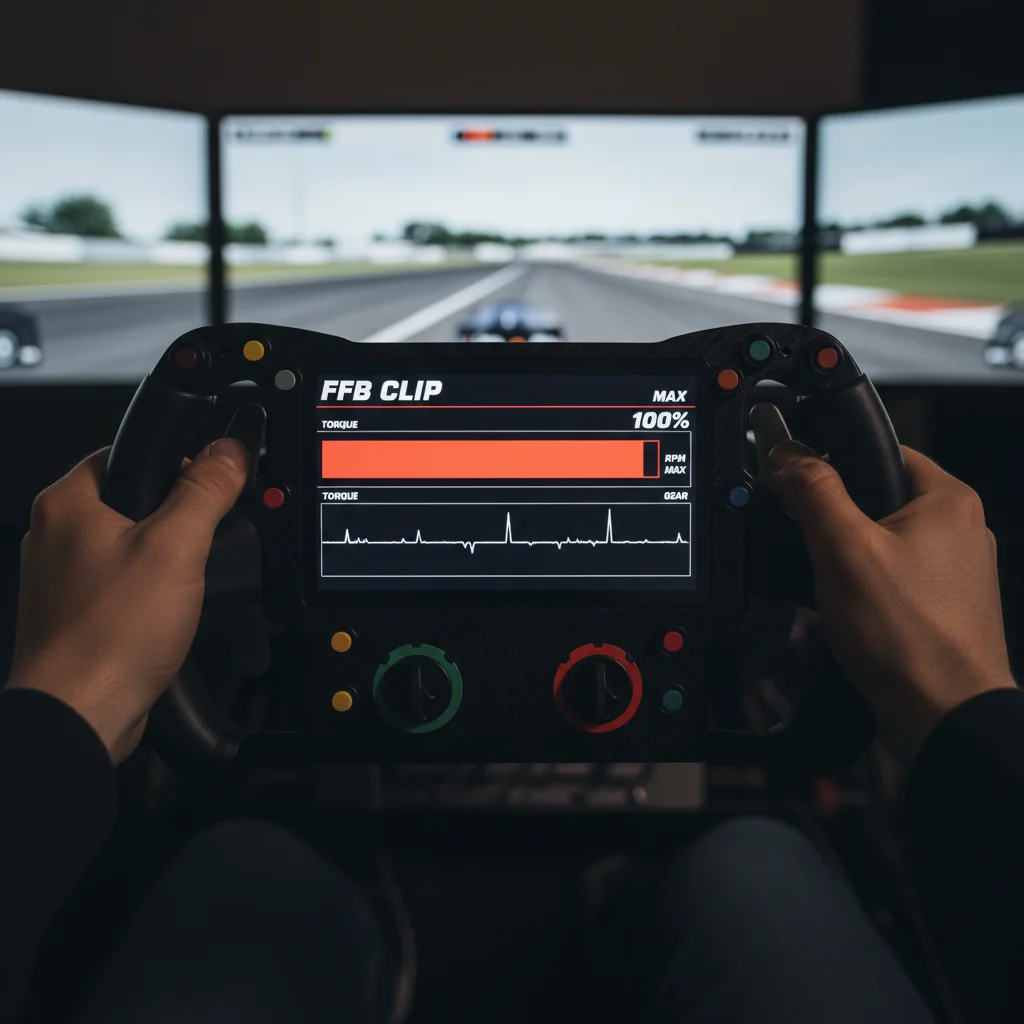
Identifying Clipping in-Game
Recognizing clipping quickly is key to fixing it. Many sim racing titles include built-in FFB meters or overlays.
These visual cues typically show a bar that fills up as FFB torque increases. If the bar constantly hits the maximum and stays there, you are clipping.
You can also feel it. A properly tuned wheel provides varying forces. Clipping feels like the wheel suddenly becomes heavy and unresponsive.
Why Does Clipping Occur?
Clipping stems from a mismatch between game settings and your wheel’s capabilities. Your FFB strength settings might be too high.
The game’s specific force feedback curves can also contribute. Some games send stronger signals than others for the same event.
Ultimately, every wheel has a physical limit to the torque it can generate. When the game demands more, the wheel simply cannot comply.
According to a 2021 survey by SimRacing-Review.com, 78% of sim racers rate detailed force feedback as “Very” or “Extremely” Important.
A bar chart showing the importance of Force Feedback Strength / Detail for Sim Racers, with 44.5% rating it “Extremely Important” and 33.5% rating it “Very Important”.
Common Signs of FFB Clipping
Stay sharp and recognize these indicators:
- Loss of Detail: You cannot feel subtle road imperfections or tire scrub.
- Flatlining Forces: The wheel feels consistently heavy or unresponsive during high-load corners.
- Lack of Variation: All bumps and curbs feel the same, without unique intensity.
- In-Game Meter Maxed Out: Your FFB meter frequently hits its ceiling.
- Reduced Control: You struggle to catch slides or feel the limit of grip.
Optimizing your sim racing setup is crucial for gaining a competitive edge. This applies to reducing controller input lag as well.
Don’t let FFB clipping hold you back. Tune your wheel to perfection and dominate the track.
You can also explore Device Tests on Joltfly to ensure all your peripherals are performing optimally.
In Short
- FFB clipping occurs when a game demands more torque than a racing wheel can produce, leading to a loss of precise feedback.
- Clipping negatively impacts sim racing performance by obscuring critical information like tire grip, making drivers slower and reducing immersion.
- It can be identified by in-game FFB meters constantly hitting their maximum or by the wheel feeling uniformly heavy and unresponsive.
Universal Diagnosis: Reading Telemetry in iRacing, ACC, and More
Unlock Your Sim Racing Edge with Telemetry
To truly dominate the track, you need to understand your setup. Force Feedback (FFB) is crucial, but are you getting the most out of it?
Telemetry data is your secret weapon. It provides raw, real-time insights into how your sim rig performs.
Learning to read this data helps you fine-tune FFB, eliminate clipping, and gain a competitive advantage.
Spotting FFB Clipping: The Visual Cues
FFB clipping occurs when your wheel attempts to produce a force stronger than its maximum capability. This means you lose crucial feedback.
Imagine missing vital cues like tire slip or subtle changes in grip. That’s the cost of clipping.
Telemetry graphs are your go-to for identifying clipping. Look for flattened peaks in the FFB output graph.
iRacing Telemetry: Your Built-in FFB Meter
iRacing offers an excellent, built-in FFB meter. This overlay is a must-have.
When the FFB bar hits the red zone and stays there, you are clipping. This indicates your wheel is maxing out its force output.
Adjust your FFB strength down until you see the bar rarely enter the red, or only during extreme impacts.
Assetto Corsa Competizione (ACC) Data & Tools
ACC provides extensive telemetry through its “Analyze” tab in replays. While not a live FFB meter like iRacing, you can review session data.
Look at the “Steering Torque” graph. Consistent flatlining at the top or bottom suggests clipping.
ACC also has a “Gain” setting that needs careful adjustment to prevent this.
Other Sim Titles and External Tools
Many sims offer similar in-game telemetry or log data you can analyze post-session. Examples include Automobilista 2 and rFactor 2.
External tools like SimHub are invaluable. They can overlay FFB graphs directly onto your screen, providing real-time feedback for any sim.
This allows for immediate adjustments and better understanding of your wheel’s limits.
Interpreting the Data: What to Look For
When analyzing your FFB telemetry, focus on the “peak” and “average” forces.
A healthy FFB signal has dynamic range, meaning it fluctuates, providing varied feedback.
Clipping reduces this range, making subtle forces indistinguishable from maximum forces.
You need to ensure the strongest forces are represented without exceeding your wheel’s capabilities.
Here’s a breakdown of common telemetry values and their FFB relevance:
| Telemetry Value | Description | FFB Clipping Relevance |
|---|---|---|
| Peak Force | Highest force output recorded. | If consistently at max, indicates clipping. |
| Average Force | Mean force output over time. | Should be well below peak to maintain dynamic range. |
| Torque Output | The rotational force generated by the wheel. | Direct indicator of FFB strength, check for flatlines. |
| FFB Utilization | Percentage of wheel’s max force being used. | Aim for 80-90% peaks, avoiding 100% saturation. |
Understanding these values is crucial. Don’t just guess your FFB settings; use the data!
A bar chart showing the most played sim racing titles in 2020, highlighting iRacing (38.6%), Assetto Corsa Competizione (24.3%), rFactor 2 (9.4%), Automobilista 2 (7.1%), and F1 Series (6.8%).
As this chart illustrates, top sim racers engage with a variety of titles. Each sim has its own FFB characteristics.
This diversity makes telemetry analysis vital for universal tuning success.
Actionable Steps: Tuning Based on Telemetry
Once you’ve diagnosed clipping, it’s time to act. The goal is to maximize useful FFB without losing detail.
Start by reducing the overall FFB strength in your sim’s settings. Make small adjustments, then test on track.
Monitor your telemetry as you drive. Aim for peak FFB values that rarely hit the absolute maximum.
For advanced tuning, consider adjusting specific effects like road bumps or curbs. Sometimes, a single strong effect causes all the clipping.
Many sim racers also optimize their overall controller input lag to ensure FFB signals are received and translated instantly.
This holistic approach ensures you feel every nuance from the track.
Dominate the Track with Joltfly
Mastering FFB tuning through telemetry gives you a significant edge in sim racing.
No more guessing your settings. Use the data, feel the difference, and shave seconds off your lap times.
Keep pushing your limits. Test your skills on Joltfly’s Trainer Games and see how responsive your setup truly is!
In Short
- Telemetry data is essential in sim racing to understand and fine-tune Force Feedback (FFB) settings for competitive advantage.
- FFB clipping, which leads to a loss of crucial feedback, can be identified by flattened peaks in telemetry graphs or in-game meters across various sim titles.
- Effective FFB tuning involves using telemetry to adjust strength, aiming for dynamic range and peak utilization of 80-90% without constant saturation.
Step-by-Step Tuning Guide: Balancing Gain for Peak Detail
Mastering Force Feedback: The Gain Balancing Act
You want to feel every ripple on the track, every curb strike, every loss of traction. That’s the power of great force feedback (FFB) in sim racing.
But there’s a fine line between rich detail and frustrating clipping. This guide will show you how to tune FFB gain for peak immersion and competitive edge.
Understanding FFB Clipping
Clipping occurs when your wheel tries to produce a force stronger than its maximum output. It’s like trying to turn your amplifier past its limits.
Instead of escalating force, you get a flat, saturated feeling. This robs you of critical detail, making it harder to react to what the car is doing.
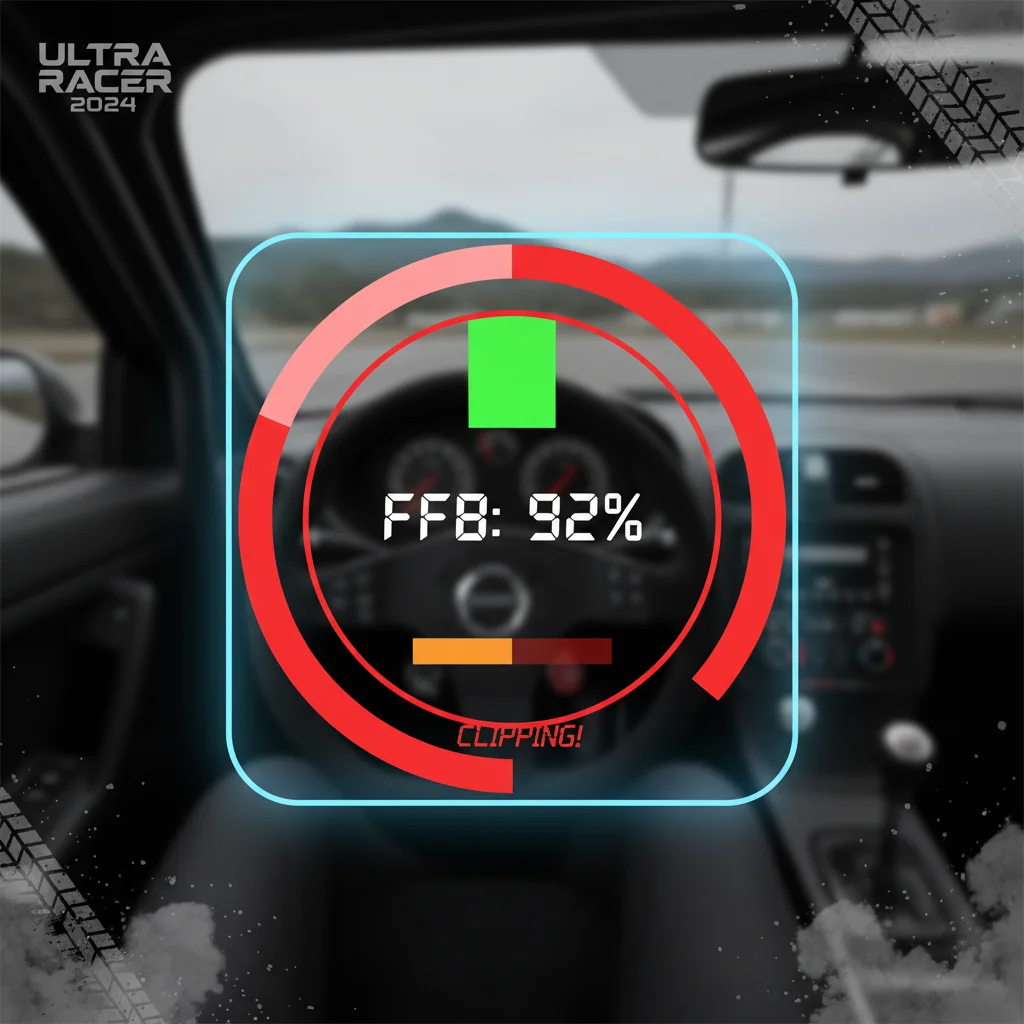
Identifying Clipping in Your Sim
Most modern sim racing titles include in-game FFB meters or telemetry tools. Look for a visual indicator that shows when your FFB output hits 100%.
This is your clipping point. If the meter is constantly maxed out, you’re losing valuable information from your wheel.
The Step-by-Step Tuning Process
Ready to unlock your wheel’s full potential? Follow these steps to balance your FFB gain and eliminate clipping.
Step 1: Set a Baseline Gain
- Start with your wheel’s overall gain or force setting in the game at a conservative level, perhaps 50-70%.
- This provides a safe starting point to ensure you don’t immediately experience heavy clipping.
Step 2: Hit the Track and Monitor Telemetry
Drive a few laps on your favorite track. Focus on sections with high forces, like heavy braking zones, fast corners, or aggressive curbs.
Keep a close eye on your in-game FFB meter. This real-time feedback is crucial for making informed adjustments.
Step 3: Adjust Overall Game Gain Downward
If you see the FFB meter frequently hitting 100% (clipping), reduce the overall game gain setting.
Your goal is to have the meter peak around 80-90% during the most intense moments. This leaves headroom for subtle forces.
A good rule of thumb is to aim for around 85% peak utilization. This ensures dynamic range without clipping.
This optimization improves your ability to interpret the car’s behavior.
A bar chart showing optimal FFB peak utilization: Clipping (Too High) at 100%, Optimal Range at 85%, and Losing Detail (Too Low) at 60%.
Step 4: Refine Individual Effects
Many sims offer individual sliders for effects like road feel, curb feel, suspension bumps, and slip effects.
Once your overall gain is good, fine-tune these to your preference.
Increase them slightly if you want more specific feedback, ensuring no new clipping occurs.
Step 5: Test and Iterate
Tuning is an iterative process. Drive, adjust, and drive again.
Pay attention to how the wheel communicates subtle changes in grip and weight transfer.
This improved response time will make you a faster, more consistent racer.
Common FFB Settings & Impact
| Setting | Description | Impact on FFB |
|---|---|---|
| Overall Gain/Force | Master volume for all FFB effects. | Determines maximum force. Too high = clipping, too low = weak details. |
| Road Feel/Texture | Simulates surface irregularities. | Adds granular detail. Adjust to prevent vibrations from overwhelming major forces. |
| Curb/Bump Effects | Feedback from driving over curbs or bumps. | Can cause significant spikes. Tune carefully to avoid instant clipping. |
| Damping/Friction | Adds resistance, simulates wheel inertia. | Can make the wheel feel heavier or more ‘sluggish’ if too high. |
| Min Force/FFB Linearization | Compensates for wheel’s deadzone at low forces. | Crucial for feeling subtle details at low speeds or small steering inputs. |
By carefully adjusting these parameters, you’ll unlock a deeper connection to your virtual car. This isn’t just about feel, it’s about performance.
Dominate your sim racing circle by tuning your force feedback to perfection.
Head to Joltfly for more guides and tools to enhance your gaming skills!
In Short
- FFB clipping happens when your wheel’s force output exceeds its maximum, leading to a flat feeling and loss of critical detail.
- To properly tune FFB, start with a conservative gain, drive, and reduce overall game gain so the in-game FFB meter peaks around 80-90% (ideally 85%) during intense moments.
- After optimizing overall gain, fine-tune individual FFB effects and iterate the testing process to achieve peak immersion and competitive advantage.
Entry-Level Wheel Strategy: Linear vs. Non-Linear Response Curves
Mastering Force Feedback on Entry-Level Wheels
You’ve got your entry-level sim racing wheel, ready to hit the track and dominate the competition.
But are you truly feeling all the nuanced feedback the game offers? Entry-level wheels often have less powerful motors.
This means they are prone to force feedback clipping. It happens when the game sends a force signal stronger than your wheel can produce.
The result is a “flatlining” of forces, where all detail is lost.
Linear Response Curves: Raw Power, High Risk
A linear FFB response means your wheel outputs force directly proportional to the game’s signal. If the game sends a 50% force, your wheel outputs 50%.
This approach delivers a raw and direct feel. Every bump and slide is communicated precisely, up to the wheel’s limits.
The downside for entry-level wheels is significant clipping. Without careful tuning, strong forces can easily max out your wheel.
Heavy braking or curb impacts turn critical feedback into a flat, undefined rumble.
Non-Linear Response Curves: Maximizing Detail, Preventing Clipping
Non-linear response curves, sometimes called “gamma” or “soft clipping,” modify the game’s force signal before it reaches your wheel.
They aim to compress stronger forces and boost weaker ones.
This allows your wheel to convey more detail across a wider range of forces without hitting its peak too often.
For example, a slight turn might feel more pronounced, while a big impact is softened just enough to avoid clipping, preserving mid-range detail.
This strategy is a game-changer for entry-level hardware. It helps you extract maximum information from your wheel.
This makes your driving experience more immersive and informative.
Tuning Your Entry-Level Wheel for Victory
Optimizing your FFB is crucial. It’s about finding the sweet spot where you feel every detail without losing information to clipping.
Step 1: Baseline Your Linear Settings
Start by setting your wheel’s FFB to a linear response. Check your wheel’s control panel or the game’s FFB settings.
Ensure no curves or non-linear effects are applied initially.
Next, reduce your overall FFB gain until you rarely experience clipping during intense moments, like heavy braking zones or fast corners.
An in-game FFB meter can be your best friend here. Run some laps on a familiar track and feel how the car reacts.
Focus on what feedback is missing or feels indistinct due to maxed-out forces.
Step 2: Implement Non-Linearity Strategically
Once you understand your wheel’s linear limits, it is time to introduce a non-linear curve.
Most sim racing titles or wheel drivers offer gamma or response curve options. Apply a slight non-linear curve.
A gamma setting below 1.0 (e.g., 0.7-0.9) will compress higher forces and amplify lower forces.
Many games also include a “soft clipping” or “headroom” setting.
This automatically applies a non-linear curve to prevent hard clipping at the very top end of the force range.
Experiment with small adjustments. Your goal is to keep the impactful forces strong enough to feel.
Ensure no crucial mid-range details are lost to a flatline.
This principle of adjusting curves also applies to other input devices, as explored in our guide on Linear vs Exponential Settings.
A line chart showing force feedback output comparison: Linear output directly scales with input, while non-linear (gamma) output amplifies lower inputs and compresses higher inputs to prevent clipping, reaching 100% output at 100% input but with a different curve.
Comparative Overview: Linear vs. Non-Linear FFB
Here’s a quick breakdown to help you decide which strategy suits your playstyle and hardware.
| Feature / Curve Type | Linear Response | Non-Linear Response |
|---|---|---|
| Overall Feel | Raw, direct, predictable | Enhanced mid-range detail, less raw |
| Clipping Risk (Entry-Level) | High at default settings | Reduced, softer clipping |
| Detail at Low Forces | Proportional to signal | Amplified, more noticeable |
| Detail at High Forces | Clear, but prone to clipping | Compressed, avoids hard clipping |
| Setup Complexity | Simpler, but requires careful gain adjustment | Requires more tuning for optimal feel |
| Best For | Stronger wheels, precise raw control | Entry-level wheels, maximizing detail |
Remember, the best FFB setup is subjective. What feels right for one racer might not for another.
Continuously test and refine your settings. Head over to Joltfly’s Trainer Games to hone your reflexes, then get back on track!
Master Gain vs. In-Game Force: The Correct Setup Order
Optimizing Your Sim Racing Force Feedback
Dominating the track means feeling every nuance of your car. Force Feedback, or FFB, is your direct link to the virtual asphalt.
To truly get an edge, you must understand the critical difference between your wheel’s Master Gain and in-game FFB settings.
Setting them correctly prevents clipping and delivers crystal-clear feedback.
Master Gain: Your Wheel’s Raw Power
Think of Master Gain as the overall volume knob for your racing wheel. It dictates the maximum force your wheel can physically generate.
This setting is found in your wheel’s driver software, not inside the game itself. It’s the foundation of your FFB experience.
Too low, and you lose crucial details. Too high, and you risk overwhelming the wheel’s motors and introducing clipping.
In-Game Force Settings: The Fine-Tuner
In-game force settings are specific multipliers applied within the simulation.
They sculpt how individual forces, like tire grip, bumps, or curbs, feel through your wheel. These settings translate the game’s physics into your FFB.
Adjusting them allows you to fine-tune the sensations for each car and track. They are secondary to the Master Gain but equally vital for a precise setup.
The Optimal Setup Sequence to Crush Clipping
Follow this exact order to eliminate FFB clipping and unlock your wheel’s full potential. This method ensures you’re not fighting against your own settings.
Set Master Gain High (But Safely)
Start by setting your wheel’s Master Gain in its driver software to a high, but not maximum, level. Aim for around 75-80% of its full capability.
This provides headroom for in-game forces while still keeping the wheel responsive.
Enter Your Sim and Drive
Load up your favorite sim and car. Choose a challenging track with varied corners and bumps.
Drive aggressively, pushing the car to its limits, especially through high-load turns and over curbs.
Monitor for Clipping with Visual Tools
Most modern sim racing titles offer an FFB clipping meter or graph. This is your best friend.
Observe this meter as you drive. If the bar consistently hits the top or turns red, you are clipping.
Clipping means your wheel is trying to produce forces beyond its capacity, flattening out details and reducing feedback.
Adjust In-Game Force Downwards
If you see clipping, slowly reduce the overall in-game FFB strength until the clipping meter rarely, if ever, peaks.
Your goal is to have dynamic forces without constantly hitting the ceiling. You want the full range of effects.
Fine-Tune Individual Effects (If Available)
Once overall clipping is managed, you can adjust specific in-game effects like road feel or damper settings.
These micro-adjustments personalize your FFB without reintroducing clipping.
Re-evaluate Master Gain (Optional, Advanced)
Only after perfectly tuning in-game forces should you consider slightly increasing your Master Gain again.
If you do, re-check the in-game clipping meter immediately. This step is for experienced tuners aiming for absolute maximum force.
Why This Order Gives You the Edge
Following this precise tuning order ensures your wheel is always receiving clear, unclipped force data.
It prevents the flattening of crucial feedback signals. This clarity allows you to react faster and more accurately to what the car is doing.
You’ll feel tire slip earlier and catch slides with greater confidence. Consistent, reliable feedback also reduces the mental processing load.
This helps to improve your overall response time and minimize input lag in your decision-making.
Master this setup, and you’ll experience unparalleled connection to your sim, leaving your rivals in the dust.
Now, go dial in your FFB and challenge your gaming circle on Joltfly!
In Short
- Entry-level sim racing wheels are prone to force feedback (FFB) clipping, where strong signals max out the wheel and cause a loss of detail.
- Linear FFB response provides a direct feel but can lead to significant clipping, whereas non-linear curves compress stronger forces and boost weaker ones to maximize detail and prevent clipping.
- To optimize FFB, users should first baseline linear settings and reduce gain, then strategically introduce non-linear curves like gamma or soft clipping to preserve mid-range detail.
Feel the Road Like a Pro
Stop driving blind! Eliminating clipping unlocks hidden details in the track surface and car handling.
Don’t settle for muddy feedback. Fine-tune your wheel until every curb and slide feels crystal clear.
Now, hit the track and dominate your competition. Precision is power!
Frequently Asked Questions
What is force feedback clipping?
Clipping happens when the game signal exceeds your wheel’s max torque. You lose detail because the motor maxes out.
How do I detect clipping?
Watch the FFB meter in your HUD. If it spikes red during corners, you need to lower the gain immediately.
Is stronger FFB always better?
No! Too much strength hides subtle cues. Focus on a clean signal to feel grip loss and tire scrub accurately.
Can software fix clipping automatically?
Some sims have auto-detect features, but manual tuning is best. Trust your hands to find the perfect balance.
