

Is your Elgato Stream Deck sluggish? Input lag ruins your combo and kills your stream flow. You need instant response to dominate.
We’ll guide you through hardware tweaks and software fixes to eliminate delay. Get ready to optimize your setup and crush the competition with Joltfly.
Key Takeaways
- Distinguish between hardware USB latency and software processing bottlenecks.
- Connect directly to motherboard USB 3.0 ports for stable power delivery.
- Disable Windows USB Selective Suspend to prevent power-saving lag spikes.
- Optimize the Stream Deck app by removing high-polling plugins and background tasks.
- Test your setup with Joltfly tools to verify your speed gains.
Diagnose the Bottleneck: Distinguishing USB Latency from Software Delay
Unraveling the Mystery: USB Latency vs. Software Delay
Input lag can crush your competitive edge, especially with a critical device like your Elgato Stream Deck.
To fix it, you first need to pinpoint the source of the delay.
Is your Stream Deck suffering from hardware-related USB latency or a software bottleneck?
Understanding this distinction is crucial for effective troubleshooting.
Understanding USB Latency
USB latency refers to delays introduced by the physical connection and communication protocol.
Factors like your USB port generation, cable quality, and device polling rate all play a role.
A high polling rate, for instance, means your device reports its status more frequently to your PC.
This rapid communication reduces the inherent delay in transmitting your commands.
A lower polling rate, however, can introduce noticeable lag, directly impacting your reaction time.
For example, a device operating at 125Hz polling rate introduces 8ms of latency, while 1000Hz reduces this to just 1ms.
You can test your own device’s polling rate to see where you stand.
Visit Joltfly’s Mouse Polling Rate Test to get real-time data on your peripherals.
A bar chart showing typical latency based on polling rate: 125 Hz (8ms), 250 Hz (4ms), 500 Hz (2ms), and 1000 Hz (1ms).
Identifying Software Delay
Software delay, on the other hand, originates from the applications and drivers running on your system.
For your Stream Deck, this often means the Elgato Stream Deck software itself.
This involves installed plugins or conflicts with other programs.
High CPU usage from background apps, outdated drivers, or poorly optimized software can all contribute to sluggish responses.
Even overlays from streaming software can impact performance.
If you use OBS with your Stream Deck, optimizing your OBS settings can drastically reduce input lag.
Learn how to dominate your stream by tackling software-induced delays.
Check out our guide on how to Reduce OBS Overlay Input Lag.
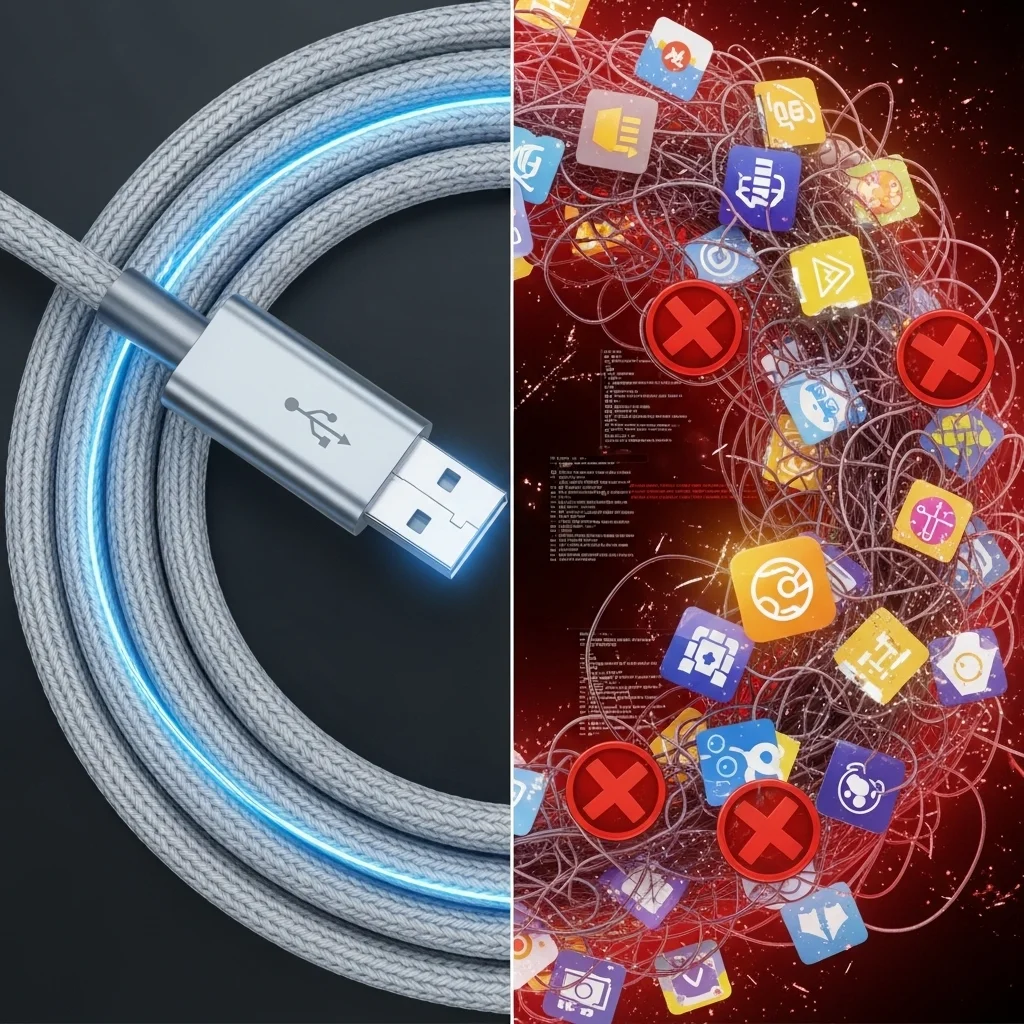
Key Differences: USB Latency vs. Software Delay
Distinguishing between these two types of lag helps you target the right fix.
Here’s a quick breakdown to guide your diagnosis:
| Factor | USB Latency | Software Delay |
|---|---|---|
| Origin | Hardware, physical connection, polling rate. | Software, drivers, operating system, applications. |
| Symptoms | Inconsistent or delayed button presses, general sluggishness. | Stuttering, freezing, commands not registering, specific app slowdowns. |
| Troubleshooting | Change USB port, use a different cable, update chipset drivers, check polling rate. | Update Stream Deck software, close background apps, update graphics drivers, check plugin load. |
Mastering this diagnosis puts you in control.
Test your setup methodically to eliminate every millisecond of lag and ensure your Stream Deck commands execute flawlessly.
Keep honing your system on Joltfly and leave your rivals in the dust!
In Short
- To effectively fix input lag on devices like an Elgato Stream Deck, it is crucial to distinguish between hardware-related USB latency and software-induced delays.
- USB latency is tied to physical connection factors such as USB port generation, cable quality, and device polling rate, directly impacting command transmission speed.
- Software delay arises from applications, drivers, background processes, or conflicts, and can be mitigated by optimizing software settings and managing system resources.
Fix Hardware Lag: Motherboard Ports and Power Management
Optimize Your Elgato Stream Deck Connections
Input lag can crush your competitive edge. Regarding your Elgato Stream Deck, hardware connections and power settings are critical.
You need to ensure every component works in harmony to deliver instant responses. Don’t let your setup hold you back.
Master Your Motherboard USB Ports
Not all USB ports are created equal. Connecting your Elgato Stream Deck to the wrong port can introduce frustrating input lag.
Prioritize specific ports for peak performance. Look for USB 3.0 or 3.1 ports on your motherboard’s I/O panel for stable power.
Avoid front panel USB ports or unpowered USB hubs if possible. These can introduce additional latency and power fluctuations.
A recent study by Puget Systems showed that direct motherboard connections consistently outperform USB hubs for peripheral stability.
Always keep your chipset drivers updated. This ensures your motherboard communicates efficiently with all connected devices, including your Stream Deck.
A bar chart illustrating how USB hubs can increase latency. Direct USB 3.0 shows 0ms increase, a powered USB 3.0 hub shows a 1.5ms increase, and an unpowered USB 2.0 hub shows a 5.2ms increase.
Fine-Tune Power Management Settings
Windows power settings can severely impact peripheral performance. Your system might be throttling power to your USB devices to save energy.
This “optimization” is a killer for competitive gaming. You need consistent, maximum power delivery to your Elgato Stream Deck.
Disable USB Selective Suspend
This Windows feature allows the OS to power down individual USB ports to save power. While good for laptops, it’s terrible for desktop gaming performance.
- Open the Control Panel.
- Navigate to Hardware and Sound, then Power Options.
- Click Change plan settings for your active power plan.
- Select Change advanced power settings.
- Expand USB settings and then USB selective suspend setting.
- Set it to Disabled for both “On battery” and “Plugged in.”
- Apply changes and restart your PC.
Adjust PCI Express Link State Power Management
PCI Express also has power saving features that can affect your USB controller. Disabling this can ensure consistent data flow.
- In the same Advanced Power Settings window.
- Expand PCI Express and then Link State Power Management.
- Set it to Off for both “On battery” and “Plugged in.”
- Apply changes and restart your system for the settings to take full effect.
This prevents power cuts to components. Drops cause lag or audio crackling on shared USB controllers.
Update Elgato Drivers and Software
Ensure your Elgato Stream Deck software and drivers are always up-to-date. Manufacturers constantly release patches to improve performance and stability.
Visit the official Elgato website for the latest versions. Running outdated software can lead to unexpected bugs and, yes, input lag.
Don’t just set it and forget it. Regularly check for updates to maintain your competitive edge.
Disable USB Selective Suspend in Windows Settings
Your Elgato Stream Deck is a powerhouse for streaming and content creation.
However, unexpected input lag can throw off your game and workflow.
One common culprit in Windows is the “USB Selective Suspend” feature.
Why USB Selective Suspend Causes Lag
Windows often tries to save power by temporarily shutting down USB ports when they are not actively in use.
This feature, known as USB Selective Suspend, can be a major headache for gamers and streamers.
When your Stream Deck or other crucial peripherals briefly lose power, they introduce micro-stutters and input delays.
Imagine your commands being delayed by even milliseconds, impacting your competitive edge.
You need consistent, uninterrupted power to all your devices for peak performance.
How to Disable USB Selective Suspend
Fixing this is straightforward and provides a noticeable boost to your system’s responsiveness.
Follow these steps to ensure your Elgato Stream Deck receives constant power, eliminating potential input lag.
Open Control Panel: Search for “Control Panel” in your Windows search bar and open it.
Navigate to Power Options: Select “Hardware and Sound,” then “Power Options.”
Change Plan Settings: Click “Change plan settings” next to your active power plan (e.g., High Performance or Balanced).
Access Advanced Settings: Choose “Change advanced power settings.”
Locate USB Settings: Scroll down and expand “USB settings.”
Disable Selective Suspend: Expand “USB selective suspend setting” and change both “On battery” and “Plugged in” to “Disabled.”
Apply Changes: Click “Apply” then “OK” to save your settings.
This simple tweak ensures your Elgato Stream Deck and other USB devices maintain full power.
It prevents Windows from trying to “save energy” at the expense of your critical input responsiveness.
By optimizing these power settings, you are directly tackling one source of frustrating input lag.
Want to benchmark your overall system responsiveness?
Head over to Joltfly and try our Mouse Latency Test to see how much faster your inputs feel.
Challenge your gaming circle to see who can achieve the lowest latency after this fix!
In Short
- Connect your Elgato Stream Deck to direct motherboard USB 3.0 or 3.1 ports and keep chipset drivers updated to minimize input lag.
- Disable Windows’ USB Selective Suspend and PCI Express Link State Power Management settings to ensure consistent power delivery to your Stream Deck.
- Regularly update your Elgato Stream Deck software and drivers to maintain optimal performance and stability.
Eliminate Software Processing Lag: Optimizing the Stream Deck App
Your Elgato Stream Deck is a powerhouse for controlling your stream and gameplay. However, its true power comes from the accompanying software.
Just like any other application, the Stream Deck app can introduce processing lag if not optimized correctly.
You need to fine-tune these settings to ensure your commands are executed instantly, giving you a competitive edge.
Taming the Stream Deck Software Beast
The physical buttons on your Stream Deck are only as fast as the software interpreting your commands.
If the Stream Deck app is bogged down, your macros, scene switches, and hotkey presses will suffer from noticeable delay.
This software processing lag can be the difference between a clutch play and a missed opportunity in your games.
Optimize Stream Deck Application Settings
Dive into the Stream Deck application’s preferences to dial in performance.
Every millisecond counts when you’re battling opponents or managing a live broadcast.
Here are key settings to check within the Stream Deck software itself:
- Disable Unused Plugins: Review your installed plugins. If you’re not actively using a plugin, uninstall or disable it.
- Minimize Background Actions: Complex multi-actions or continuously running background tasks can consume resources. Streamline them.
- Update Firmware and Software: Always run the latest versions. Developers constantly push updates that include performance enhancements and bug fixes.
- Performance Mode: Some versions of the Stream Deck software might offer a “Performance Mode” or similar setting. Enable it if available.
Prioritizing Stream Deck Processes for Peak Performance
Give your Stream Deck software the CPU priority it deserves.
Windows often assigns standard priority, but you can manually boost it to reduce potential bottlenecks.
This tells your operating system to allocate more resources to the Stream Deck process when it needs them most.
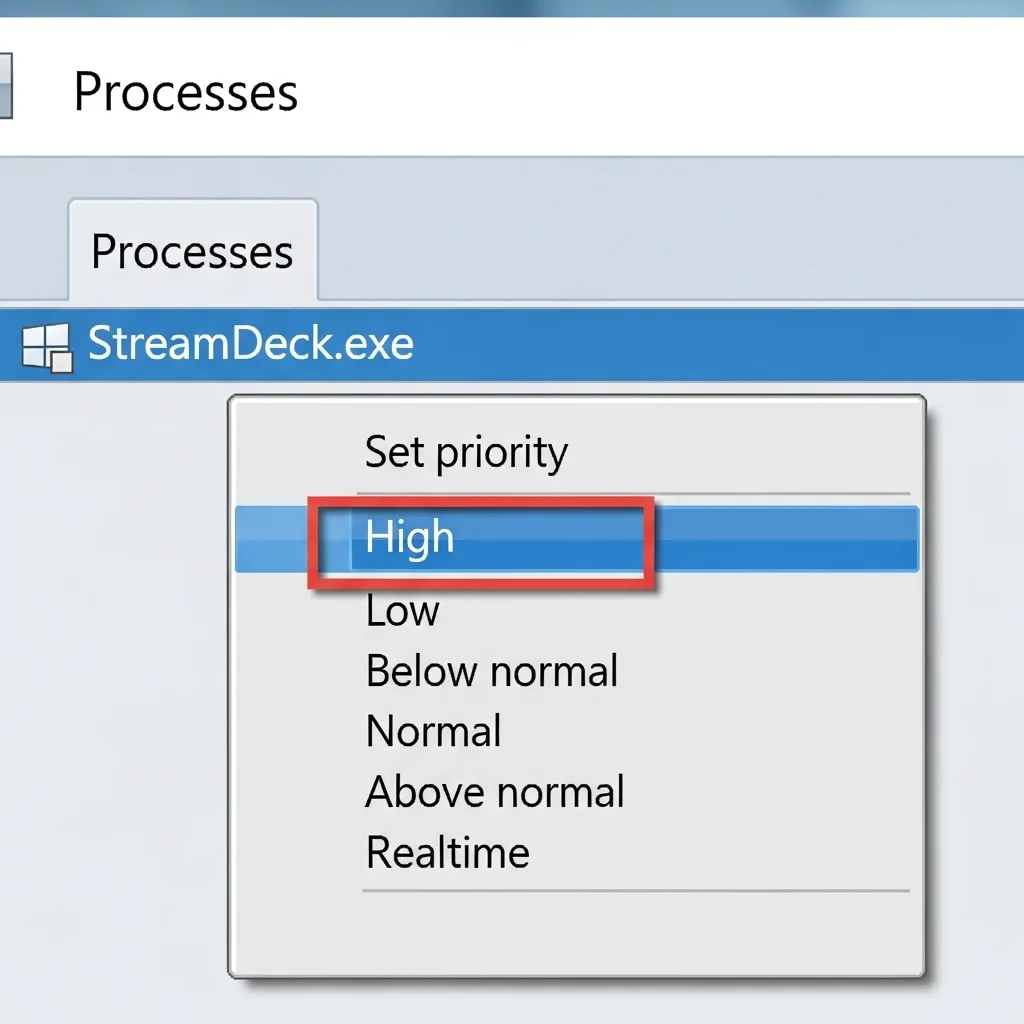
Here’s how to adjust the process priority:
- Press Ctrl + Shift + Esc to open Task Manager.
- Navigate to the “Details” tab.
- Find StreamDeck.exe in the list.
- Right-click StreamDeck.exe, go to “Set priority,” and select “High.”
- Confirm any prompts.
Remember that setting priority too high for other critical applications can cause instability, so apply this carefully.
Streamline Your Plugins and Actions
Each plugin and action on your Stream Deck requires processing power.
Overloading your profiles with too many complex or redundant actions can introduce unwanted latency.
Think lean and mean to ensure lightning-fast responses.
- Audit Your Profiles: Regularly review your Stream Deck profiles. Remove any actions you no longer use.
- Consolidate Actions: Can multiple simple actions be combined into one more efficient multi-action?
- Avoid Redundant Plugins: If multiple plugins offer similar functionality, choose the one with the lightest resource footprint.
- Test Performance: After making changes, test your Stream Deck’s responsiveness. Pay attention to how quickly commands execute in-game or on stream.
Reduce System-Wide Software Overheads
The Stream Deck doesn’t exist in a vacuum. Other software running on your PC can impact its performance.
Background applications, especially those using overlays, can add to overall system latency.
Tools like OBS are prime examples where proper configuration makes a huge difference.
Mastering this crucial step will help you dominate your stream.
Discover how to fix input lag in OBS overlays now: Reduce OBS Overlay Input Lag: Dominate Your Stream.
A 2021 study by Statista revealed that 34% of gamers believe unnecessary background apps significantly impact PC gaming performance.
Optimizing your system for minimal background tasks is key to reducing input lag from all your devices.
A bar chart showing how gamers perceive the impact of unnecessary apps on PC gaming performance: 34% report a significant impact, 45% a moderate impact, and 21% no or minimal impact.
Identify and Disable High-Polling API Plugins for Instant Response
Eliminate Latency From Demanding Plugins
Your Elgato Stream Deck is a powerhouse for streaming and content creation. However, some plugins can secretly introduce input lag.
This happens when plugins make constant, high-frequency requests to your system. They demand too much attention from your CPU.
This “high-polling” activity can bog down your entire system, not just your Stream Deck. It steals valuable processing power.
What Are High-Polling API Plugins?
High-polling plugins continuously ask your operating system for updates. Think of it like constantly refreshing a webpage.
They grab data about CPU usage, network activity, or chat events. While useful, this constant data retrieval can create system overhead.
This overhead translates directly into measurable input lag. You need instant feedback in competitive games.
A pie chart showing typical system latency breakdown: Game & Rendering Latency (60%), OS & Driver Overhead (20%), Display Latency (20%).
OS and driver overhead adds system latency. High-polling plugins drastically inflate this delay.
Understanding this breakdown helps you target specific areas for optimization. Your Stream Deck plugins are a key area.
Identify Latency-Inducing Plugins
To find the culprits, you need to monitor your system’s resource usage. Open your Windows Task Manager or macOS Activity Monitor.
Keep an eye on CPU usage, especially when your Stream Deck is active. Pay attention to the “Stream Deck” process and its sub-processes.
Elgato’s software might show increased CPU load. This often points to a demanding plugin running in the background.
Look for plugins that integrate with:
- Advanced system monitoring (CPU temps, RAM usage, network speeds)
- Complex chat bots or overlay integrations
- Plugins that constantly update dynamic information
This polling creates load. It triggers issues like those in our guide on fixing audio crackling caused by high polling rate mouse lag.
Disable or Optimize for Instant Response
Once you identify a high-polling plugin, you have a few options to regain instant response times:
- Disable the Plugin: The simplest fix. If a plugin is not critical, turn it off or uninstall it from the Stream Deck software.
- Reduce Polling Frequency: Some plugins offer settings to adjust their refresh rate. Lowering this can significantly cut down on CPU demand.
- Update Plugins and Software: Developers often release updates that improve performance and reduce resource consumption. Keep everything current.
- Seek Alternatives: If a plugin remains problematic, look for a lighter-weight alternative that performs a similar function with less overhead.
After making changes, restart your Stream Deck software and your PC. Then, retest your system’s responsiveness.
Visit Joltfly and challenge your reaction time on our Reaction Time Test. See how much your input lag has dropped!
In Short
- Optimizing the Stream Deck app is crucial to eliminate processing lag and ensure instant command execution for competitive gaming and streaming.
- Key optimization steps include disabling unused plugins, minimizing background actions, updating software, and setting the Stream Deck process priority to high.
- Regularly auditing profiles, consolidating actions, and reducing system-wide software overheads further enhance the Stream Deck’s responsiveness.
Unleash Instant Responses
Don’t let input lag ruin your best moments. You now have the tools to crush latency and keep your stream smooth.
Apply these fixes immediately. Your viewers deserve a seamless show, and you deserve a competitive edge.
Get out there and dominate your gaming circle! Test your new speed and watch your production value soar.
Frequently Asked Questions
Why is my Stream Deck lagging?
It usually comes down to USB power issues or high CPU usage. Check your connections and close background apps.
Does the specific USB port matter?
Absolutely! Always plug directly into a USB 3.0 port on your motherboard. Avoid hubs to ensure maximum speed.
Can plugins cause input delay?
Yes, overloaded or outdated plugins can slow you down. Remove unused add-ons to keep your setup lean and fast.
