

Is your dual monitor setup lagging despite high FPS? It’s likely a refresh rate mismatch killing your smooth gameplay.
Don’t let micro-stutters ruin your aim. We’ll show you how to fix Windows DWM issues and optimize your rig on Joltfly.
Key Takeaways
- Disable Multi-Plane Overlay (MPO) in the Registry to resolve frame pacing conflicts.
- Turn off hardware acceleration in Discord and browsers to prioritize your game.
- Perform a clean GPU driver install with DDU to wipe out corrupted files.
- Optimize NVIDIA and AMD control panels specifically for mixed refresh rates.
- Validate your smoother gameplay using the Stutter Test on Joltfly.
The Root Cause: Windows DWM and Frame Pacing Mismatches
Unpacking Windows DWM’s Role in Stutter
Ever wondered why your slick dual monitor setup sometimes feels choppy? The culprit often boils down to Windows Desktop Window Manager, or DWM.
DWM is a critical component. It handles the composition of your entire desktop, including all open windows, before sending the final image to your displays.
Think of DWM as the ultimate mixer for your visual experience.
It takes layers from all applications, effects, and even your game, then compiles them into a single frame.
This process ensures all visual elements are perfectly aligned and rendered, regardless of the individual application’s update rate.
The Challenge of Frame Pacing Mismatches
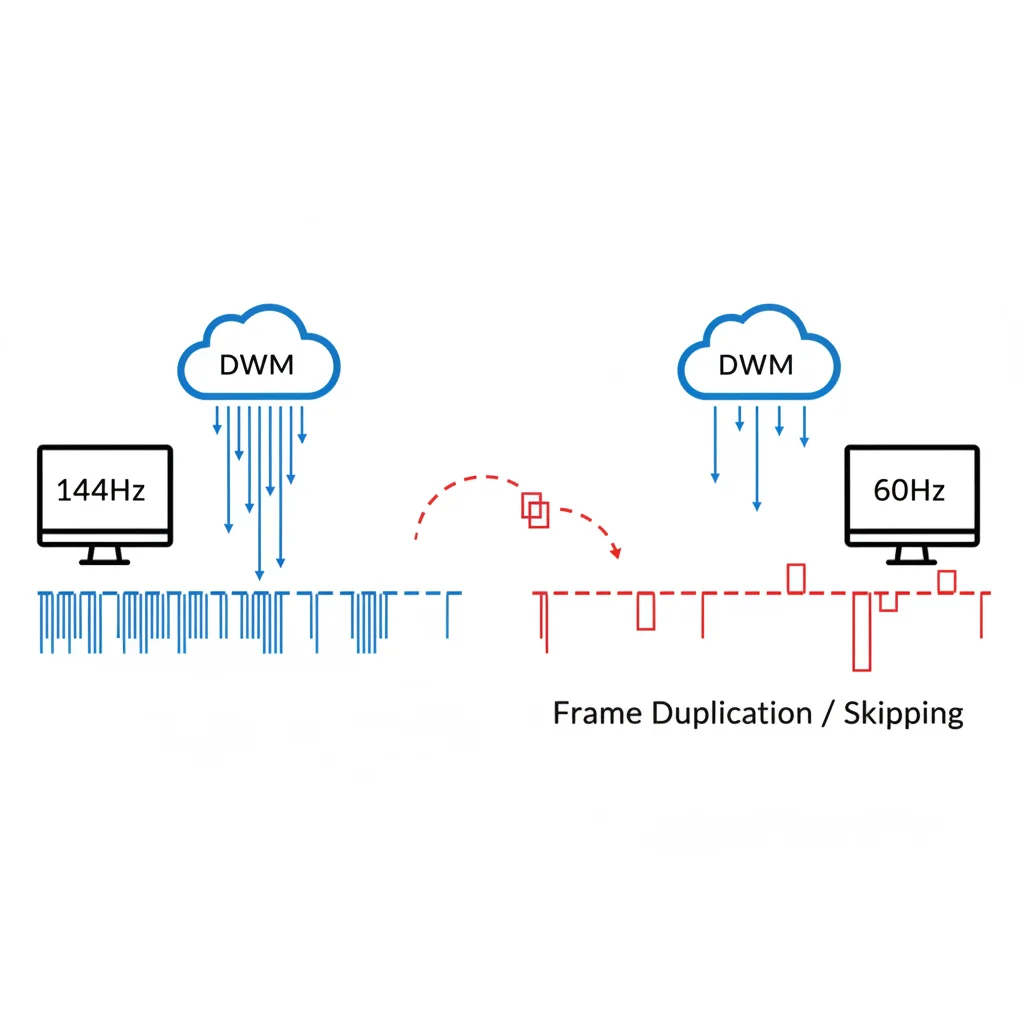
When you run monitors with different refresh rates, DWM faces a significant challenge.
It needs to keep both displays fed with frames, but at their unique speeds.
For instance, if your main gaming monitor is 144Hz and your secondary is 60Hz, DWM must manage two distinct frame delivery pipelines.
This is where frame pacing mismatches kick in.
DWM tries its best to synchronize, but often ends up duplicating or dropping frames on one display to match the other.
This results in perceptible stutter or micro-stutters. It is particularly noticeable on the higher refresh rate monitor, even if your FPS is high.
The impact can be severe for competitive gamers. It leads to a feeling of unresponsiveness and lost visual information.
You need every frame to hit consistently.
Common Symptoms of DWM-Induced Stutter
- Input Lag: You feel a delay between your actions and what you see on screen.
- Visual Choppiness: Despite high FPS, movement on screen isn’t consistently smooth.
- Frame Skipping: Frames appear to jump or stutter, making aiming and tracking difficult.
- Reduced Responsiveness: Your overall gaming experience feels sluggish and less precise.
These issues can directly impact your performance in fast-paced titles, turning potential wins into frustrating losses.
You can identify these issues using tools like Joltfly’s Display Stutter and Tearing Calculator to quantify the problem.
The Real-World Impact: Diverse Monitor Setups
The prevalence of multi-monitor setups with varying refresh rates is high.
Data from the Steam Hardware Survey shows a wide distribution of primary display rates.
For example, approximately 30% of users reported a 60Hz primary display, while about 25% used 144Hz.
Another 10% opted for 165Hz. This highlights the common scenario of mixed refresh rate environments.
A pie chart showing common primary display refresh rates: 60Hz (30%), 120-144Hz (35%), 165Hz+ (15%), and Other/Mixed (20%).
This diversity means many gamers are unknowingly battling DWM’s frame pacing issues. You are not alone in this fight.
Understanding this root cause empowers you to tackle the stutter head-on. Don’t let your gear hold you back from dominating your gaming circle.
Now, let’s explore actionable strategies to get your multi-monitor setup running flawlessly.
Test your response time and then optimize your setup to reach peak performance on Joltfly!
In Short
- Windows Desktop Window Manager (DWM) is a primary cause of stutter in multi-monitor setups with differing refresh rates.
- DWM struggles to manage frame delivery for displays with varying speeds, leading to frame duplication or dropping to maintain synchronization.
- This results in perceptible issues such as input lag, visual choppiness, and frame skipping, significantly impacting gaming performance.
The Modern Solution: Disable Multi-Plane Overlay (MPO) via Registry
Understand the MPO Impact on Your Dual Monitor Setup
You’re chasing smooth frames and pinpoint accuracy, but dual monitor stuttering can break your immersion.
This often happens when you combine monitors with different refresh rates, like a 144Hz primary for gaming and a 60Hz secondary for Discord.
Multi-Plane Overlay, or MPO, is a Windows feature designed to optimize how your GPU handles multiple layers of content.
It creates separate “planes” for different elements, such as your desktop, video playback, and game applications.
While MPO aims for efficiency, it can sometimes introduce visual stutter or flickering.
This is particularly noticeable when your GPU tries to synchronize outputs to monitors operating at vastly different refresh rates.
It creates a bottleneck that competitive gamers can’t afford.
Disabling MPO can force your graphics card to process all display layers on a single plane.
This often resolves the stuttering by simplifying the rendering pipeline, giving you back that crucial edge in performance.
Step-by-Step: Disable MPO for Smooth Gameplay
Ready to banish dual monitor stutter? Follow these precise steps to disable MPO via the Windows Registry. This is a powerful tweak, so proceed with care.
1. Backup Your Registry (Critical First Step)
Before making any registry changes, always create a backup. This allows you to restore your system if anything goes wrong.
- Press Windows Key + R, type
regedit, and press Enter. - In the Registry Editor, go to File > Export.
- Choose a save location, name your backup, and ensure Export range is set to All. Click Save.
2. Access the Registry Editor
If you closed the window, press Win + R, type regedit, and hit Enter to open it again.
- Press Windows Key + R.
- Type
regeditinto the Run dialog box. - Click OK or press Enter. Confirm the UAC prompt if it appears.
3. Navigate to the Dwm Key
You need to locate the specific registry key for Desktop Window Manager (Dwm).
- In the Registry Editor, navigate to the following path:
HKEY_LOCAL_MACHINE\SOFTWARE\Microsoft\Windows\Dwm
4. Create or Modify the OverlayScenario DWORD
This is where you’ll tell Windows to disable MPO.
- Right-click in the empty space on the right-hand pane of the Dwm folder.
- Select New > DWORD (32-bit) Value.
- Name the new DWORD:
OverlayScenario - Double-click on the newly created OverlayScenario DWORD.
- Ensure the Value data is set to
0(zero). - Click OK.
If OverlayScenario already exists, simply double-click it and change its Value data to 0.
5. Restart Your System
For the changes to take effect, a full system reboot is essential. Close all applications and restart your PC.
Once your system reboots, the MPO feature will be disabled. This should significantly reduce or eliminate the stuttering on your dual monitor setup.
Confirm Your MPO Fix and Test Performance
After disabling MPO, jump back into your favorite games. Pay close attention to visual fluidity.
Watch closely when moving your mouse quickly or rotating your camera across different elements on your screens.
Your aim should feel snappier, and transitions smoother. Use Joltfly’s Display Stutter and Tearing Calculator to diagnose any remaining issues.
Additionally, evaluate your overall system’s responsiveness. Understanding response time vs. input lag can help you optimize your display pipeline.
Important Considerations After Disabling MPO
While disabling MPO is a powerful fix for stutter, keep a few things in mind.
You might experience a negligible increase in GPU load, though modern GPUs typically handle this without issue.
Always update your graphics drivers regularly, as new versions sometimes re-enable MPO.
New drivers might also offer improved implementations that negate the need for this fix.
If a driver update reintroduces stuttering, re-check your registry settings for the OverlayScenario DWORD. It may have reverted.
Now, go test your setup on Joltfly and dominate your gaming circle with buttery-smooth performance!
In Short
- Multi-Plane Overlay (MPO) can cause stuttering in dual monitor setups, especially with different refresh rates.
- Disabling MPO via a specific Windows Registry edit can resolve display stuttering by simplifying the rendering pipeline.
- It is crucial to back up the registry before making changes, and a system restart is required for the M MPO disablement to take effect.
Optimizing Background Apps and GPU Drivers
Optimizing Background Apps and GPU Drivers
Dual monitor stuttering can feel like a hardware nightmare, but often, the culprits are hidden in plain sight.
Your system’s background processes and outdated GPU drivers can seriously degrade performance and introduce frustrating hitches.
It is time to fine-tune your setup to eliminate these unseen threats and reclaim your competitive edge.
Taming Background Applications
Every application running in the background, even minimized, demands valuable CPU, RAM, and GPU resources.
This resource contention is amplified when you are running multiple monitors, especially with different refresh rates.
Your gaming rig is working overtime, trying to manage both your game and non-essential tasks.
Closing unneeded applications can significantly reduce system load. This leads to smoother gameplay and fewer stutters.
In competitive gaming, every frame and millisecond counts. Do not let background apps hold you back.
Follow these steps to free up critical system resources:
- Disable Startup Programs: Open Task Manager (Ctrl+Shift+Esc), go to the “Startup” tab, and disable any non-essential programs. Only allow vital software to launch with Windows.
- Close Resource Hogs: Before gaming, close web browsers with many tabs, streaming clients, or chat applications. Even Discord can impact performance.
- Utilize Windows Game Mode: Ensure Game Mode is active. It prioritizes your game, dedicating more resources to it. Learn more about optimizing it in our guide on fixing Windows Game Mode stuttering.
Background processes can consume significant system resources. Managing these apps can boost your gaming PC performance by 5-15%.
A bar chart illustrating the average resource impact of common background applications in a gaming scenario. Web Browser (10+ Tabs) has a 15% impact, Discord/Voice Chat 8%, Streaming Software (Idle) 10%, System Updates (Active) 20%, and Antivirus Scan 25%.
Unleashing Your GPU’s Potential with Drivers
Your Graphics Processing Unit (GPU) is the powerhouse driving your displays. Outdated or corrupted drivers can severely hamper performance.
This is especially true when running a dual monitor setup with differing refresh rates, where driver stability is paramount.
The latest drivers ensure optimal communication between your GPU and your monitors, minimizing stuttering and latency.
Here is how to keep your GPU drivers in peak condition:
- Identify Your GPU: Know your graphics card model, such as NVIDIA GeForce RTX 3080 or AMD Radeon RX 6800 XT.
- Download Latest Drivers: Always download drivers directly from the official manufacturer’s website, like NVIDIA, AMD, or Intel. Avoid third-party driver updaters.
- Perform a Clean Installation: During the driver installation process, choose the “Custom” or “Clean Installation” option. This removes old driver files that can cause conflicts.
- Monitor Driver Updates: Check for new driver releases regularly. Manufacturers frequently release optimizations for new games and bug fixes that impact performance.
Updating your GPU drivers can often resolve compatibility issues that cause stuttering, especially in multi-monitor configurations.
Some gamers report a measurable reduction in input lag after a clean driver update, which is critical for competitive play.
For deeper system optimization and to combat performance degradation, consider methods to reduce anti-cheat input lag and stutter.
By optimizing both background apps and GPU drivers, you will ensure your dual monitor setup delivers peak performance without stutter.
Now, challenge your gaming circle to the Display Motion Blur Calculator on Joltfly. See who truly has the smoothest setup!
Disabling Hardware Acceleration in Browsers and Discord
Why Hardware Acceleration Causes Stutter
Hardware acceleration offloads graphics processing to your GPU. This seems like a performance boost, but it can backfire with dual monitors.
When you have monitors running at different refresh rates, your GPU might struggle to synchronize rendering tasks.
This conflict often leads to visible stuttering or micro-freezes, especially if a browser or Discord is active on a secondary screen.
To eliminate this potential source of stutter, disabling hardware acceleration is a smart move. It frees up your GPU to focus on your primary gaming display.
Disable Hardware Acceleration in Google Chrome
Take control of your browsing performance and banish stutter. Here’s how to turn off hardware acceleration in Chrome:
Open Google Chrome.
Click the three-dot menu icon in the top-right corner.
Select “Settings” from the dropdown menu.
Scroll down and click “System” in the left-hand sidebar.
Find the option “Use hardware acceleration when available” and toggle it Off.
Restart Chrome for the changes to take effect.
Disable Hardware Acceleration in Mozilla Firefox
Firefox can also be a culprit in dual monitor stutter. Optimize your experience by disabling its hardware acceleration:
Launch Mozilla Firefox.
Click the three-line “hamburger” menu icon in the top-right corner.
Choose “Settings”.
Scroll down to the “Performance” section.
Uncheck the box next to “Use recommended performance settings.”
Then, uncheck “Use hardware acceleration when available.”
Restart Firefox immediately to apply the changes.
Disable Hardware Acceleration in Microsoft Edge
Even Microsoft’s browser can cause issues. Here’s how to stop Edge from hogging GPU resources:
Open Microsoft Edge.
Click the three-dot menu icon in the top-right corner.
Go to “Settings”.
In the left sidebar, click “System and performance.”
Toggle “Use hardware acceleration when available” to Off.
Restart Edge to ensure the setting is applied.
Disable Hardware Acceleration in Discord
Discord is essential for your gaming community, but it can also contribute to stuttering. Disabling hardware acceleration here is key.
This fix helps prevent background apps from hogging GPU resources. It ensures your primary gaming experience remains pristine.
Open the Discord application.
Click on the User Settings gear icon next to your username.
In the left-hand menu, scroll down and select “Voice & Video” under App Settings.
Scroll further down until you find “Hardware Acceleration.”
Toggle this option to Off.
Discord will prompt you to restart. Confirm the restart to apply the change.
By taking these steps, you’ll reduce unnecessary strain on your GPU. This helps ensure a smoother, more consistent frame rate across your monitors.
Don’t let software settings hold back your performance. Test your setup on Joltfly’s Display Motion Blur Calculator to see the difference.
GPU Control Panel Tweaks and DDU Clean Install
Fine-Tune Your GPU Control Panel
Don’t let multi-monitor stuttering hold you back. Your GPU control panel is a powerful weapon against lag. Dive into these settings to gain a competitive edge.
Proper configuration can resolve refresh rate conflicts and stabilize your gameplay.
Every frame counts in competitive gaming, so optimize these vital settings.
NVIDIA Control Panel Settings
If you’re running an NVIDIA card, open your NVIDIA Control Panel. Navigate to 3D Settings, then Manage 3D settings.
- Power Management Mode: Set this to “Prefer maximum performance.” This ensures your GPU always runs at full throttle, reducing potential dips.
- Vertical Sync: Experiment with “Off” globally. If tearing is an issue, consider “Fast” or “Adaptive.” For G-Sync displays, let G-Sync handle it.
- Monitor Technology: Ensure G-Sync (if applicable) is enabled for your primary gaming monitor. This helps synchronize frames and eliminate tearing.
- Preferred Refresh Rate: Manually set the highest refresh rate for each monitor under “Change resolution.” Match it to your monitor’s specifications.
- GPU Scaling: Properly configured GPU scaling can minimize input lag. Master your scaling settings to ensure peak performance. Learn more about GPU Scaling vs Display Scaling: Minimize Input Lag Now.
AMD Radeon Software Settings
For AMD users, open your Radeon Software. Head to the Gaming tab, then Global Graphics.
- Radeon FreeSync: Enable FreeSync for your compatible monitors. This adaptive sync technology will smooth out frame delivery.
- Radeon Enhanced Sync: Try enabling Enhanced Sync for a V-Sync-like experience with less input lag, especially in non-FreeSync scenarios.
- Refresh Rate: Confirm each monitor is set to its native and highest refresh rate under the “Display” tab.
- Power Efficiency: Disable this setting to ensure your GPU prioritizes performance over power savings during intense gaming sessions.
Regularly check for driver updates directly from NVIDIA or AMD. New drivers often bring crucial performance fixes and optimizations for multi-monitor setups.
Issues like G-Sync brightness flickering can often be resolved with updated drivers and careful settings adjustments.
DDU Clean Install: The Ultimate Driver Reset
If control panel tweaks aren’t enough, it’s time for a deep clean. Corrupted or conflicting drivers are notorious for causing display stuttering.
Display Driver Uninstaller (DDU) is a powerful tool. It completely removes all traces of old display drivers, giving you a fresh slate.
Steps for a DDU Clean Installation
- Download DDU: Get the latest version from its official source, Wagnardsoft. Ensure you also download the newest GPU drivers for your specific card from NVIDIA or AMD’s website.
- Disconnect from Internet: Go offline before running DDU. This prevents Windows from automatically installing generic drivers.
- Boot into Safe Mode: Restart your PC and boot into Safe Mode. This ensures no background processes interfere with the uninstallation.
- Run DDU: Launch DDU. Select “GPU” for the device type and your GPU vendor (NVIDIA or AMD). Choose “Clean and restart.”
- Install Fresh Drivers: After the restart, install the fresh GPU drivers you downloaded earlier. Follow the prompts for a clean installation.
- Reconnect and Test: Reconnect to the internet and test your dual monitor setup. The stuttering should be gone, and your display performance should be optimized.
This aggressive approach guarantees your display drivers are pristine. It eliminates any hidden conflicts that might be causing your stuttering issues.
Now, dominate your gaming circle with buttery-smooth visuals across all your displays. Head over to Joltfly to test your visual precision and reaction time!
In Short
- Managing background applications, including disabling non-essential startup programs and closing resource-intensive apps, can significantly improve system performance and reduce stuttering.
- Regularly updating GPU drivers through clean installations from official manufacturers’ websites is essential for optimal performance and stability, especially in multi-monitor setups.
Dominate Your Dual Setup
Mixing refresh rates shouldn’t kill your vibe. You now have the tools to crush the lag and get back to gaming.
Test these fixes, update drivers, and tweak your GPU. Buttery smooth frames are waiting for you.
Don’t settle for stutter. Optimize your rig today and claim your victory.
Frequently Asked Questions
Why does my 144Hz monitor lag with a 60Hz secondary?
Windows DWM struggles to sync different rates. It often forces the faster screen to match the slower one.
Can GPU scaling fix the stutter?
Absolutely! Shifting scaling to the GPU instead of the display often relieves that sync stress.
Should I plug the second monitor into the motherboard?
Yes! Using the iGPU for the second screen offloads your main card. This prevents the conflict completely.
Will disabling hardware acceleration help?
Definitely. Turning this off in browsers stops them from messing with your GPU’s frame timing.
