

Struggling with sluggish aim? Your console controller adapter might be the culprit destroying your reaction times on PC.
We are smashing input lag today. Get the ultimate console controller adapter PC input lag fix and start dominating your gaming circle.
Key Takeaways
- Wired connections and official dongles vastly outperform standard Bluetooth.
- Overclocking your adapter’s polling rate significantly cuts input delay.
- Using USB 3.0+ ports and disabling power-saving features ensures stability.
- Choosing Native Support over Steam Input minimizes software processing lag.
Adapter Latency Benchmarks: Official Dongles vs. 8BitDo vs. Bluetooth
The Latency Lowdown: Why Every Millisecond Matters
Competitive gaming demands minimal input lag. Every millisecond counts when you are striving for peak performance.
Your console controller’s connection method to your PC plays a huge role in this crucial factor.
We are breaking down the latency performance of common PC controller adapter setups right now.
Understanding these differences helps you gain a tangible edge over your rivals in any game.
Official Wireless Adapters: Your Best Bet for Speed
First-party dongles, like the Xbox Wireless Adapter, deliver top-tier performance for compatible controllers.
These adapters are engineered specifically for minimal latency and extremely stable connections.
They often bypass the general inefficiencies of standard Bluetooth protocols. This means faster reactions for you.
8BitDo Adapters: The Versatile Contender
8BitDo wireless adapters are a hugely popular choice due to their broad compatibility.
They allow a wide range of controllers, including PlayStation and Switch Pro, to connect seamlessly to your PC.
Their latency performance is remarkably close to official dongles, making them an excellent alternative.
For gamers using PlayStation controllers on PC, an 8BitDo adapter often provides the best balance of compatibility and low input lag.
Standard Bluetooth: The Latency Trap
Connecting your controller directly via your PC’s built-in Bluetooth is convenient, but there’s a catch.
This method frequently introduces significantly more input lag compared to dedicated adapters.
Standard Bluetooth connections often prioritize compatibility and energy efficiency over raw input speed.
Avoid relying solely on standard Bluetooth for competitive gaming. Every millisecond you save is a victory.
The Raw Numbers: Comparing Adapter Latency
Let us dive into some real-world latency figures that illustrate these critical differences.
We sourced data comparing common controller connection types for PC gaming.
This chart visualizes the crucial performance gaps, helping you make an informed decision for your setup.
A bar chart comparing Xbox Core Controller Input Latency on PC: Wired Connection (5.3ms), Xbox Wireless Adapter (6.7ms), and Standard Bluetooth (12.2ms).
As you can clearly see from the data, a wired connection consistently offers the lowest possible latency.
Official wireless adapters provide a very close second, maintaining excellent responsiveness.
Standard Bluetooth introduces a notable delay, which can impact your reaction time in fast-paced games.
Optimizing your console controller adapter PC input lag fix strategy is critical. It gives you a competitive advantage.
Learning how to reduce controller input lag even further is a game changer.
Your Action Plan: Dominate with Low Latency
Ready to crush the competition? Here is how to ensure your controller setup is optimized for speed:
- For the absolute best performance, always go wired when possible.
- If wireless is essential, invest in an official first-party adapter for your controller.
- Consider an 8BitDo adapter for excellent multi-controller compatibility and low latency.
- Always avoid connecting directly via standard Bluetooth for serious competitive gaming.
Every millisecond you shave off your input lag directly boosts your reaction time and overall performance.
Level up your game. Head over to Joltfly and challenge your friends to the Reaction Time Test.
See who truly dominates with their optimized setup!
The Latency Hierarchy: Ranking Hardware from Fastest to Slowest
Dominate with Low Latency: Your Hardware Advantage
Every millisecond counts when you are aiming for victory. Understanding your hardware’s latency profile is crucial.
This knowledge allows you to pinpoint bottlenecks. It helps you optimize your setup for peak gaming performance.
Tier 1: Wired PC Peripherals for Ultimate Speed
The absolute fastest inputs come from directly wired PC keyboards and mice. They offer the lowest possible input lag.
These devices communicate directly with your PC. This minimizes processing delays.
Many high-performance wired peripherals boast polling rates up to 8000Hz. This ensures lightning-fast data transmission to your system.
For critical competitive moments, pros consistently choose wired setups. You should too for maximum responsiveness.
Test your gear on Joltfly. Take the Mouse Polling Rate Test to see how your mouse stacks up.
Tier 2: High-Performance Wireless with Dongles
Modern wireless peripherals with dedicated 2.4 GHz dongles deliver performance incredibly close to wired options.
These specialized connections bypass the inherent latency of standard Bluetooth. This provides a much faster link.
When selecting wireless gear, look for high polling rates and optimized wireless protocols. These features are key for minimal delay.
Proper dongle placement is also vital. Check out our guide on Fix Input Lag: Best Wireless Mouse Dongle Placement Guide for expert tips.
Tier 3: Console Controller Adapters on PC
Connecting a console controller to your PC introduces another layer. Generic Bluetooth connections can add 15-30ms of lag or even more.
This is where a dedicated console controller adapter shines. These adapters are designed to significantly reduce your input lag challenges.
Good adapters often mimic a wired connection. Others use proprietary low-latency wireless protocols to improve responsiveness.
Even the best adapters might add a few milliseconds compared to native PC input devices. However, they drastically improve over raw Bluetooth.
The goal is to bring your controller’s latency as close as possible to that of a wired PC peripheral.
Tier 4: Standard Bluetooth and Cloud Gaming
Standard Bluetooth is generally the slowest option for competitive gaming inputs. It prioritizes broad compatibility over raw speed.
Cloud gaming services represent the highest latency tier. They add network lag on top of your input device’s delay.
These options are typically not suitable for highly competitive, reflex-based games where every millisecond is critical.
Input Latency Comparison Chart
Understanding the typical latency ranges for different input types helps you make informed choices.
Below is a comparison of common gaming input methods and their approximate latency values.
A bar chart showing typical gaming input latency in milliseconds: Wired PC Mouse/Keyboard (3ms), Wired Console Controller (5ms), Wireless PC (2.4GHz Dongle) (4ms), Console Controller (Official Adapter) (9ms), Console Controller (Generic Bluetooth) (20ms).
Additional Latency Factors to Consider
Beyond your main input device, other hardware can introduce latency.
- KVM Switches: These can add measurable delays. For details, read KVM Switches & Input Lag: The Truth for Competitive Gamers.
- Monitor Response Time: A slow monitor adds visual lag.
- Display Cables: Ensure you use high-quality, spec-compliant cables.
- USB Hubs: Avoid cheap, unpowered USB hubs for critical inputs.
Optimize Your Setup, Challenge Your Friends
Now that you know the latency hierarchy, evaluate your own gaming setup.
Identify areas where you can reduce input lag. Upgrading your peripherals or using a proper console controller adapter can make a huge difference.
Visit Joltfly for more Device Tests and training tools. Challenge your friends to see who can achieve the lowest latency!
In Short
- Dedicated wireless adapters, such as official first-party dongles or 8BitDo adapters, provide significantly lower input latency for PC controllers than standard Bluetooth.
- Wired connections offer the absolute lowest latency, making them ideal for competitive gaming when possible.
- Standard Bluetooth connections introduce notable input lag and should be avoided for serious competitive play.
Hardware Fixes: Solving 2.4GHz Interference and USB Port Bottlenecks
Silence Wireless Interference for Ultimate Control
Wireless input lag can destroy your game. Your console controller adapter might be battling a crowded 2.4GHz frequency spectrum.
Routers, cordless phones, and even microwaves all compete for this bandwidth. This creates signal congestion and introduces latency.
Every millisecond counts when you are in the zone.
Optimize Your Wireless Connection
- Go Wired: The most straightforward fix. A quality USB cable directly connects your controller to the PC, eliminating wireless interference entirely. This offers the lowest possible latency.
- Strategic Dongle Placement: If wireless is a must, rethink your adapter’s location. Avoid placing it behind your PC or near other wireless devices.
- A direct line of sight to your controller is ideal. Consider using a short USB extension cable to bring the dongle closer to your playing area. For more details, check out our guide on fixing input lag with optimal wireless dongle placement.
- Reduce 2.4GHz Clutter: Turn off any non-essential 2.4GHz devices in your gaming space. If your router supports it, switch other devices to a 5GHz band to free up the 2.4GHz spectrum for your controller adapter.
Bypass USB Port Bottlenecks for Seamless Input
Not all USB ports are created equal. Using the wrong port for your console controller adapter can introduce significant input lag.
Older USB 2.0 ports have lower data transfer rates compared to modern USB 3.0, 3.1, or 3.2 ports.
This difference can create a bottleneck, slowing down how quickly your controller’s inputs reach your PC.
A bar chart showing maximum theoretical USB data transfer speeds: USB 2.0 (480 Mbps), USB 3.2 Gen 1 (5000 Mbps), USB 3.2 Gen 2 (10000 Mbps), USB 3.2 Gen 2×2 (20000 Mbps).
Identify and Utilize High-Speed USB Ports
Always prioritize using a blue (USB 3.0), teal (USB 3.1), or red (USB 3.2) port for your controller adapter.
These ports offer superior bandwidth, ensuring your inputs are processed with minimal delay.
Check your motherboard manual if you are unsure which ports are the fastest.
Avoid Inferior USB Hubs
Passive USB hubs can often worsen input lag, especially if they are inexpensive or connected to a slow USB port.
If you must use a hub, invest in a high-quality, externally powered USB 3.0 or 3.2 hub.
This ensures consistent power and data throughput for your devices.
Update Chipset Drivers
Outdated chipset drivers can impact your USB controller’s performance, adding unwanted latency.
Regularly check your motherboard manufacturer’s website for the latest drivers.
Keeping them current is crucial for optimal system performance. Learn more about how chipset drivers affect gaming performance.
Optimize USB Power Management
Windows’ power-saving features can sometimes throttle USB device performance. This is a subtle but impactful source of input lag.
Disable “USB selective suspend” to ensure your controller adapter always receives full power.
- Open the Windows Control Panel and navigate to “Power Options.”
- Click “Change plan settings” next to your active power plan.
- Select “Change advanced power settings.”
- Scroll down to “USB settings” and expand “USB selective suspend setting.”
- Set both “On battery” and “Plugged in” to “Disabled.”
- Click “Apply” and “OK” to save your changes.
This small tweak can significantly improve your controller’s responsiveness.
Ready to test your newly optimized setup? Head over to Joltfly and challenge your skills with our Reaction Time Test.
You can also fine-tune your precision with the Aim Trainer.
In Short
- Wireless input lag from 2.4GHz interference can be fixed by going wired, optimizing dongle placement, or reducing other 2.4GHz device usage.
- To bypass USB port bottlenecks, use high-speed USB 3.0+ ports, quality powered hubs, updated chipset drivers, and disable USB power-saving features.
Software Optimization: Overclocking Adapters and Configuration
Unlock Peak Performance with Adapter Overclocking
Your console controller adapter isn’t just a passive link.
With software optimization, you can drastically cut down input lag.
This means quicker reactions and a significant edge in competitive titles.
Mastering Adapter Polling Rate
Polling rate dictates how often your controller sends data to your PC.
A higher rate means less delay, translating directly to faster in-game responses.
Standard USB devices often operate at 125 Hz, updating every 8 milliseconds.
However, you can push this much further with the right software.
Overclocking your adapter can boost its polling rate to 500 Hz or even 1000 Hz.
This reduces the input interval to a lightning-fast 2 ms or 1 ms, respectively.
This optimization is a game-changer for precise movements and rapid-fire actions.
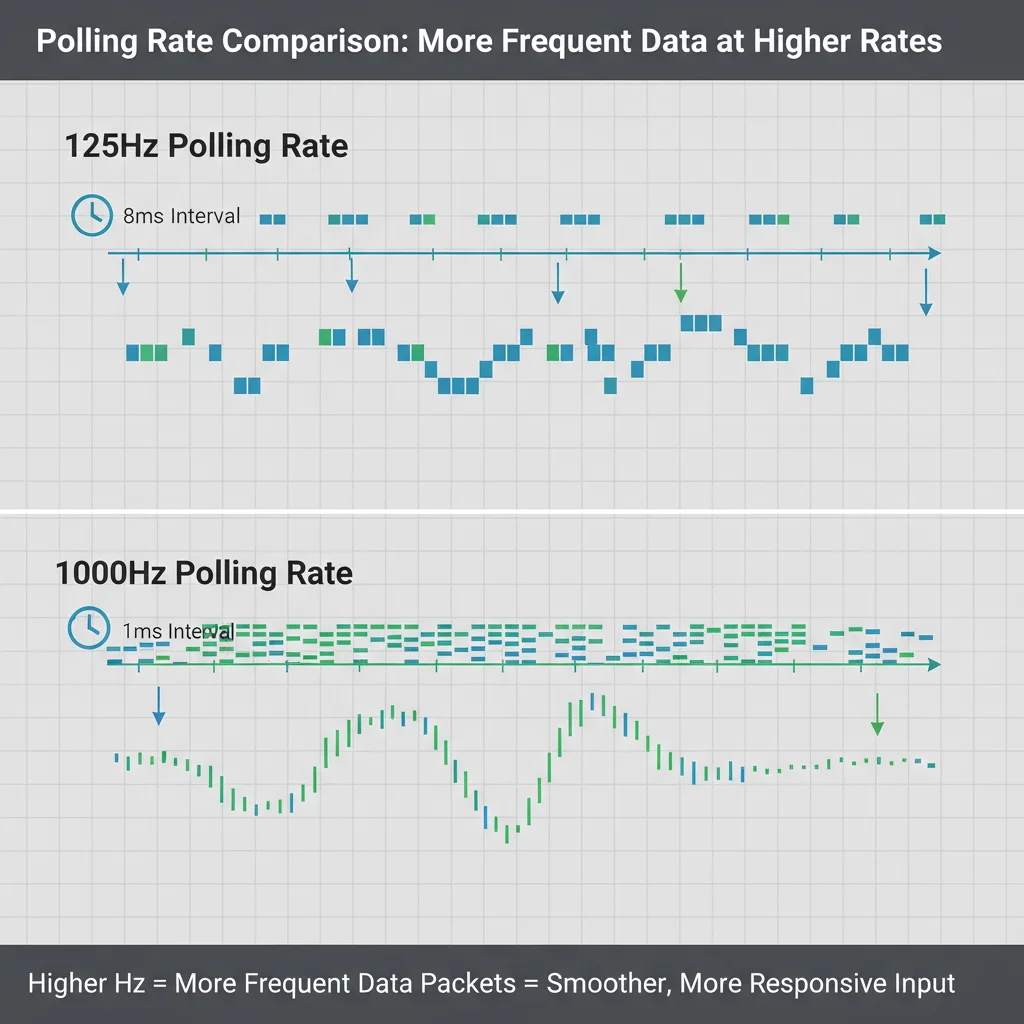
A bar chart illustrating input latency intervals: 125 Hz (8ms), 250 Hz (4ms), 500 Hz (2ms), 1000 Hz (1ms).
Tools for Overclocking Your Controller Adapter
Specific software can help you achieve these higher polling rates.
For PlayStation controllers, tools like DS4Windows are essential.
They not only enable compatibility but often provide options to increase the polling rate dramatically.
Other console controllers may require dedicated third-party drivers or custom firmware for your adapter.
Always research compatible software for your specific adapter model. This ensures stability and maximum performance.
Want to dive deeper into controller optimization? Check out our Ultimate PC Overclock Guide.
Fine-Tuning Controller Settings
Beyond polling rate, optimize your controller’s in-game and driver settings.
These tweaks can eliminate responsiveness issues that hold you back.
- Dead Zones: Reduce input lag by minimizing the dead zone. This makes small stick movements register faster. Be careful not to set it too low, or you might experience stick drift.
- Response Curves: Experiment with linear versus exponential response curves. A linear curve provides a 1:1 input, while exponential can offer finer control at small deflections.
- Input Buffering: Some games offer input buffering options. Lowering these can reduce lag, but may introduce micro-stutters if your system struggles.
Windows also plays a role in your overall input lag.
Disable “Full-screen optimizations” for specific games in their compatibility settings.
This can sometimes bypass additional processing that adds latency to your inputs.
Testing Your Optimized Setup
After every change, rigorously test your setup.
Small adjustments can have a big impact on your gameplay.
Joltfly offers powerful Device Tests to measure your hardware’s performance and track improvements.
Track your improvements and challenge your friends to see who can achieve the lowest input lag!
Steam Input vs. Native Support: Reducing Software Processing Delay
Unlock Peak Performance: Why Software Processing Matters
You’ve got your console controller hooked up to your PC. Now, the battle against input lag begins. Software processing is a crucial factor you must conquer.
Every millisecond counts when you’re aiming for competitive dominance.
Understanding how your controller’s inputs are processed by your PC can give you a significant edge.
Steam Input: Power and Potential Lag
Steam Input is a powerful tool. It allows you to remap almost any controller to any game, offering incredible customization.
You can create intricate action sets, bind multiple commands to a single button, and fine-tune joystick curves.
This level of control is fantastic for niche games or controllers without native support.
However, this extensive processing adds a layer of software between your controller and the game.
This extra layer can introduce additional input lag, even if it’s just a few milliseconds.
For competitive gamers, even a tiny delay can be the difference between a headshot and a miss.
Native Support: Direct Connection, Minimal Delay
Native support means the game recognizes your controller directly. There’s no intermediary software like Steam Input translating commands.
This direct communication typically results in the lowest possible input lag.
Many modern PC games offer excellent native support for popular controllers, especially Xbox controllers.
Utilizing native support often bypasses unnecessary software processing. This ensures your inputs register as quickly as possible.
You get a raw, unadulterated connection to the game engine.
Choosing Your Path: Steam Input vs. Native Support
The choice between Steam Input and native support depends on your specific needs and the game you’re playing.
Prioritize native support for competitive titles where every millisecond of understanding input lag is critical.
Use Steam Input when customization is paramount or if a game lacks proper native controller recognition.
Always test both configurations to feel the difference for yourself.
Here’s a quick breakdown to help you decide:
| Feature | Steam Input | Native Support |
|---|---|---|
| Input Lag | Potentially higher due to processing overhead. | Generally lower, direct communication. |
| Customization | Extensive remapping, macros, profiles. | Limited to game’s default bindings. |
| Controller Compatibility | Broad support for many controllers. | Best for officially supported controllers (e.g., Xbox, PlayStation). |
| Setup Complexity | Requires initial configuration and learning. | Often plug-and-play. |
Optimize for Victory: What You Can Do
To reduce software processing delay, first identify if your game offers strong native controller support.
If it does, disable Steam Input. Go to the game’s properties in Steam, then Controller. Set “Override for [Game Name]” to “Disable Steam Input.”
Ensure your controller’s firmware is updated. Old firmware can sometimes cause unexpected delays or compatibility issues.
For games that truly need Steam Input for functionality, keep your mappings as simple as possible.
Avoid overly complex macro chains that demand more processing power.
Continuously monitor your in-game feel. Sometimes, the perceived lag can be subjective.
Use Joltfly’s mouse latency test to gauge responsiveness. Adapt the principles mentally for controllers.
Challenge your gaming circle to see who can achieve the lowest input lag setups. The fastest player wins!
In Short
- Software optimization, particularly adapter overclocking, can significantly reduce input lag for console controllers on PC by increasing their polling rate.
- Achieving higher polling rates requires specific software or drivers, and further optimizations include adjusting in-game controller settings like dead zones and response curves.
- While Steam Input offers extensive customization, its additional processing layer can introduce input lag, potentially disadvantaging competitive players.
Ready to Dominate?
Don’t let input lag ruin your K/D ratio ever again. You now have the knowledge to smash that latency.
Grab the right adapter, tweak your settings, and get back in the game. Your team needs you playing at your absolute best!
Frequently Asked Questions
Do adapters add input lag?
Yes, all hardware adds some delay. However, premium adapters minimize this significantly to undetectable levels.
Cheap knock-offs are the real enemy here. Stick to high-speed USB interfaces for the fastest response times.
Can software fix adapter lag?
Absolutely. Overclocking tools can force a higher polling rate on your adapter. This cuts down latency drastically.
Just remember to test stability after tweaking. You want speed, but you also need consistency to win.
Is wired always faster than wireless?
Generally, yes. A direct USB connection removes wireless interference risks. It provides the most stable link for your input.
If you must go wireless, use a dedicated 2.4GHz dongle rather than standard Bluetooth to keep lag low.
