

Stop letting enemies sneak up on you.
If you can’t hear footsteps clearly, you are playing with a massive disadvantage.
In competitive gaming, the right audio setup is effectively a wallhack that lets you track movement through solid objects.
In this guide, we break down the exact frequency ranges you need to boost and the muddy bass you need to cut.
It is time to optimize your equalizer settings, sharpen your senses, and start dominating your gaming circle with Joltfly precision.
Key Takeaways
- Boost the 2kHz to 4kHz frequency range to amplify sharp footstep cues.
- Cut frequencies below 150Hz to remove mud from explosions and ambient noise.
- Use subtractive EQ techniques to prevent ear fatigue and digital distortion.
- Customize specific audio profiles for game engines like Source 2 and Unreal.
- Test your improved reaction speed and audio awareness on Joltfly.
AudioTuner Powered By Joltfly
The Science of Sound: Key Frequency Ranges for Footsteps (2kHz–4kHz)
Getting the drop on your opponent starts with your ears. Visuals are important, but clear audio effectively gives you wallhacks.
The magic numbers for hearing footsteps are in the 2kHz to 4kHz range. This specific band houses the sharp “click” of boots on concrete.
In most competitive shooters, this frequency range is where the crucial information lives. It is the “presence” zone of the audio spectrum.
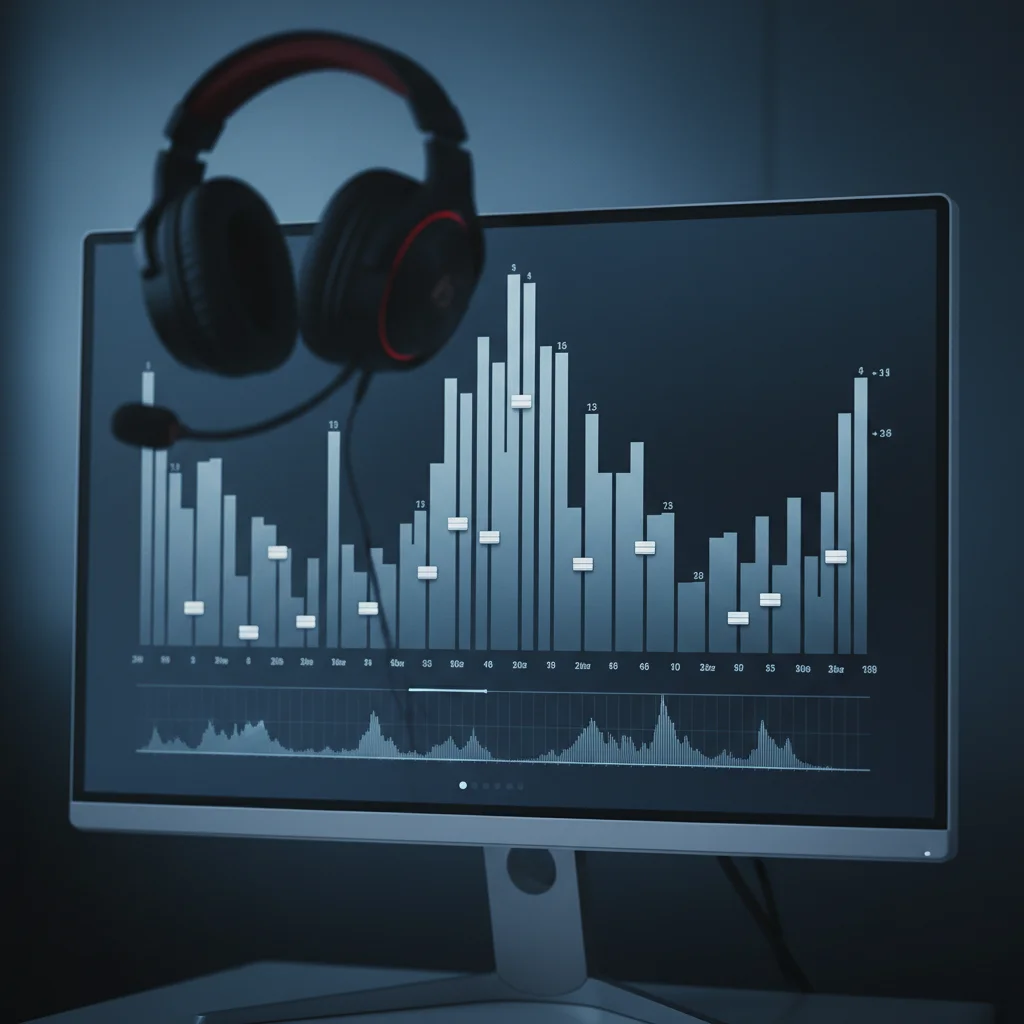
Many gamers make the massive mistake of boosting bass. They want cinematic explosions and deep rumbles. This hurts your competitive edge.
Heavy bass frequencies often mask the higher frequencies where footsteps live. You need to flatten the low end to let the critical mids shine.
If you are struggling to pinpoint enemies, your audio mix might be too muddy. You need to cut the distraction and boost the signal.
Using tools like surround sound can help directionality, but EQ is what clarifies the specific sound of movement.
A bar chart showing that human hearing is naturally most sensitive around 4kHz, which aligns with footstep audio cues.
The chart above illustrates why this range is so effective. Our ears are naturally tuned to detect sounds at 4kHz more aggressively than bass.
By boosting this range in your equalizer, you lean into your biology. You make the most vital sounds louder and harder to miss.
Here is a quick breakdown of the frequency spectrum for competitive play. Use this as a cheat sheet for your settings.
| Frequency Range | In-Game Sound | Recommended Action |
|---|---|---|
| 20Hz – 250Hz | Explosions, Engine Rumble | Cut / Lower |
| 250Hz – 2kHz | Voice Chat, Reloads | Neutral |
| 2kHz – 4kHz | Footsteps, Glass Breaking | Boost (+3dB to +5dB) |
| 6kHz – 10kHz | Wind, Hissing, “Air” | Slight Cut |
Your hardware plays a massive role here as well. Even the best EQ settings cannot fix muddy drivers or poor isolation.
Players often debate between IEMs vs. headsets for this exact reason. IEMs often have a punchier response in this treble range.
Test these settings in a custom lobby first. Crank the 2kHz and 4kHz sliders up, then lower the 100Hz slider slightly.
Listen for the crunch of gravel or the thud of wood. Once that sound cuts through the chaos, you are ready to dominate the server.
In Short
- The 2kHz to 4kHz frequency range is critical for hearing footsteps in competitive shooters.
- Players should boost this frequency band and cut bass to prevent loud rumbles from masking enemy movement.
- Adjusting EQ settings to align with natural human hearing sensitivity significantly improves in-game audio awareness.
Engine-Based EQ Profiles: Optimization for CS2, Valorant, and Warzone
Generic audio settings will not cut it in high-level play. Every game engine processes sound waves differently.
To dominate your gaming circle, you need custom profiles for each specific title. Let’s optimize your setup for the big three.
Counter-Strike 2: Clarity on Source 2
CS2 audio relies heavily on the mid-range frequencies. Footsteps on varying textures live in the 1 kHz to 3 kHz range.
The Strategy: Cut the sub-bass below 100 Hz immediately. This removes the low rumble of ambient map noise.
Boost the 2 kHz band by roughly 3dB. This makes footsteps pop against the sharp crack of gunfire.
Valorant: Taming the Highs
Riot’s audio engine is incredibly crisp, but ability sounds can be piercingly loud.
You want to boost footstep cues without making ultimate abilities painful to hear.
Focus on a slight bump at 2 kHz and 4 kHz. Avoid boosting anything above 8 kHz to keep your audio mix balanced.
Proper noise isolation is critical here. Check our guide on Best Silicone vs Foam Eartips to lock in those subtle cues.
A bar chart showing optimal frequency peaks: CS2 focuses on 2kHz, Valorant on 2.5kHz, and Warzone on 4kHz.
Call of Duty: Warzone: Cutting the Mud
Warzone is chaotic. Explosions, killstreaks, and vehicles dominate the low end of the spectrum.
If you boost bass here, you will fail. The “mud” hides tactical sprint sounds.
You must cut frequencies aggressively around 150 Hz. Push the “presence” range at 4 kHz to 6 kHz instead.
This high-frequency bias highlights the metallic rattle of tactical gear and sliding plates.
Quick Reference EQ Cheatsheet
Use this table to configure your software immediately. Start with these values and tweak for your specific headset.
| Game Title | Cut Frequency | Boost Frequency | Goal |
|---|---|---|---|
| CS2 | 100 Hz (Low Cut) | 2 kHz – 3 kHz | Texture Clarity |
| Valorant | 8 kHz (High Shelf) | 1.5 kHz – 2.5 kHz | Footstep Crunch |
| Warzone | 150 Hz (Mud Cut) | 4 kHz – 6 kHz | Gear Rattle |
Hearing the enemy first gives you a massive advantage, but you still need the reflexes to act on it.
Audio latency can ruin a perfect EQ setup. Learn how delay impacts performance in our Response Time vs Input Lag guide.
Dial these settings in, jump into a match, and start pre-firing with confidence. Test your new reaction speed on Joltfly today.
In Short
- Competitive gaming requires custom EQ profiles tailored to each game engine rather than generic audio settings.
- CS2 and Warzone setups should cut low frequencies to reduce muddy ambient noise and boost mid-to-high ranges for tactical cues.
- Valorant audio benefits from boosting 2 kHz to 4 kHz for footsteps while limiting frequencies above 8 kHz to avoid piercing ability sounds.
Essential Software Tools: From SteelSeries Sonar to Equalizer APO
You have the hardware, but do you have the engine? Your audio driver is the bridge between the game code and your ears.
To truly dominate on Joltfly, you need software that manipulates frequencies with surgical precision.
Standard realtek drivers won’t cut it. They lack the granular control needed to isolate quiet audio cues like reloading or stepping on glass.
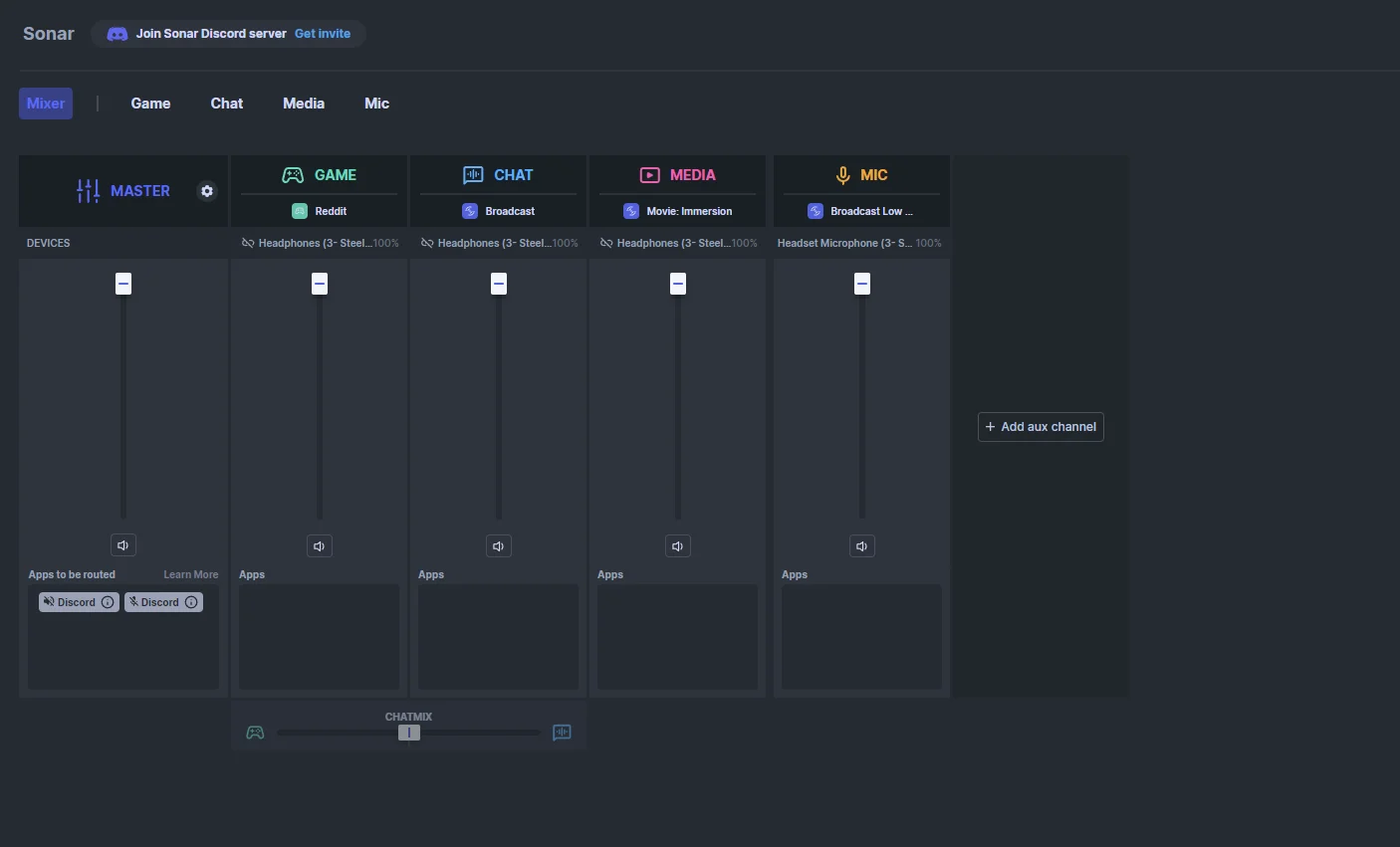
SteelSeries Sonar: The User-Friendly Titan
SteelSeries Sonar is widely regarded as the most accessible tool for competitive gamers. It is free and works with any headset brand.
Its standout feature is the visual Parametric EQ. You can actually see the sound waves in real-time while you play.
This allows you to spot the exact frequency spike where footsteps occur. You can then boost that specific range instantly.
Sonar also includes spatial audio tools. However, virtual surround can sometimes muddy the soundscape.
Before enabling it, check our guide on Is 7.1 Surround Sound Worth It? A Competitive Gamer Guide.
Equalizer APO + Peace GUI: The Powerhouse
For those who want zero bloat, Equalizer APO is the gold standard. It is a system-wide equalizer that uses negligible CPU resources.
On its own, APO is just a text file editor. You must install the “Peace GUI” extension to get a visual interface.
This combo offers unlimited profiles. You can switch settings instantly between a match of Valorant and a music session.
It connects directly to the Windows audio service. This means it has lower latency than heavier suites like Razer Synapse or Logitech G Hub.
If you are debating between hardware types to use with this software, read our breakdown of IEMs vs. Headsets: The Ultimate Competitive Audio Guide.
Comparison: Which Tool Fits You?
Choosing the right software depends on your technical comfort level. Use this data to decide which fits your rig.
| Feature | SteelSeries Sonar | Equalizer APO (w/ Peace) | Dolby Access |
|---|---|---|---|
| Cost | Free | Free | Paid (One-time) |
| Difficulty | Easy (Plug & Play) | Hard (Manual Tuning) | Medium |
| CPU Impact | Medium | Very Low | Low |
| Best For | Visualizing Audio | Raw Performance | Movie Immersion |
Performance matters. Bloated software can introduce input lag or frame drops. We analyzed the system footprint of these tools.
According to tests on system latency, lightweight options like APO process audio significantly faster than full suites.
A bar chart showing the added system latency in milliseconds: Equalizer APO (0.15ms), Dolby Access (0.8ms), Sonar (1.2ms), and Synapse (2.4ms).
Test these tools yourself. Start with Sonar for the presets, then graduate to APO when you are ready to fine-tune every Hertz.
Once your audio is crisp, head over to our reaction tests on Joltfly to see if your reaction time has improved.
Step-by-Step: Configuring Peace GUI for Maximum Detail
Launch and Calibrate Your Audio
Open the Peace GUI interface. You will see a row of sliders. These controls are your weapon for audio domination. Don’t let them intimidate you.
Each slider controls a specific frequency. The numbers on the left are bass. The numbers on the right are high treble. We need the middle.
Isolate the Footstep Range
Footsteps usually live in the “high mids.” This is generally the 2000Hz to 4000Hz range. This is where you must boost the signal.
Locate the sliders labeled 2000, 4000, and 8000. Push the 2000 and 4000 sliders up by roughly 3dB to 5dB. This makes steps “crunch” louder.
If you push them too high, the game will sound sharp and painful. Start with a small boost. You want clarity, not ear damage.
A bar chart showing peak footstep frequencies: Apex (1500Hz), Valorant (2000Hz), CS:GO (3000Hz), Overwatch (4000Hz).
Cut the Mud
Explosions and ambient drones create “mud.” This low-end noise drowns out the subtle audio cues you need to hear to survive.
Go to the lower frequencies. Look for 60Hz and 125Hz. Pull these sliders down by about -2dB to -4dB. This cleans up the mix significantly.
If you use IEMs, physical isolation is also vital. Read our guide on best silicone vs foam eartips to lock in these settings.
Recommended EQ Values
Use the following table as a starting point for your configuration. These values generally work well for FPS titles like Valorant and CS2.
| Frequency | Adjustment | The Effect |
|---|---|---|
| 60Hz – 125Hz | -3 dB | Reduces rumble and map drone. |
| 2000Hz (2k) | +4 dB | Sharpens steps on wood or metal. |
| 4000Hz (4k) | +5 dB | Enhances reload sounds and gravel. |
| 8000Hz (8k) | +2 dB | Adds “air” for directional cues. |
Save and Test Your Profile
Once you adjust the sliders, look at the right side of Peace. Click “Save” and name it “Competitive Steps.” You can now toggle it instantly.
Hearing the enemy first allows you to react faster. Test if your new audio setup improves your stats with our Reaction Time Test on Joltfly.
Hop into a custom lobby with a friend. Have them run around you. Tweak the 2k and 4k sliders until their position is crystal clear.
In Short
- SteelSeries Sonar provides a user-friendly, visual interface for all headsets, whereas Equalizer APO offers a lightweight, low-latency option for advanced customization.
- Optimizing audio for competitive play involves boosting high-mid frequencies (2000-4000Hz) to amplify footsteps while cutting low-end bass to reduce ambient noise.
- Software choice depends on balancing ease of use with system performance, as lightweight tools like APO demonstrate significantly lower latency than feature-heavy suites.
Avoiding Ear Fatigue: Why Subtractive EQ Beats Frequency Boosting
Most gamers make a critical mistake when setting up their audio. They think louder is always better. They crank every slider up.
This is a trap. Boosting frequencies creates digital distortion. It introduces noise that masks the very footsteps you are trying to hear.
Imagine trying to spot a whisper in a screaming crowd. That is what boosting does to your game audio. It creates chaos.
The Hidden Enemy: Ear Fatigue
Competitive gaming sessions are long. If your EQ settings are too aggressive, you will suffer from ear fatigue quickly.
Ear fatigue dulls your senses. Your brain stops processing subtle sound cues effectively. You lose your competitive edge.
When your audio processing slows down, your physical reaction time suffers too. You can verify this drop on our Reaction Time Test.
A bar chart showing safe listening duration in minutes: 85dB allows 8 hours, but 100dB allows only 15 minutes before risk.
Mastering Subtractive EQ
The secret to clear audio is Subtractive EQ. Instead of boosting the signal, you cut the frequencies you don’t need.
Think of it like sculpting a statue. You don’t add clay to reveal the shape. You carve away the excess material.
In gaming, you carve away the mud. Low frequencies from explosions often drown out high-pitched footsteps. Cut the bass, and steps pop out.
| Feature | Frequency Boosting | Subtractive EQ |
|---|---|---|
| Clarity | Muddied by distortion | Crystal clear separation |
| Volume Headroom | Reduced (Risks clipping) | Increased (Safe dynamic range) |
| Ear Fatigue | High (Tires quickly) | Low (Sustainable focus) |
| Competitive Edge | Inconsistent | Precise tracking |
By lowering the volume of ambient noise, you protect your hearing. You also preserve the “headroom” needed for sharp, sudden sounds.
This technique keeps your aim consistent. Just like knowing why you need to turn off mouse smoothing, you must eliminate audio processing errors.
Start by lowering the 100Hz to 250Hz range by -3dB to -5dB. Test this in a custom game. You will notice the mix cleans up immediately.
In Short
- Boosting audio frequencies leads to digital distortion and ear fatigue, which negatively impacts reaction time and competitive performance.
- Subtractive EQ improves audio clarity by cutting unnecessary low frequencies, allowing specific sounds like footsteps to be heard more distinctly.
- lowering ambient noise through subtraction preserves dynamic headroom and prevents sensory fatigue during long gaming sessions.
